Physical Address
304 North Cardinal St.
Dorchester Center, MA 02124
Physical Address
304 North Cardinal St.
Dorchester Center, MA 02124

Explore practical guides and tools for Microsoft 365, Azure, and PowerShell. Enhance your cloud security and admin skills with expert insights and automation tips.
Explore practical guides and tools for Microsoft 365, Azure, and PowerShell. Enhance your cloud security and admin skills with expert insights and automation tips.
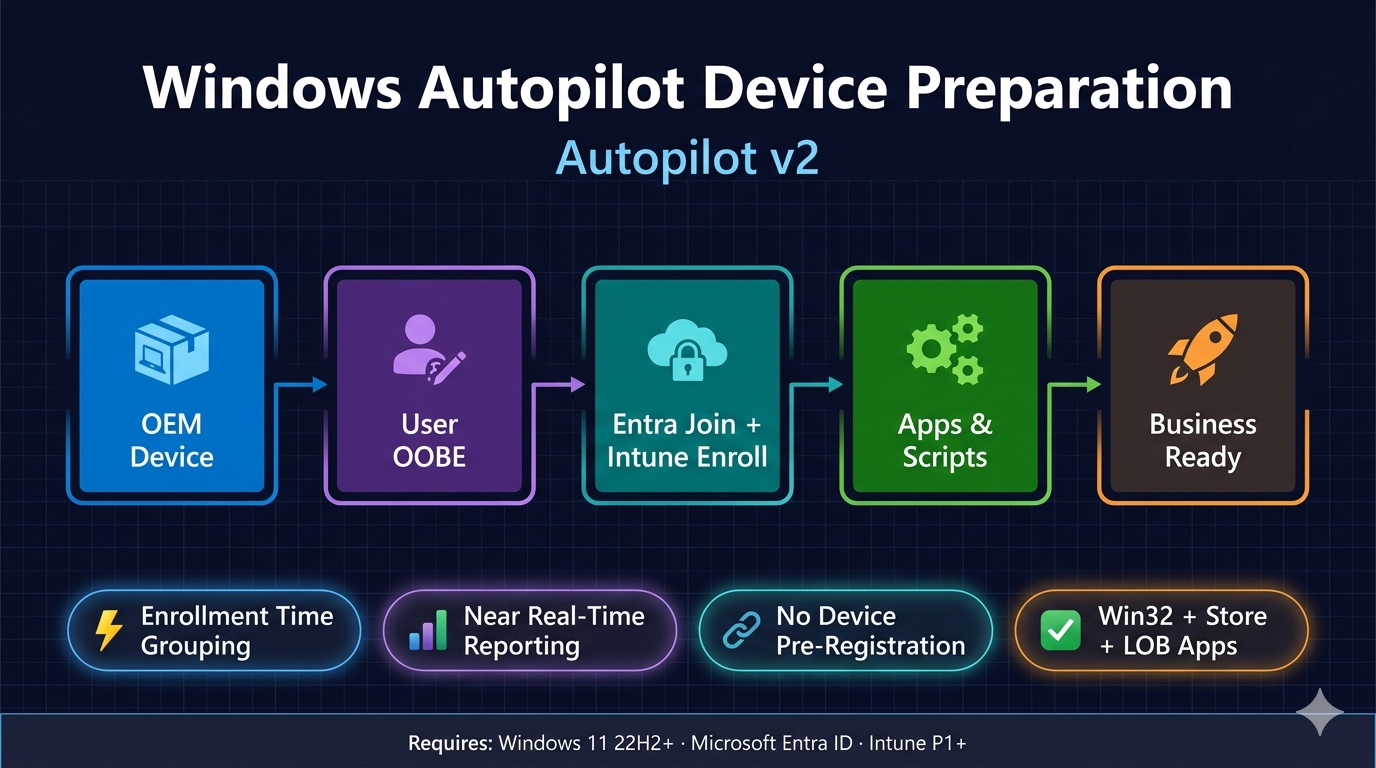
If you’ve been deploying Windows devices in enterprise environments over the last few years, you’re probably familiar with the original Windows Autopilot — a powerful but sometimes frustrating solution that required device pre-registration, complex OOBE configuration, and left IT teams with very limited visibility into what was happening during provisioning.
Microsoft heard the feedback. In 2024, they introduced Windows Autopilot Device Preparation , internally referred to as Autopilot v2 , a fully redesigned provisioning experience built from the ground up to address the gaps that made Autopilot v1 painful to operate at scale.
At its core, the concept hasn’t changed: a new Windows 11 device leaves the OEM factory, reaches the end user, and is automatically configured into a corporate-ready state without IT ever having to touch it physically. What has changed is everything underneath: the grouping mechanism, the app deployment engine, the reporting, and the profile model.
Before diving into configuration, it’s important to understand why v2 exists and what concrete problems it solves. I’ve deployed both in production environments and the differences are significant.
| Feature | Autopilot v1 | Autopilot v2 (Device Preparation) |
|---|---|---|
| Device Pre-Registration | Required (hardware hash) | Not required |
| OS Support | Windows 10 & 11 | Windows 11 only (22H2+) |
| Join Type | Entra + Hybrid AD | Entra ID only |
| Device Group Assignment | Dynamic (slow) | Enrollment Time Grouping (instant) |
| App Types During OOBE | LOB + Win32 | LOB + Win32 + Store + Enterprise Catalog |
| App Limit | No explicit limit | 10 apps max selected in policy |
| Script Support | Yes | Yes (up to 10) |
| Real-Time Deployment Monitoring | No | Yes (near real-time) |
| User Role | Standard or Admin | Standard user by default |
| Diagnostic Log Export from OOBE | Limited | Built-in export |
| GCCH/DoD Support | No | Yes |
Autopilot v2 does NOT support Hybrid Azure AD Join or Windows 10. If your environment still relies on on-premises domain join or has devices running Windows 10, you must continue using the classic Autopilot v1 for those scenarios.
Before you touch the Intune admin center, make sure your environment checks all four requirement categories. Missing any one of these will cause the deployment to silently fall through to a standard OOBE — without any error message telling you why.
| Software | Licensing | Networking | Configuration |
| * Windows 11 22H2 or higher * Pro, Pro Education, Enterprise, Education editions | * Microsoft Intune Plan 1 or higher * Microsoft Entra ID Plan 1 or higher | * Port 443 (HTTPS) to Microsoft endpoints * Port 80 (HTTP), Port 123 | * Automatic MDM enrollment enabled * Users can join devices to Entra ID * Intune enrolled devices * Device NOT pre-registered as Autopilot v1 |
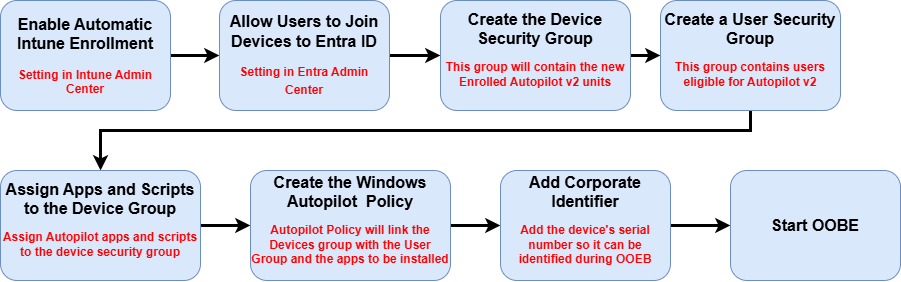
The following walkthrough covers a complete User-Driven Microsoft Entra Join deployment using Autopilot v2. This maps to Microsoft’s 7-step workflow. I’ll go through each step with the exact admin center navigation path and the settings that matter.
Automatic enrollment is the mechanism that tells Windows to automatically register with Intune when it joins Entra ID. Without this, devices will join Entra but never enroll in Intune and the Autopilot policy will never land.
Microsoft Intune Admin Center → Devices → Device Onboarding → Enrollment → Automatic Enrollment
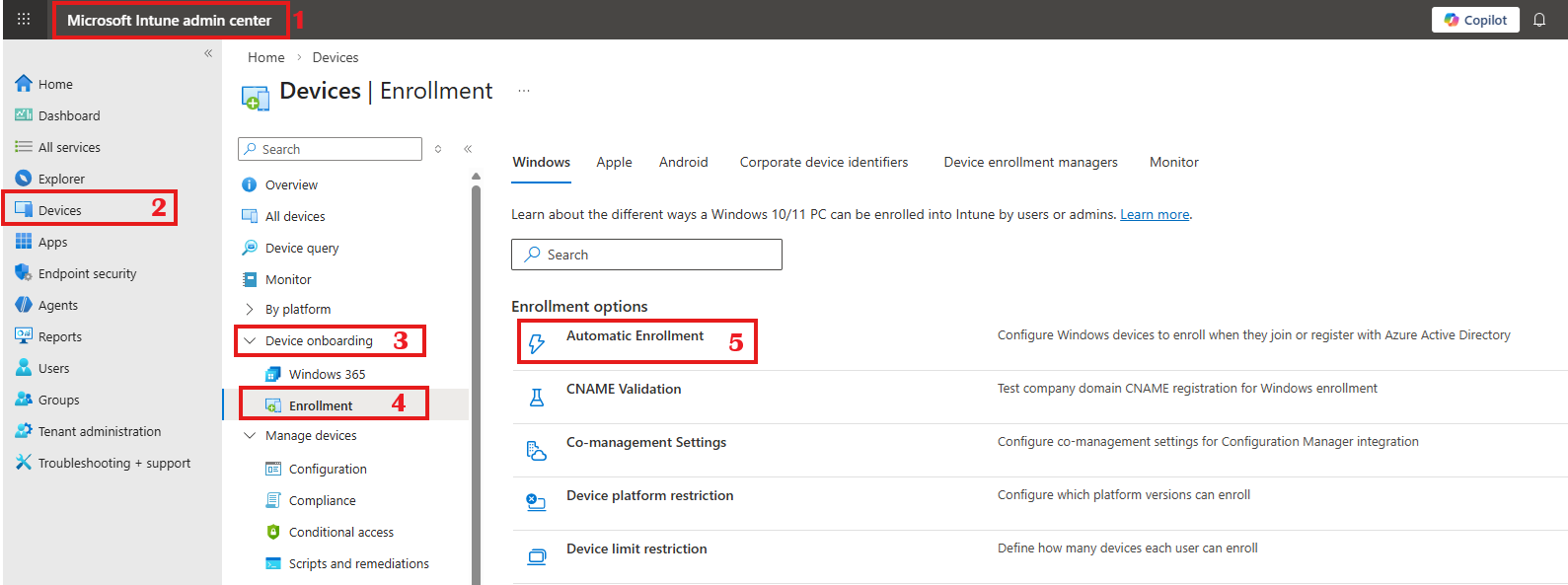
Set MDM User Scope to All (or a scoped group in larger environments). Confirm the MDM URLs are pre-populated with Intune’s enrollment URLs. Do not modify them.
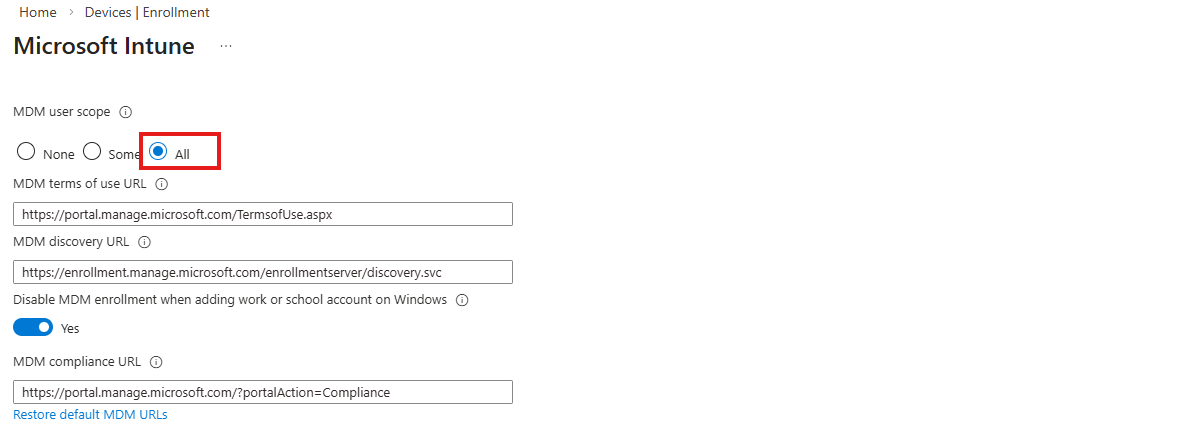
If you use a scoped group here, ensure every user who will trigger an Autopilot v2 deployment is a member of that group. A user outside the MDM scope will hit a standard OOBE with no corporate config applied.
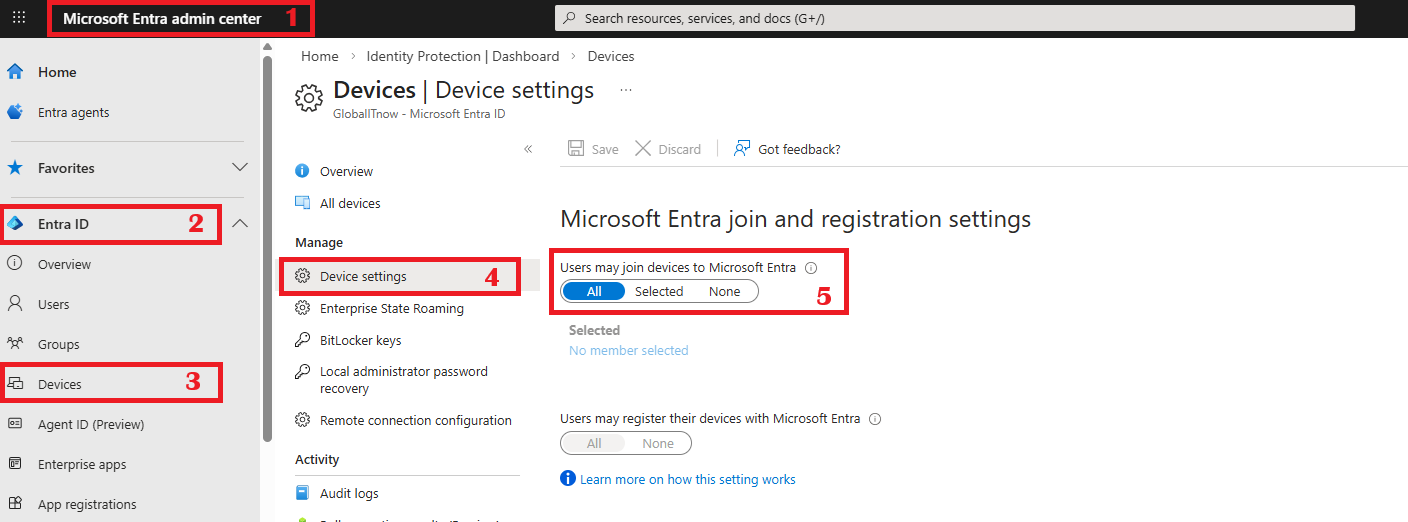
Autopilot v2 joins devices to Entra ID during OOBE. For this to succeed, the users must have permission to perform that join.
Microsoft Entra Admin Center → Devices → Device Settings
Set Users may join devices to Azure AD to All or a specific group.
In environments where you want to restrict who can onboard devices, use a security group and add your target population.
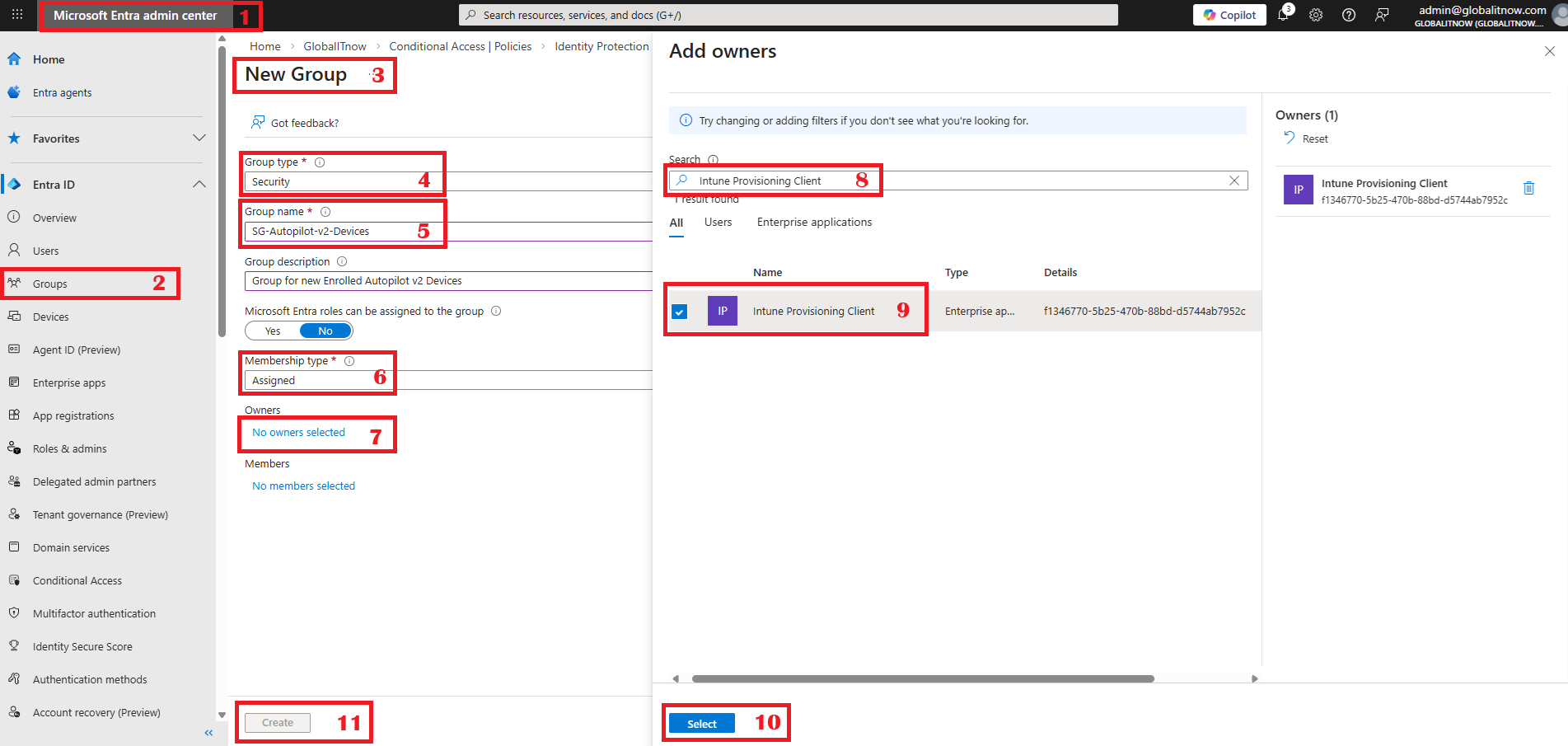
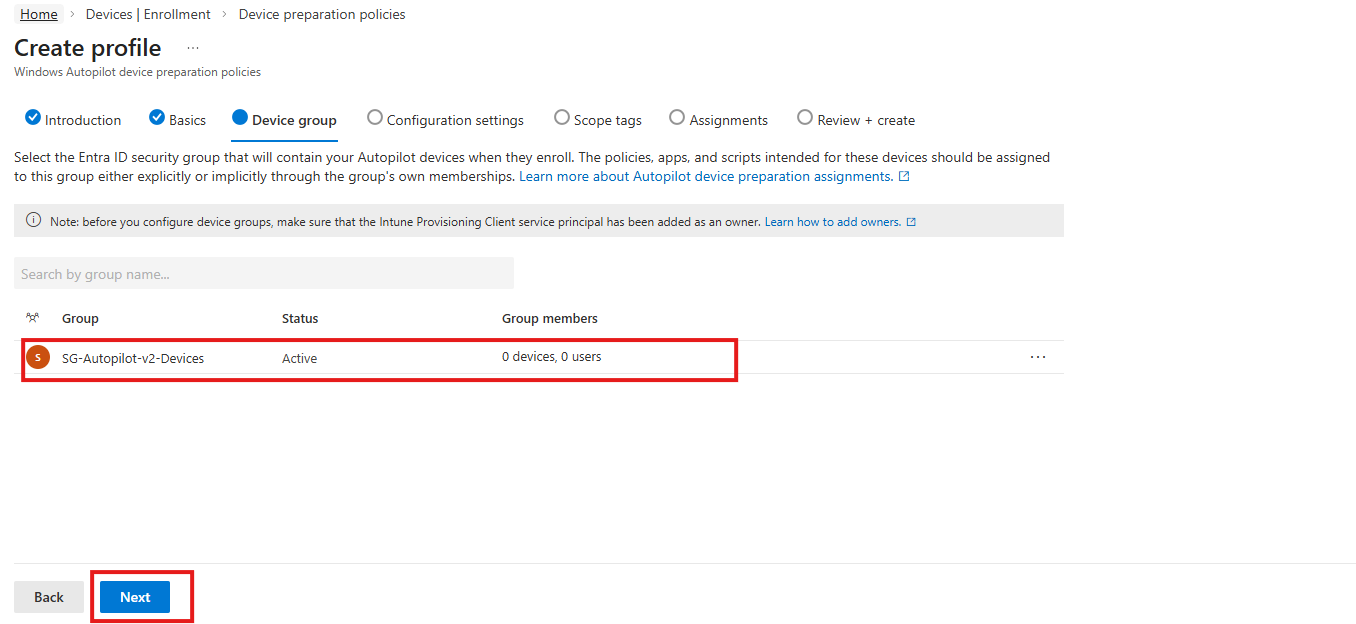
This is the static security group that the device will be added to the moment it enrolls. All apps and scripts you want deployed during OOBE must be assigned to this group.
SG-Autopilot-v2-Devices) → Set Membership type to Assigned“Intune Provisioning Client” is by default M365 Entreprise application with static name and static ID : “f1346770-5b25-470b-88bd-d5744ab7952c“. You can search for this group owner by name or by ID.
The Autopilot v2 policy is assigned to users, not devices. Create a user security group containing all users who should trigger an Autopilot v2 deployment when they sign into a new device.
SG-Autopilot-v2-Users) → Set Membership type to Assigned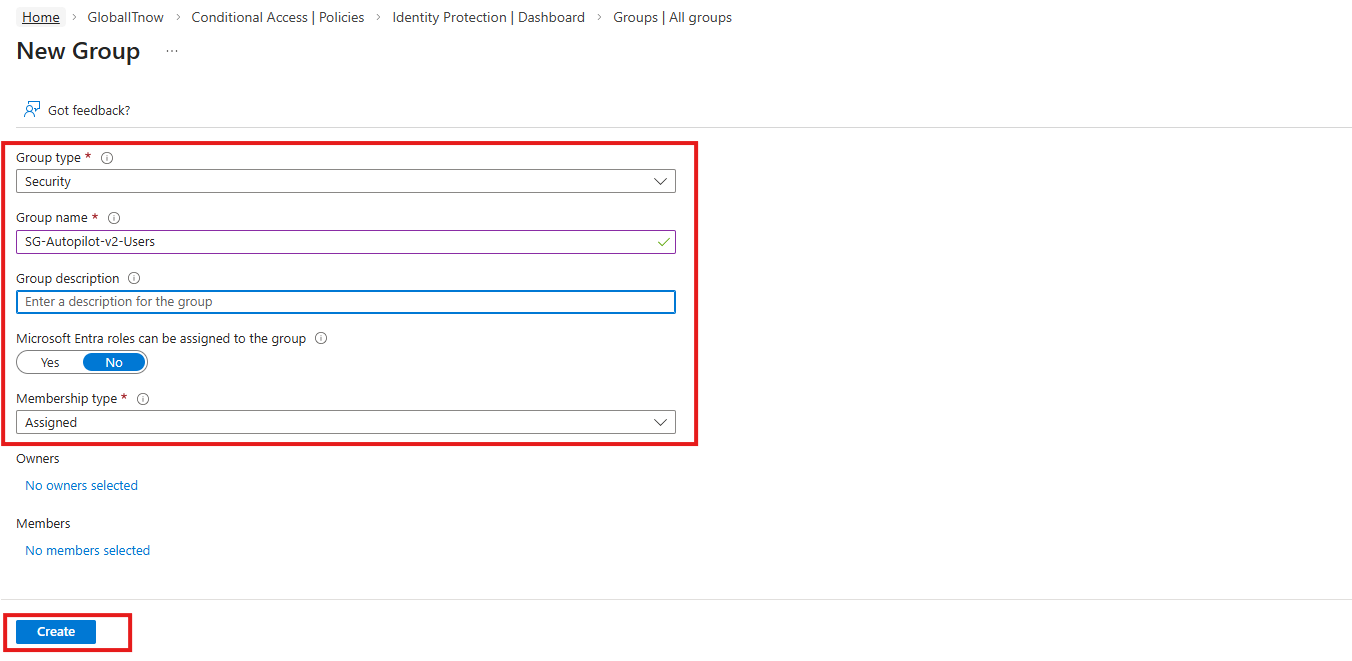
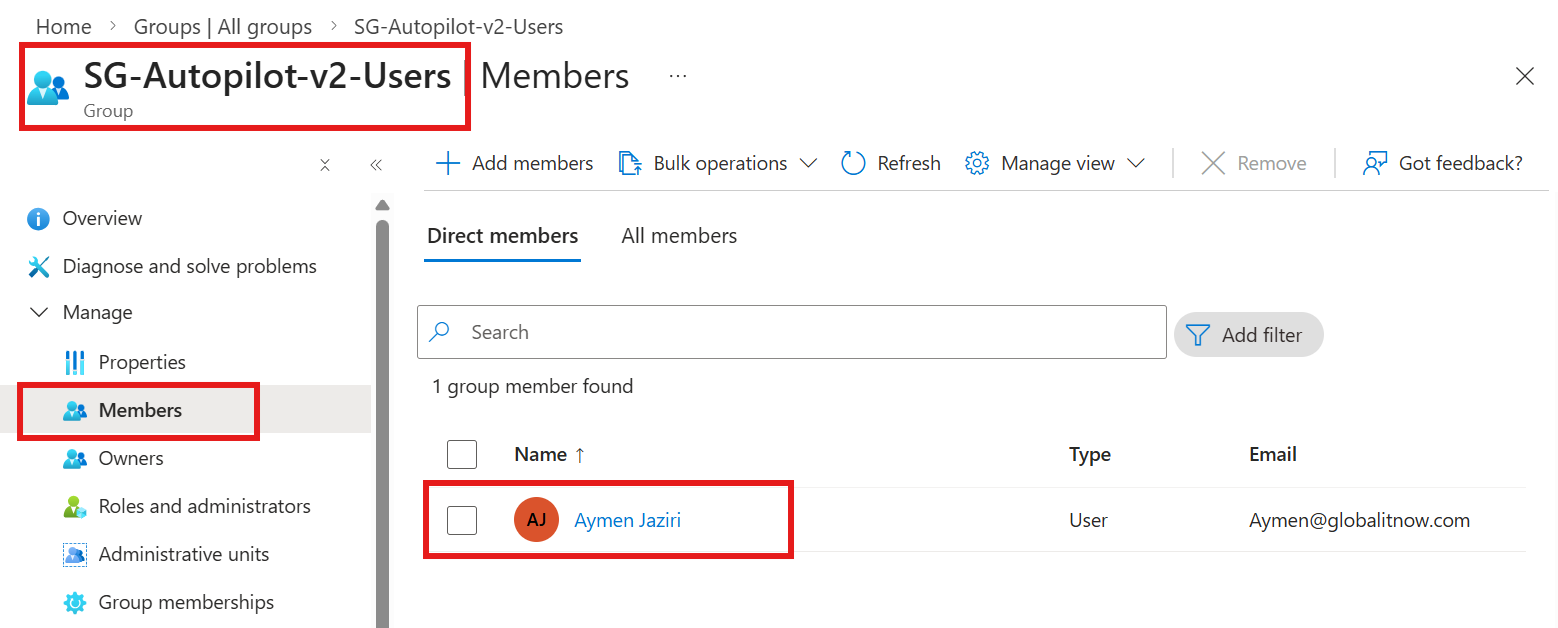
Before creating the policy, prepare your apps and scripts. They must be assigned to the device security group you created in Step 3. Only assigned apps/scripts can be selected in the policy.
SG-Autopilot-v2-Devices) as a Required assignmentKeep OOBE deployments lean. Only include apps that are truly business-critical and must be present before the user first touches the desktop. Everything else can deploy in the background post-login. This keeps deployment time fast and reduces the chance of OOBE failure.
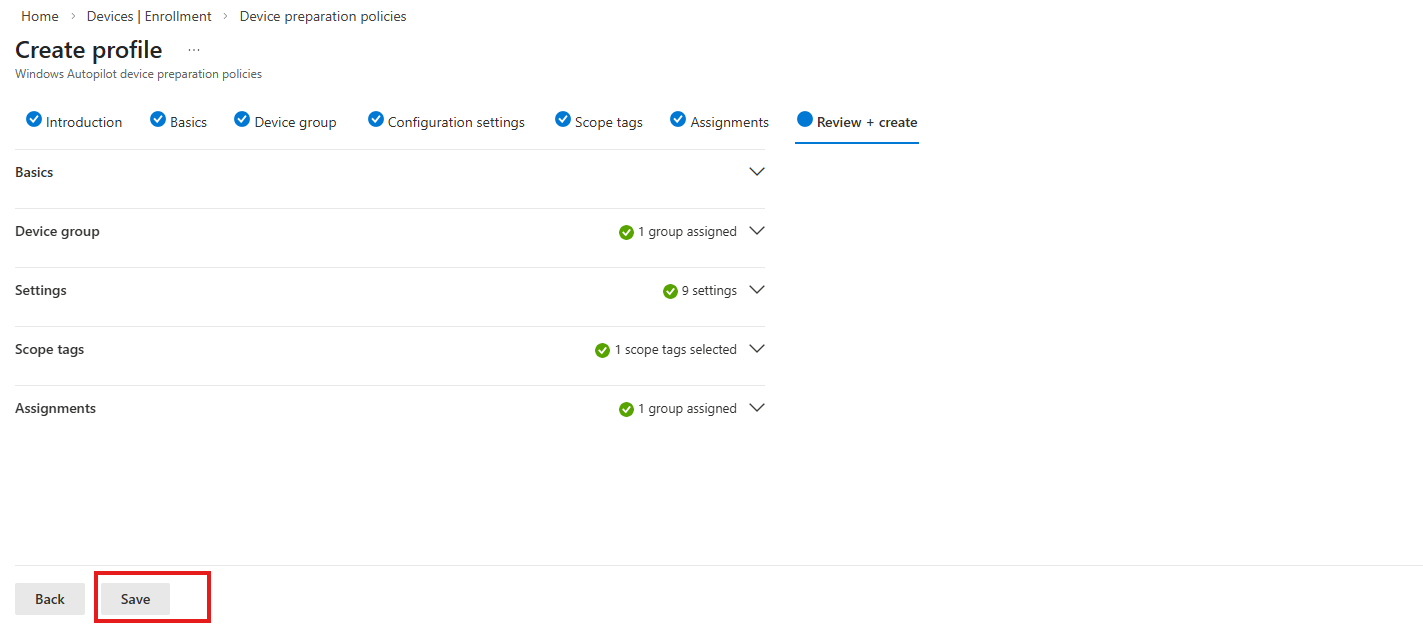
This is the central policy that ties everything together. Navigate to :
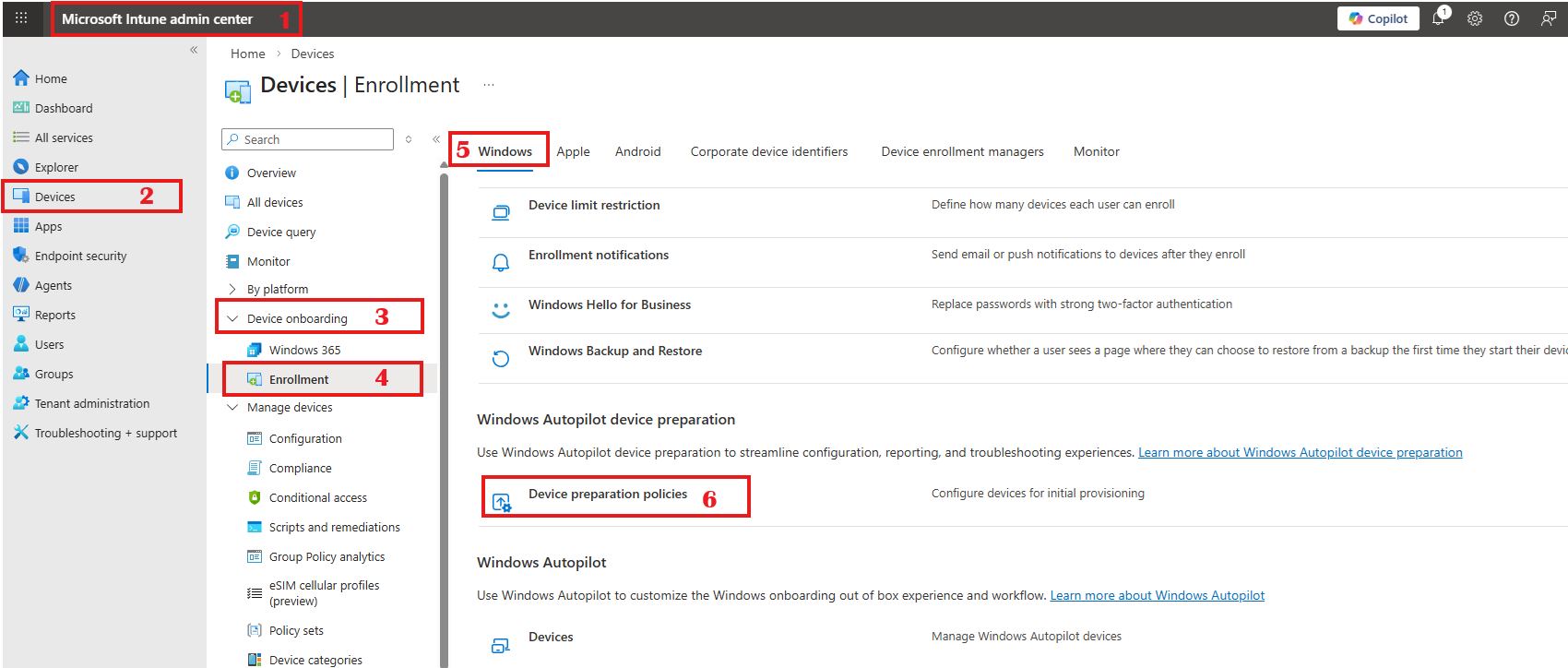
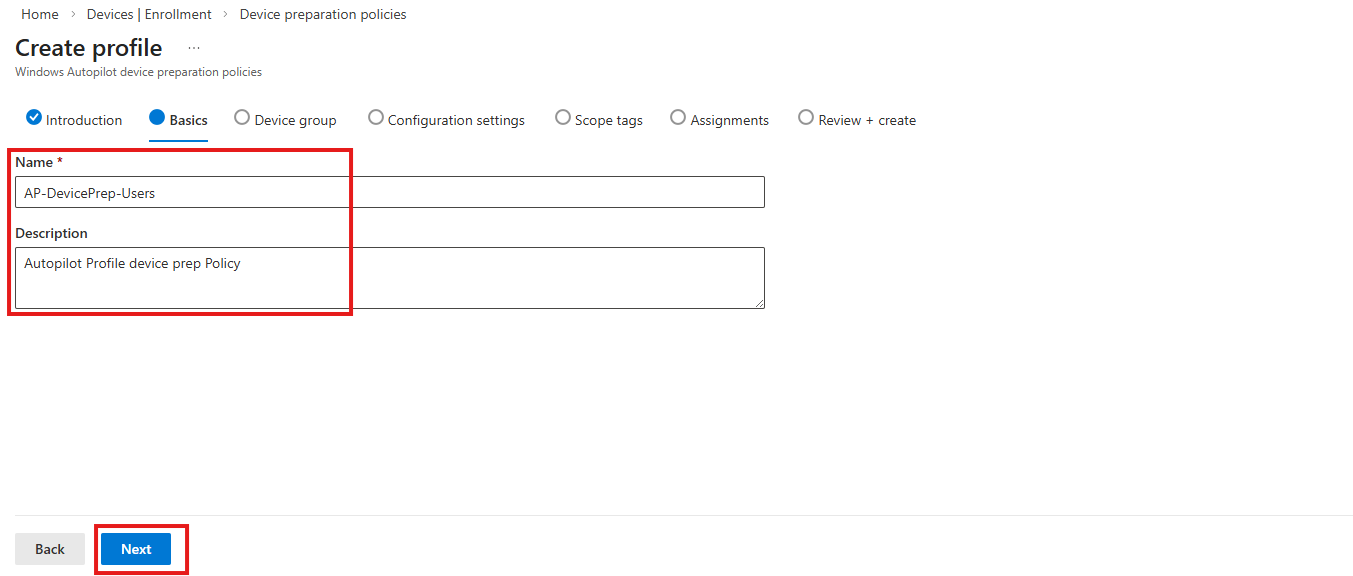
| Setting | Recommended Value | Notes |
|---|---|---|
| Name | AP-DevicePrep-Users | Use a naming convention |
| Deployment mode | User-driven | Most common for corporate devices |
| Join type | Microsoft Entra join | Only option available |
| Device group | SG-Autopilot-v2-Devices | Must be static security group |
| User account type | Standard User | Remove admin rights at end of OOBE |
| Applications | Select up to 10 | Must be assigned to device group |
| PowerShell scripts | Select up to 10 | Must be assigned to device group |
| Allowed minutes for app install | 60 minutes | Increase for large apps |
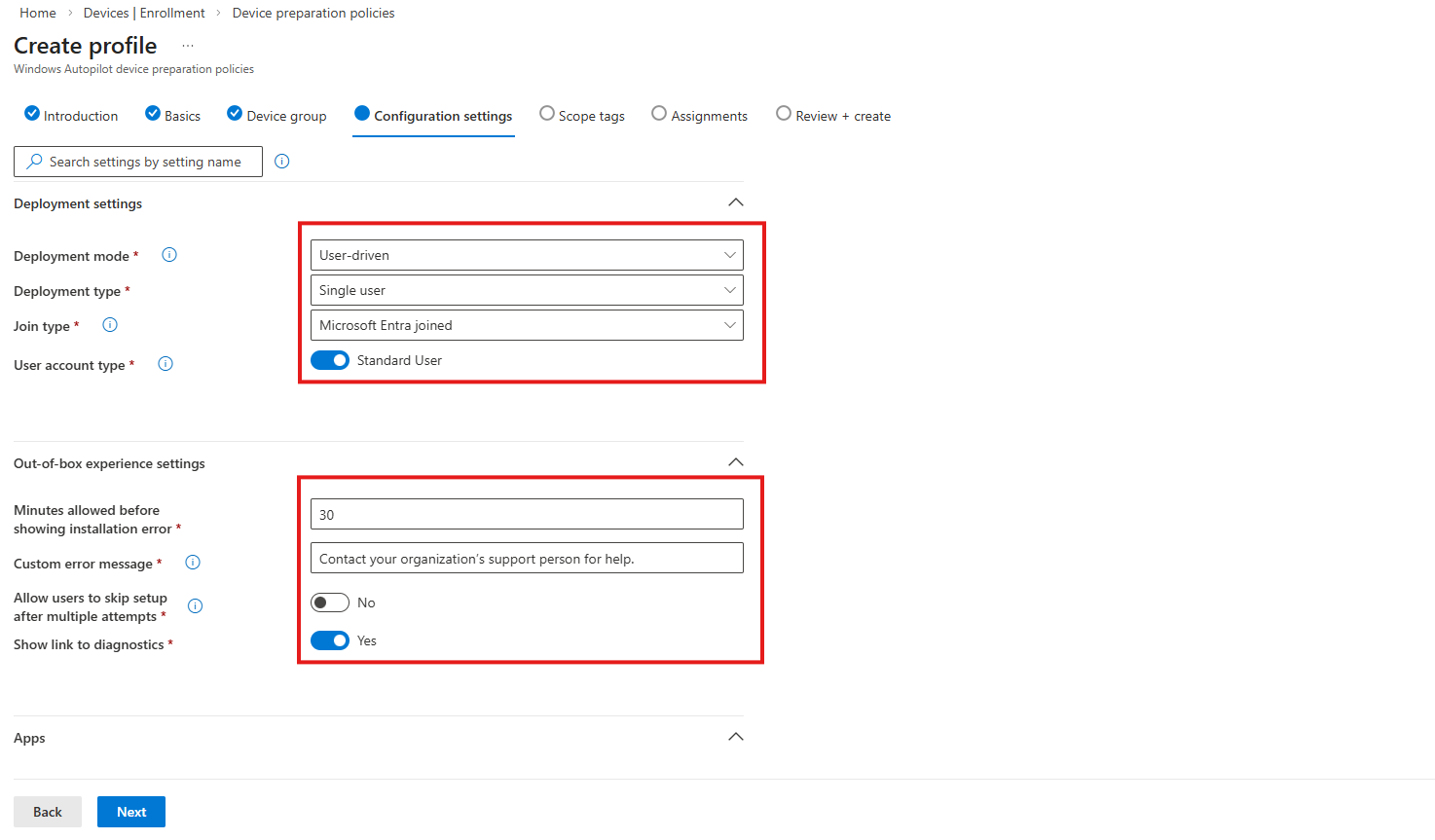
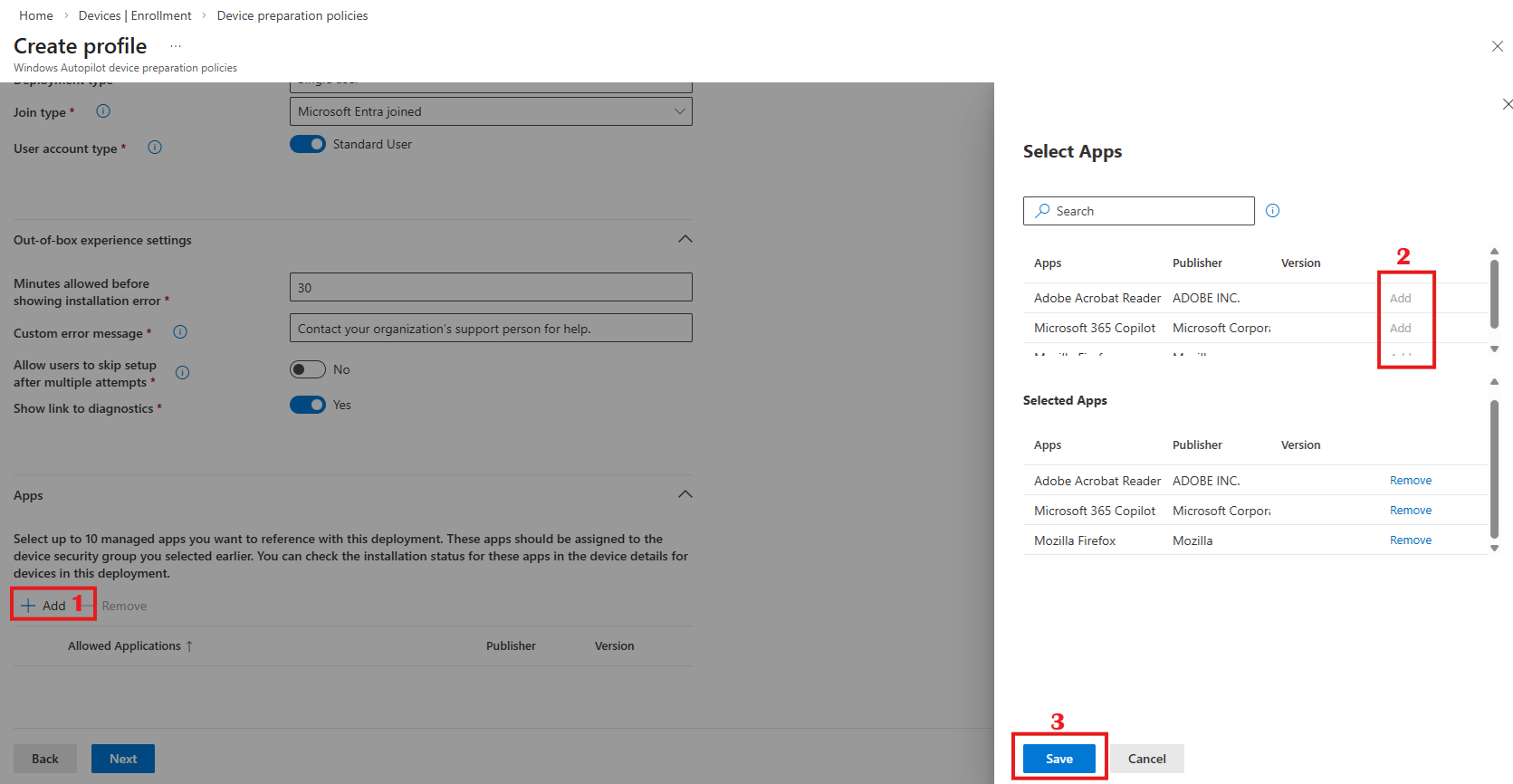
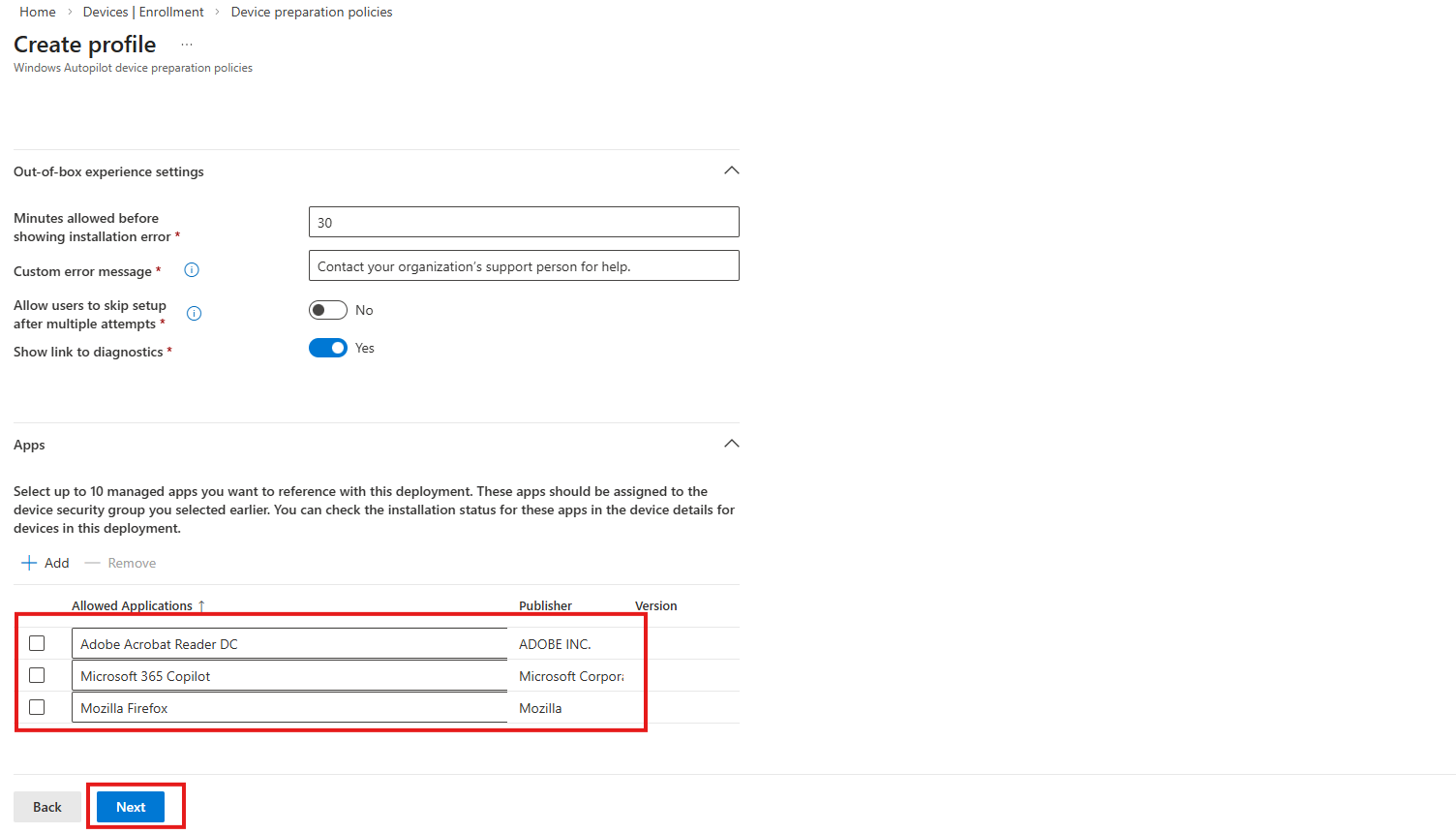
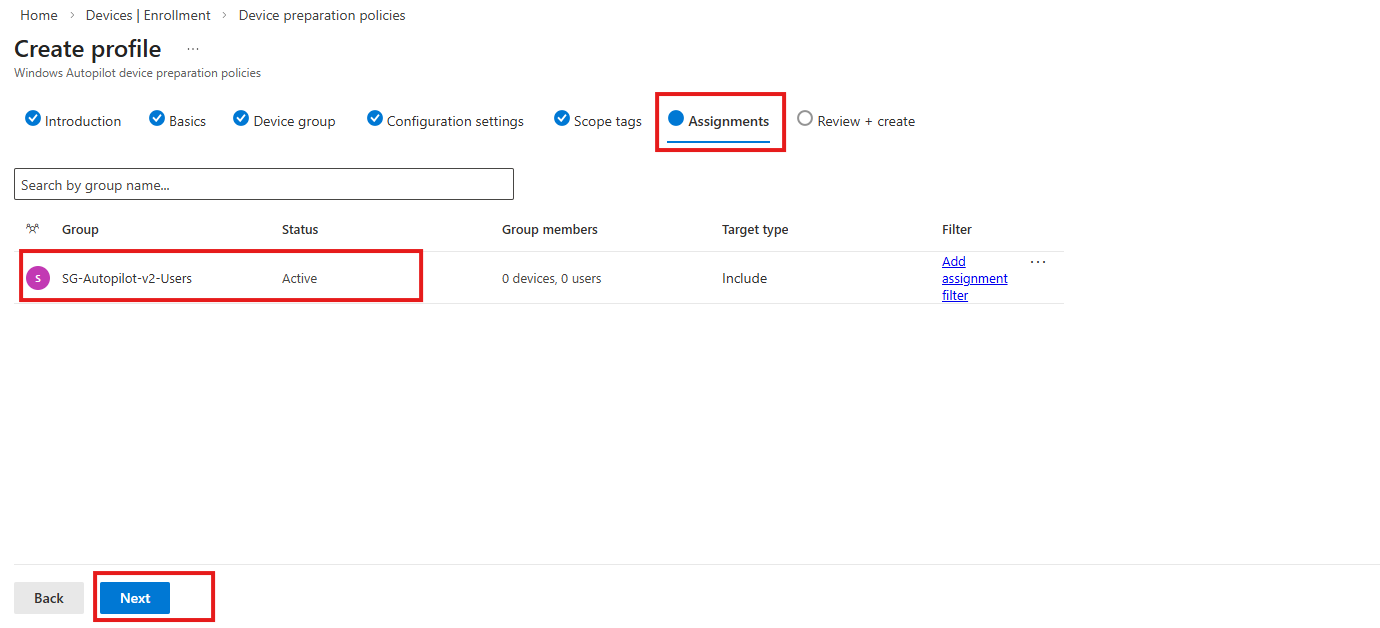
Corporate Identifiers allow you to pre-register devices by serial number, manufacturer, and model ensuring that only trusted hardware can trigger your Autopilot v2 policy. This step is only required if you have enrollment restrictions blocking personal device enrollment.
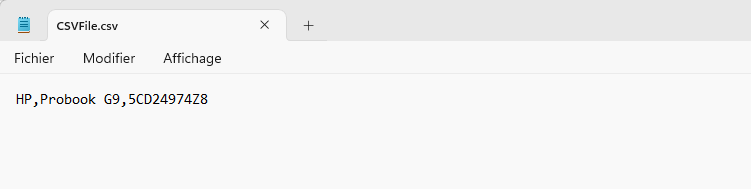
First of all, lets create CSV file with device Manufacturer, Model & Serial number to upload it later in corporate device preparation :
CSV file must contain Manufacturer, Model & Serial number separated with coma (Check Microsoft Link for more details : https://learn.microsoft.com/en-ca/intune/device-enrollment/add-corporate-identifiers#add-windows-corporate-identifiers )
You only need to create text file like this one, then save it as CSV file :
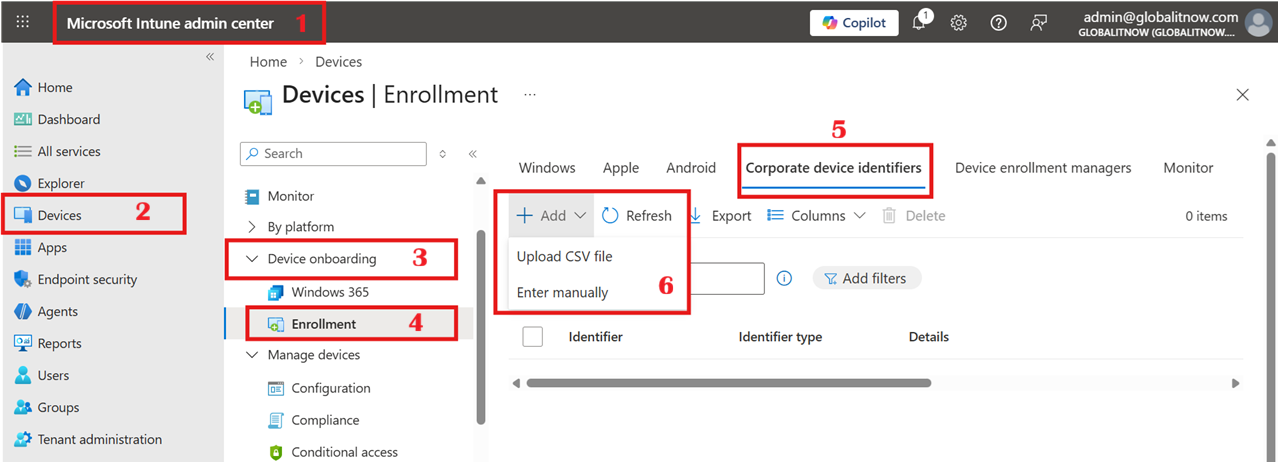
Intune Admin Center → Devices → Enrollment → Corporate device identifiers → Add
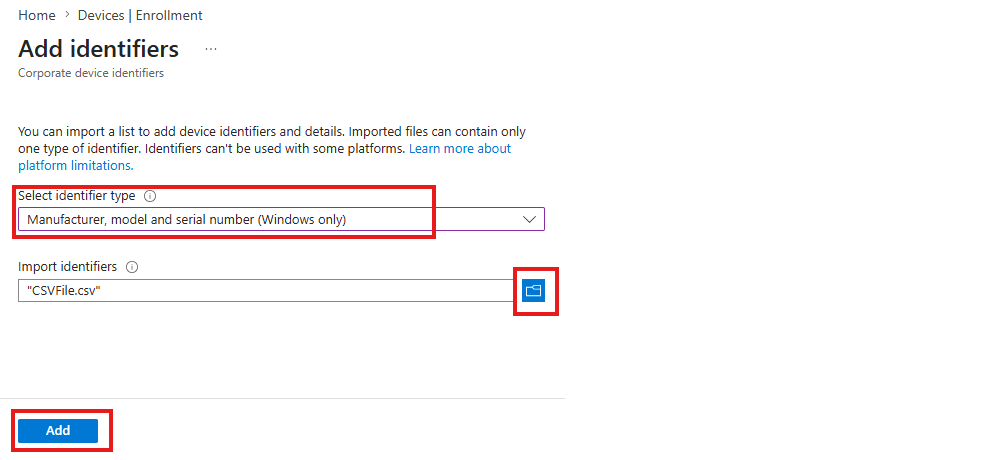
let’s upload it to device identifiers :
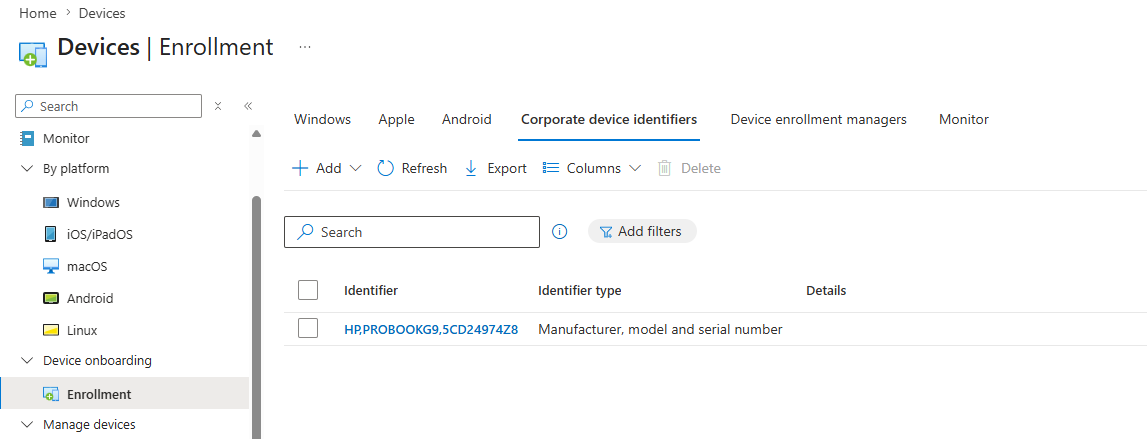
Your Autopilot v2 environment is now configured. The next time a user powers on a new Windows 11 device (with the required OS version), connects to a network, and signs in with their corporate Entra ID credentials, the policy will activate automatically.
Understanding the user-facing flow is critical for helpdesk readiness and for setting expectations with end users and managers.

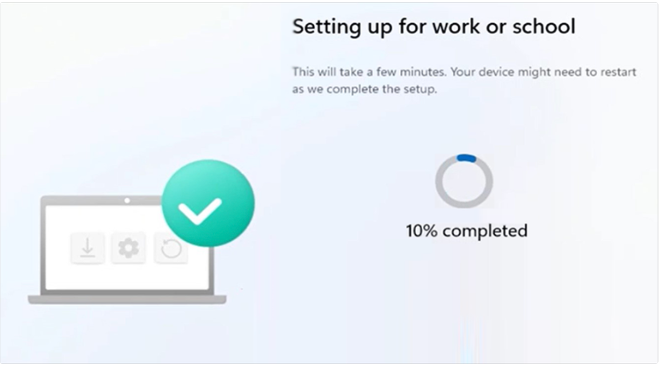
One of the most appreciated features of Autopilot v2 is the near real-time reporting. In v1, you were often flying blind a deployment would succeed or fail without much granularity. In v2, you get a full deployment report per device, including per-app and per-script status.
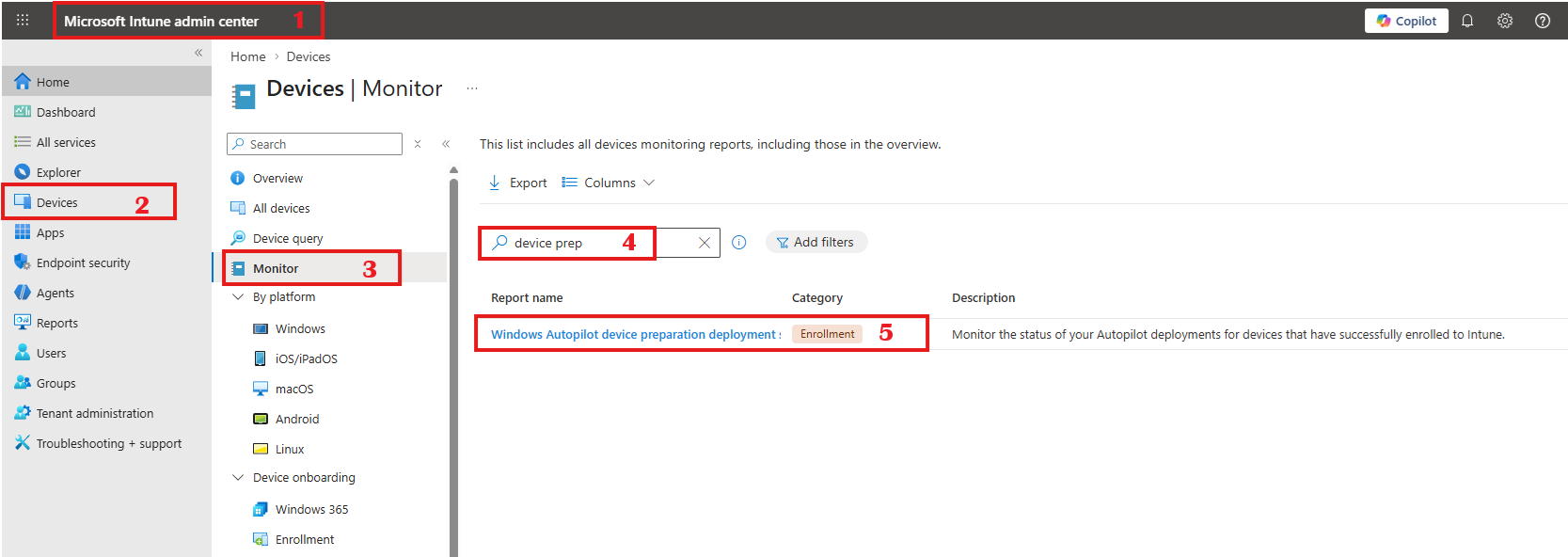
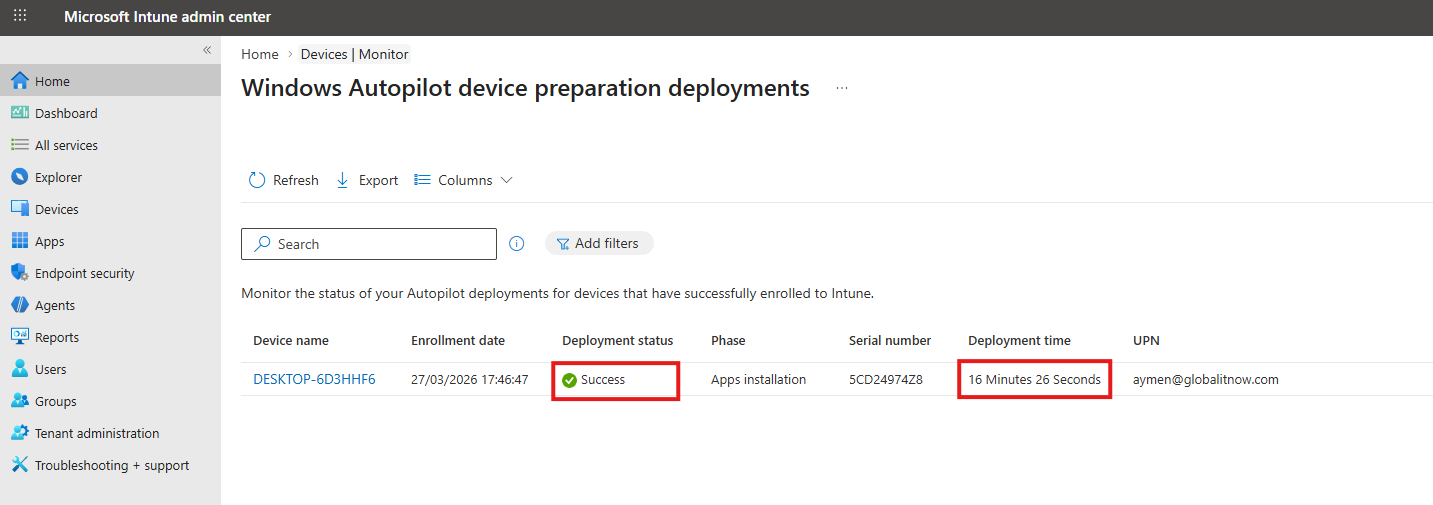
The report shows every device that went through Autopilot v2, with the following columns:
| Column | Description |
|---|---|
| Device name | Click to drill into deployment details |
| Enrollment date | Date and time of enrollment |
| Deployment status | In progress / Success / Failed |
| Phase | Policy installation → Script installation → App installation |
| Deployment time | Total OOBE time in minutes (16 min in my case) |
| UPN | The user who triggered the deployment |
| Serial number | Hardware identifier |
✅ Do
❌ Don’t
| Symptom | Root Cause | Fix |
|---|---|---|
| Policy never applies device goes through standard OOBE | User not in the group the policy is assigned to, OR MDM user scope doesn’t include the user | Verify user group membership and MDM scope in Entra ID |
| Device registered as Autopilot v1 v2 policy ignored | Autopilot v1 profile takes precedence when a device hash is registered | Deregister the device from Autopilot v1 in Intune before re-provisioning |
| App shows “Skipped” in deployment report | App selected in policy is not assigned (Required) to the device security group | Go to the app’s assignment and add the device group as Required |
| Win32 app fails with “managed installer” error | Known issue: Win32/Store/Enterprise apps skipped when a managed installer policy is enabled | Disable the managed installer policy or check for the Microsoft workaround in the known issues docs |
| Deployment times out mid-OOBE | App install timeout too low for a large application package | Increase the “Allowed minutes for app install” setting in the policy |
| Device group not populating ETG not working | Device group is dynamic instead of static assigned | Recreate the group as a static Assigned security group |
| OOBE fails on Windows 10 device | Autopilot v2 requires Windows 11 22H2+ Windows 10 is unsupported | Use Autopilot v1 for Windows 10 or upgrade the device OS |
| Hybrid AD join fails | Autopilot v2 only supports Entra ID join Hybrid is not supported | Use Autopilot v1 for Hybrid AD join scenarios |
Diagnostic Checklist Before Going Live : Run through this list before your first production deployment: (1) Windows 11 22H2+ with KB5035942 confirmed on test device, (2) Automatic MDM enrollment enabled for all target users, (3) Device group is static assigned, (4) Apps assigned as Required to device group, (5) Policy assigned to user group, (6) Device NOT registered as Autopilot v1, (7) Tested with a pilot user in the target group.
Thanks