Physical Address
304 North Cardinal St.
Dorchester Center, MA 02124
Physical Address
304 North Cardinal St.
Dorchester Center, MA 02124

Explore practical guides and tools for Microsoft 365, Azure, and PowerShell. Enhance your cloud security and admin skills with expert insights and automation tips.
Explore practical guides and tools for Microsoft 365, Azure, and PowerShell. Enhance your cloud security and admin skills with expert insights and automation tips.
Most battery-optimization guides scatter settings across Settings Catalog profiles, remediations, and manual powercfg tweaks. In practice, the highest-impact power levers, CPU turbo cap, cooling policy, Energy Saver timing, are either not exposed to MDM or behave inconsistently across OEM power schemes. The cleanest path for a managed fleet is a single, well-scoped PowerShell script deployed from Intune that writes directly to the active power plan.
This article delivers exactly that : one script, applied in SYSTEM context, that constrains power consumption on battery (DC) while leaving plugged-in (AC) performance untouched. It is derived from a tested baseline that produced measurable autonomy gains on real Windows 11 hardware.
The script applies a focused set of DC-only optimizations :
| Lever | Effect | Why it matters |
|---|---|---|
| Energy Saver always-on (DC) | Engages background throttling across the full discharge cycle | Default only triggers at 20%, far too late |
| Max processor state 99% on DC | Disables turbo boost on battery | Single largest energy/thermal win on most laptops |
| Min processor state 5% on DC | Allows the CPU to idle deeper | Reduces baseline draw |
| Passive cooling on DC | Throttles before spinning the fan | Cuts fan power and heat-driven consumption |
AC values are deliberately left alone. A user plugged in should never feel a slowdown.
Find out the script in my Github Repository :
Optimize-Laptop-Battery-Life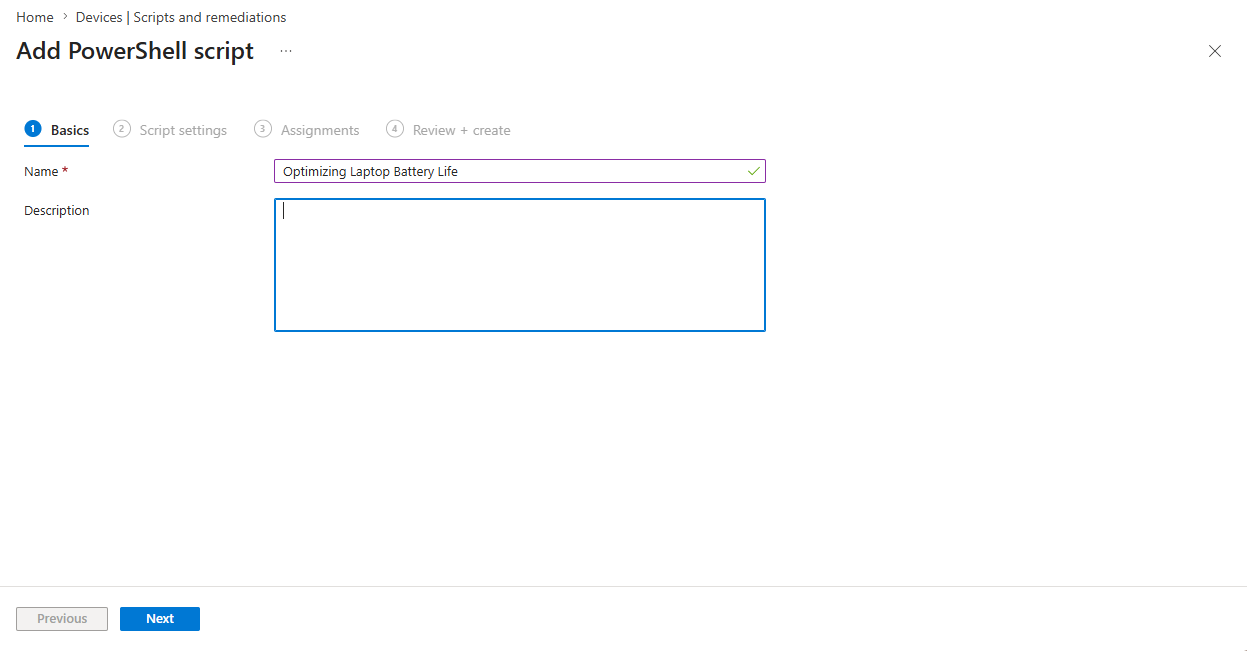
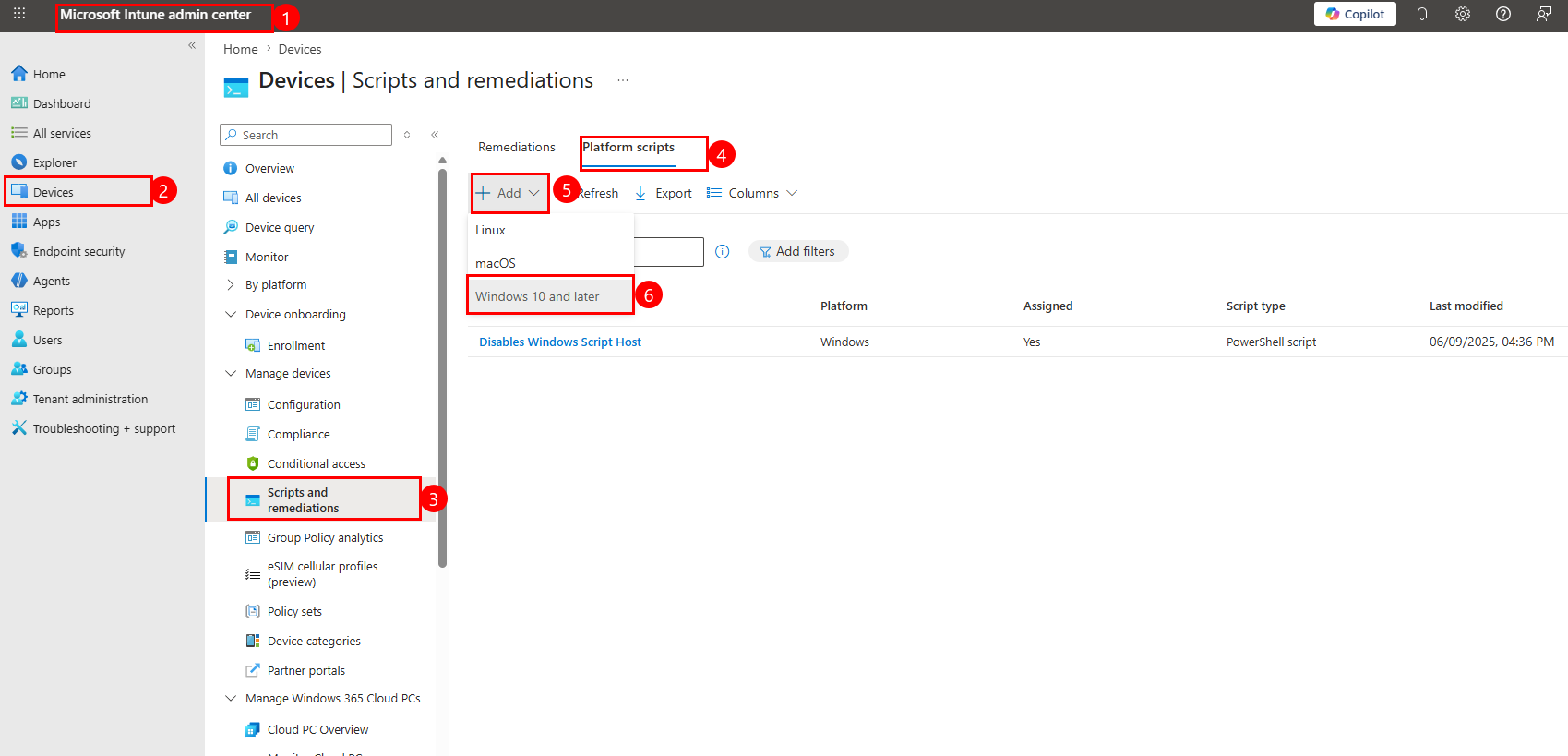
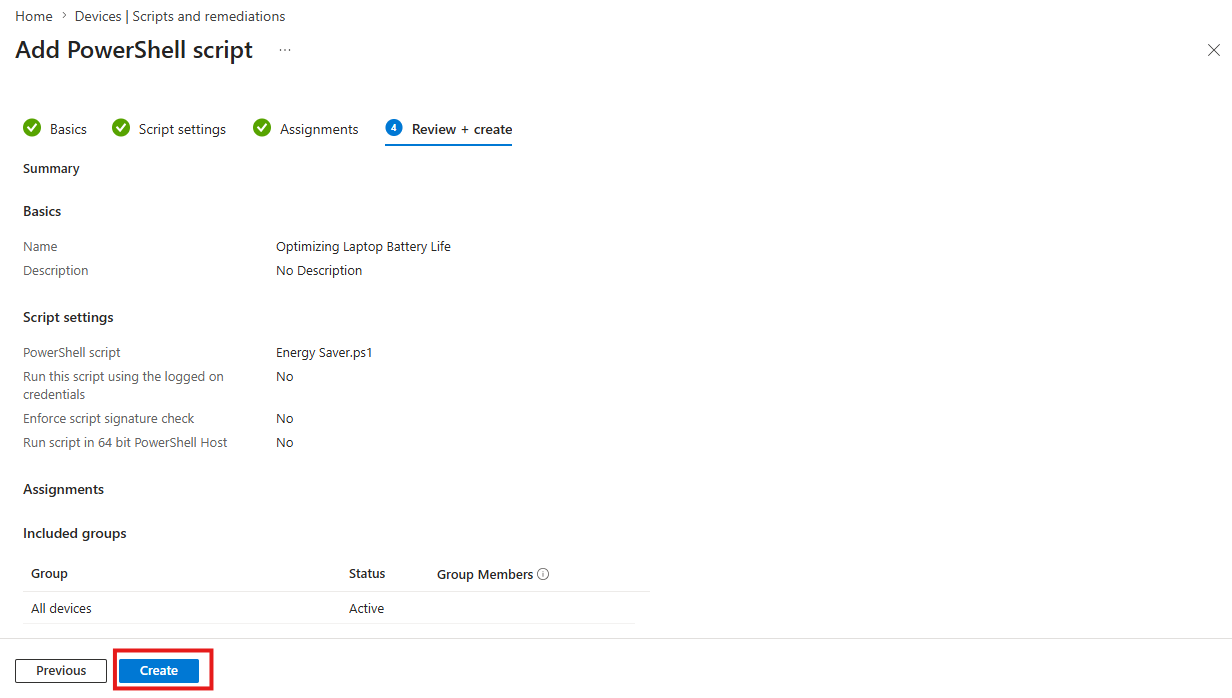
.ps1) file.No (SYSTEM context required for powercfg to persist)No (or sign your script and set Yes)Yes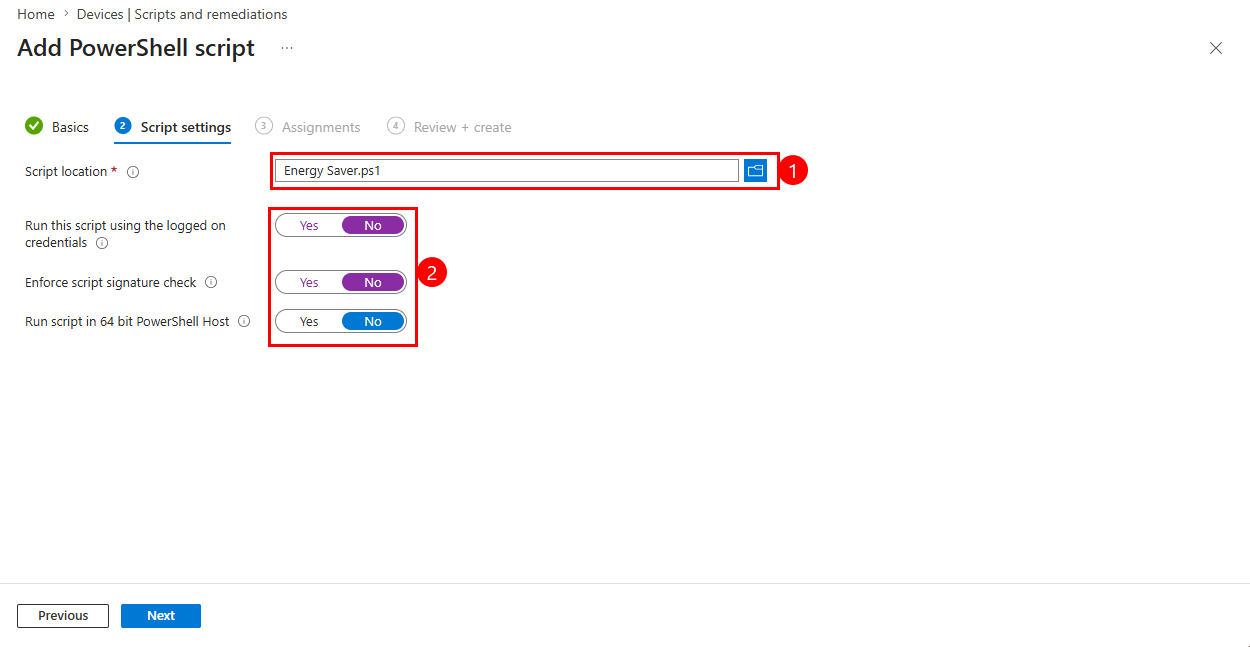
GRP-DEV-Laptops)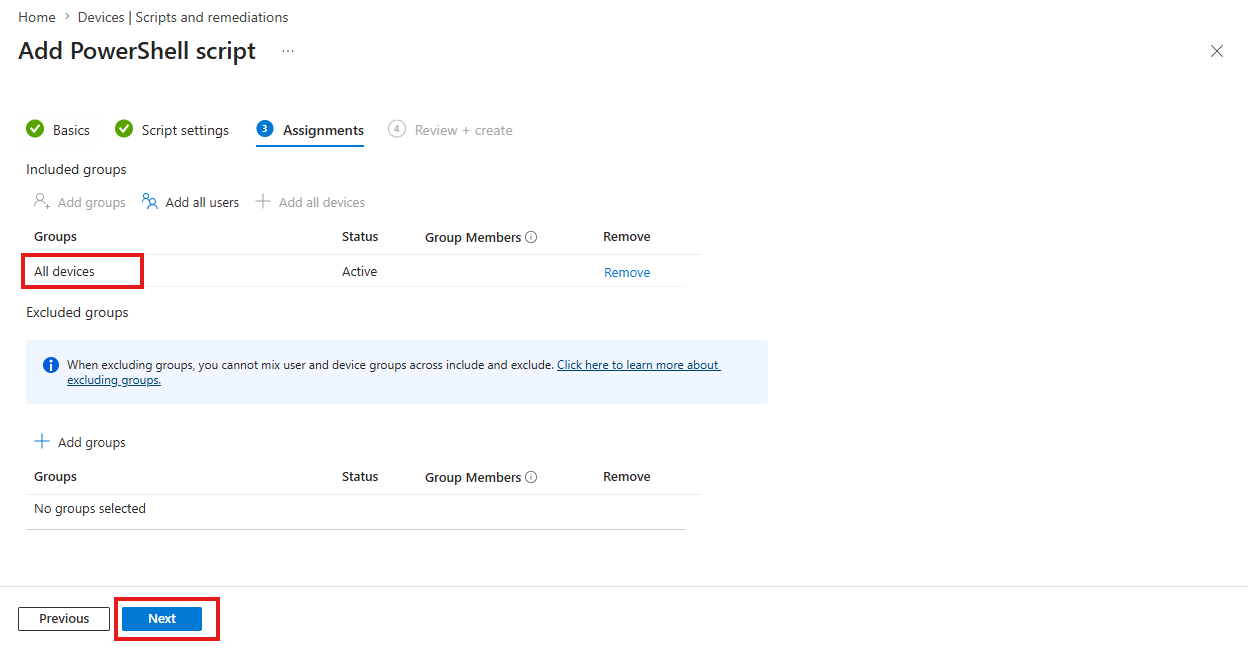
This is not theory. The script was deployed and measured on a production Windows 11 laptop, with a battery report generated before and after applying the configuration over comparable discharge cycles and a representative office workload (browser, Office apps, Teams, background sync).
The result : a 20% increase in battery autonomy on the same usage pattern. The bulk of the gain came from capping the maximum processor state at 99% on DC, which disables Turbo Boost. On typical office workloads the CPU rarely needs turbo frequencies, so the perceived performance impact was negligible while the energy and thermal savings were substantial. The passive cooling policy compounded this by keeping the fan idle longer, removing both the fan’s own draw and the consumption spikes that heat-driven boosting causes.
Results will vary by hardware generation, panel type, and workload, performance-heavy or thermally constrained machines may see more, lightweight ultrabooks somewhat less, but the direction is consistent across the fleet.
A single, focused PowerShell script, deployed in SYSTEM context from Intune and constrained to the DC side, is enough to deliver a measurable 25% autonomy gain with no hardware change and zero user friction. The decisions that make it work: target the active scheme so it survives OEM plans, touch only battery values so plugged-in performance is never penalized, and run as SYSTEM so the settings persist. The biggest win, disabling Turbo Boost on battery, is exactly the lever MDM-native configuration cannot reach, which is why a direct powercfg script stays the most reliable approach. Pilot on a small ring, confirm the gain with powercfg /batteryreport, then scale, and promote it to a daily Remediation if your fleet runs OEM utilities that reset power schemes.
Thanks