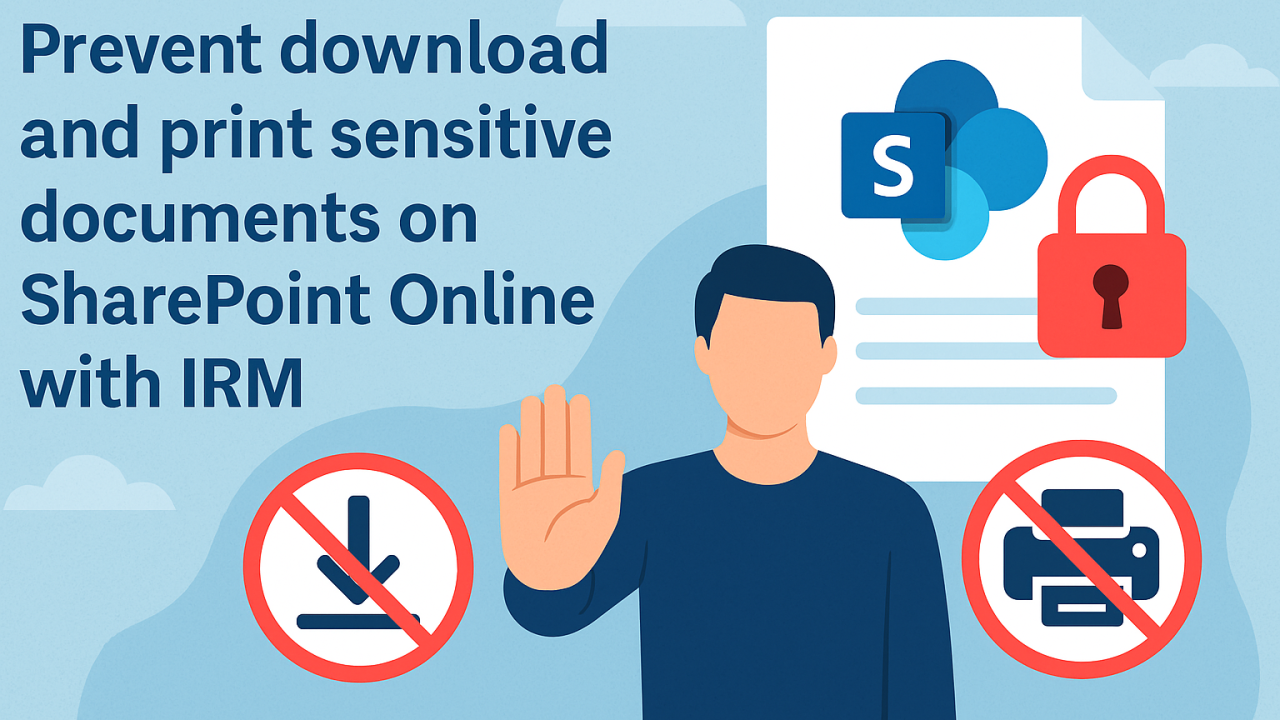
Prevent download and print sensitive documents on SharePoint Online with IRM (Information Rights Management)

I – Introduction :

Protecting sensitive information is a priority for businesses. SharePoint Online offers Information Rights Management (IRM) features to control access, downloading and printing of documents. This article outlines the different ways in which these restrictions can be implemented.

II – What is Information Rights Management (IRM) ?

IRM limits the actions users can perform on files downloaded from SharePoint libraries. It encrypts files and restricts user rights, preventing actions such as printing or copying content. IRM helps to:

  • Prevent unauthorized copying, modification, printing or pasting of content.
  • Prevent screen capture of content.
  • Restrict access to content to a specified period.

III – Methods to Restrict Download and Print

1 – Enable IRM from SharePoint Admin Center

To apply IRM on a document library:

  1. Go to the SharePoint Admin Center
  2. Select Settings.
  3. Select “Classic Settings Page
  1. Click on Use the IRM service specified in your configuration.
  2. Click on “Refresh IRM Settings
  3. Click OK on the bottom of the page

Note: IRM can take up to 1 hour to be visual in library settings.

2 – Enable IRM on a SharePoint Library

One very important piece of information to remember is that IRM only applies to site or to document librairy level, not to the folder or document level.

During this example, I’ll work on Test Library called “Test Library 1“.

To apply IRM on a document library:

  • Go to the Library Settings in SharePoint.
  • In Settings tab, Click on “Information Rights Management (IRM)” setting.
  1. Check Restrict permissions on this library on download.
  2. Add Permission Policy Title
  3. Add Permission Policy Description
  4. Select “Show options” to Configure the additional options (e.g., prevent printing, restrict access after a number of days).
  • By default, you can not download or print documents, but if you want to Configure additional options (allow uploading, Allow printing, restrict access after a number of days…etc) you can check cases that much your company needs. I’ll leave everything by default, no more permissions.
  • If you authorize user to download the file with IRM-enabled list or libraries, the file is encrypted and only the authorize user can view the file. The restrictions of the IRM-enabled includes making a file read-only, disabling the print, disabling copying of text, and preventing of saving a local copy. When you download a file, it will retain the restrictions.

Now we have configured IRM settings on “Test Library 1”, let’S move to the next step and test sharing and accessing library.

3 – Test Access to the protected documents :

First of all, I’m going to share the library with a user and we’ll find out what he can see on his side :

  • Back to Library setting then select “Permission for this document Library

let’s share the library with Aymen user.

  • Click on “Grant Permission
  • Add user
  • Select permission level as “Restricted view
  • Click “Share

Now let’s connect to Aymen Account and let’s found ount what he can see on his side.

  • Aymen User is connected to shared SharePoint Library, I will start by opening “Document 1” :
  • As you can see here, the document is protected, you can not download or print this document, even copy/paste doesnt work.

if you try to modify the content you will see another message “Read Only“.

  • Same thing with the other documents in the same library.

Conclusion

By combining IRM, custom permission levels, and Conditional Access policies, you can create a solid defense against unauthorized document access in SharePoint Online. Carefully evaluate your organization’s needs to choose the best strategy.

Thanks

Aymen EL JAZIRI (Microsoft MVP)

Hi, I’m Aymen El Jaziri , a passionate System Administrator and Microsoft MVP, with years of hands-on experience in managing and securing modern IT infrastructures.
This blog is where I share technical guides, automation scripts, product reviews, and real-world solutions that help IT professionals simplify their day-to-day work and stay ahead in a fast-evolving cloud ecosystem.
Whether you’re here to troubleshoot an issue, improve your automation game, or learn new best practices , welcome in my blog !
Let’s build a stronger, smarter IT community together.
Feel free to connect with me on LinkedIn for more content, discussions, or collaboration opportunities.

Thanks

Aymen

Articles: 154