Explore practical guides and tools for Microsoft 365, Azure, and PowerShell. Enhance your cloud security and admin skills with expert insights and automation tips.
Explore practical guides and tools for Microsoft 365, Azure, and PowerShell. Enhance your cloud security and admin skills with expert insights and automation tips.
New Conditional Access Token Theft Protection : Secure your Microsoft 365 Sign-ins
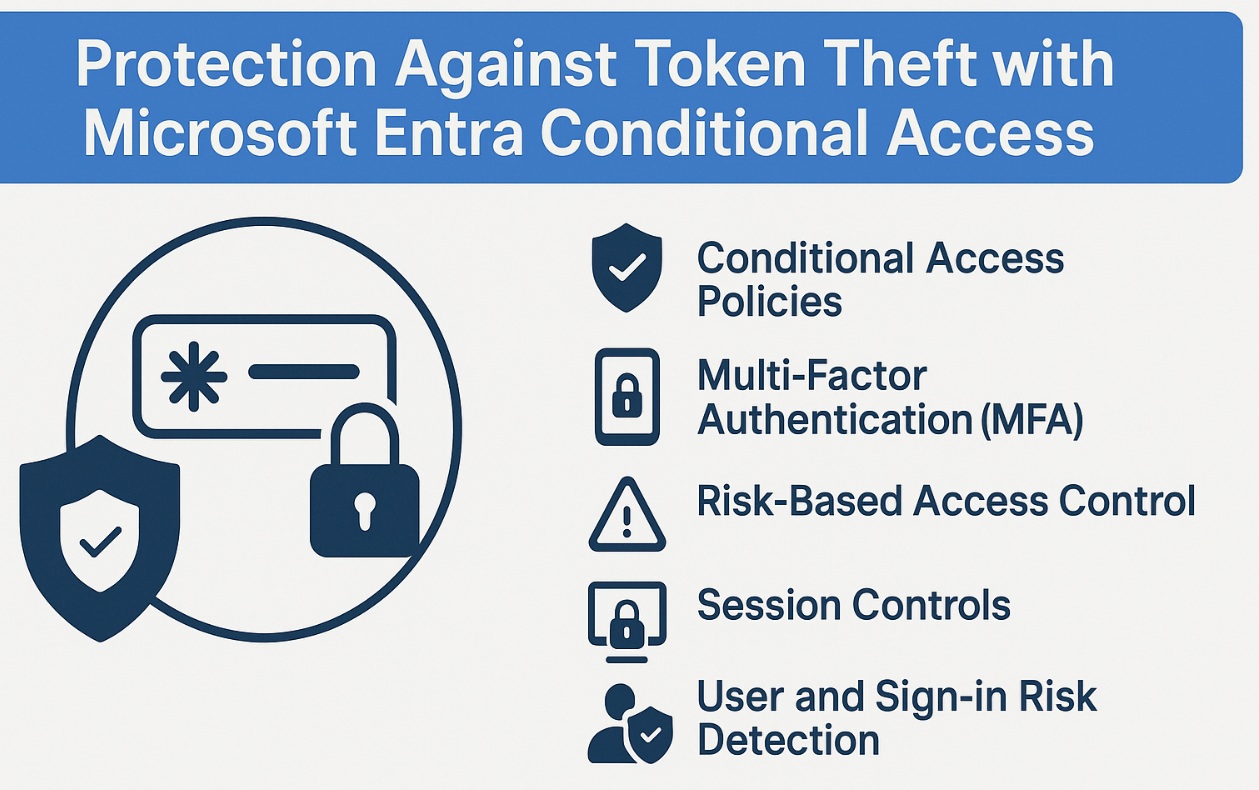
In today’s cloud-first environment, securing authentication sessions is more critical than ever. Even if your users log in with strong credentials and MFA, a stolen authentication token can allow attackers to bypass authentication altogether.
Microsoft’s Token Theft Protection available through Conditional Access mitigates this risk by binding sign-in tokens to a specific device’s TPM (Trusted Platform Module). This means that even if an attacker steals the token, it cannot be reused on another device.
In this article, we’ll explore what Token Theft Protection is, its prerequisites, and how to configure it in Microsoft Entra Conditional Access.
How Token Theft Protection Works
When a user signs in, Microsoft Entra ID issues a Primary Refresh Token (PRT) used for Single Sign-On (SSO). Normally, if an attacker can copy this token (e.g., via malware or browser session hijacking), they can replay it to gain access without re-authenticating.
With Token Theft Protection enabled :
The PRT is cryptographically bound to the TPM of the user’s device.
If the token is replayed from a different device or without TPM validation, access is denied.
This protection applies to supported applications and platforms.
Prerequisites
Before enabling this feature, ensure :
Licensing : Microsoft Entra ID P1 or P2 license (P2 recommended).
Applications : Currently supported in Microsoft 365 apps such as Exchange Online, SharePoint Online, Teams, and Office.
Browsers : Microsoft Edge (latest version), Google Chrome or applications using WebView2.
Authentication : MFA enabled for targeted accounts.
Target resources selection : You cannot select “All cloud apps”, you must choose specific supported apps (e.g., Exchange Online, SharePoint Online, Teams) for the control to become available.
Operating System
Windows 11 22H2 or later.
Device must be Azure AD Joined or Hybrid Azure AD Joined.
Hi, I’m Aymen El Jaziri , a passionate System Administrator and Microsoft MVP, with years of hands-on experience in managing and securing modern IT infrastructures.
This blog is where I share technical guides, automation scripts, product reviews, and real-world solutions that help IT professionals simplify their day-to-day work and stay ahead in a fast-evolving cloud ecosystem.
Whether you’re here to troubleshoot an issue, improve your automation game, or learn new best practices , welcome in my blog !
Let’s build a stronger, smarter IT community together.
Feel free to connect with me on LinkedIn for more content, discussions, or collaboration opportunities.