Physical Address
304 North Cardinal St.
Dorchester Center, MA 02124
Physical Address
304 North Cardinal St.
Dorchester Center, MA 02124

Explore practical guides and tools for Microsoft 365, Azure, and PowerShell. Enhance your cloud security and admin skills with expert insights and automation tips.
Explore practical guides and tools for Microsoft 365, Azure, and PowerShell. Enhance your cloud security and admin skills with expert insights and automation tips.

Building on the fundamentals from Part 1, this article explores advanced automation techniques for Microsoft Intune using Microsoft Graph API. You’ll learn how to perform bulk operations, generate comprehensive reports, and implement efficient data processing workflows. These advanced techniques enable administrators to manage large-scale Intune environments effectively.
Permissions:
DeviceManagementManagedDevices.Read.All
Create a comprehensive inventory of all managed devices with key attributes for asset management and compliance reporting.
# Generate Device Inventory Report
Get-MgDeviceManagementManagedDevice | Select-Object DeviceName, OperatingSystem, Manufacturer, Model, OSVersion, UserPrincipalName, ComplianceState, LastSyncDateTime, EnrolledDateTime | Format-Table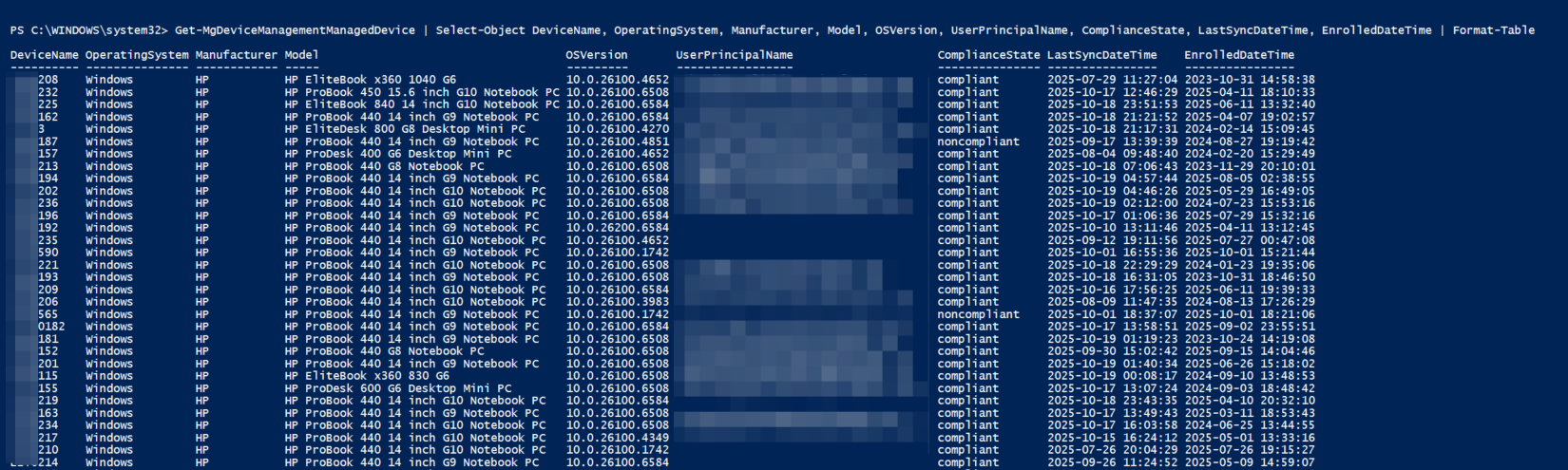
Permissions:
DeviceManagementManagedDevices.Read.All
Export a comprehensive inventory of all managed devices with key attributes for asset management and compliance reporting to CSV file.
# Generate Device Inventory Report
Get-MgDeviceManagementManagedDevice | Select-Object DeviceName, OperatingSystem, Manufacturer, Model, OSVersion, UserPrincipalName, ComplianceState, LastSyncDateTime, EnrolledDateTime | Export-Csv "C:\Temp\IntuneDeviceInventory.csv" -NoTypeInformation
You can see here the generated CSV file.

Permissions:
DeviceManagementManagedDevices.Read.All
Generate a compliance summary showing how many devices meet your organization’s security standards.
# Compliance summary report
$AllDevices = Get-MgDeviceManagementManagedDevice
$ComplianceSummary = $AllDevices | Group-Object ComplianceState
$ComplianceSummary | Select-Object Name, Count
Permissions:
DeviceManagementManagedDevices.Read.All
Locate devices that haven’t checked in recently, which may indicate lost devices, inactive users, or enrollment problems.
# Find devices inactive for 30+ days
$ThirtyDaysAgo = (Get-Date).AddDays(-30)
Get-MgDeviceManagementManagedDevice | Where-Object {$_.LastSyncDateTime -lt $ThirtyDaysAgo} | Select-Object DeviceName, UserPrincipalName, LastSyncDateTime, OperatingSystem
Permissions:
DeviceManagementManagedDevices.Read.Al
Identify users with multiple enrolled devices, which may indicate legitimate power users or potential policy violations.
# Find users with multiple devices
Get-MgDeviceManagementManagedDevice | Group-Object UserPrincipalName | Where-Object {$_.Count -gt 1} | Select-Object Name, Count | Sort-Object Count -Descending
Permissions:
DeviceManagementManagedDevices.Read.All
Locate shared devices or devices with enrollment issues where user assignment failed or was removed.
# Find devices without primary user
Get-MgDeviceManagementManagedDevice | Where-Object {$_.UserPrincipalName -eq $null -or $_.UserPrincipalName -eq ''} | Select-Object DeviceName, OperatingSystem, LastSyncDateTime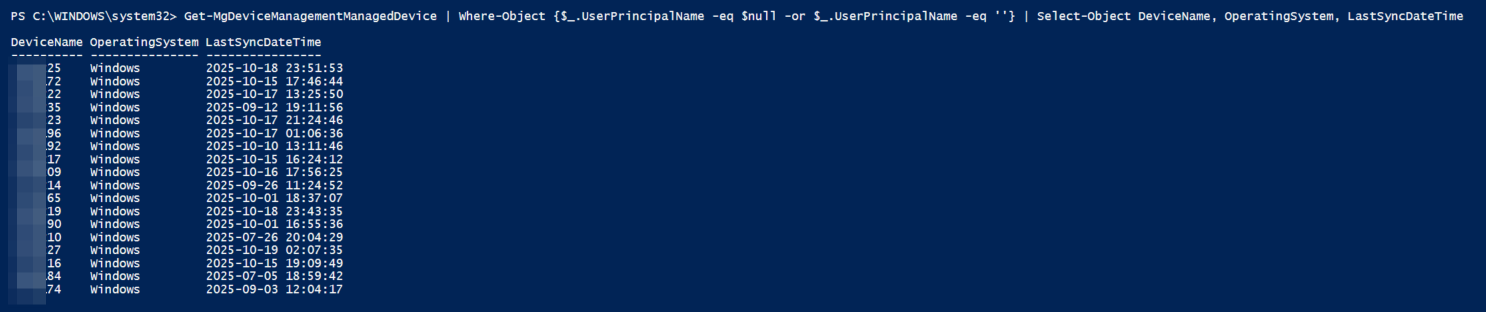
Permissions:
DeviceManagementServiceConfig.Read.All
View all devices registered for Windows Autopilot deployment, helping you manage your zero-touch deployment program.
# Get all Autopilot devices
Get-MgDeviceManagementWindowsAutopilotDeviceIdentity | Select-Object SerialNumber, Manufacturer, Model, EnrollmentState, LastContactedDateTime | Format-Table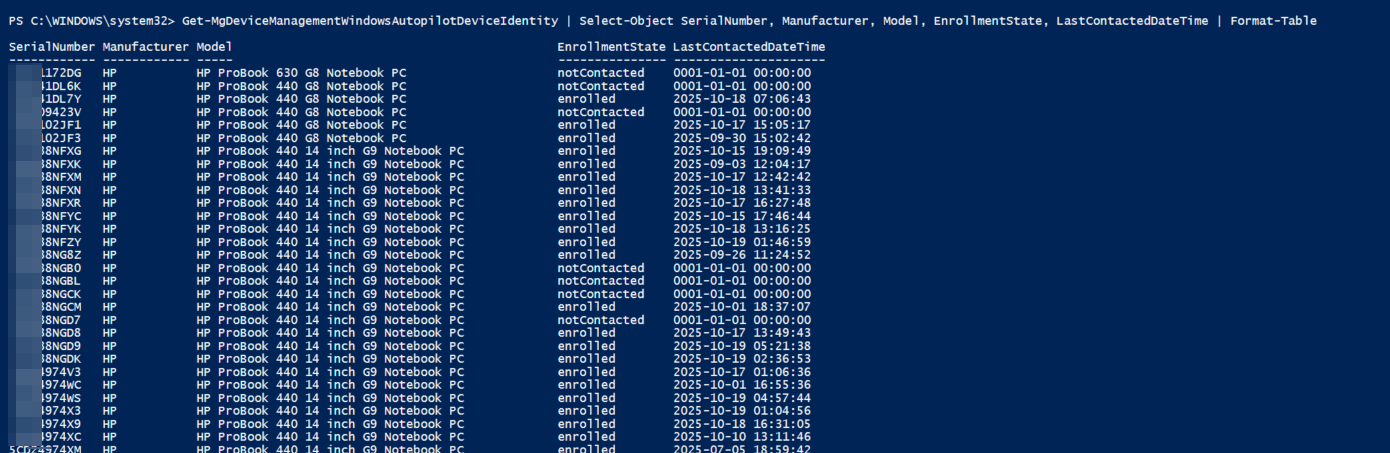
Permissions:
DeviceManagementManagedDevices.Read.All
Identify devices running low on disk space that may need attention or cleanup before causing user productivity issues.
# Find devices with less than 100 GB free space
$MinimumFreeSpace = 100
Get-MgDeviceManagementManagedDevice | Where-Object {($_.FreeStorageSpaceInBytes / 1GB) -lt $MinimumFreeSpace} | Select-Object DeviceName, @{Name="FreeSpaceGB";Expression={[math]::Round($_.FreeStorageSpaceInBytes / 1GB, 2)}}, UserPrincipalName
Permissions:
DeviceManagementManagedDevices.Read.All
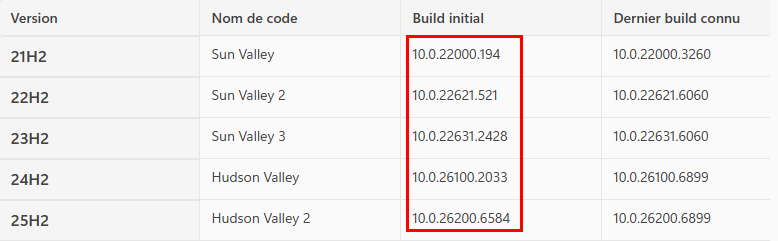
Locate devices running outdated operating systems that need updates for security and compatibility.
In this case I’ll use regular expression to find devices that not match 10.0.2[2 or 6]*
# Regular expression for all W11 OS versions
$regex = '^10\.0\.2[26]\d{3}\.\d+$'
# Find Windows devices not on Windows 11
Get-MgDeviceManagementManagedDevice -Filter "operatingSystem eq 'Windows'" | Where-Object {$_.OSVersion -notmatch $regex} | Select-Object DeviceName, OSVersion, UserPrincipalName
Permissions:
DeviceManagementManagedDevices.Read.All
Monitor battery health on mobile devices to identify hardware issues before they impact users.
# Check battery health for iOS devices
Get-MgDeviceManagementManagedDevice -Filter "operatingSystem eq 'iOS'" | Select-Object DeviceName, BatteryHealthPercentage, BatterySerialNumber, UserPrincipalNameDeviceManagementManagedDevices.Read.All
Combine multiple filters to target specific device groups:
# Get all details
$OS = "Windows"                              # Os = Windows , iOS, Android
$Compliance = "noncompliant"                 # Compliance = compliant, noncompliant
$LastSyncDate = (Get-Date).AddDays(-30)      # Last Sync date time

# Apply multiple filters
Get-MgDeviceManagementManagedDevice -All | Where-Object {
    # Windows devices only
    ($_.OperatingSystem -eq $OS) -and
    # Non-compliant devices
    ($_.ComplianceState -eq $Compliance) -and
    # Not synced in last 7 days
    ($_.LastSyncDateTime -lt $LastSyncDate)
} | Select-Object DeviceName, OperatingSystem, UserPrincipalName, ComplianceState, LastSyncDateTime | Format-Table
Bulk operations enable efficient management of multiple devices or configurations simultaneously.
Permissions:
DeviceManagementManagedDevices.ReadWrite.All
Force synchronization for multiple Windows devices at once, useful after deploying critical policies or during troubleshooting campaigns.
# Get all details
$OS = "Windows"

# Get all managed devices
$WindowsDevices = Get-MgDeviceManagementManagedDevice -Filter "operatingSystem eq '$OS'"

# Sync all Windows devices
foreach ($Device in $WindowsDevices) {
    Sync-MgDeviceManagementManagedDevice -ManagedDeviceId $Device.Id
    Write-Host "Sync sent to: $($Device.DeviceName)"
    Start-Sleep -Seconds 2
}
Permissions:
DeviceManagementManagedDevices.ReadWrite.All
When offboarding users, retire all their devices in bulk to remove corporate data efficiently.
# User UPN
$UserUPN = "user@domain.com"

# Get all user devices
$UserDevices = Get-MgDeviceManagementManagedDevice -Filter "userPrincipalName eq '$UserUPN'"

# Remove all devices for departing user
foreach ($Device in $UserDevices) {
    Remove-MgDeviceManagementManagedDevice -ManagedDeviceId $Device.Id
    Write-Host "Retired: $($Device.DeviceName)" -ForegroundColor Green
}
Permissions:
DeviceManagementManagedDevices.ReadWrite.All
Clean up your Intune environment by removing devices that have been inactive for an extended period.
# Date before sync
$NinetyDaysAgo = (Get-Date).AddDays(-90)

# Get list of inactive devices for more than 90 days
$InactiveDevices = Get-MgDeviceManagementManagedDevice | Where-Object {$_.LastSyncDateTime -lt $NinetyDaysAgo}

# Remove devices inactive for 90+ days
foreach ($Device in $InactiveDevices) {
    Remove-MgDeviceManagementManagedDevice -ManagedDeviceId $Device.Id
    Write-Host "Removed inactive device: $($Device.DeviceName)" -ForegroundColor Green
}Permissions:
DeviceManagementManagedDevices.ReadWrite.All
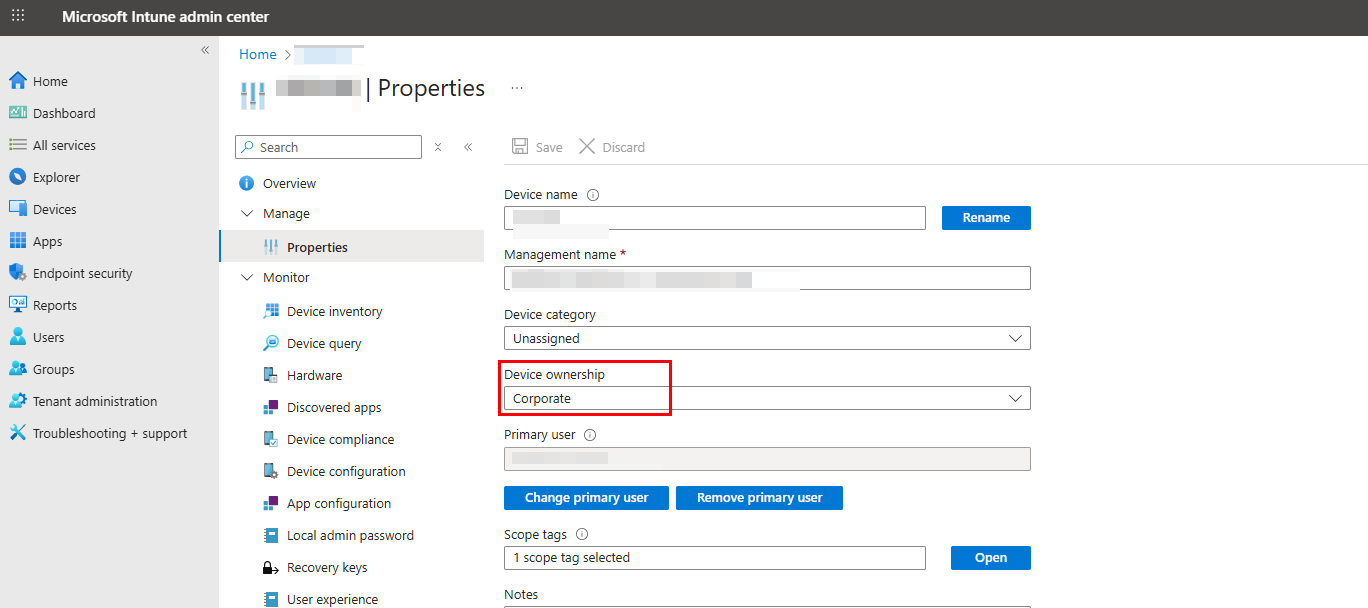
Change all Devices Ownership from Personal to Corporate.
# Device Ownership type : Company or Personal
$DeviceType = "Company"

# Get all managed devices
$Devices = Get-MgDeviceManagementManagedDevice -all

foreach ($Device in $InactiveDevices) {
    Update-MgDeviceManagementManagedDevice -ManagedDeviceId $Device.Id -ManagedDeviceOwnerType $DeviceType
    Write-Host "Device ownership changed for : $($Device.DeviceName)" -ForegroundColor Green
}
As you can see here, device Ownership is changed to Corporate.
Thanks