Physical Address
304 North Cardinal St.
Dorchester Center, MA 02124
Physical Address
304 North Cardinal St.
Dorchester Center, MA 02124

Explore practical guides and tools for Microsoft 365, Azure, and PowerShell. Enhance your cloud security and admin skills with expert insights and automation tips.
Explore practical guides and tools for Microsoft 365, Azure, and PowerShell. Enhance your cloud security and admin skills with expert insights and automation tips.

Microsoft Graph API provides a unified programmability model to access Microsoft Intune data and operations. This comprehensive guide introduces system administrators to the fundamentals of using Microsoft Graph with Intune for device and application management. Whether you’re looking to automate routine tasks or gain deeper insights into your Intune environment, this series will equip you with the necessary knowledge and practical scripts.
This three-part guide will take you from basic concepts to advanced automation scenarios. Each part builds on the previous one, with real-world examples and step-by-step code breakdowns.
Part 1 (This Article): Fundamentals, Authentication, Device Management, Compliance, Configuration, and Application Management
Part 2: Advanced Automation and Reporting.
Part 3: Real life scenario of reporting Scripts
Microsoft Graph is the unified API gateway to access data and intelligence across Microsoft 365, including Intune device management capabilities. For Intune administrators, Graph PowerShell provides powerful automation capabilities for:
This series assumes you’re a beginner to intermediate sysadmin familiar with PowerShell basics but new to Microsoft Graph and Intune automation.
Before starting, ensure you have:
Let’s start by installing the necessary PowerShell modules. We’ll install them one by one to understand each component.
Install-Module Microsoft.Graph -Scope CurrentUser -Force
Install-Module Microsoft.Graph.Intune -Scope CurrentUser -Force
Install-Module Microsoft.Graph.DeviceManagement -Scope CurrentUser -Force
Import-Module Microsoft.GraphFor production automation, you need an app registration. Let’s do this step-by-step in Azure Portal:
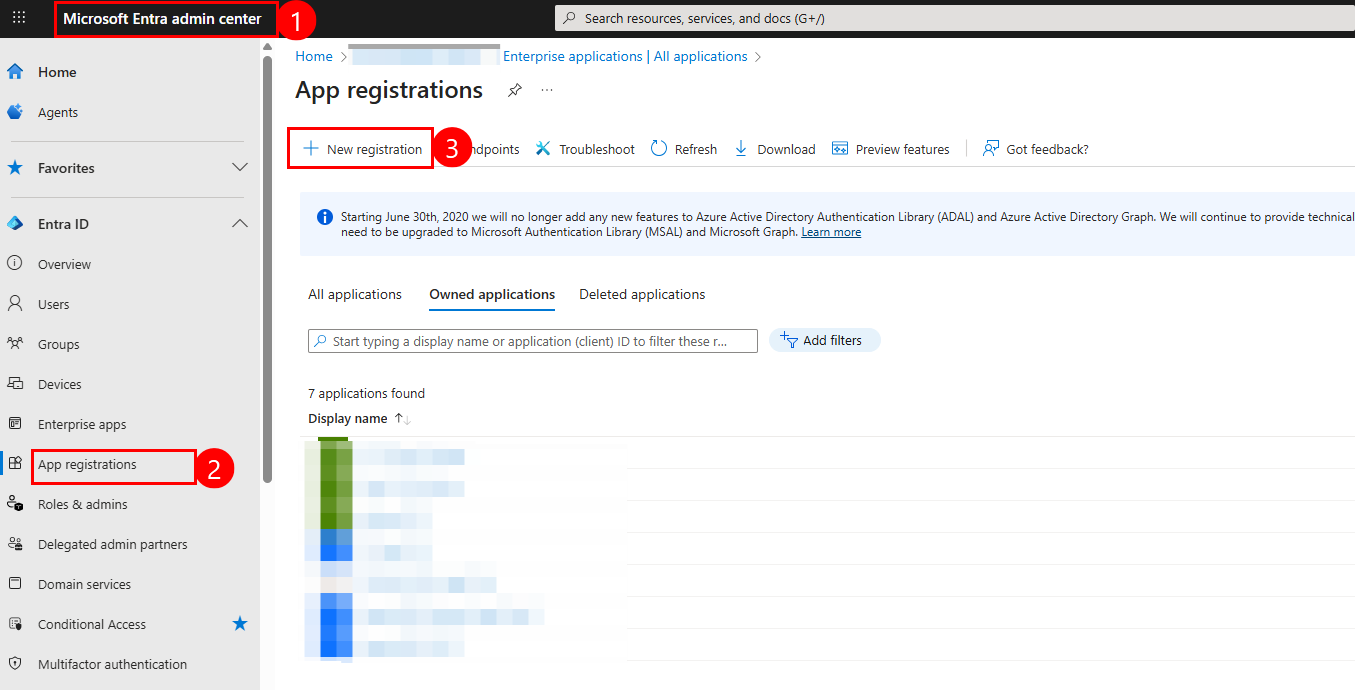
Intune-PowerShell-Automation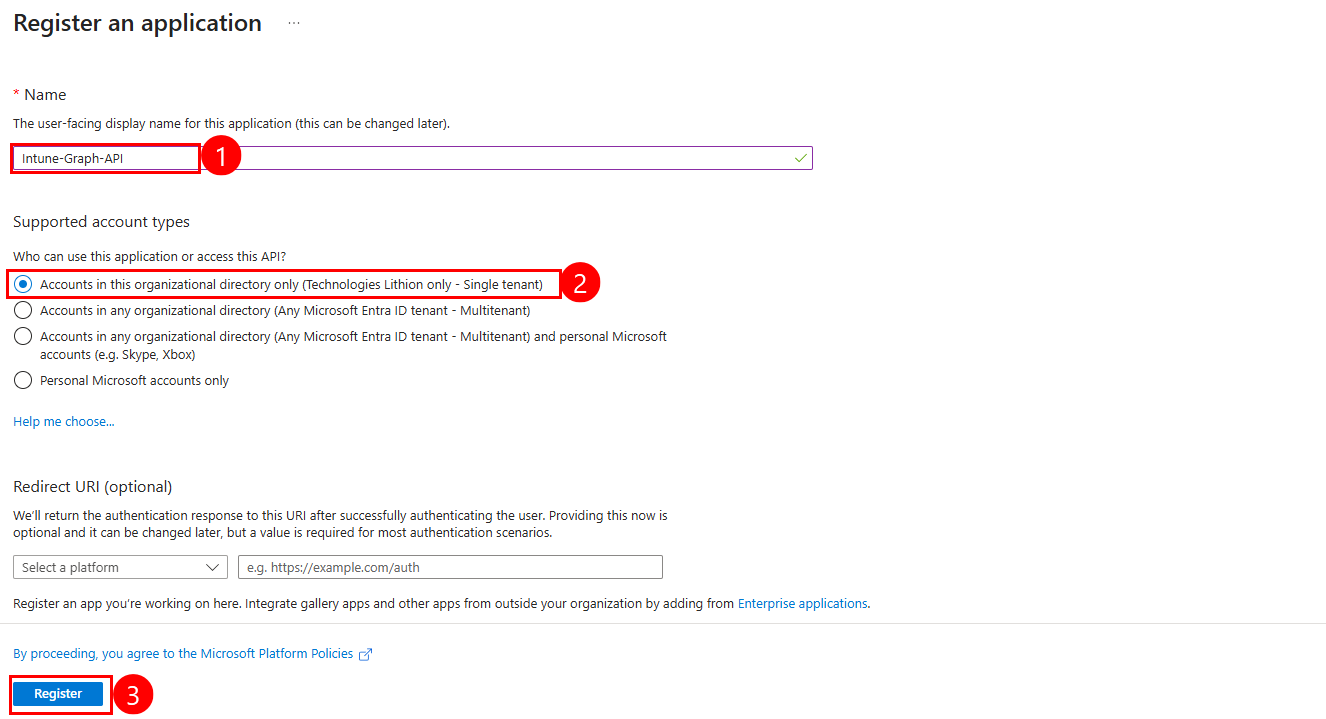
Copy the following values (you’ll need them):
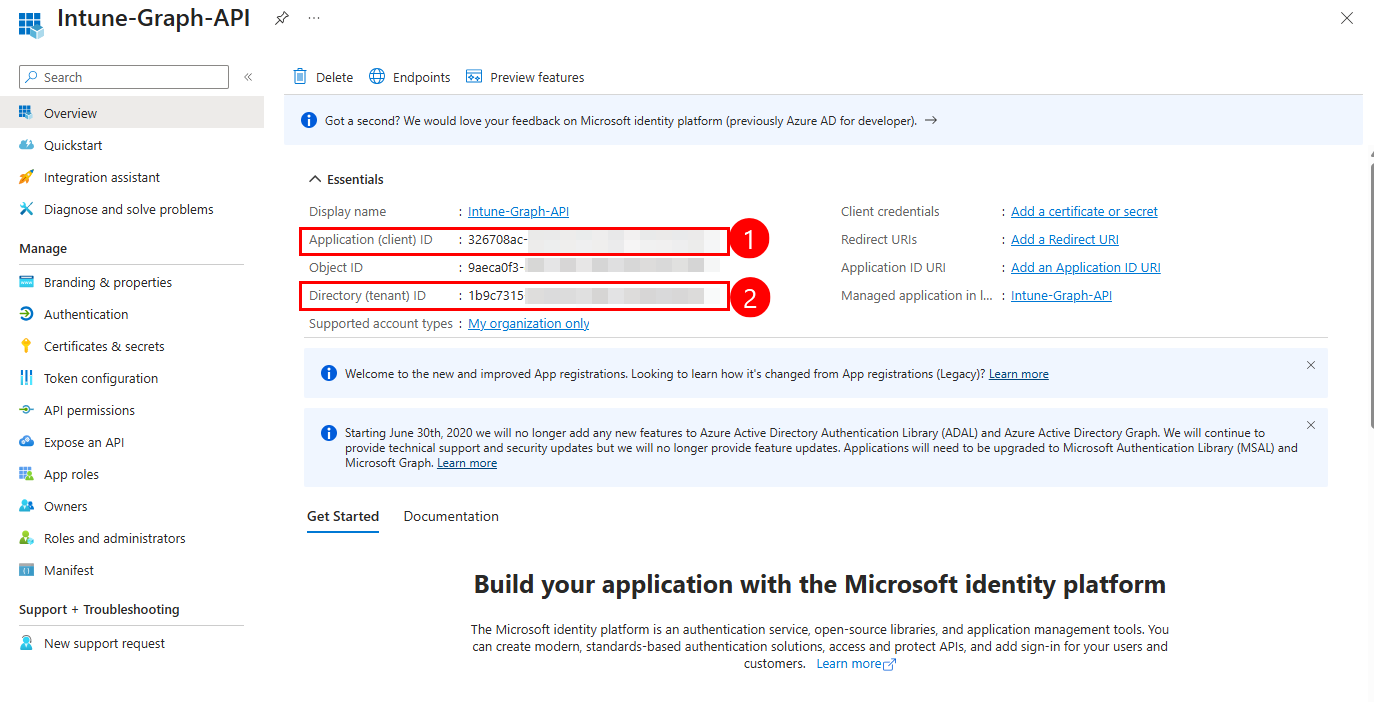
Now let’s add the necessary permissions:
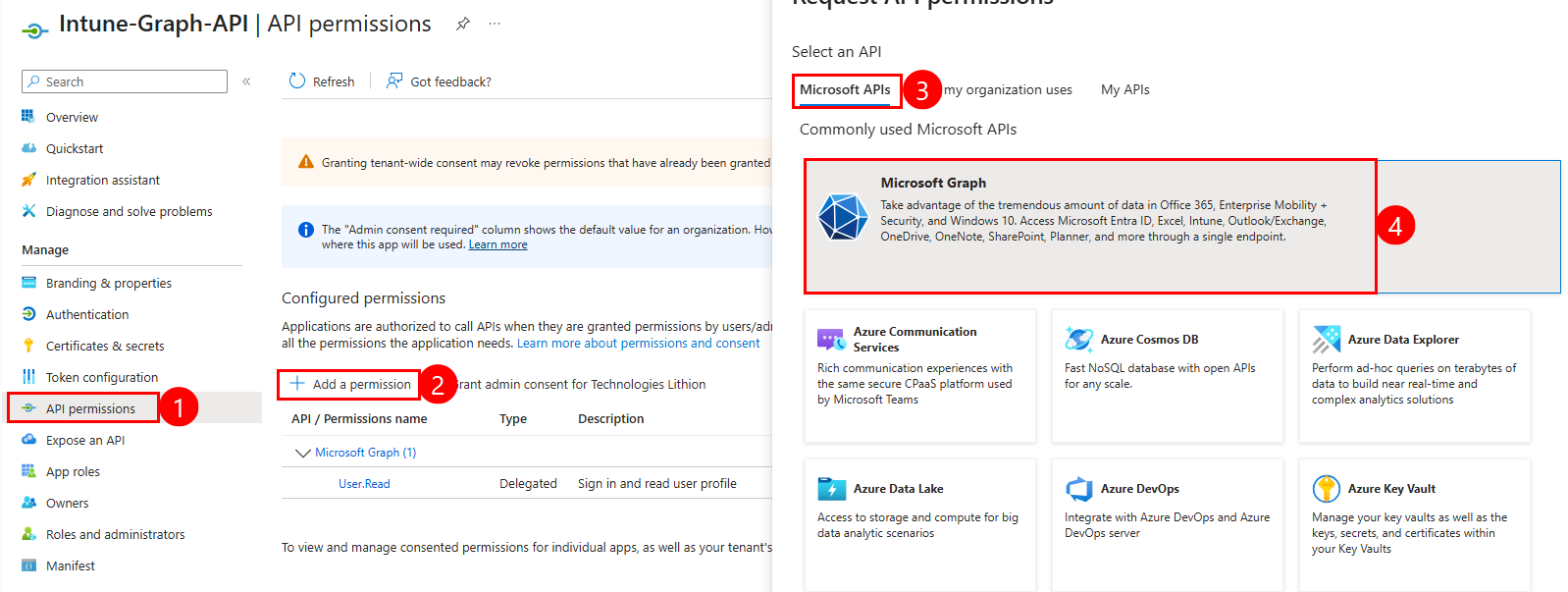
User.Read.All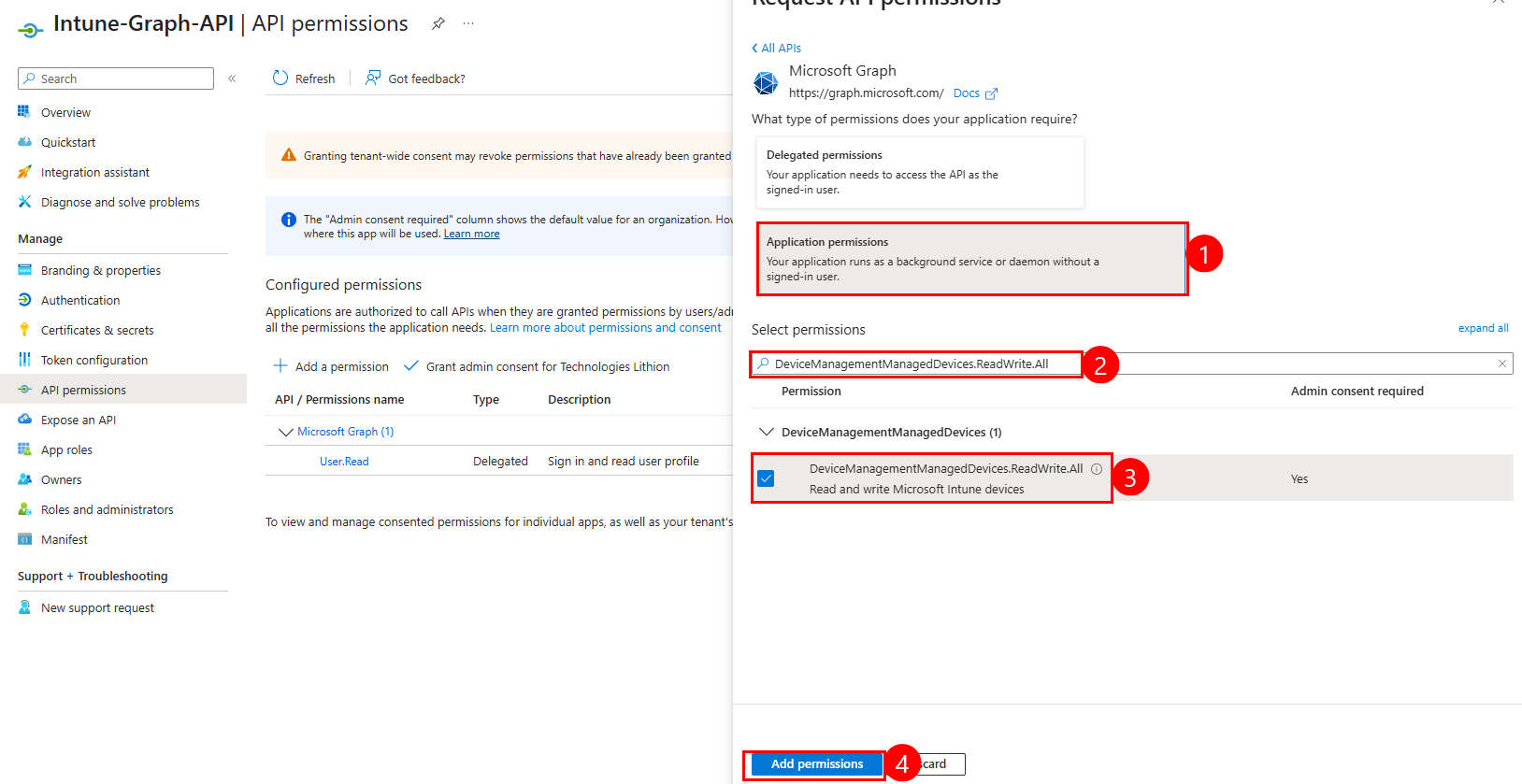
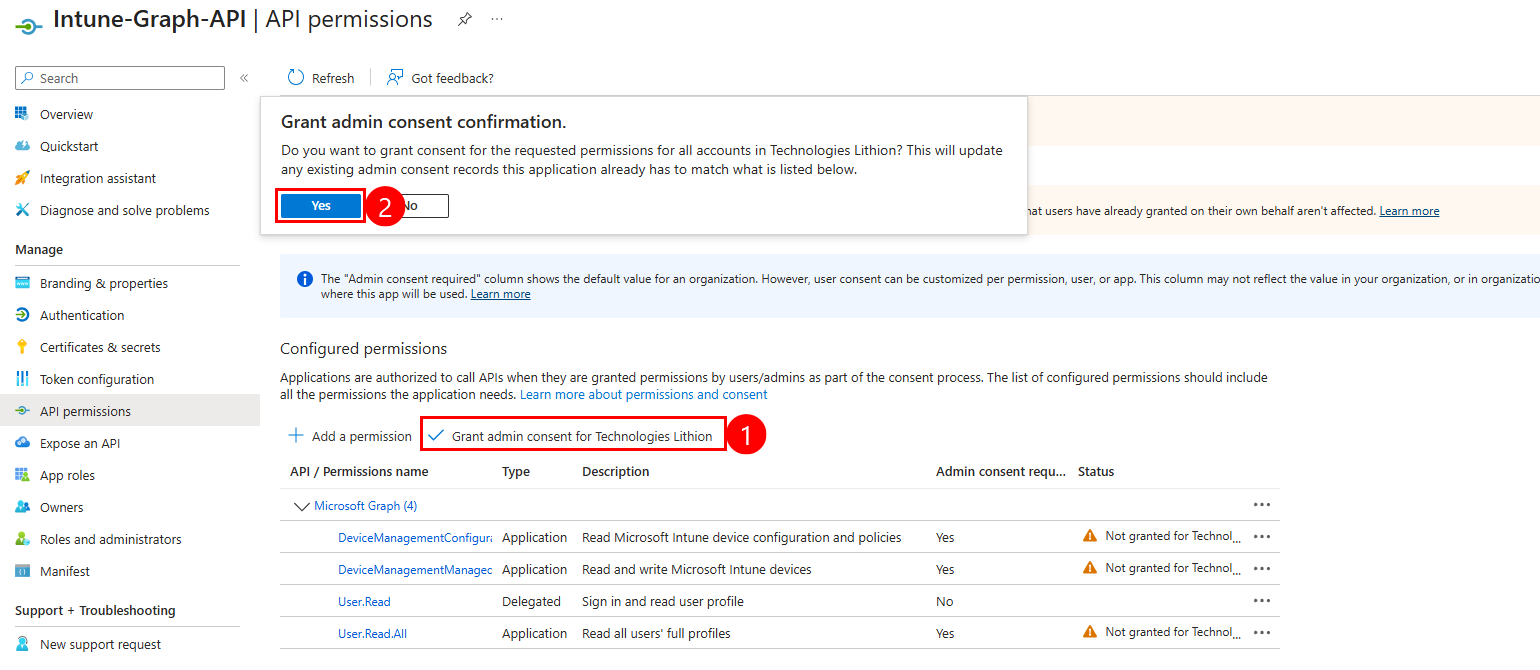
Why Application Permissions? These allow scripts to run unattended without user interaction, essential for automation.
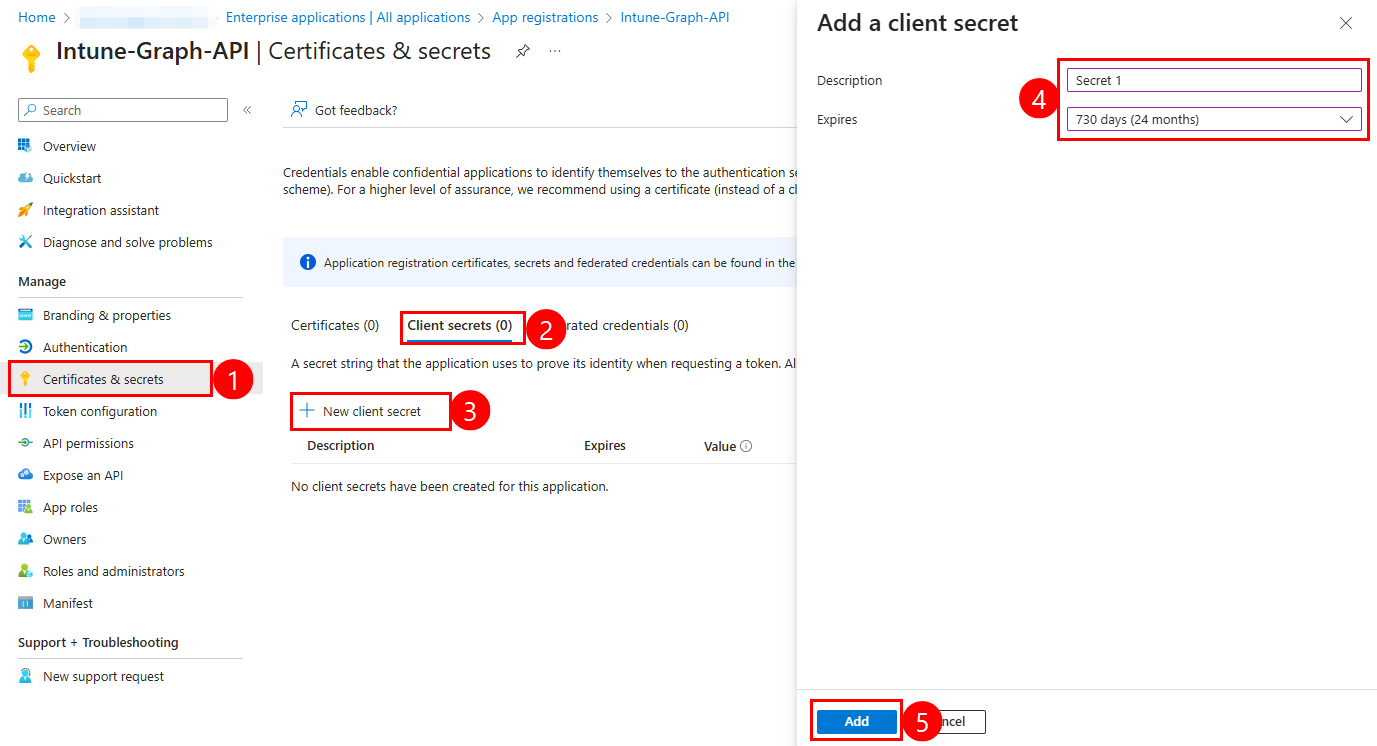
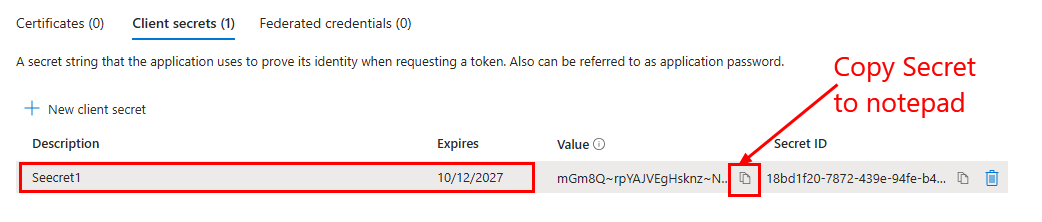
You just need to change the 3 first variables then execute :
# -------------------------------------------------- Change this variables -----------------------------------------
# Connect using app credentials
$TenantId = "xxxxxxxxxxxxxxxxxxxxxxxxxxxxxxxxxx"
$ClientId = "xxxxxxxxxxxxxxxxxxxxxxxxxxxxxxxxxx"
$ClientSecret = "xxxxxxxxxxxxxxxxxxxxxxxxxxxxxxxxxx"

# -------------------------------------------------- Noting to change here -----------------------------------------
$Scope = "https://graph.microsoft.com/.default"
$AuthUrl =
"https://login.microsoftonline.com/$TenantId/oauth2/v2.0/token"
$Body = @{
    client_id = $ClientId
    scope = $Scope
    client_secret = $ClientSecret
    grant_type = "client_credentials"
}
$Connection = Invoke-RestMethod -Method POST -Uri $AuthUrl -Body $Body -ContentType "application/x-www-form-urlencoded"
$AccessToken = $Connection.access_token

# Convert token to SecureString
$SecureToken = ConvertTo-SecureString -String $AccessToken -AsPlainText -Force

# Use the token for authentication
Connect-MgGraph -AccessToken $SecureTokenPermissions:
DeviceManagementManagedDevices.Read.All
This command retrieves all devices enrolled in Intune, giving you a complete inventory of your managed endpoints across Windows, iOS, Android, and macOS platforms.
# Get all Intune managed devices
Get-MgDeviceManagementManagedDevice -All | Select-Object DeviceName, OperatingSystem, UserPrincipalName, ComplianceState, LastSyncDateTime
Permissions:
DeviceManagementManagedDevices.Read.All
When managing a multi-platform environment, you often need to focus on specific device types. This query helps you isolate devices by their OS for targeted management.
# Get only Windows devices
Get-MgDeviceManagementManagedDevice -Filter "operatingSystem eq 'Windows'" | Select-Object DeviceName, OSVersion, UserPrincipalName | Format-Table

# Get only iOS devices
Get-MgDeviceManagementManagedDevice -Filter "operatingSystem eq 'iOS'" | Select-Object DeviceName, OSVersion, UserPrincipalName | Format-Table

# Get only Android devices
Get-MgDeviceManagementManagedDevice -Filter "operatingSystem eq 'Android'" | Select-Object DeviceName, OSVersion, UserPrincipalName | Format-Table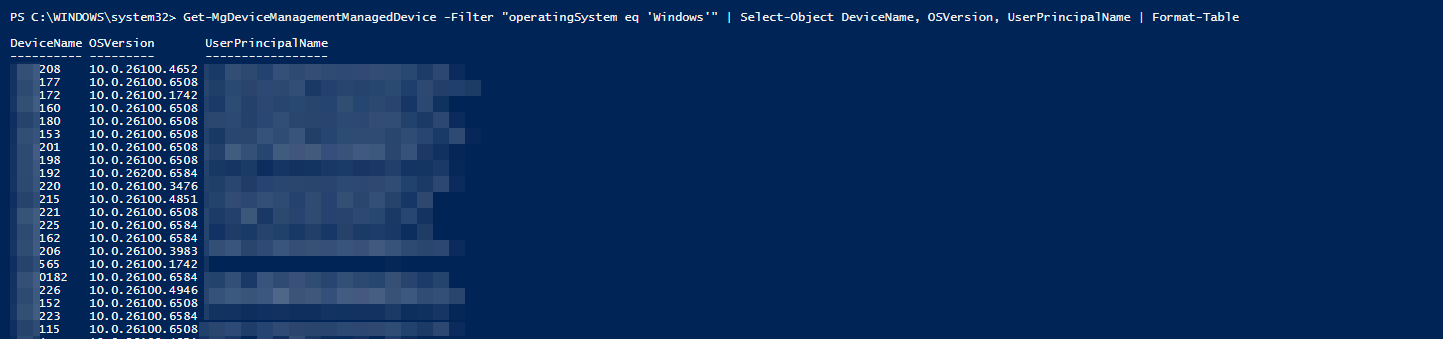
Quickly locate a device in your Intune environment by its name, useful when responding to user support requests or security incidents.
Permissions:
DeviceManagementManagedDevices.Read.All
# Device Name
$DeviceName = "LAPTOP-ABC123"
# Find device by name
Get-MgDeviceManagementManagedDevice -Filter "deviceName eq '$DeviceName'" | Select-Object DeviceName, UserPrincipalName, LastSyncDateTime, ComplianceState
Permissions:
DeviceManagementManagedDevices.Read.All
To troubleshoot or audit a specific device, you need detailed information including hardware specs, enrollment date, and compliance status.
# Device Name
$DeviceName = "PC0111"
# Get device Id
$DeviceId = (Get-MgDeviceManagementManagedDevice -Filter "DeviceName eq '$DeviceName'").Id
# Get specific device information
Get-MgDeviceManagementManagedDevice -ManagedDeviceId $DeviceId | Select-Object DeviceName, SerialNumber, Manufacturer, Model, TotalStorageSpaceInBytes, FreeStorageSpaceInBytes
Permissions:
DeviceManagementManagedDevices.Read.All
When investigating user-specific issues or preparing for offboarding, you need to see all devices associated with a particular user account.
# User Name
$UserName = "a.eljaziri@globalitnow.com"
# Get all devices for specific user
Get-MgDeviceManagementManagedDevice -Filter "userPrincipalName eq '$UserName'" | Select-Object DeviceName, OperatingSystem, EnrolledDateTime
Permissions:
DeviceManagementManagedDevices.Read.All
Identifying non-compliant devices is critical for security. This query shows you which devices aren’t meeting your organization’s compliance policies.
# Find non-compliant devices
Get-MgDeviceManagementManagedDevice -Filter "complianceState eq 'noncompliant'" | Select-Object DeviceName, UserPrincipalName, ComplianceState, LastSyncDateTime
Permissions:
DeviceManagementManagedDevices.Read.All
Devices that haven’t checked in recently may be lost, stolen, or experiencing connectivity issues. This helps you identify potentially problematic devices.
# Find devices not synced in last 7 days
$SevenDaysAgo = (Get-Date).AddDays(-7)
Get-MgDeviceManagementManagedDevice | Where-Object {$_.LastSyncDateTime -lt $SevenDaysAgo} | Select-Object DeviceName, UserPrincipalName, LastSyncDateTime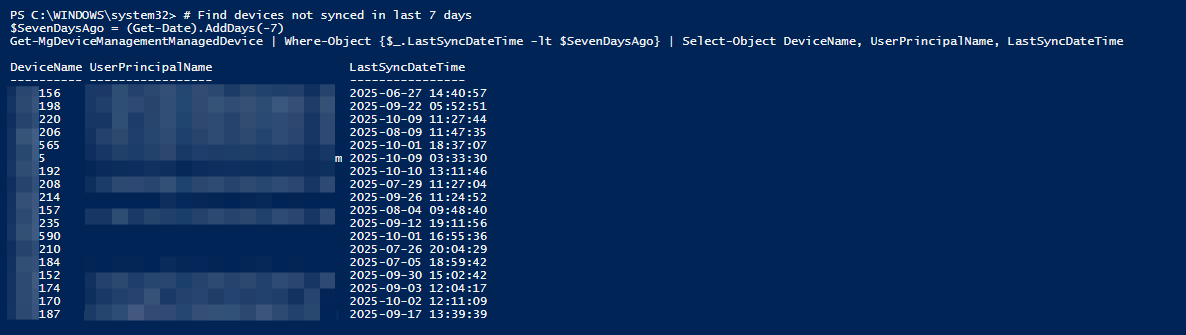
Permissions:
DeviceManagementManagedDevices.ReadWrite.All, DeviceManagementManagedDevices.PrivilegedOperations.All
Force a device to check in with Intune immediately, useful when you’ve just deployed a new policy or app and need immediate results.
# Device Name
$DeviceName = "PC0123456"
# Get device Id
$DeviceId = (Get-MgDeviceManagementManagedDevice -Filter "DeviceName eq '$DeviceName'").Id
# Force device sync
Sync-MgDeviceManagementManagedDevice -ManagedDeviceId $DeviceId
Permissions:
DeviceManagementManagedDevices.ReadWrite.All
Remote restart capability is essential for applying updates or troubleshooting frozen devices without requiring physical access or user intervention.
# Device Name
$DeviceName = "PC123456"
# Get device Id
$DeviceId = (Get-MgDeviceManagementManagedDevice -Filter "deviceName eq '$DeviceName'" -All).Id
# Reboot device remotely
Restart-MgDeviceManagementManagedDeviceNow -ManagedDeviceId $DeviceId
Permissions:
DeviceManagementManagedDevices.ReadWrite.All
When a device is lost, stolen, or being decommissioned, a full wipe ensures corporate data doesn’t fall into wrong hands.
# Device Name
$DeviceName = "PC123456"
# Get device Id
$DeviceId = (Get-MgDeviceManagementManagedDevice -Filter "deviceName eq '$DeviceName'" -All).Id

# Factory reset device (removes all data)
Clear-MgDeviceManagementManagedDevice -ManagedDeviceId $DeviceId
Permissions:
DeviceManagementManagedDevices.ReadWrite.All
Remove the device record from Intune entirely. This is typically done after a device has been wiped or is permanently out of service.
# Device Name
$DeviceName = "PC123456"
# Get device Id
$DeviceId = (Get-MgDeviceManagementManagedDevice -Filter "deviceName eq '$DeviceName'" -All).Id

# Remove device from Intune management
Remove-MgDeviceManagementManagedDevice -ManagedDeviceId $DeviceId
Permissions:
DeviceManagementConfiguration.Read.All
Compliance policies define the security baseline for your devices. This command shows all active policies and their settings.
# Get all compliance policies
Get-MgDeviceManagementDeviceCompliancePolicy | Select-Object DisplayName, Description, CreatedDateTime, LastModifiedDateTime
Permissions:
DeviceManagementConfiguration.Read.All
Review the specific settings and requirements of a compliance policy to understand what standards devices must meet.
# Compliance Policy name
$PolicyName = "GlobalITnow Compliance Policy for Windows 10/11"

# Get Policy Id
$PolicyId = (Get-MgDeviceManagementDeviceCompliancePolicy | Where-Object DisplayName -EQ $PolicyName).Id

# Get specific compliance policy details
Get-MgDeviceManagementDeviceCompliancePolicy -DeviceCompliancePolicyId $PolicyId
Permissions:
DeviceManagementManagedDevices.Read.All
Verify if a specific device meets all compliance requirements, useful for troubleshooting access issues or conditional access blocks.
# Device Name
$DeviceName = "PC0123456"
# Get device Id
$DeviceId = (Get-MgDeviceManagementManagedDevice -Filter "deviceName eq '$DeviceName'" -All).Id

# Get compliance status for a device
Get-MgDeviceManagementManagedDevice -ManagedDeviceId $DeviceId | Select-Object DeviceName, ComplianceState, ComplianceGracePeriodExpirationDateTime
Permissions:
DeviceManagementConfiguration.Read.All
Understanding which policies apply to which groups helps you troubleshoot why certain devices have specific requirements or restrictions.
# Compliance Policy name
$PolicyName = "GlobalITnow Compliance Policy for Windows 10/11"

# Get Policy Id
$PolicyId = (Get-MgDeviceManagementDeviceCompliancePolicy | Where-Object DisplayName -EQ $PolicyName).Id

# Get policy assignments
Get-MgDeviceManagementDeviceCompliancePolicyAssignment -DeviceCompliancePolicyId $PolicyId | Select-Object Id, Target
Permissions:
DeviceManagementApps.Read.All
View all applications deployed through Intune, including Win32 apps, store apps, and web links across all platforms.
# Get all managed applications
Get-MgDeviceAppManagementMobileApp -All | Select-Object DisplayName, Publisher, CreatedDateTime, LastModifiedDateTime
Permissions:
DeviceManagementApps.Read.All
Review comprehensive information about an application including version, size, and deployment settings.
$AppName = "Trend Micro Antivirus"
# Get App id
$AppId = (Get-MgDeviceAppManagementMobileApp -Filter "DisplayName eq '$AppName'").Id
# Get specific app information
Get-MgDeviceAppManagementMobileApp -MobileAppId $AppId | Select-Object DisplayName, Publisher, Description, CreatedDateTime, PublishingState | Format-Table
Permissions:
DeviceManagementApps.Read.All
See which groups are assigned to receive an application, helping you understand deployment scope and target users.
$AppName = "Trend Micro Antivirus"
# Get App id
$AppId = (Get-MgDeviceAppManagementMobileApp -Filter "DisplayName eq '$AppName'").Id
# Get app assignment groups
Get-MgDeviceAppManagementMobileAppAssignment -MobileAppId $AppId
Permissions:
DeviceManagementManagedDevices.Read.All
Verify that devices have encryption enabled (BitLocker for Windows, FileVault for macOS) to protect data at rest.
# Check device encryption status
Get-MgDeviceManagementManagedDevice | Select-Object DeviceName, OperatingSystem, IsEncrypted, EncryptionState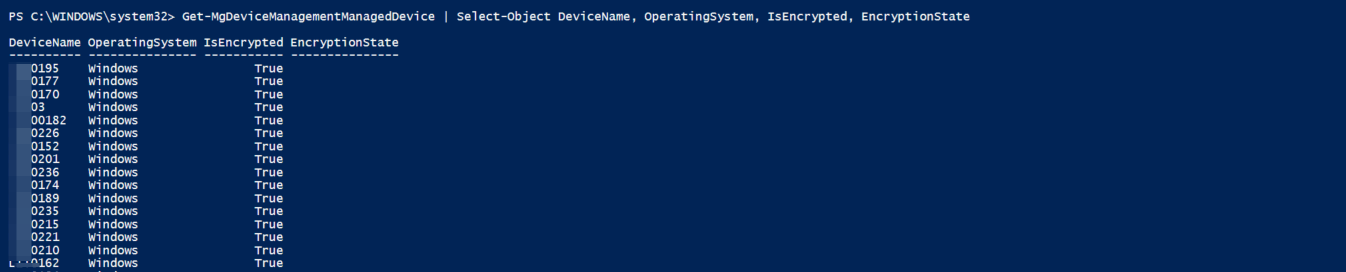
Permissions:
DeviceManagementManagedDevices.Read.All
Get Devices with Encryption disabled
# Get Devices with Encryption disabled
Get-MgDeviceManagementManagedDevice | Where-Object IsEncrypted -EQ $False | Select-Object DeviceName, OperatingSystem, IsEncrypted, EncryptionState
Permissions:
DeviceManagementManagedDevices.Read.All
Identify compromised devices that have had security restrictions removed, representing significant security risks.
# Find jailbroken or rooted devices
Get-MgDeviceManagementManagedDevice | Where-Object {$_.JailBroken -eq $true} | Select-Object DeviceName, UserPrincipalName, OperatingSystem
No jailbroken or rooted devices in my tenant :

Thanks