Physical Address
304 North Cardinal St.
Dorchester Center, MA 02124
Physical Address
304 North Cardinal St.
Dorchester Center, MA 02124

Explore practical guides and tools for Microsoft 365, Azure, and PowerShell. Enhance your cloud security and admin skills with expert insights and automation tips.
Explore practical guides and tools for Microsoft 365, Azure, and PowerShell. Enhance your cloud security and admin skills with expert insights and automation tips.

This quick reference guide is designed for Exchange Online administrators who are new to Microsoft Graph PowerShell. Each section contains simple, practical commands that you can use immediately to manage mailboxes, emails, calendars, and contacts.
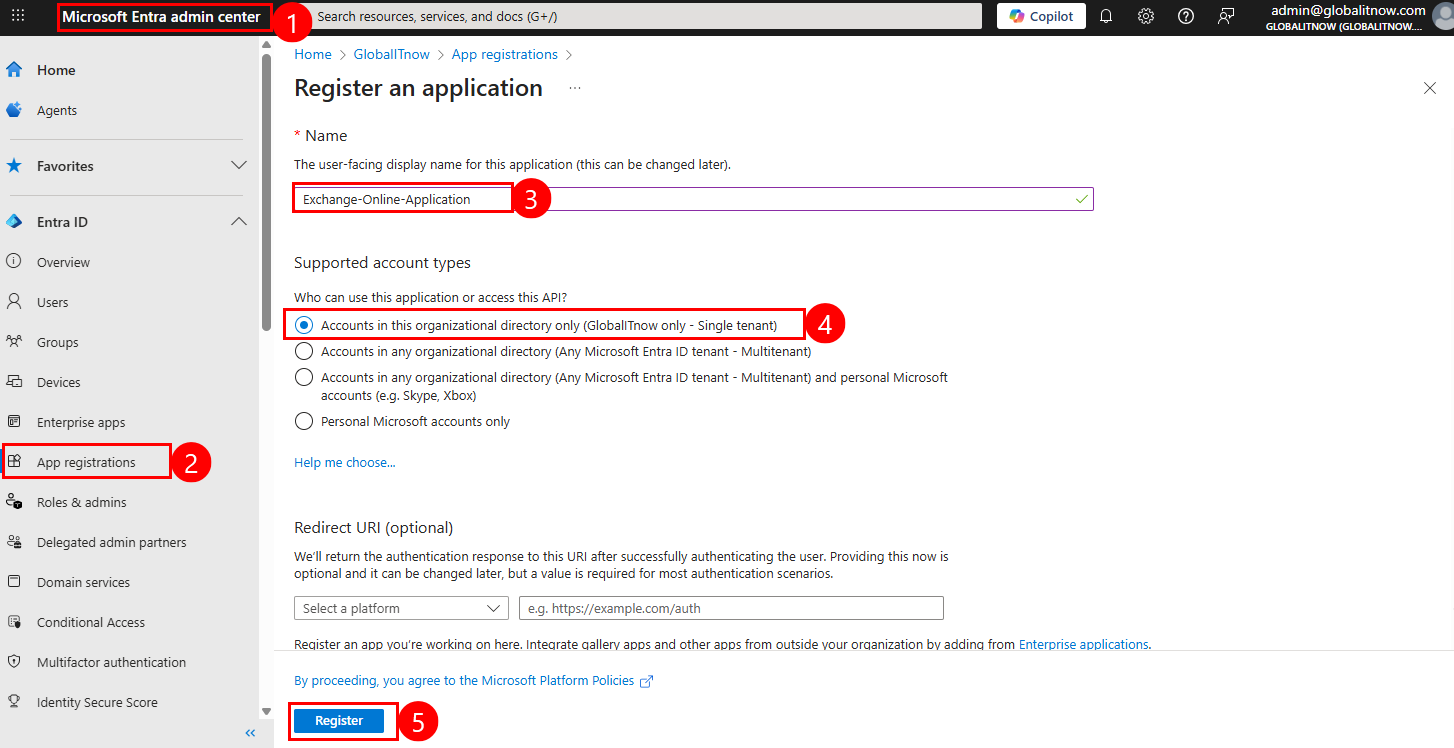
I think this part of Exchange Online is the most important part of the entire series because it affects almost every aspect of daily tasks, and for that reason, I will detail all the steps in this article.
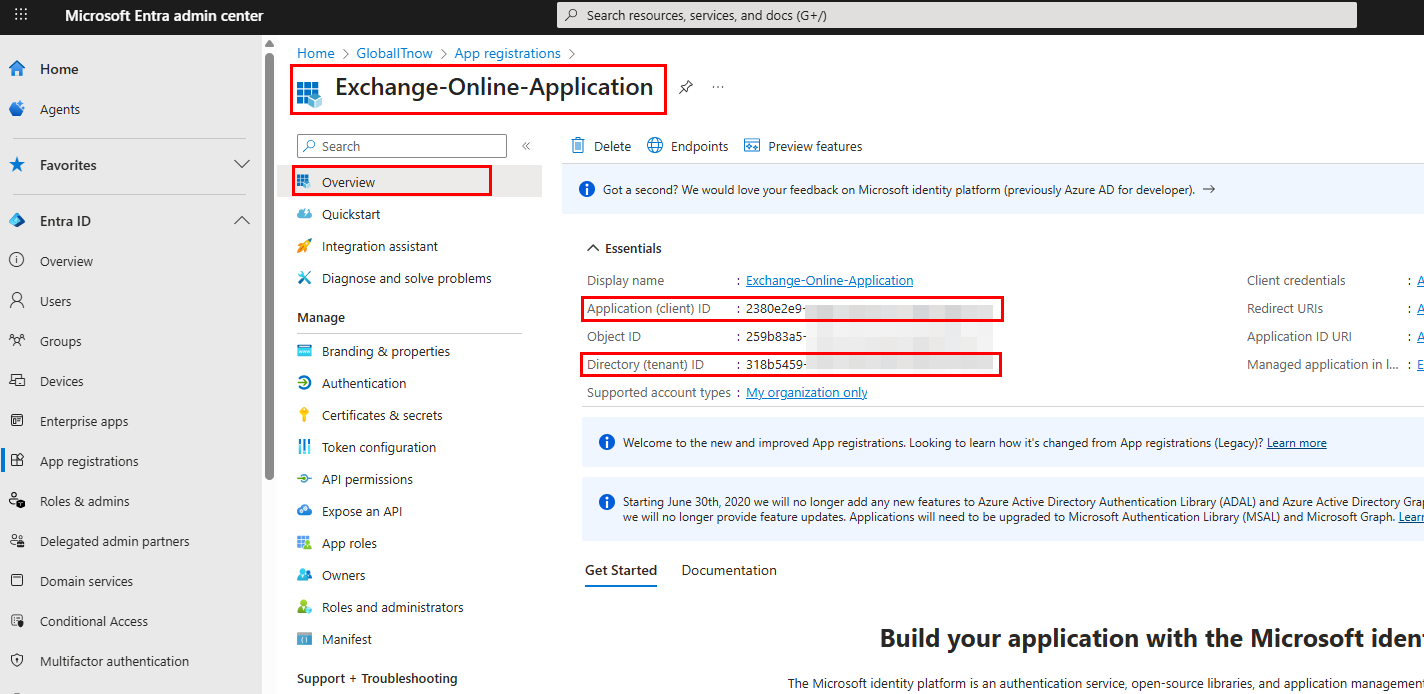
Copy Client ID and Tenant ID in notepad, we’ll use them in connection script later.
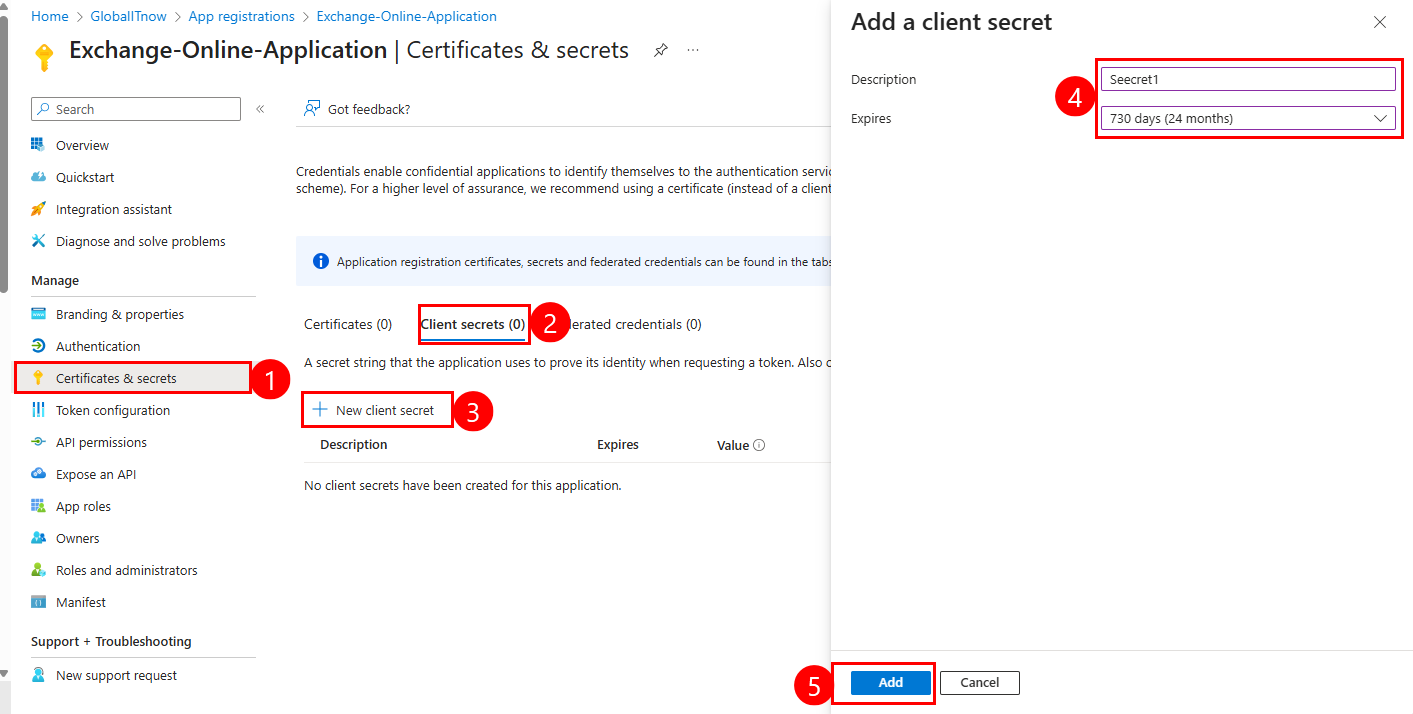
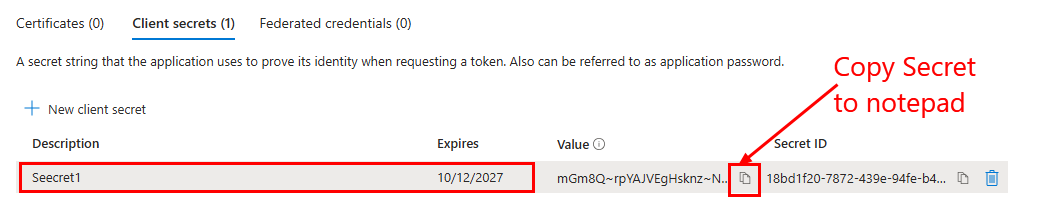
Copy generated secret in notepad with previous copied Client ID and Tenant ID.
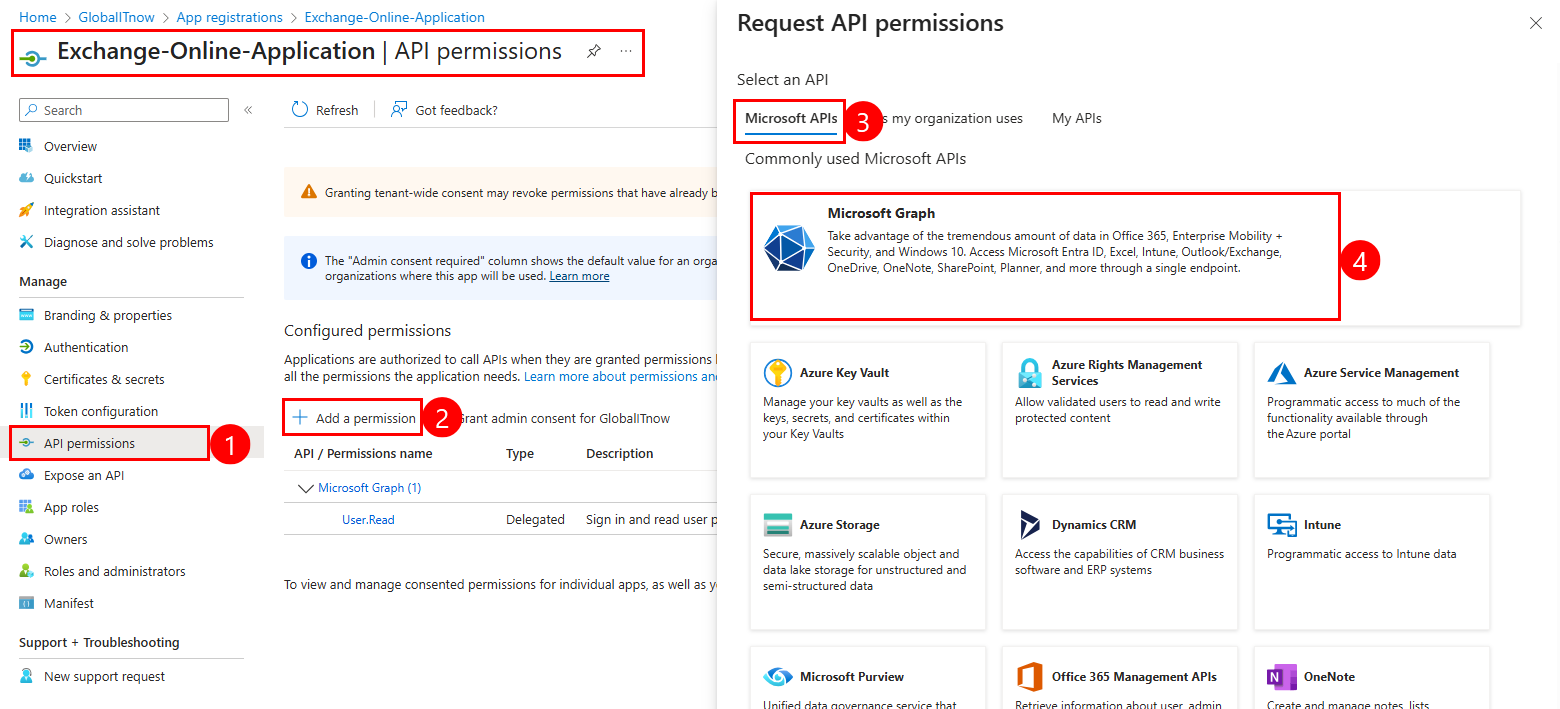
Select “Application Permissions” then Add these permissions one by one :
Mail.ReadWrite, Calendars.ReadWrite, Contacts.ReadWrite, MailboxSettings.ReadWrite, User.Read.All, Mail.Send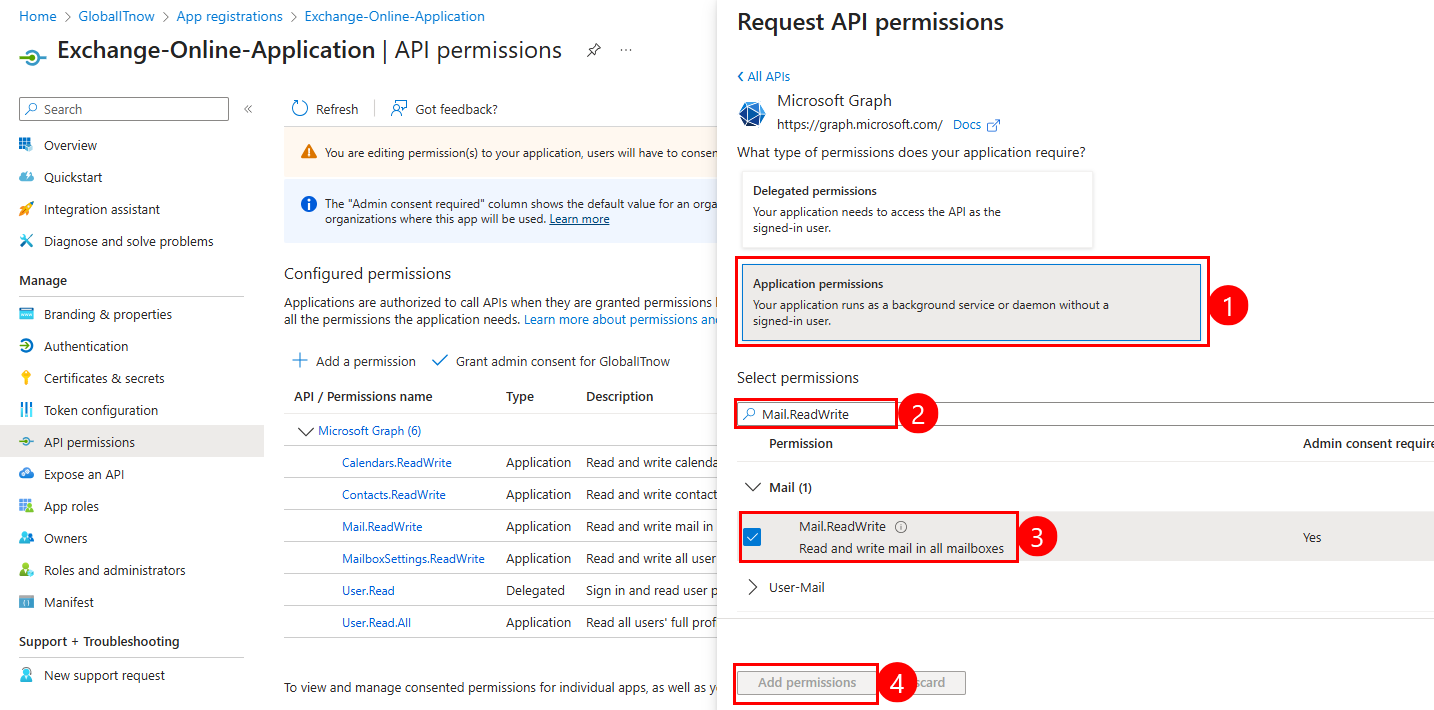
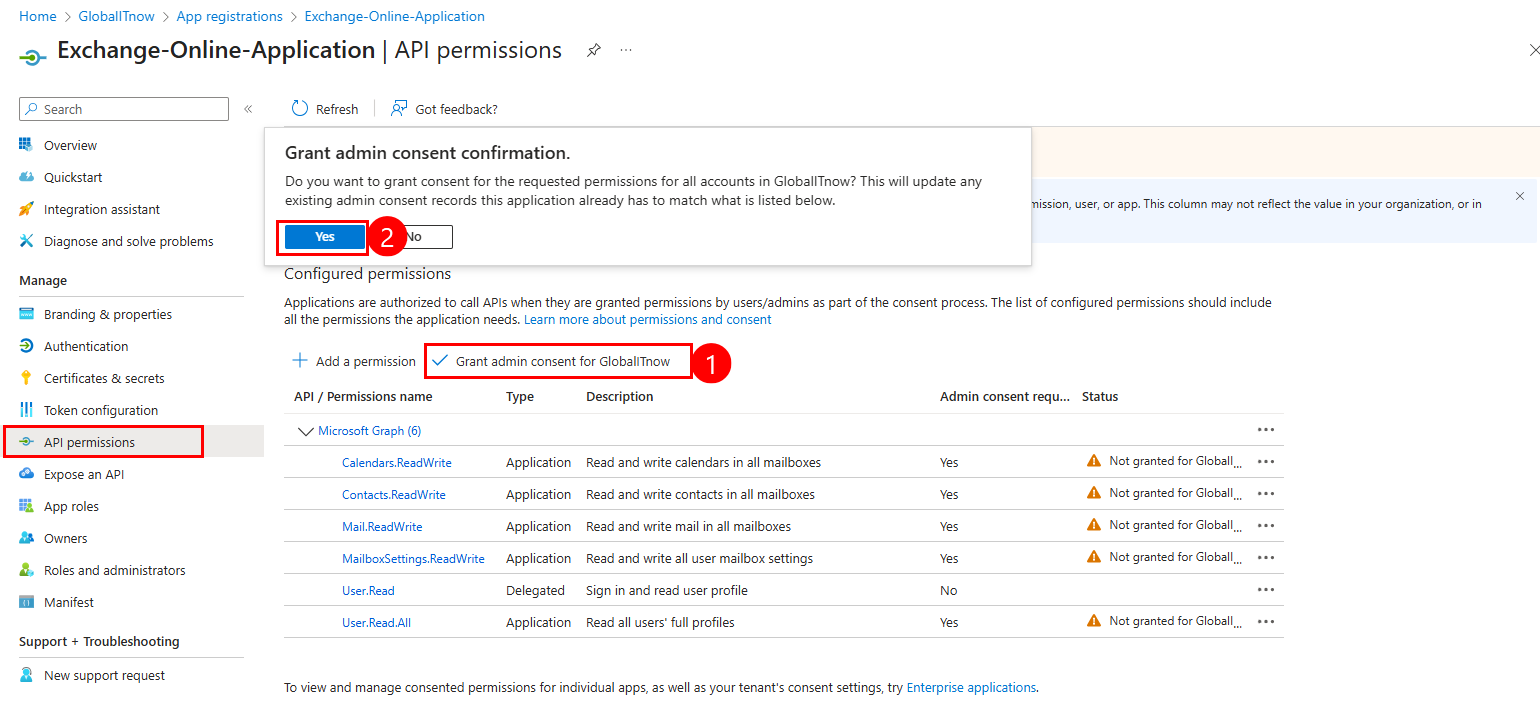
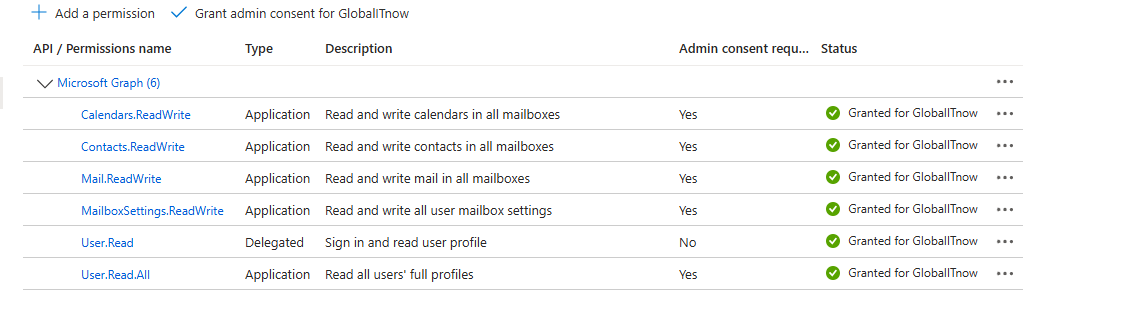
Now you’re done with Entra ID Application Registration, let’s see how to connect to it and how to execute all command lines.
Install-Module Microsoft.Graph -Scope CurrentUser -Force
Import-Module Microsoft.GraphThis connection is to connect to our Entra ID application (Exchange-Online-Application in my case).
You just need to change the 3 first variables then execute :
# -------------------------------------------------- Change this variables -----------------------------------------
# Connect using app credentials
$TenantId = "xxxxxxxxxxxxxxxxxxxxxxxxxxxxxxxxxx"
$ClientId = "xxxxxxxxxxxxxxxxxxxxxxxxxxxxxxxxxx"
$ClientSecret = "xxxxxxxxxxxxxxxxxxxxxxxxxxxxxxxxxx"

# -------------------------------------------------- Noting to change here -----------------------------------------
$Scope = "https://graph.microsoft.com/.default"
$AuthUrl =
"https://login.microsoftonline.com/$TenantId/oauth2/v2.0/token"
$Body = @{
    client_id = $ClientId
    scope = $Scope
    client_secret = $ClientSecret
    grant_type = "client_credentials"
}
$Connection = Invoke-RestMethod -Method POST -Uri $AuthUrl -Body $Body -ContentType "application/x-www-form-urlencoded"
$AccessToken = $Connection.access_token

# Convert token to SecureString
$SecureToken = ConvertTo-SecureString -String $AccessToken -AsPlainText -Force

# Use the token for authentication
Connect-MgGraph -AccessToken $SecureTokenPermissions:
User.Read.All
Let’s list all exchange Online Mailboxes :
# Get all users with mailboxes
Get-MgUser -All | Where-Object {$_.Mail -ne $null} | Select-Object DisplayName, UserPrincipalName, Mail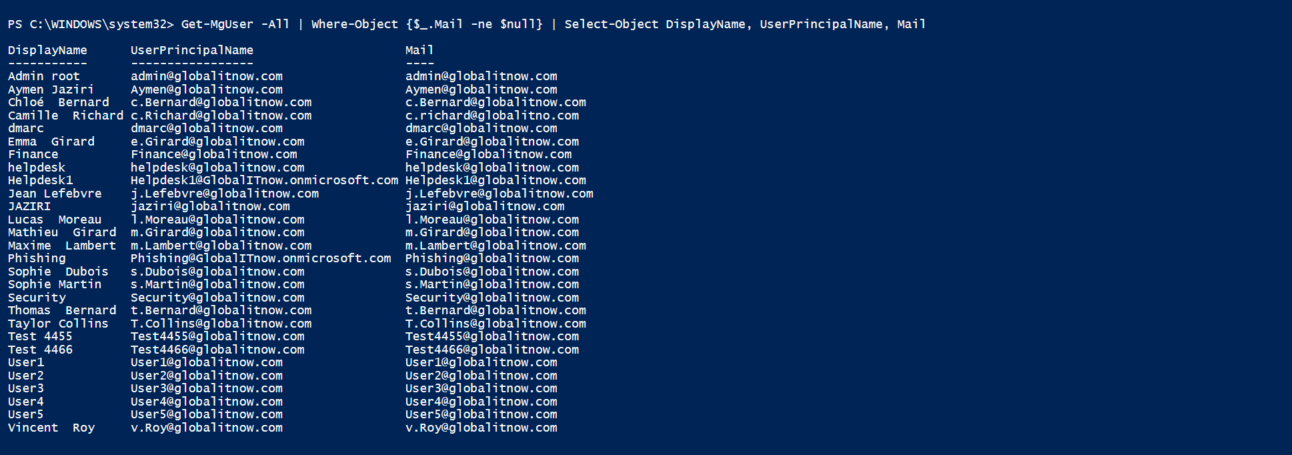
Permissions:
User.Read.All
Let’s get Specific User Mailbox Info :
# Get mailbox details for a user
Get-MgUser -UserId "user@tenant.com" | Select-Object DisplayName, Mail, UserPrincipalName, AccountEnabled
Permissions:
MailboxSettings.Read
Let’s get Specific User Mailbox settings
# View user's mailbox settings
Get-MgUserMailboxSetting -UserId "user@tenant.com" | Select-Object Language, TimeZone, DateFormat
Permissions:
MailboxSettings.ReadWrite
Let’s update Specific User Mailbox settings
# Update timezone and language
$Settings = @{
    TimeZone = "Eastern Standard Time"
    Language = @{Locale = "en-US"}
}
Update-MgUserMailboxSetting -UserId "user@tenant.com" -BodyParameter $Settings
Permissions:
Mail.ReadorMail.ReadWrite
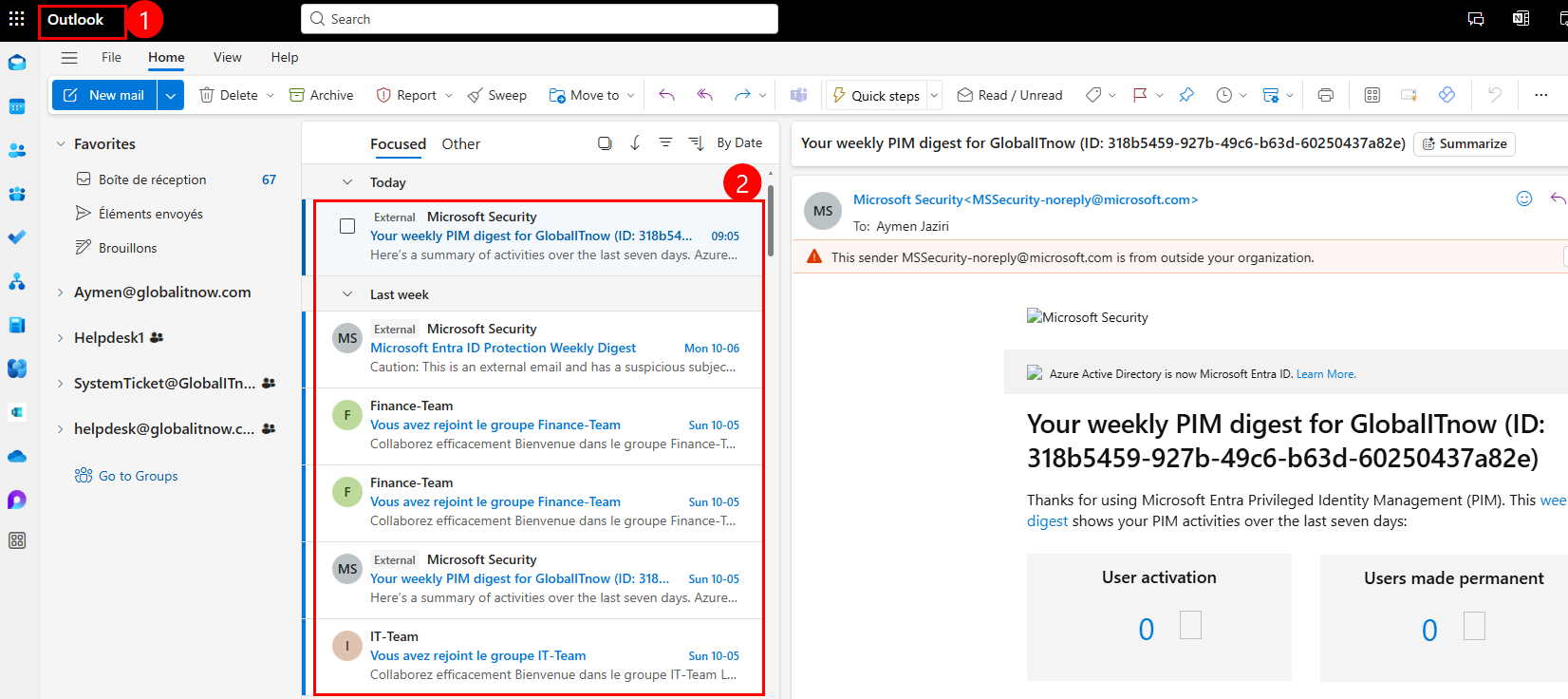
Let’s get top 10 emails in specific user mailbox :
# User
$User = "Aymen@globalitnow.com"

# Get recent emails from inbox
Get-MgUserMessage -UserId $User -Top 10 | Select-Object Subject, ReceivedDateTime, From, IsRead
You can see here the same email list :
Permissions:
Mail.Read
Let’s get top 20 emails where subject contain “Microsoft“
# User
$User = "Aymen@globalitnow.com"

# Subject
$Subject = "Microsoft"

# Search emails containing specific text in subject
Get-MgUserMessage -UserId $User -Filter "contains(subject, '$Subject')" -Top 20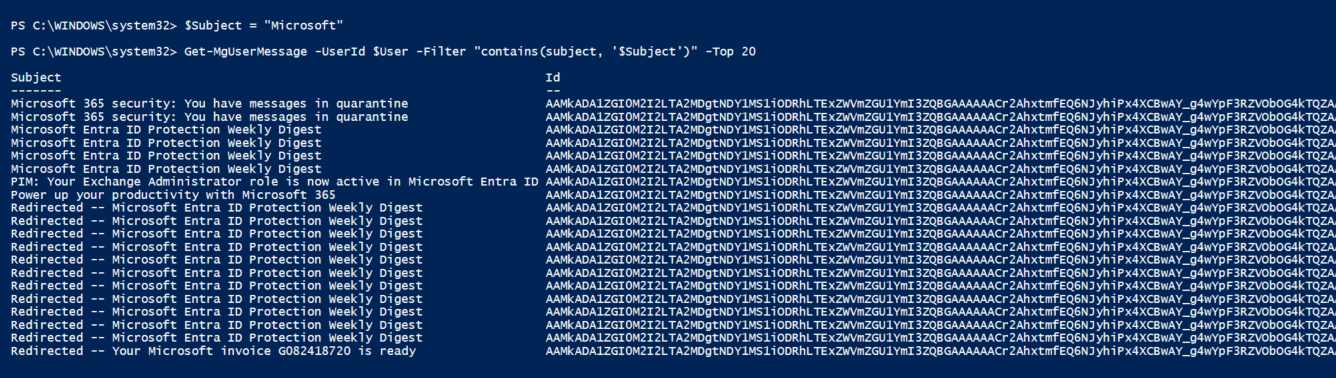
Permissions:
Mail.Read
Let’s get list of email received from “MSSecurity-noreply@microsoft.com“
# User mailbox
$User = "Aymen@globalitnow.com"

# Sender
$Sender = "MSSecurity-noreply@microsoft.com"

# Get emails from specific sender
Get-MgUserMessage -UserId $User -Filter "from/emailAddress/address eq '$Sender'" | Select-Object Subject, ReceivedDateTime, From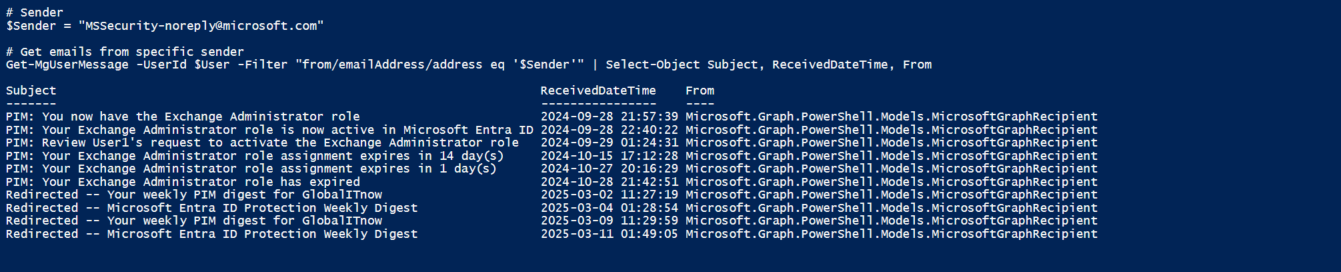
Permissions:
Mail.Read
Let’s get received emails from specific sender that was received yesterday
# User mailbox
$User = "Aymen@globalitnow.com"

# Sender
$Sender = "aymeneljaziri@gmail.com"

# Get emails from specific sender for last 5 days
$Date = (Get-Date).AddDays(-5)
Get-MgUserMessage -UserId $User -Filter "from/emailAddress/address eq '$Sender'" | Where-Object ReceivedDateTime -GE $Date | Select-Object Subject, ReceivedDateTime, From
Permissions:
Mail.Send
Let’s send TEST email from “Aymen@globalitnow.com” to my gmail email address :
# User mailbox
$User = "Aymen@globalitnow.com"

# Destination email address
$Destination = "aymeneljaziri@gmail.com"

# Email Subject
$Subject = "Test Email from PowerShell"

# Email content
$Content = "This is a test email sent via Microsoft Graph PowerShell"

# Send an email as a user
$EmailParams = @{
    Message = @{
        Subject = $Subject
        Body = @{
            ContentType = "Text"
            Content = $Content
        }
        ToRecipients = @(@{EmailAddress = @{Address = $Destination}})
    }
    SaveToSentItems = $true
}
Send-MgUserMail -UserId $User -BodyParameter $EmailParams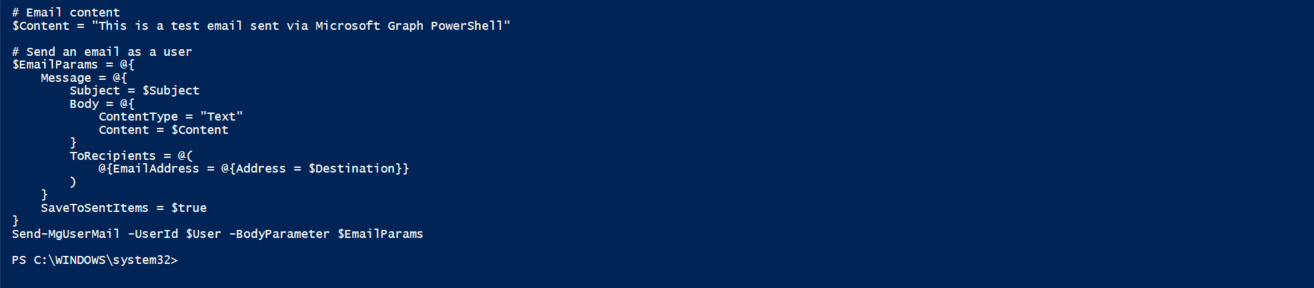
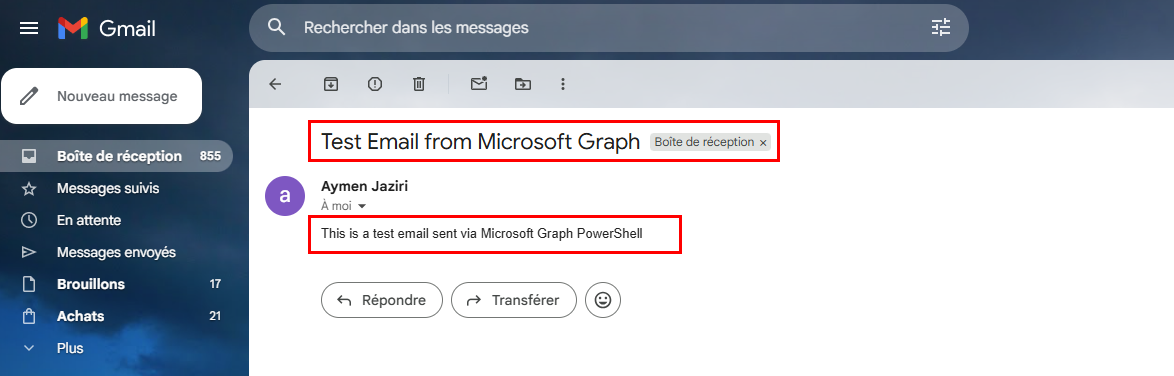
Here is the received email message :
Permissions:
Mail.Send
Let’s send email formated in HTML
# User mailbox
$User = "Aymen@globalitnow.com"

# Destination email address
$Destination = "aymeneljaziri@gmail.com"

# Email Subject
$Subject = "Monthly Report"

# Email content
$Content = "<h1>Monthly Report</h1> <br> <p>Please find the attached report.</p>"

# Send formatted HTML email
$EmailParams = @{
    Message = @{
        Subject = $Subject
        Body = @{
            ContentType = "HTML"
            Content = $Content
        }
        ToRecipients = @(@{EmailAddress = @{Address = $Destination}})
    }
}
Send-MgUserMail -UserId $User -BodyParameter $EmailParams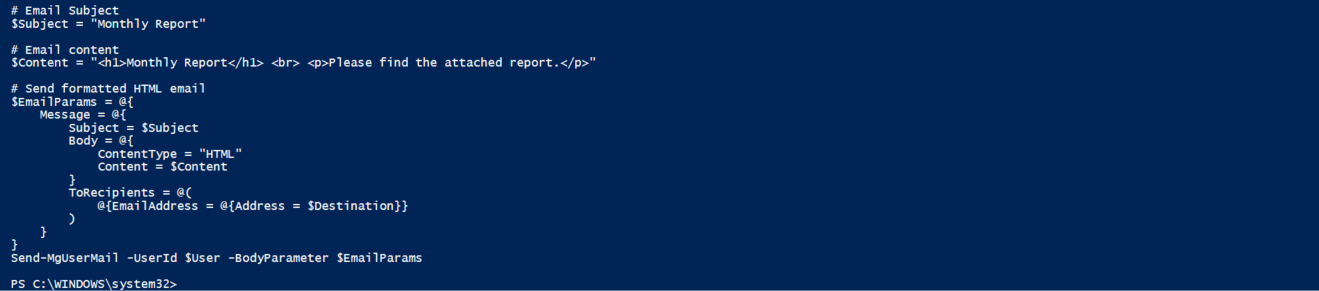
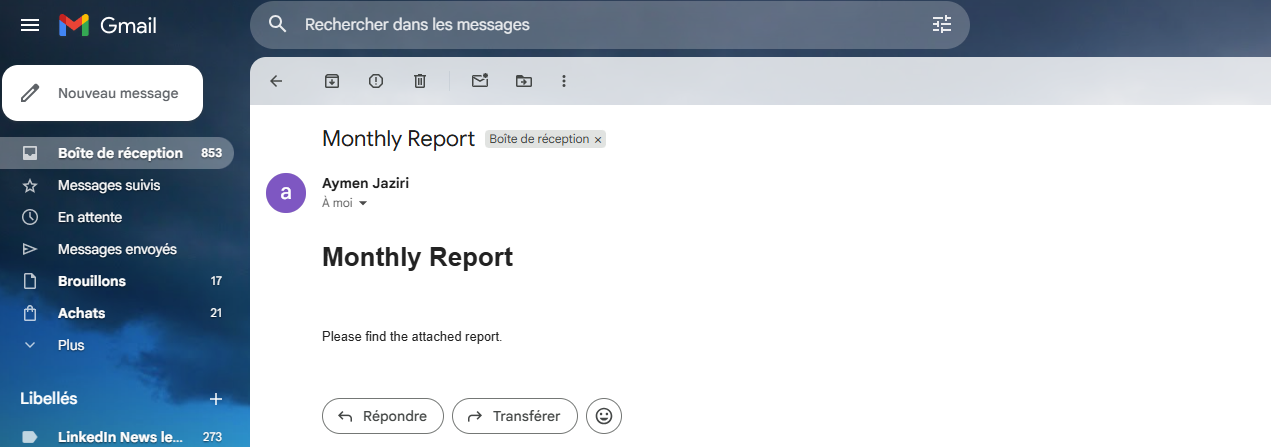
Here is the received email message :
Permissions:
Mail.Send
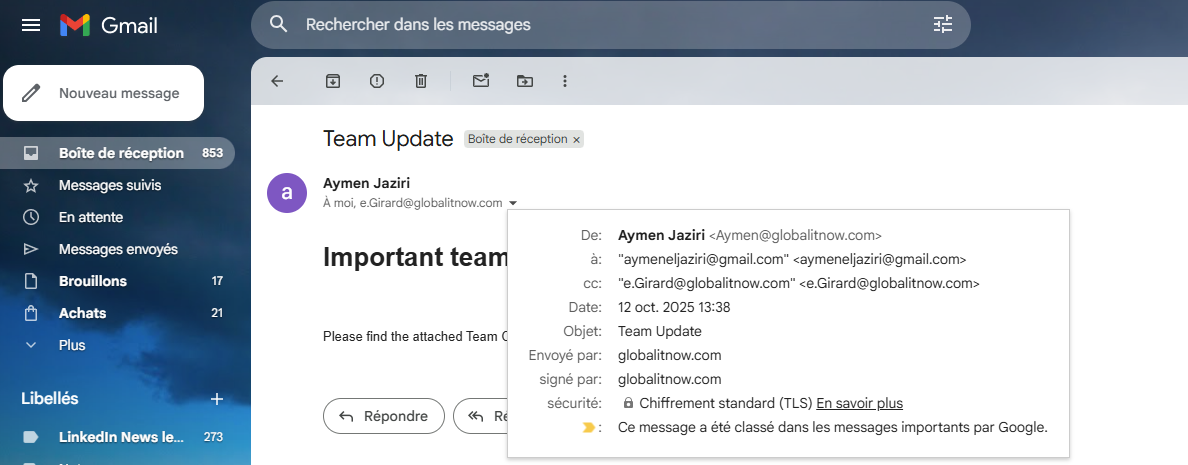
Let’s send email with CC and BCC
# User mailbox
$User = "Aymen@globalitnow.com"

# Destination email addresses
$Destination = "aymeneljaziri@gmail.com"
$DestinationCC = "e.Girard@globalitnow.com"
$DestinationBcc = "a.Dubois@globalitnow.com"

# Email Subject
$Subject = "Team Update"

# Email content
$Content = "<h1>Important team update</h1> <br> <p>Please find the attached Team Change.</p>"

# Send formatted HTML email
$EmailParams = @{
    Message = @{
        Subject = $Subject
        Body = @{
            ContentType = "HTML"
            Content = $Content
        }
        ToRecipients = @(@{EmailAddress = @{Address = $Destination}})
        CcRecipients = @(@{EmailAddress = @{Address = $DestinationCC}})
        BccRecipients = @(@{EmailAddress = @{Address = $DestinationBcc}})
    }
}
Send-MgUserMail -UserId $User -BodyParameter $EmailParams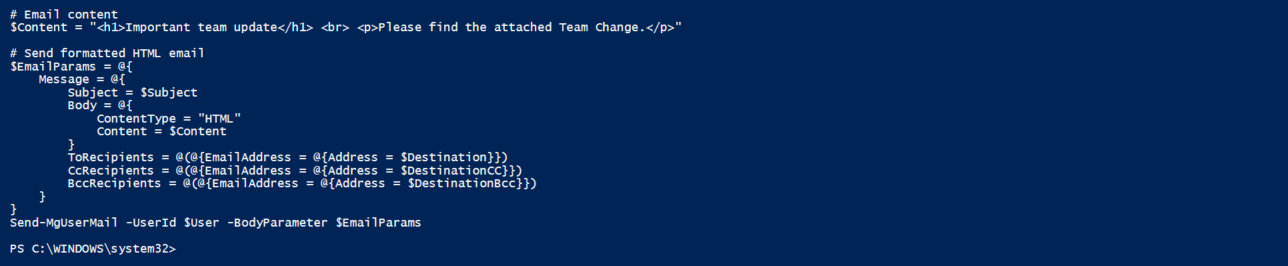
Here is the received email message :
Permissions:
Mail.Send
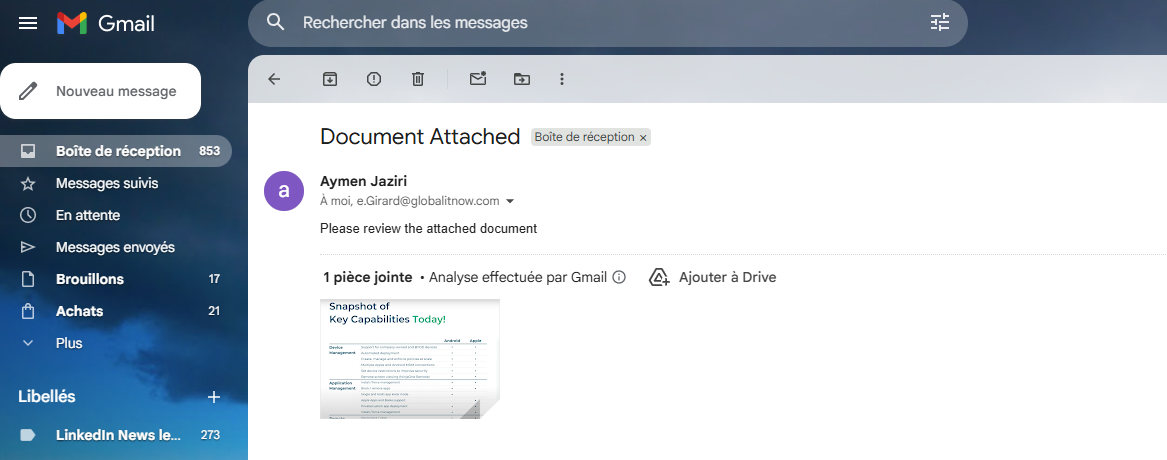
Let’s send email with attached file (“C:\temp\Photo1.png”)
# User mailbox
$User = "Aymen@globalitnow.com"

# Destination email addresses
$Destination = "aymeneljaziri@gmail.com"
$DestinationCC = "e.Girard@globalitnow.com"

# Email Subject
$Subject = "Document Attached"

# Email content
$Content = "Please review the attached document"

# Send email with file attachment
$FileBytes = [System.IO.File]::ReadAllBytes("C:\temp\Photo1.png")
$FileBase64 = [Convert]::ToBase64String($FileBytes)
$DocumentName = "Photo1.png"

# Send email
$EmailParams = @{
    Message = @{
        Subject = $Subject
        Body = @{ContentType = "Text";
        Content = $Content }
        ToRecipients = @(@{EmailAddress = @{Address = $Destination}})
        CcRecipients = @(@{EmailAddress = @{Address = $DestinationCC}})

        Attachments = @(
            @{
                "@odata.type" = "#microsoft.graph.fileAttachment"
                Name = $DocumentName
                ContentBytes = $FileBase64
            }
        )
    }
}
Send-MgUserMail -UserId $User -BodyParameter $EmailParams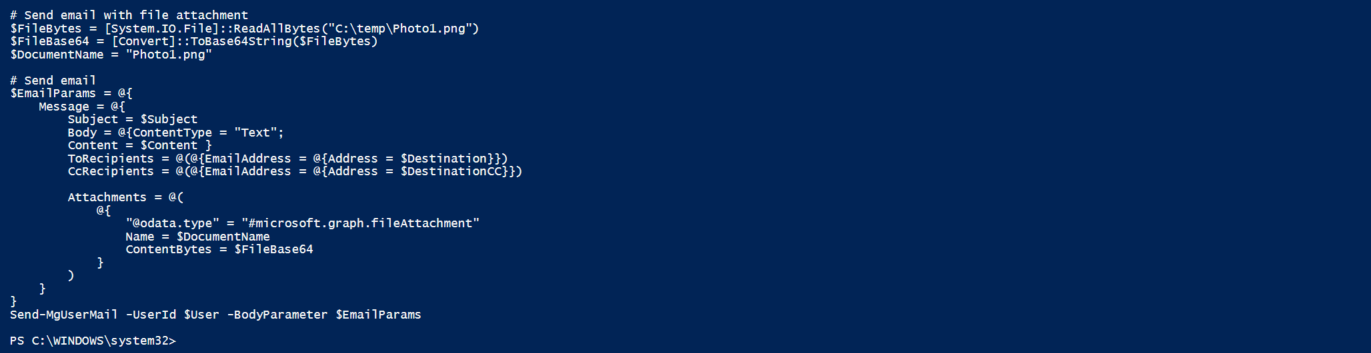
Here is the received email message :
Permissions:
Mail.ReadWrite
In this example, we’ll delete the last email received from my personal Gmail address.
This is the last email that we’ll delete.
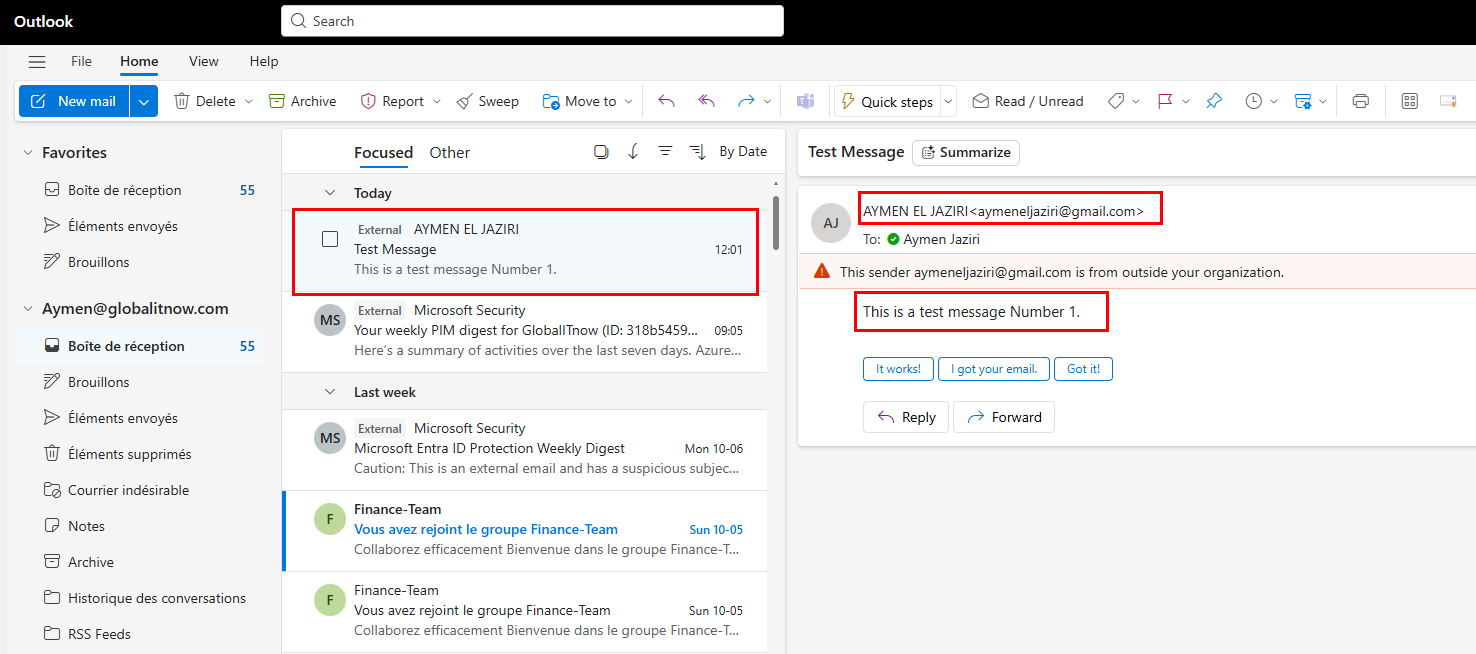
This is the PowerShell Code :
# User mailbox
$User = "Aymen@globalitnow.com"

# Sender
$Sender = "aymeneljaziri@gmail.com"

# Get last email from specific sender
$Message = Get-MgUserMessage -UserId $User -Filter "from/emailAddress/address eq '$Sender'" | Sort-Object ReceivedDateTime -Descending | Select-Object Subject, ReceivedDateTime, From, Id -First 1
$MessageId = $Message.Id

# Move email to Deleted Items
Remove-MgUserMessage -UserId $User -MessageId $MessageId
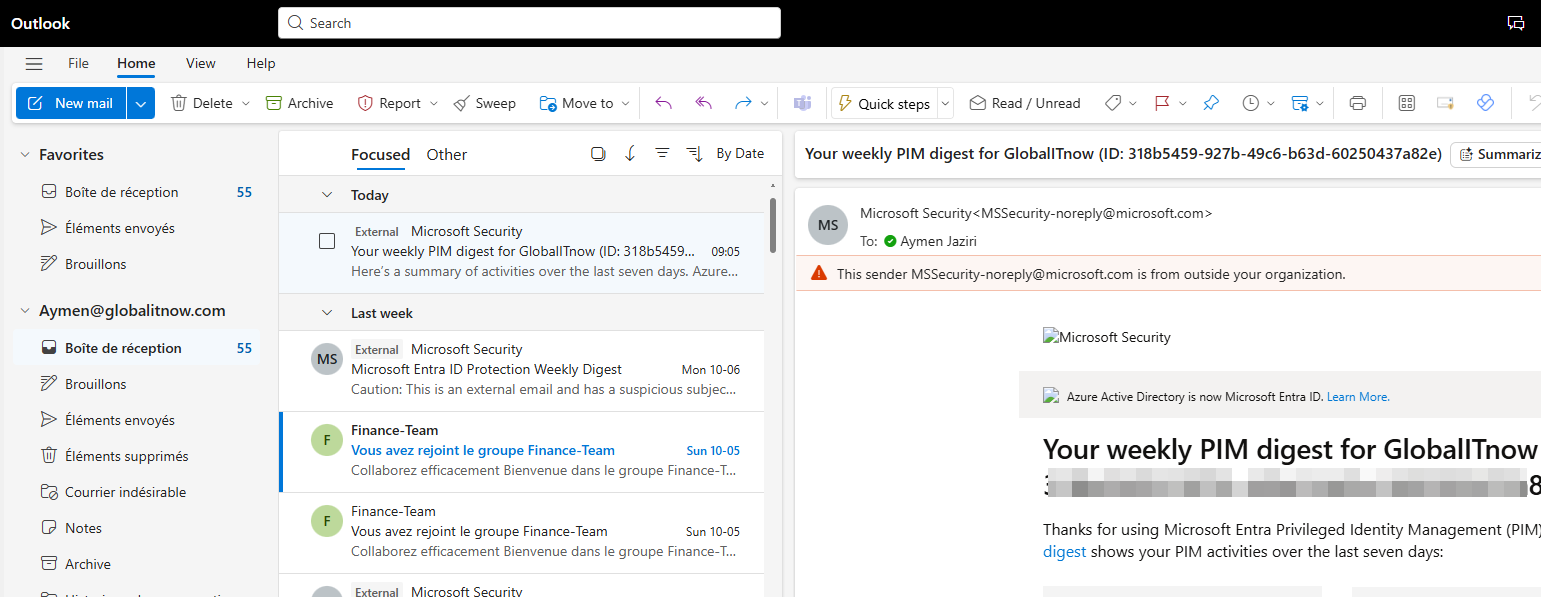
As you can see here the last email was deleted successfully.
Permissions:
Mail.Read
Let’s list all folders inside soecific user mailbox :
# User mailbox
$User = "Aymen@globalitnow.com"

# Get all mail folders
Get-MgUserMailFolder -UserId $User | Select-Object DisplayName, TotalItemCount, UnreadItemCount, Id
Permissions:
Mail.Read
Let’s get Inbox Folder (Inbox folder name change by mailbox langage, in my case my mailbox langage is French : “Boîte de réception“)
# User mailbox
$User = "Aymen@globalitnow.com"
$InboxFolderName = "Boîte de réception" # French nomination of Inbox, if default langage is US, change it by Inbox

# Get Inbox folder details
Get-MgUserMailFolder -UserId $User -Filter "displayName eq '$InboxFolderName'"
Permissions :
Mail.Read
Let’s get top 20 messages from Inbox folder of specific user.
# User mailbox
$User = "Aymen@globalitnow.com"
$InboxFolderName = "Boîte de réception"

# Get Inbox folder Id
$FolderId = (Get-MgUserMailFolder -UserId $User -Filter "displayName eq '$InboxFolderName'").Id

# Get messages from a specific folder
Get-MgUserMailFolderMessage -UserId $User -MailFolderId $FolderId -Top 20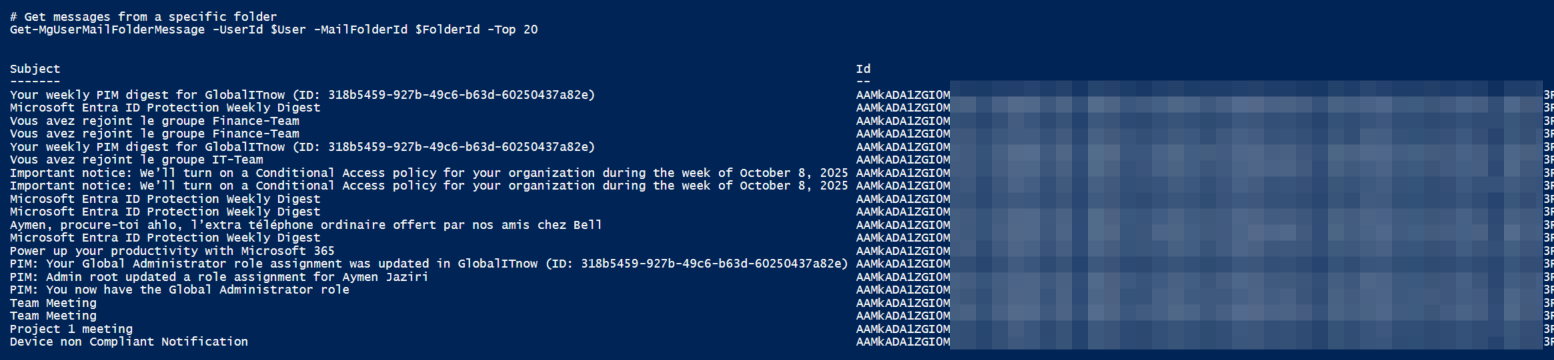
Permissions:
Calendars.Read
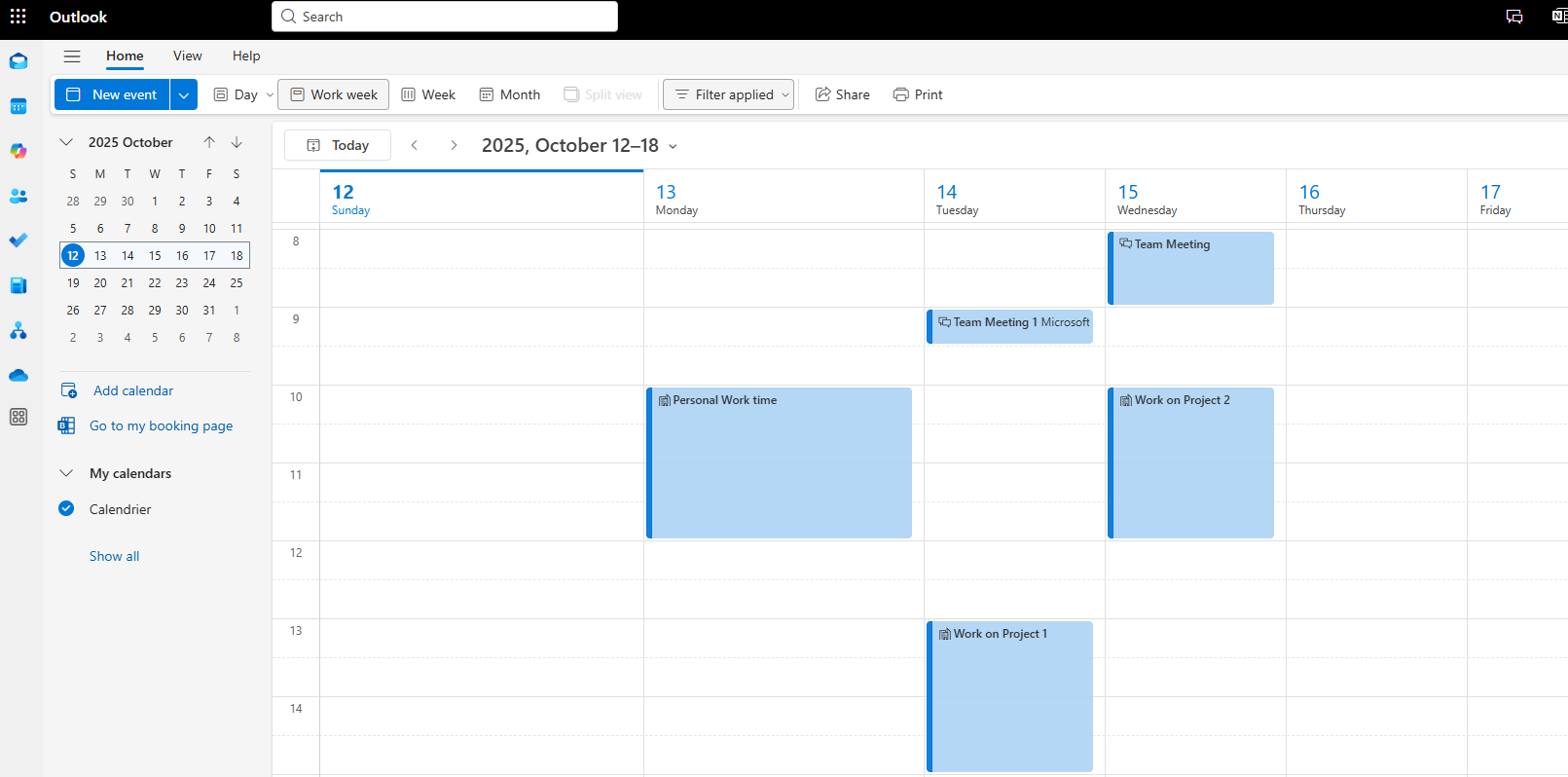
Lets List Calendar Events from specific user calendar.
# User mailbox
$User = "Aymen@globalitnow.com"

# Set the time zone for Canada (Eastern Time)
$headers = @{
    "Prefer" = "outlook.timezone=`"Eastern Standard Time`""
}

# Get upcoming calendar events with Canada (Eastern Time) time zone
Get-MgUserEvent -UserId $User -Top 10 -Headers $headers | Select-Object Subject,
    @{Name="Start";Expression={$_.Start.DateTime}},
    @{Name="End";Expression={$_.End.DateTime}},
    @{Name="Location";Expression={$_.Location.DisplayName}}
As you can see here is my Calender for the next week :
Permissions:
Calendars.Read
Lets get today’s events for a specific user.
# User mailbox
$User = "Aymen@globalitnow.com"

# Get events for today
$Today = Get-Date -Format "yyyy-MM-dd"
Get-MgUserCalendarView -UserId $User -StartDateTime "$Today`T00:00:00" -EndDateTime "$Today`T23:59:59" | Select-Object Subject,
    @{Name="Start";Expression={$_.Start.DateTime}} ,
    @{Name="End";Expression={$_.End.DateTime}},
    @{Name="Location";Expression={$_.Location.DisplayName}}
Permissions:
Calendars.ReadWrite
Let’s create new Meeting for specific user.
# User mailbox
$User = "Aymen@globalitnow.com"

# Meeting details
$Subject = "Team Meeting"
$Content = "Monthly team sync meeting"
$MeetingStart = "2025-10-14T10:00:00"
$MeetingEnd = "2025-10-14T11:00:00"
$MeetingTimeZone = "Eastern Standard Time"
$MeetingLocation = "Conference Room A"
$RequiredAttendees = "a.Dubois@globalitnow.com" , "c.Richard@globalitnow.com"
$OptionalAttendees = "" # No optional Attendees in this meeting, you can add one or more

# Create a new meeting
$EventParams = @{
    Subject = $Subject
    Body = @{
        ContentType = "HTML"
        Content = $Content
    }
    Start = @{
        DateTime = $MeetingStart
        TimeZone = $MeetingTimeZone
    }
    End = @{
        DateTime = $MeetingEnd
        TimeZone = $MeetingTimeZone
    }
    Location = @{
        DisplayName = $MeetingLocation
    }
    Attendees = @(
        @{
            EmailAddress = @{Address = $RequiredAttendees}
            Type = "Required"
        },
        @{
            EmailAddress = @{Address = $OptionalAttendees}
            Type = "Optional"
        }
    )
}
New-MgUserEvent -UserId $User -BodyParameter $EventParams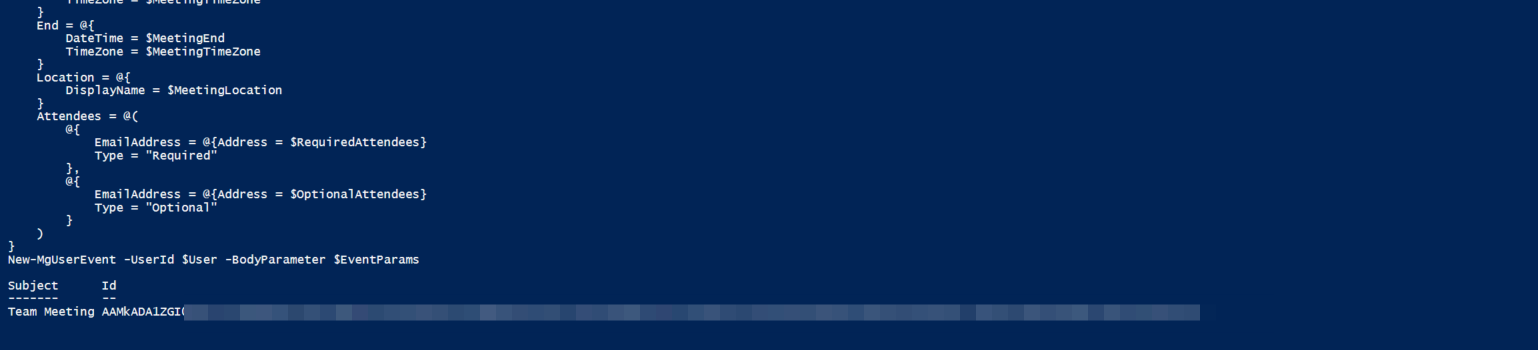
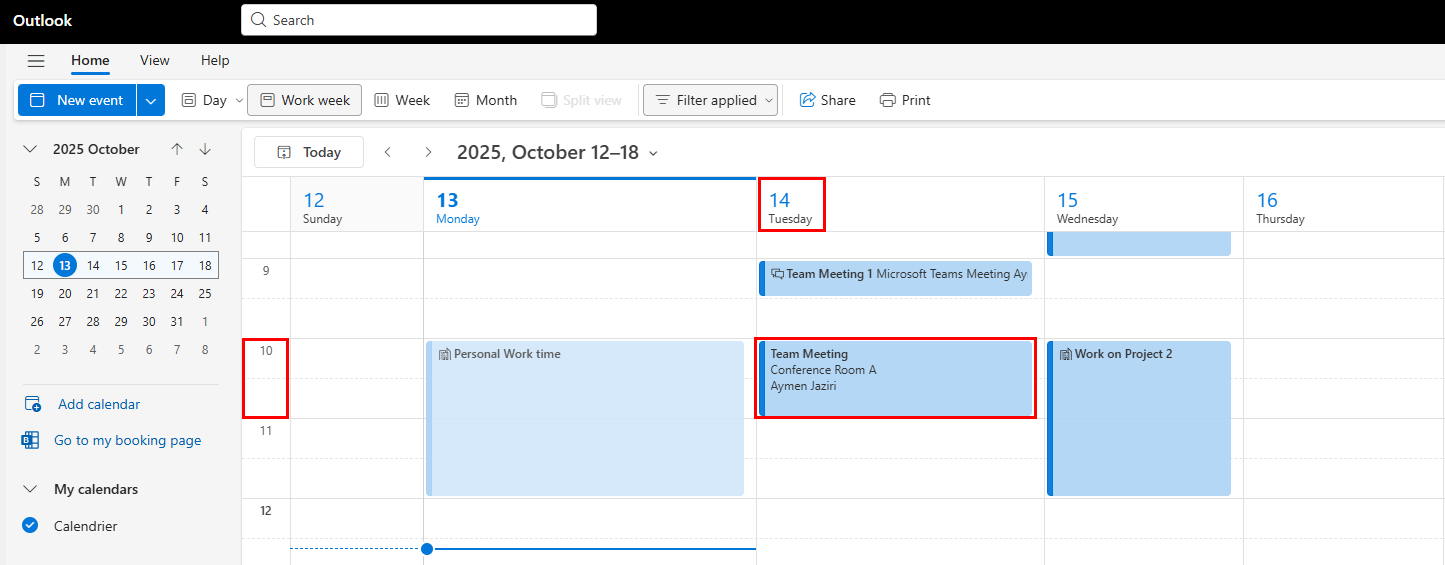
Here is the new Meeting created :
Permissions:
Calendars.ReadWrite
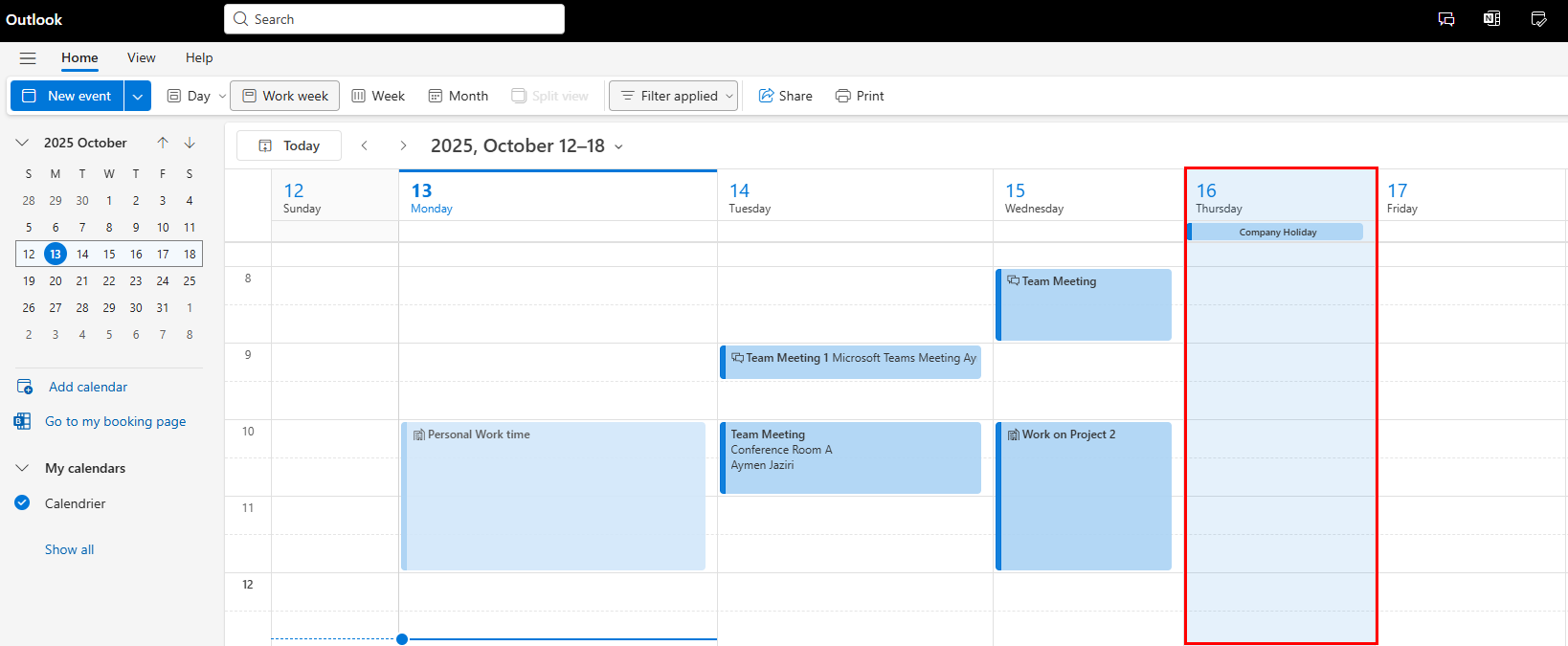
Let’s create Holiday event for the 16th October 2025 :
# User mailbox
$User = "Aymen@globalitnow.com"

# Meeting details
$Subject = "Company Holiday"
$MeetingStart = "2025-10-16T00:00:00"
$MeetingEnd = "2025-10-17T00:00:00"
$MeetingTimeZone = "Eastern Standard Time"

# Create all-day event
$EventParams = @{
    Subject = $Subject
    IsAllDay = $true
    Start = @{
        DateTime = $MeetingStart
        TimeZone = $MeetingTimeZone
    }
    End = @{
        DateTime = $MeetingEnd
        TimeZone = $MeetingTimeZone
    }
}
New-MgUserEvent -UserId $User -BodyParameter $EventParams
Permissions:
Calendars.ReadWrite
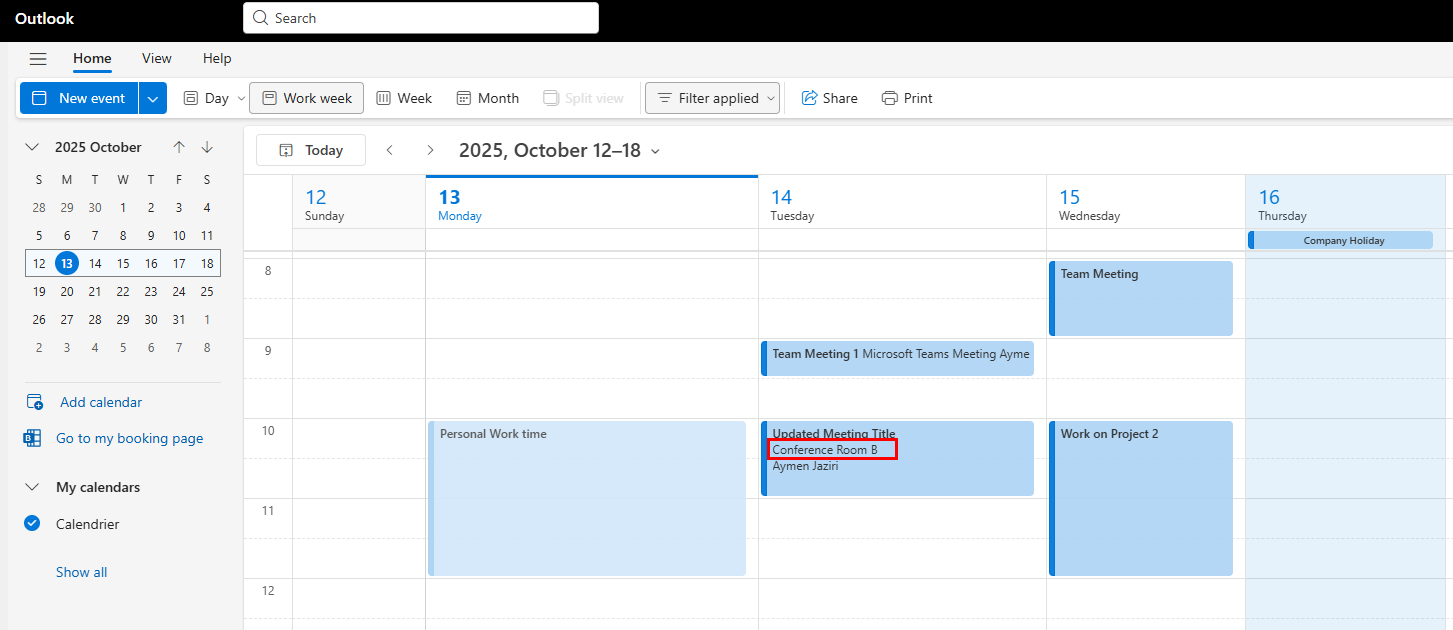
Let’s update the title of the meeting of 14 October at 10:00 and the location from “Conference Room A” to “Conference Room B“
# User mailbox
$User = "Aymen@globalitnow.com"
# Meeting start + end time
$MeetingStart = "2025-10-14T10:00:00"
$MeetingEnd =   "2025-10-14T11:00:00"
$MeetingTimeZone = "Eastern Standard Time"

# Set the time zone for Canada (Eastern Time)
$headers = @{
    "Prefer" = "outlook.timezone=`"Eastern Standard Time`""
}

# Get Event Id
$Event = Get-MgUserEvent -UserId $User -Headers $Headers -All | Where-Object { [DateTime]$_.Start.DateTime  -EQ [DateTime]$MeetingStart }

# Update event details
$UpdateParams = @{
    subject = "Updated Meeting Title"
    location = @{
        displayName = "Conference Room B"
    }
}
Update-MgUserEvent -UserId $User -EventId $Event.Id -BodyParameter $UpdateParams
Permissions:
Calendars.ReadWrite
Let’s delete the last updated event :
# User mailbox
$User = "Aymen@globalitnow.com"
# Meeting start + end time
$MeetingStart = "2025-10-14T10:00:00"
$MeetingEnd =   "2025-10-14T11:00:00"
$MeetingTimeZone = "Eastern Standard Time"

# Set the time zone for Canada (Eastern Time)
$headers = @{
    "Prefer" = "outlook.timezone=`"Eastern Standard Time`""
}

# Get Event Id
$Event = Get-MgUserEvent -UserId $User -Headers $Headers -All | Where-Object { [DateTime]$_.Start.DateTime  -EQ [DateTime]$MeetingStart }

# Cancel/delete an event
Remove-MgUserEvent -UserId $User -EventId $Event.Id
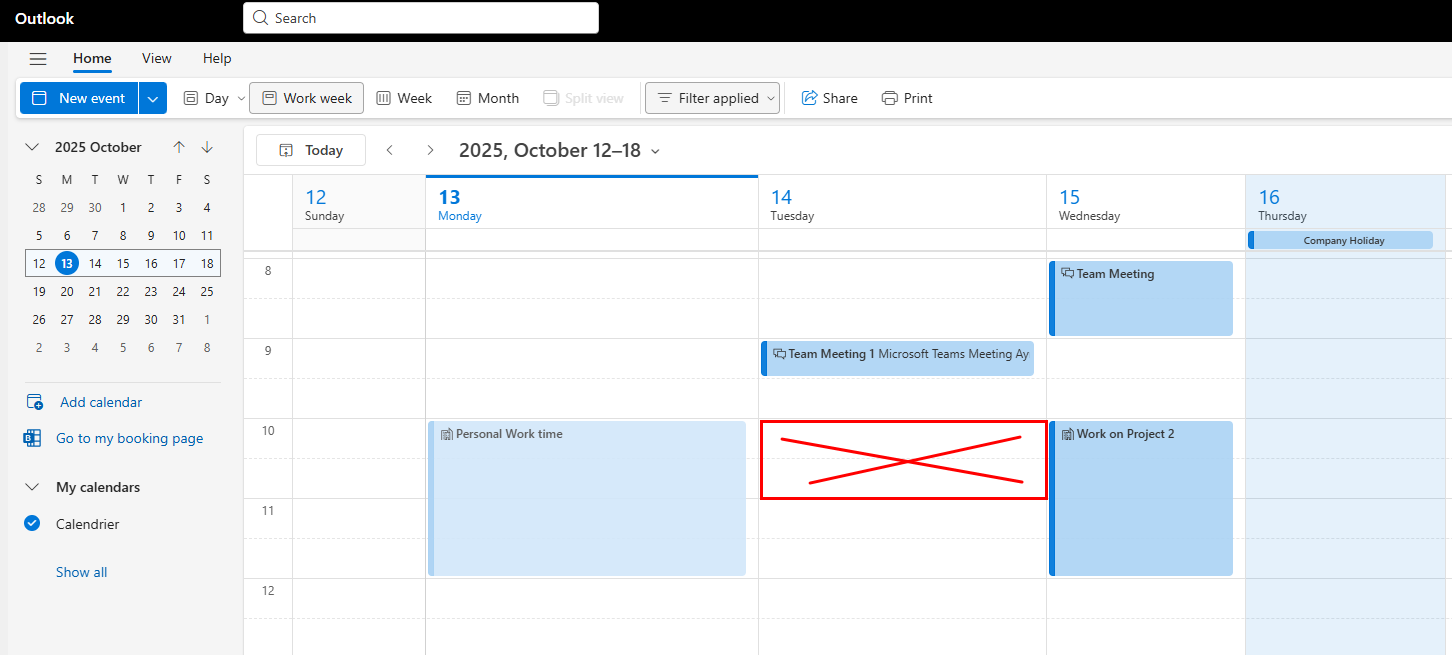
The meeting is deleted as you can see.
Thanks