Physical Address
304 North Cardinal St.
Dorchester Center, MA 02124
Physical Address
304 North Cardinal St.
Dorchester Center, MA 02124

Explore practical guides and tools for Microsoft 365, Azure, and PowerShell. Enhance your cloud security and admin skills with expert insights and automation tips.
Explore practical guides and tools for Microsoft 365, Azure, and PowerShell. Enhance your cloud security and admin skills with expert insights and automation tips.

This quick reference guide is designed for SharePoint system administrators who are new to Microsoft Graph PowerShell. Each section contains simple, practical commands that you can use immediately to manage SharePoint Online and OneDrive for Business.
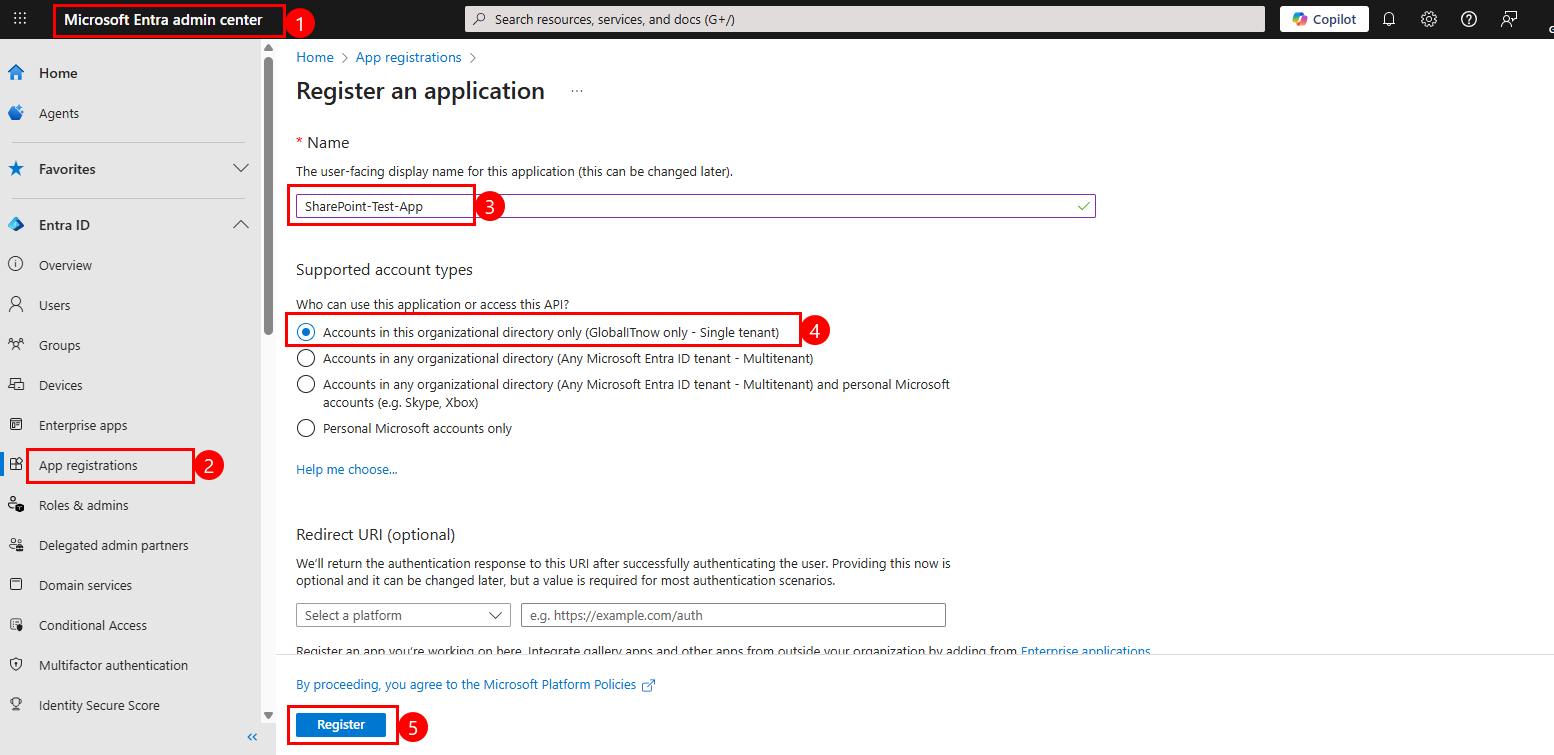
In this section, we need to use a Registred Entra ID application to be able to execute commands on different SharePoint sites. This is necessary for the rest of the commands. I will detail the steps to follow in the next step.
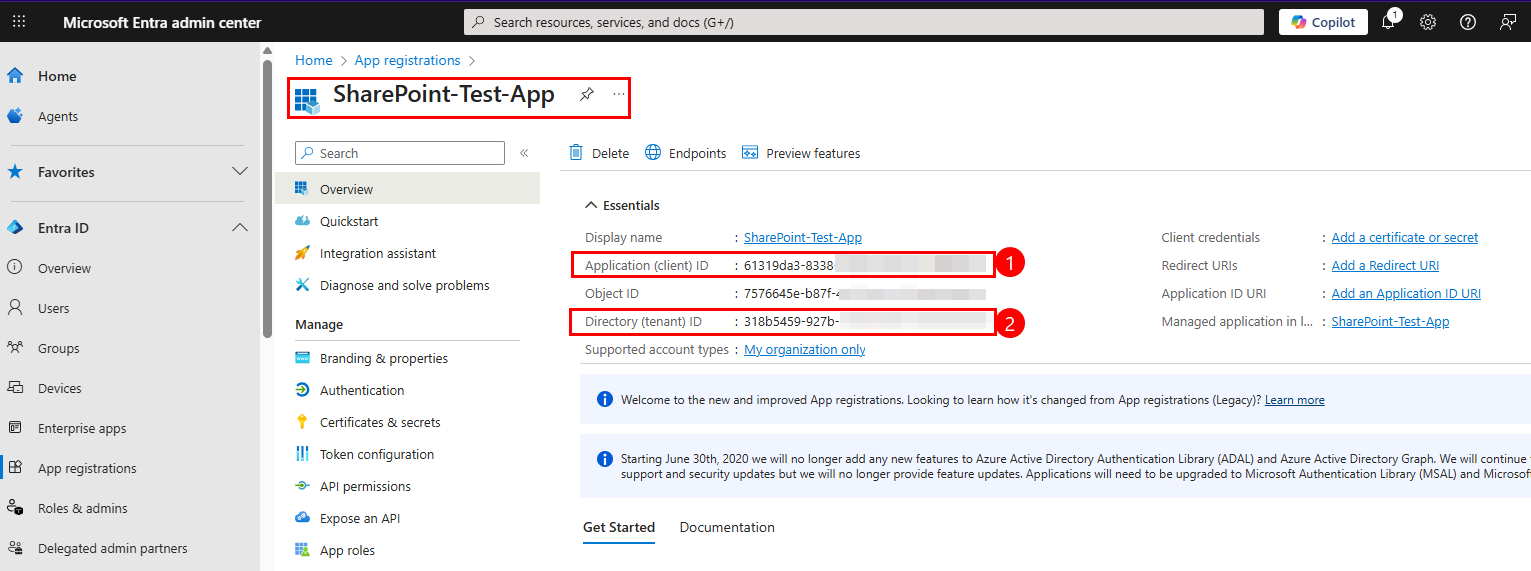
Copy Client ID and Tenant ID in notepad, we’ll use them in connection script later.
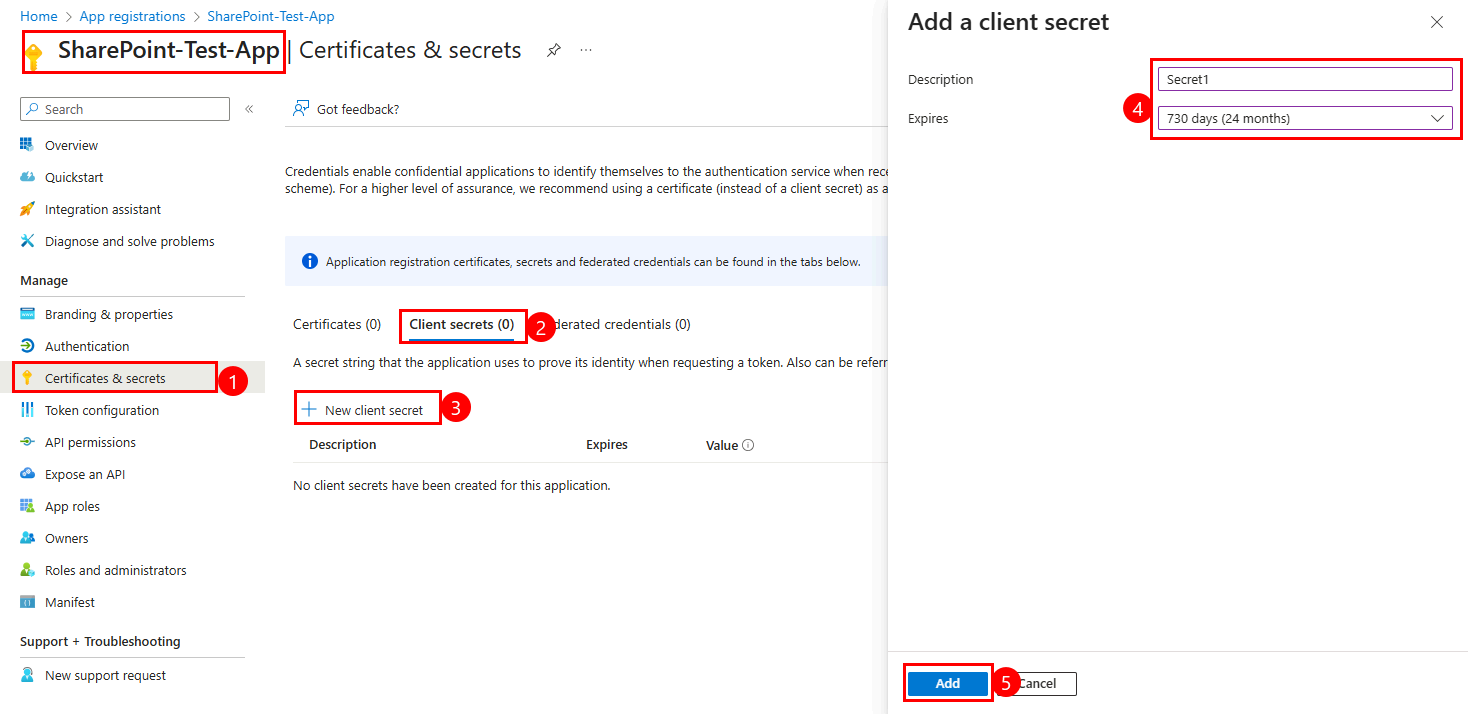
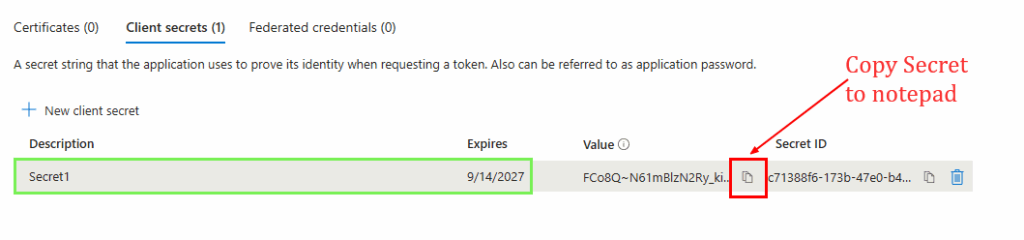
Copy generated secret in notepad with previous copied Client ID and Tenant ID.
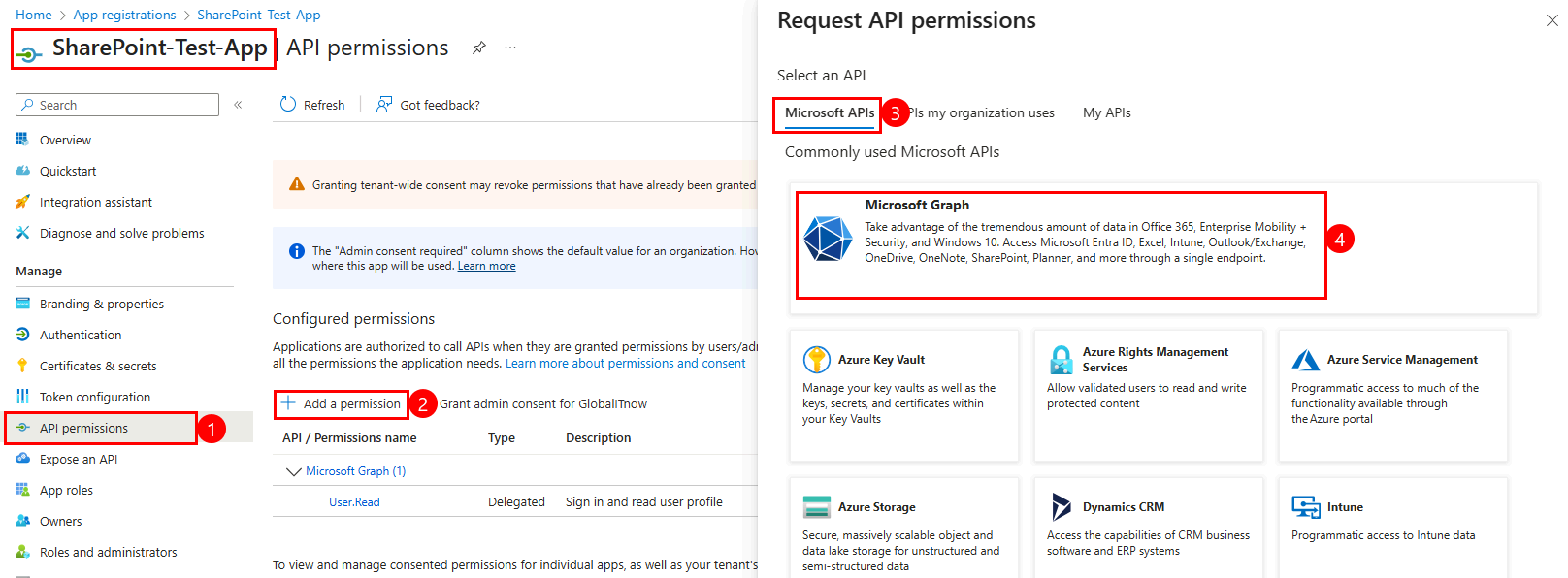
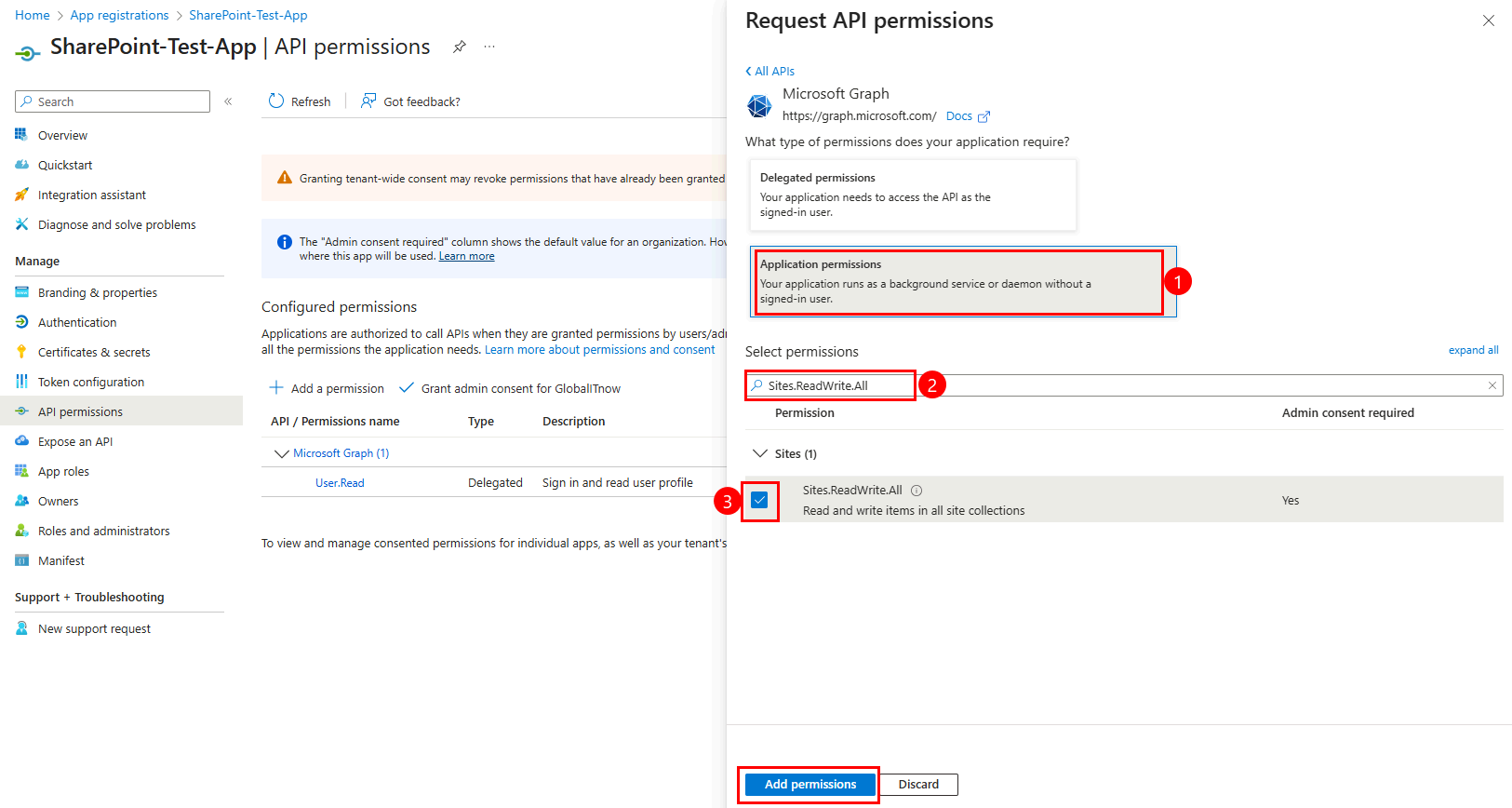
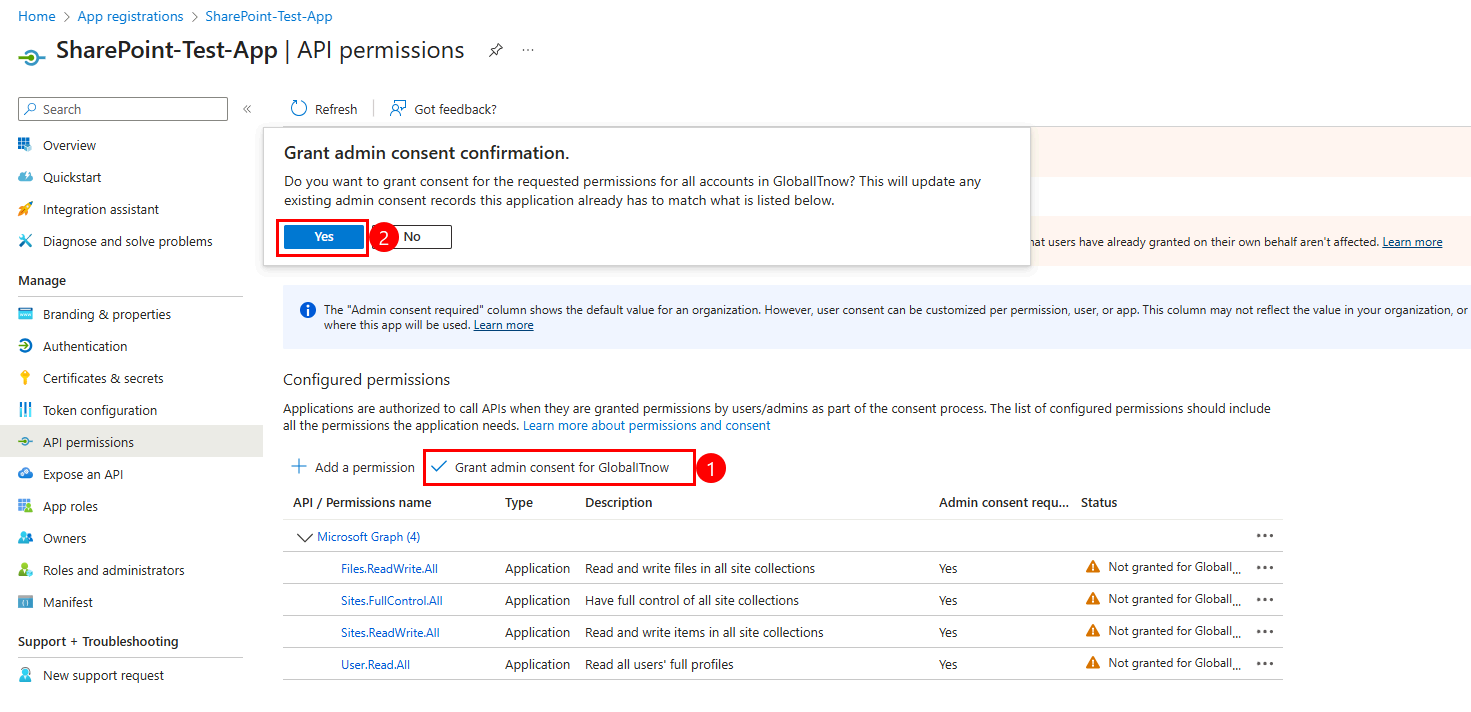
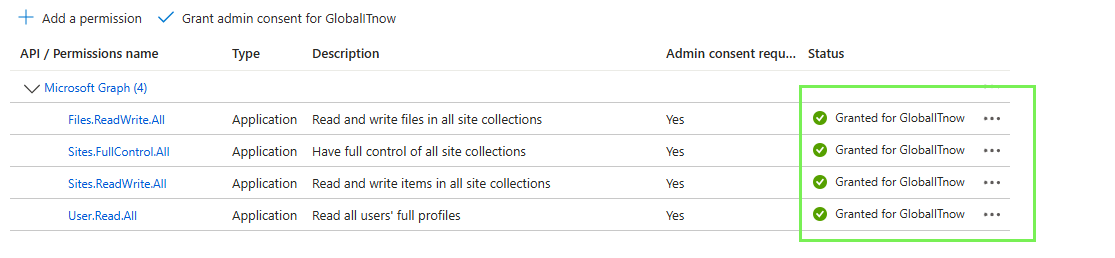
Select “Application Permissions” then Add these permissions one by one :
Install-Module Microsoft.Graph -Scope CurrentUser -Force
Import-Module Microsoft.GraphThis connection is to connect to our Entra ID application (SharePoint-Test-App in my case).
You just need to change the 3 first variables then execute :
# -------------------------------------------------- Change this variables -----------------------------------------
# Connect using app credentials
$TenantId = "xxxxxxxxxxxxxxxxxxxxxxxxxxxxxxxxxx"
$ClientId = "xxxxxxxxxxxxxxxxxxxxxxxxxxxxxxxxxx"
$ClientSecret = "xxxxxxxxxxxxxxxxxxxxxxxxxxxxxxxxxx"

# -------------------------------------------------- Noting to change here -----------------------------------------
$Scope = "https://graph.microsoft.com/.default"
$AuthUrl =
"https://login.microsoftonline.com/$TenantId/oauth2/v2.0/token"
$Body = @{
    client_id = $ClientId
    scope = $Scope
    client_secret = $ClientSecret
    grant_type = "client_credentials"
}
$Connection = Invoke-RestMethod -Method POST -Uri $AuthUrl -Body $Body -ContentType "application/x-www-form-urlencoded"
$AccessToken = $Connection.access_token

# Convert token to SecureString
$SecureToken = ConvertTo-SecureString -String $AccessToken -AsPlainText -Force

# Use the token for authentication
Connect-MgGraph -AccessToken $SecureTokenPermissions : Sites.Read.All
This command is to all list your tenant SharePoint sites.
# Get all sites in your tenant
Get-MgSite -All | Select-Object DisplayName, WebUrl, CreatedDateTime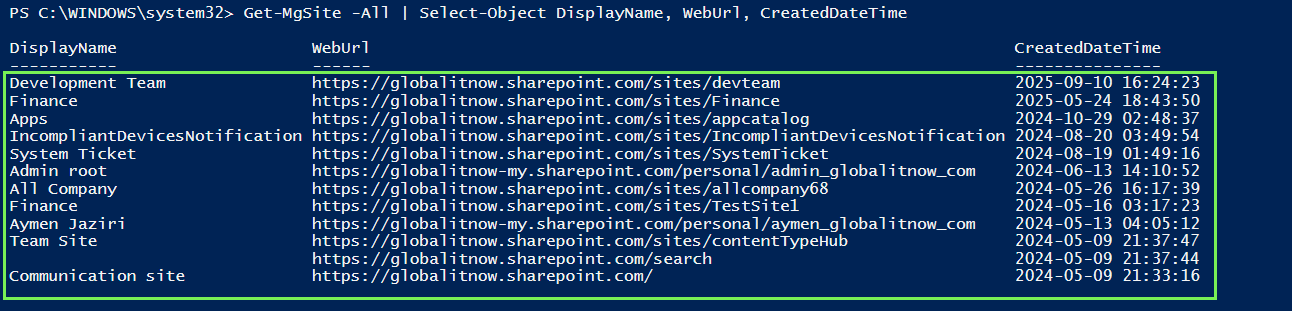
Permissions : Sites.Read.All
This command is used to search for a specific site by a full name or just a piece of a name.
# Search sites by name
Get-MgSite -Search "Team" | Select-Object DisplayName, WebUrl
Permissions: Sites.Read.All
# Get specific site information
$Site = Get-MgSite | where WebUrl -EQ "https://tenant.sharepoint.com/sites/teamsite"
$Site | Select-Object DisplayName, Description, CreatedDateTime
Permissions: Sites.Read.All
# Get site storage information for specific SahrePoint Site
$SiteURL = "<SharePoint Site URL>"
$SiteId = (Get-MgSite | where WebUrl -EQ $SiteURL).Id
$UsedSpace = Get-MgSiteDrive -SiteId $SiteId | Select-Object @{Name="UsedGB";Expression={[math]::Round($_.Quota.Used / 1GB, 2)}} | Select -First 1
Write-Host "Used Space for $SiteURL = $($UsedSpace.UsedGB)" -ForegroundColor Green
Permissions: Sites.Read.All
# Get all document libraries
# Get site storage information for specific SahrePoint Site
$SiteURL = "<SharePoint Site URL>"
$SiteId = (Get-MgSite | where WebUrl -EQ $SiteURL).Id
Get-MgSiteDrive -SiteId $SiteId | Select-Object Name, DriveType, WebUrl
Permissions: Files.Read.All
# List files in default Documents library
$SiteURL = "<SharePoint Site URL>"
$SiteId = (Get-MgSite | where WebUrl -EQ $SiteURL).Id
$DriveId = (Get-MgSiteDrive -SiteId $SiteId | where Name -EQ "Project1-Documents").Id
Get-MgDriveRootChild -DriveId $DriveId | Select-Object Name, Size, LastModifiedDateTime
Permissions: Files.ReadWrite.All
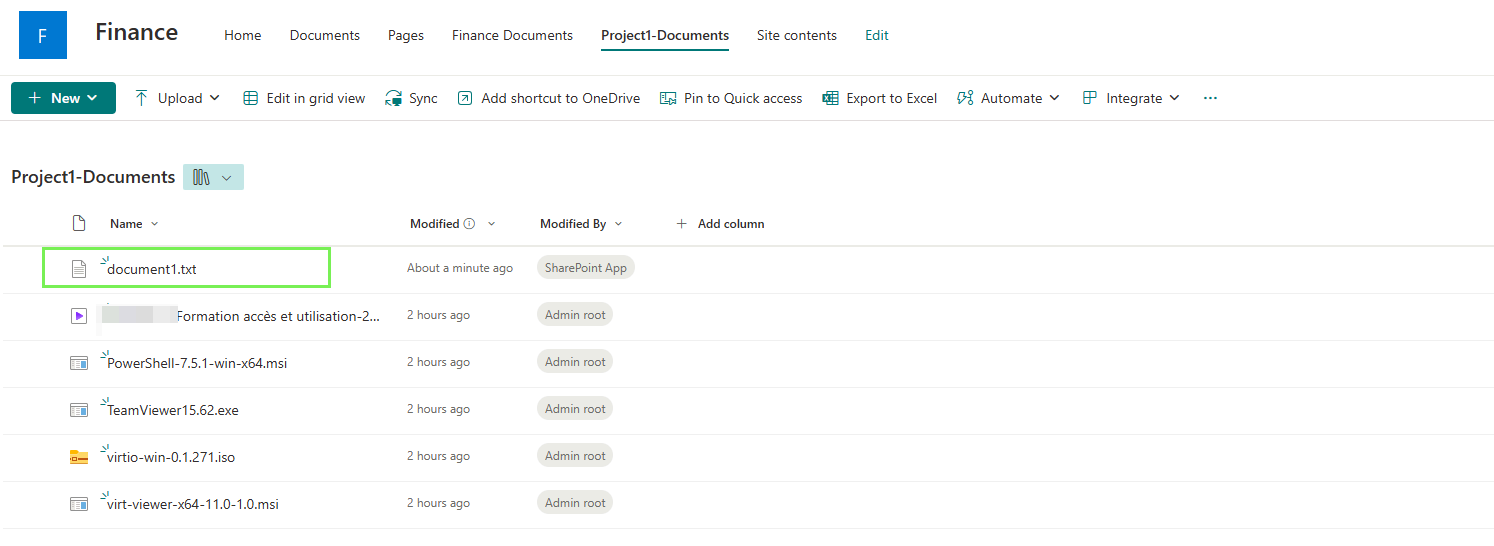
# Upload a file to SharePoint Library
$SiteURL = "<SharePoint Site URL>"

# Library Name
$LibraryName = "Project1-Documents"

# Path of input file to be uploaded to sharepoint$DocumentPath = "C:\temp\document1.txt"
$SiteId = (Get-MgSite | where WebUrl -EQ $SiteURL).Id
$DriveId = (Get-MgSiteDrive -SiteId $SiteId | where Name -EQ $LibraryName).Id
Set-MgDriveItemContent -DriveId $DriveId -DriveItemId "root:/document1.txt:" -InFile $DocumentPath
Permissions: Files.Read.All
# download a file from SharePoint Library
# Site URL
$SiteURL = "https://globalitnow.sharepoint.com/sites/Finance"

# Library Name
$LibraryName = "Project1-Documents"

# SharePoint File Name
$SharePointFileName = "PowerShell-7.5.1-win-x64.msi"

# Path of output file
$DocumentPath = "C:\temp\PowerShell-7.5.msi"
$SiteId = (Get-MgSite | where WebUrl -EQ $SiteURL).Id
$DriveId = (Get-MgSiteDrive -SiteId $SiteId | where Name -EQ$LibraryName).Id
Get-MgDriveItemContent -DriveId $DriveId -DriveItemId "root:/$($SharePointFileName):" -OutFile $DocumentPath

Permissions: Files.ReadWrite.All
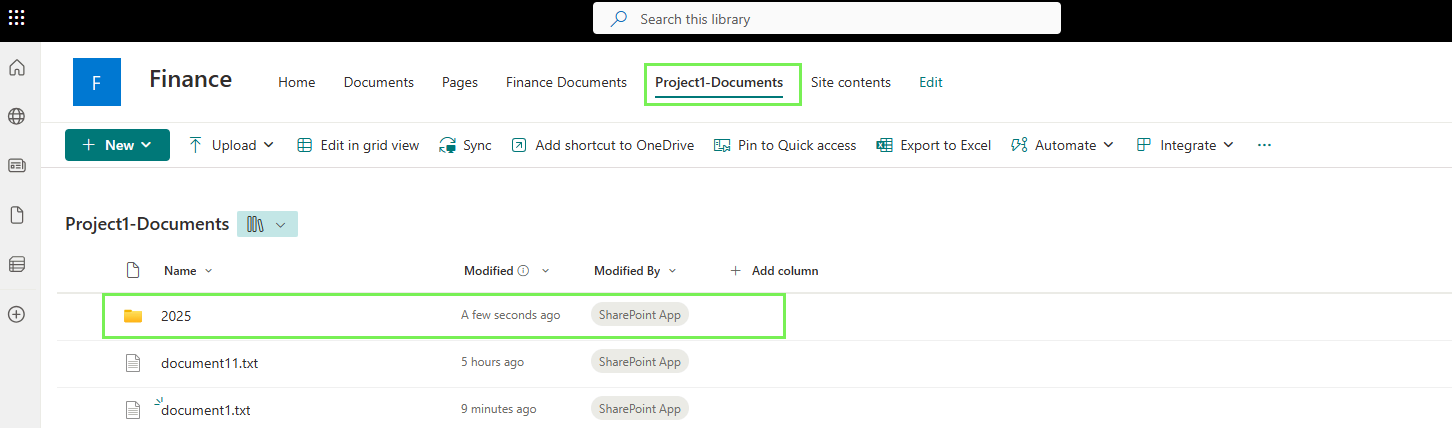
# Create new folder
# Parameters
$SiteURL = "<SharePoint SIte URL>"
$LibraryName = "<Library Name>"
$NewFolder = "<New Folder Name>"

# Retrieve the site and library (drive) credentials
$SiteId = (Get-MgSite | Where-Object { $_.WebUrl -eq $SiteURL }).Id $DriveId = (Get-MgSiteDrive -SiteId $SiteId | Where-Object { $_.Name -eq $LibraryName }).Id
$Body = @{
    name = $NewFolder
    folder = @{
    childCount = 0 # Number of children (required, even if empty)
    }
    "@microsoft.graph.conflictBehavior" = "rename"
}
# Create New Folder
New-MgDriveItemChild -DriveId $DriveId -DriveItemId "root" -BodyParameter $Body
Thanks





