Physical Address
304 North Cardinal St.
Dorchester Center, MA 02124
Physical Address
304 North Cardinal St.
Dorchester Center, MA 02124

Explore practical guides and tools for Microsoft 365, Azure, and PowerShell. Enhance your cloud security and admin skills with expert insights and automation tips.
Explore practical guides and tools for Microsoft 365, Azure, and PowerShell. Enhance your cloud security and admin skills with expert insights and automation tips.

This quick reference guide is designed for SharePoint system administrators who are new to Microsoft Graph PowerShell. Each section contains simple, practical commands that you can use immediately to manage OneDrive for Business.
Required Permissions : Files.Read , Files.ReadWrite , Files.Read.All , Files.ReadWrite.All
All following command lines are used to manage connected user Onedrive (OneDrive of connected user) , If you want to manage other users OneDrive, you need to Register Entra ID Application and to connect through this Entra Id App.
# Connect with required permissions
Connect-MgGraph -Scopes "Files.ReadWrite.All", "User.Read.All"

# Get user DriveId
$DriveId = (Get-MgUserDrive -UserId "user@domain.com" | where Name -EQ "OneDrive" ).Id

# Get user's OneDrive root items
Get-MgUserDriveRootChild -UserId "user@domain.com" -DriveId $DriveId | Select-Object Name, Size, LastModifiedDateTime
# Get user DriveId
$DriveId = (Get-MgUserDrive -UserId "user@domain.com" | where Name -EQ "OneDrive" ).Id

# Get OneDrive information
$Drive = Get-MgUserDrive -UserId "user@domain.com" | where Name -EQ "OneDrive"
Write-Host "Drive Type: $($Drive.DriveType)"
Write-Host "Total Space: $([math]::Round($Drive.Quota.Total / 1GB, 2)) GB"
Write-Host "Used Space: $([math]::Round($Drive.Quota.Used / 1GB, 2)) GB"
Write-Host "Remaining: $([math]::Round($Drive.Quota.Remaining / 1GB, 2)) GB"
# Get user DriveId
$DriveId = (Get-MgUserDrive -UserId "user@domain.com" | where Name -EQ "OneDrive" ).Id

# Upload a file to OneDrive
$FilePath = "C:\temp\document.txt"
$FileName = Split-Path $FilePath -Leaf
Set-MgUserDriveRootChildContent -UserId "user@domain.com" -DriveId $DriveId -DriveItemId $FileName -InFile $FilePath
# Get user DriveId
$DriveId = (Get-MgUserDrive -UserId "user@domain.com" | where Name -EQ "OneDrive" ).Id

# Download a file from OneDrive
$DriveItem = Get-MgUserDriveRootChild -UserId "user@domain.com" -DriveId $DriveId -Filter "name eq 'document.txt'"
Get-MgUserDriveItemContent -UserId "user@domain.com" -DriveId $DriveId -DriveItemId $DriveItem.Id -OutFile "C:\temp\Doc-downloaded.txt"
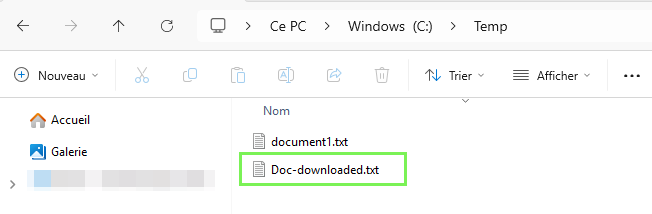
# Get user DriveId
$DriveId = (Get-MgUserDrive -UserId "aymen@globalitnow.com" | WhereObject Name -EQ "OneDrive").Id
$params = @{
    name = "Project Documents"
    folder = @{ x = "x" } # dummy property to force serialization of 'folder'
    "@microsoft.graph.conflictBehavior" = "rename" # "fail" |"replace" | "rename"
}
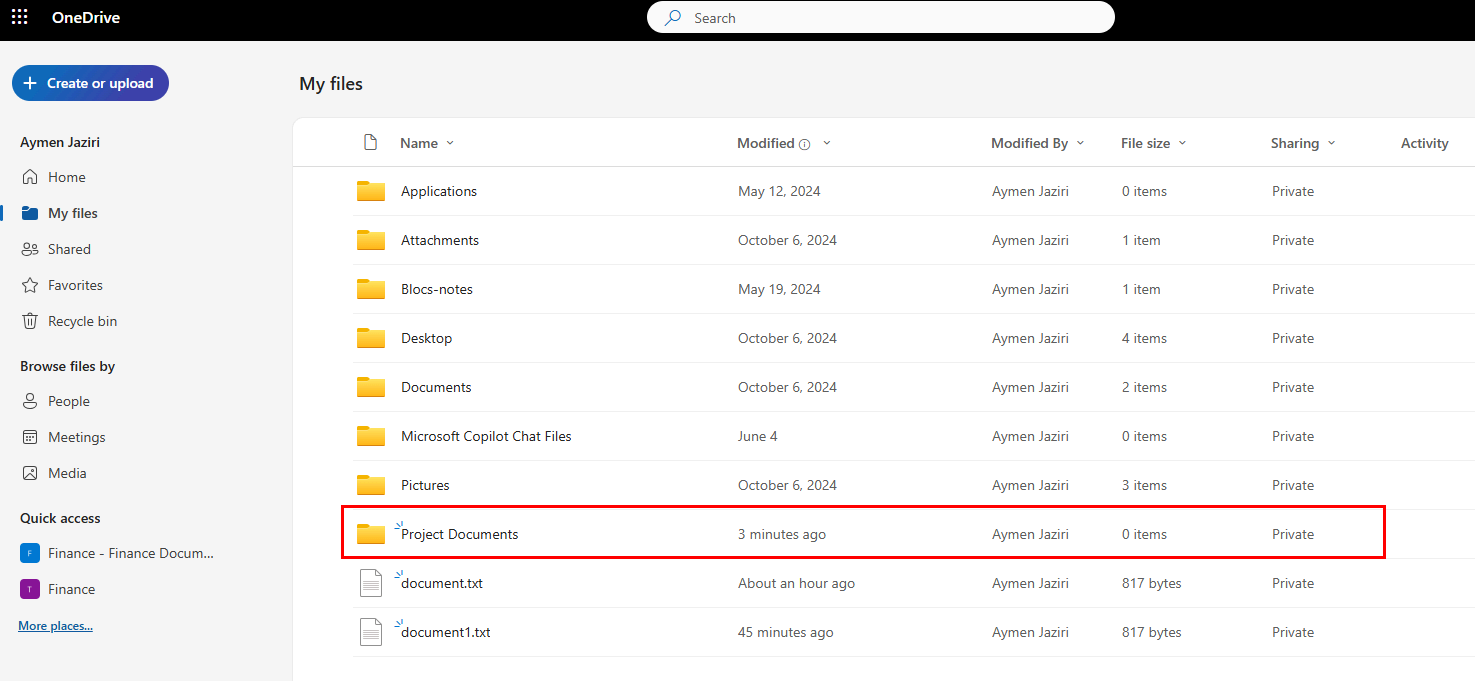
New-MgUserDriveRootChild -UserId "aymen@globalitnow.com" -DriveId $DriveId -BodyParameter $params
# Prerequisite: Connect-MgGraph -Scopes "Files.ReadWrite.All" (orequivalent)
# Variables
$UserId = "user@domain.com"

# DriveId required
$DriveId = (Get-MgUserDrive -UserId $UserId | Where-Object Name -eq "OneDrive").Id

# Create nested folder structure under the root

# Create Parent Folder
$parentBody = @{
    name = "Projects"
    folder = @{ x = "x" } # force serialization of the 'folder' facet
    "@microsoft.graph.conflictBehavior" = "rename"
}
$ParentFolder = New-MgUserDriveRootChild -UserId $UserId -DriveId $DriveId -BodyParameter $parentBody

# Create the subfolder
$subBody = @{
    name = "2025"
    folder = @{ x = "x" }
    "@microsoft.graph.conflictBehavior" = "rename"
}
# Create Nested Folders
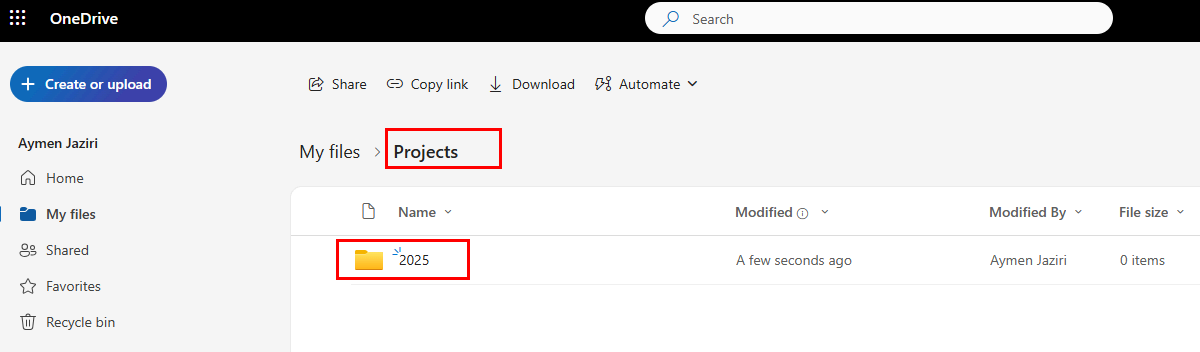
$SubFolder = New-MgUserDriveItemChild -UserId $UserId -DriveId $DriveId -DriveItemId $ParentFolder.Id -BodyParameter $subBody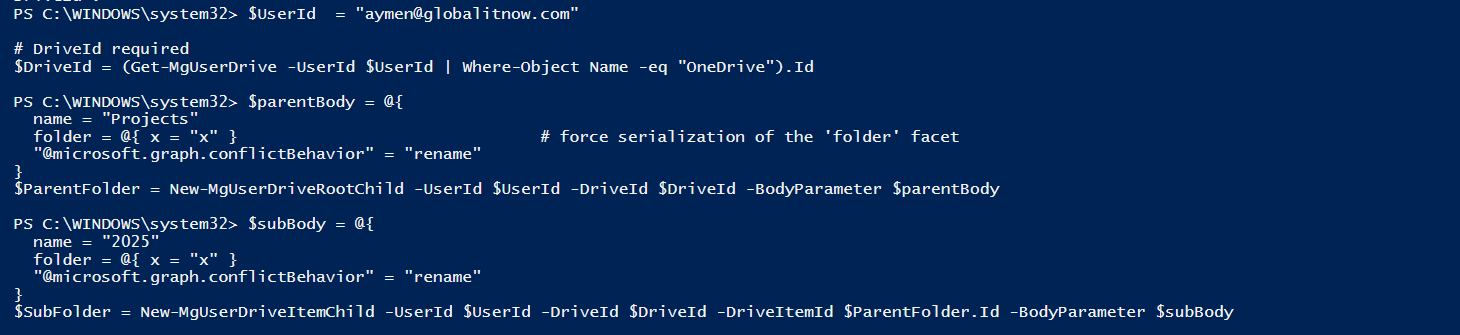
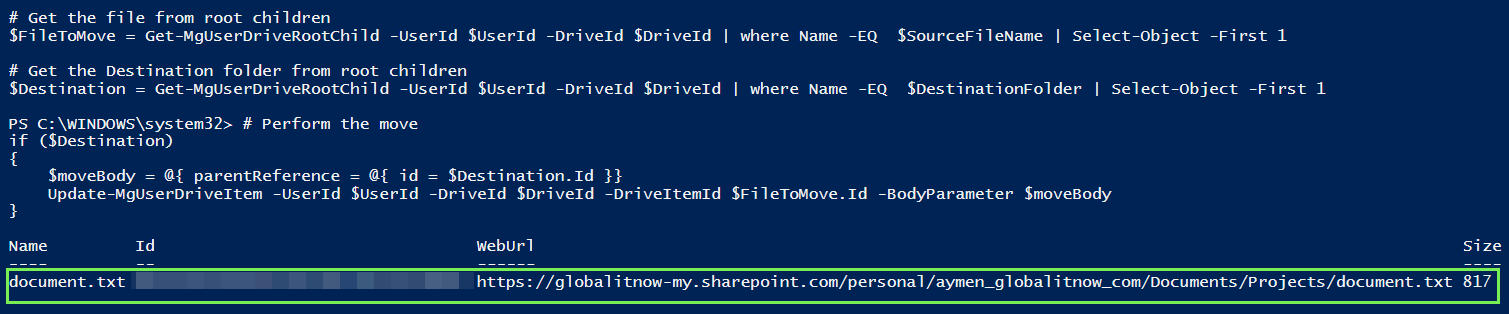
Move a file ‘document.txt‘ into ‘Projects‘ folder :
# Move a file 'document.txt' into 'Projects'
$SourceFileName = "document.txt"
$DestinationFolder = "Projects"

# Get the file from root children
$FileToMove = Get-MgUserDriveRootChild -UserId $UserId -DriveId
$DriveId | where Name -EQ $SourceFileName | Select-Object -First 1

# Get the Destination folder from root children
$Destination = Get-MgUserDriveRootChild -UserId $UserId -DriveId $DriveId | where Name -EQ $DestinationFolder | Where-Object { $_.Folder } | Select-Object -First 1

# Perform the move
if ($Destination)
{
    $moveBody = @{ parentReference = @{ id = $Destination.Id } }
    Update-MgUserDriveItem -UserId $UserId -DriveId $DriveId -
    DriveItemId $FileToMove.Id -BodyParameter $moveBody
}
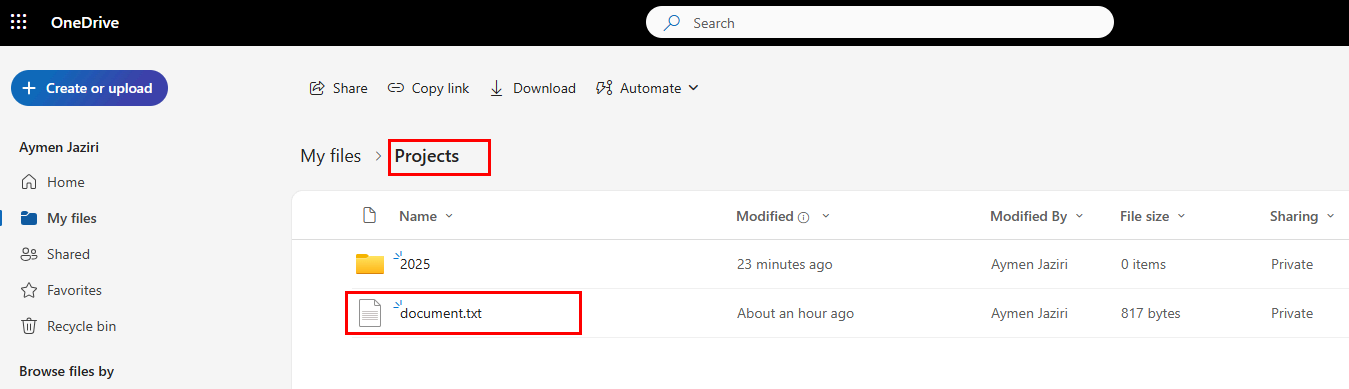
In this example we’ll copy “Project1.doc” to Projects folder

# Copy a file 'document.txt' into 'Projects'
$SourceFileName = "Project1.docx"
$DestinationFolder = "Projects"

# Get the file from root children
$FileToCopy = Get-MgUserDriveRootChild -UserId $UserId -DriveId
$DriveId | where Name -EQ $SourceFileName | Select-Object -First 1

# Get the Destination folder from root children
$Destination = Get-MgUserDriveRootChild -UserId $UserId -DriveId $DriveId | where Name -EQ $DestinationFolder | Where-Object { $_.Folder } | Select-Object -First 1
# Perform the copy
if ($Destination)
{
    $moveBody = @{ parentReference = @{ id = $Destination.Id }}
    Copy-MgUserDriveItem -UserId $UserId -DriveId $DriveId -
    DriveItemId $FileToCopy.Id -BodyParameter $moveBody
}
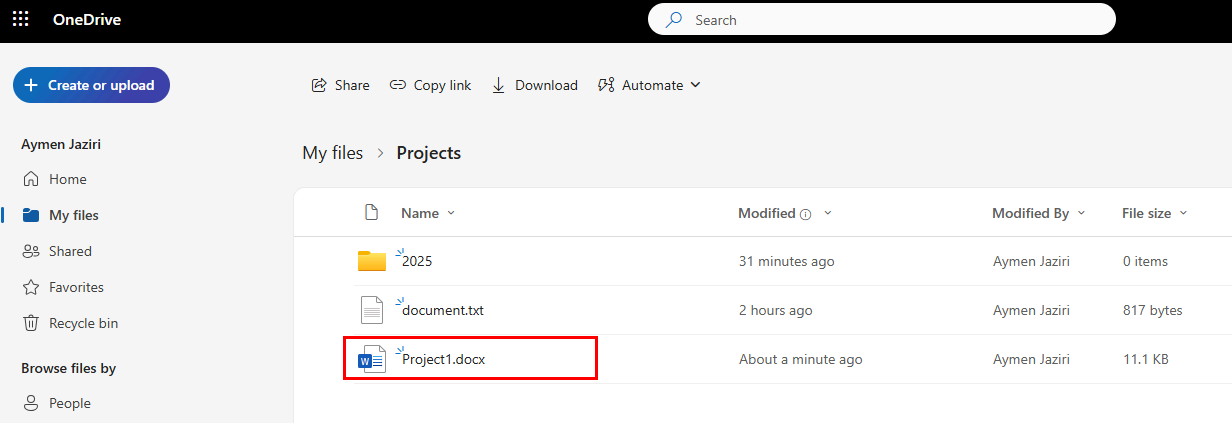
In this example we will copy “Project Notes” Folder to this folder path : “Root/Projects/2025/01”
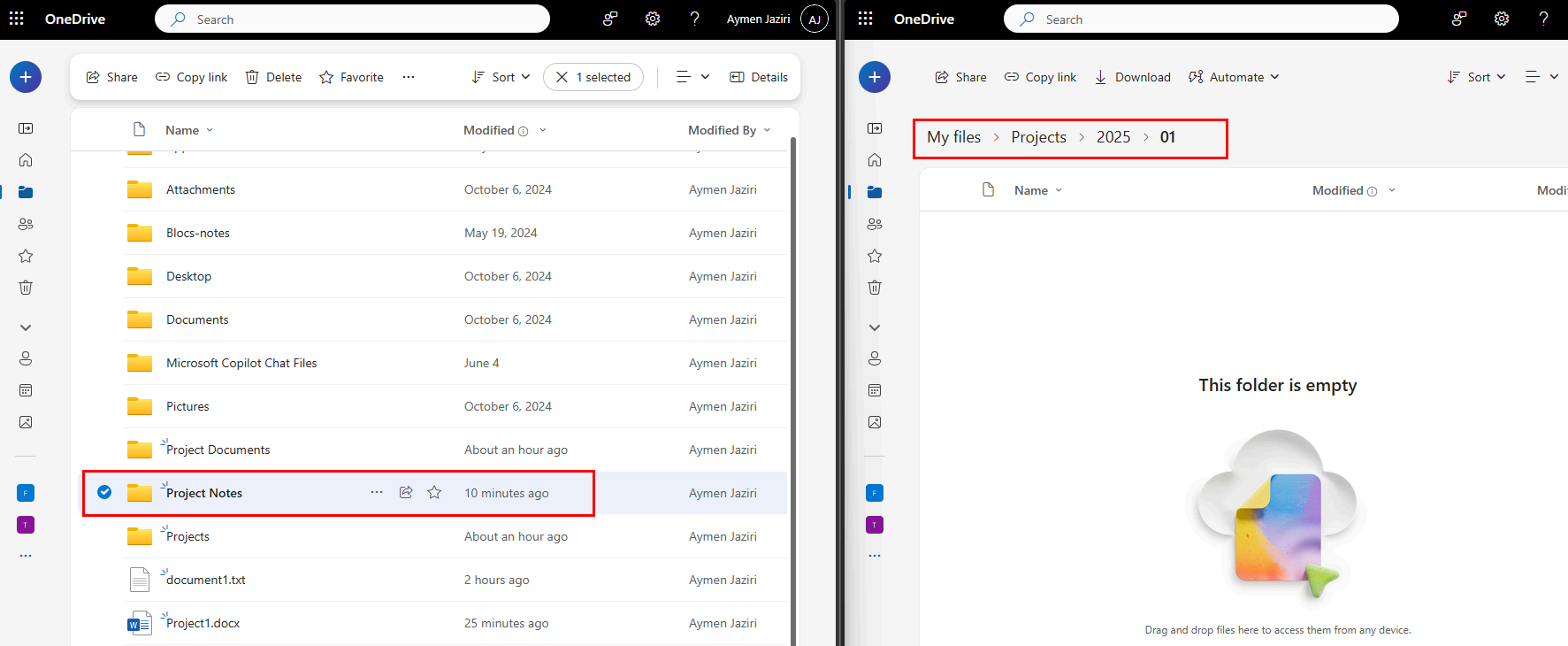
# Variables
$UserId = "aymen@globalitnow.com"
$SourceFolder = "Project Notes"
$DestinationFolder = "Projects/2025/01" # Destination Folder Path

# DriveId required
$DriveId = (Get-MgUserDrive -UserId $UserId | Where-Object Name -eq "OneDrive").Id

# Resolve the source folder at the root by path
$Source = Invoke-MgGraphRequest -Method GET -Uri "v1.0/users/$UserId/drive/root:/$SourceFolder"# Resolve the Destination folder at the root by path
$Target = Invoke-MgGraphRequest -Method GET -Uri "v1.0/users/$UserId/drive/root:/$DestinationFolder"

# Copy source folder to destination folder
Copy-MgUserDriveItem -UserId $UserId -DriveId $DriveId -DriveItemId $Source.id -ParentReference @{ driveId = $DriveId; id = $Target.id } -Name $Source.name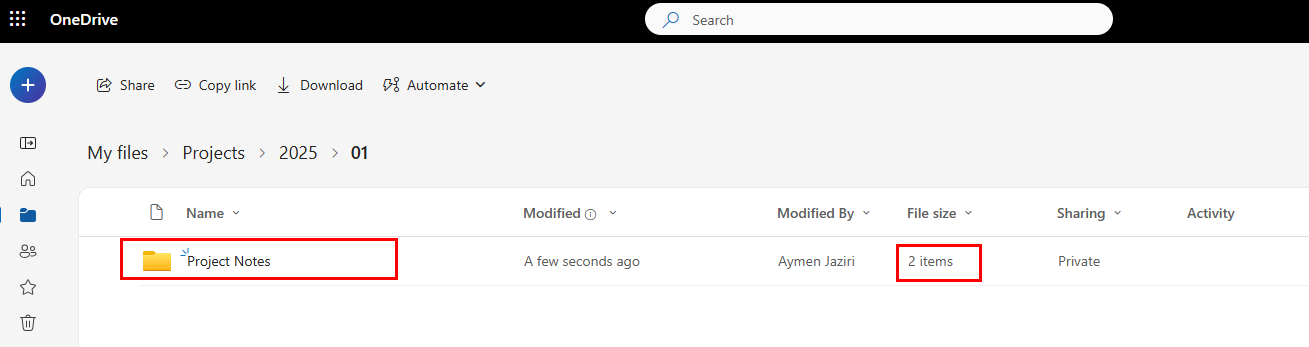
Thanks





