Explore practical guides and tools for Microsoft 365, Azure, and PowerShell. Enhance your cloud security and admin skills with expert insights and automation tips.
Explore practical guides and tools for Microsoft 365, Azure, and PowerShell. Enhance your cloud security and admin skills with expert insights and automation tips.
Enterprise Notifications with Azure Communication Services — Part 1
Azure Communication Services (ACS) provides APIs for multichannel communications, including Email, SMS, Calls and Video, that can be invoked from applications and automation (Azure Automation Runbooks with PowerShell for example) to implement reliable notification pipelines at scale. Below is a complete technical guide to implement sending Email and SMS with ACS.
Overview of Azure Communication Services (ACS)
ACS is a fully managed platform that exposes cloud APIs for voice, video, Chat, SMS, and Email, designed to embed communications into apps and workflows with enterprise security and global coverage. Email supports high-volume transactional, bulk, and marketing workloads, while SMS supports A2P messaging with deliverability metrics and sender options like toll‑free, 10DLC, short codes, and alphanumeric IDs depending on region and eligibility.
Here is an explanatory diagram that explains how ACS works :
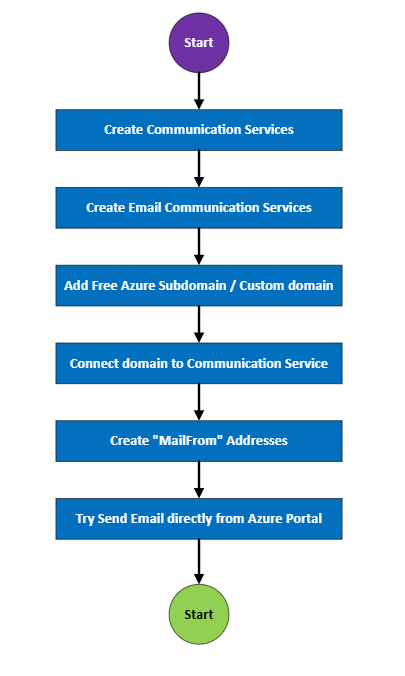
Mindmap to build Email notification
Setting Up Email Communication Services
Creating Communication Services Resources
Open the Microsoft Azure portal home page, indicated by the “Microsoft Azure” header bar at the top left of the screen.
Use the global search box at the top to type the query “azure communication.”
In the search results under Services, select “Communication Services” to proceed to that service
On the Basics tab, select the subscription and resource group
Enter a unique resource name and choose the data location
Then click Review + Create to deploy the Communication Services resource.
Click Create
Creating Email Communication Resources
Navigate to the Azure Portal and search for “Email Communication Services”
Choose the target Subscription.
Select an existing Resource group (or use Create new).
Enter the Name for the Email Communication Service.
Confirm Region is Global for the service.
Set Data location to United States.
Click Review + create to validate settings.
After validation passes, click Create to deploy.
Wait for Deployment to complete, then select Go to resource.
Adding Free Subdomain
Go to Email Communication Service
In Overview window go to “Add free subdomain” section and select “Click Add subdomain.”
After clicking on “Add free Subdomain” button a new subdomain will be created automatically
Adding custom domain (Optional)
After adding custom domain, a TXT Record must be added to your DNS zone to be verified (You must login to your DNS Provider Godaddy in my case then adding TXT Record with these settings).
After Adding custom domain (I didnt Add TXT Record in my example just to show you steps, so domain will stay inverified and cant be used until I add TXT record) :
Verify default “FromMail” Addresses
In the Email Communication Service domain blade, click on Free Azure Subdomain recently created.
open MailFrom addresses under the Azure Managed Domain
View the default MailFrom address shown as DoNotReply@<xxxxxxx>.azurecomm.net with its display name.
One of the limitations of the “Free Azure Subdomain” is that you cannot create additional email addresses apart from “DoNotReply.” This option is available with the custom domain.
Connect created domain to your Communication Services
Open the Communication Service previously created, go to Email then Domains
Select Connect domains.
In the Connect email domains panel, pick Subscription, Resource Group, Email Service, and a Verified Domain from the dropdowns.
Click Connect to link the selected verified domain to the Communication Service.
Domain Successfully connected
Try Sending Email
In the Communication Service resource, open Email the select Try Email to use the portal’s send test interface.
Choose the Send email from address (the connected/managed domain) from the dropdown.
Enter the sender email username (display name/alias used before the domain).
Provide the recipient email address to deliver the test message.
Set the email subject for the outgoing message.
Add attachments as needed for the test email.
Type the message body content to be sent.
Click Send to dispatch the email through Azure Communication Services.
You can optionally copy auto-generated sample code in different languages (C#, JavaScript, Java, Python, cURL) to automate sending.
Here’s the received email :
Thanks
Aymen EL JAZIRI (Microsoft MVP)
Hi, I’m Aymen El Jaziri , a passionate System Administrator and Microsoft MVP, with years of hands-on experience in managing and securing modern IT infrastructures.
This blog is where I share technical guides, automation scripts, product reviews, and real-world solutions that help IT professionals simplify their day-to-day work and stay ahead in a fast-evolving cloud ecosystem.
Whether you’re here to troubleshoot an issue, improve your automation game, or learn new best practices , welcome in my blog !
Let’s build a stronger, smarter IT community together.
Feel free to connect with me on LinkedIn for more content, discussions, or collaboration opportunities.