Physical Address
304 North Cardinal St.
Dorchester Center, MA 02124
Physical Address
304 North Cardinal St.
Dorchester Center, MA 02124

Explore practical guides and tools for Microsoft 365, Azure, and PowerShell. Enhance your cloud security and admin skills with expert insights and automation tips.
Explore practical guides and tools for Microsoft 365, Azure, and PowerShell. Enhance your cloud security and admin skills with expert insights and automation tips.

Required permissions for user management : “User.Read.All”, “User.ReadWrite.All”, “LicenseAssignment.ReadWrite.All”
# Get all users
Get-MgUser | Select-Object DisplayName, UserPrincipalName, JobTitle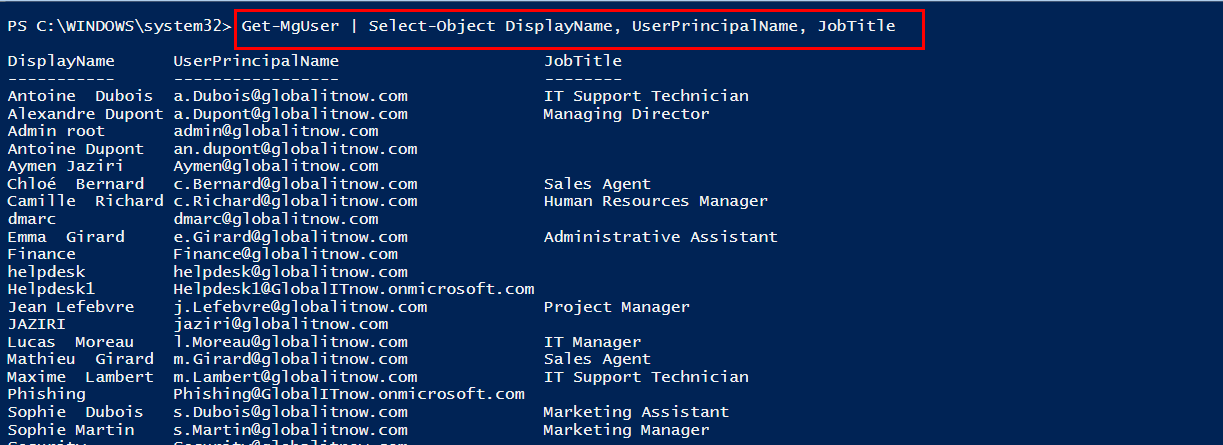
# Get specific user
Get-MgUser -UserId "user@domain.com"
# Filter users with specific criteria
Get-MgUser -Filter "startswith(displayName, 'Lucas')" | Select-Object DisplayName, UserPrincipalName
# Get users with specific properties
Get-MgUser -Property DisplayName, UserPrincipalName, JobTitle, Department | Where-Object {$_.Department -eq "IT"}
# Create a new user
$NewUserParams = @{
    AccountEnabled = $true
    DisplayName = "John Doe"
    MailNickname = "johndoe"
    UserPrincipalName = "johndoe@yourdomain.com"
    PasswordProfile = @{
        ForceChangePasswordNextSignIn = $true
        Password = "TempPassword123!"
    }
}
New-MgUser @NewUserParams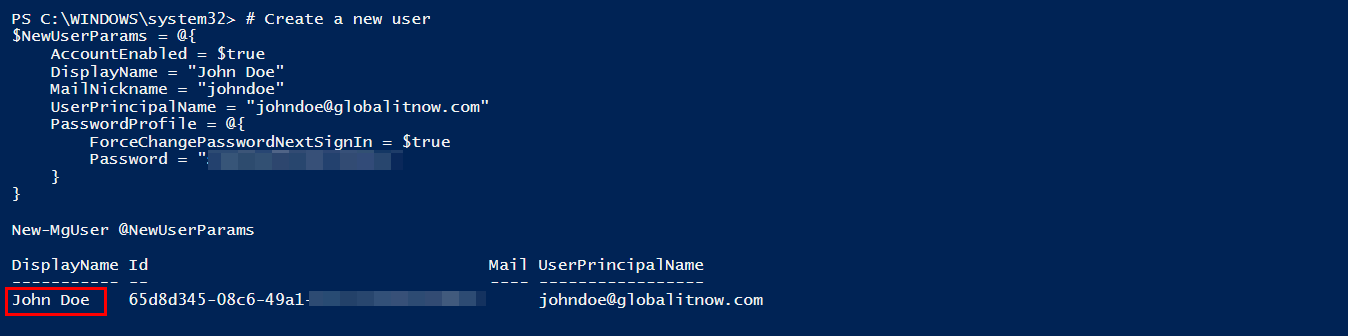
# Update user properties
Update-MgUser -UserId "johndoe@yourdomain.com" -JobTitle "SeniorDeveloper" -Department "Engineering"

# Update multiple properties
$UpdateParams = @{
    JobTitle = "Lead Developer"
    Department = "Engineering"
    OfficeLocation = "Building A, Floor 3"
}
Update-MgUser -UserId "johndoe@yourdomain.com" @UpdateParams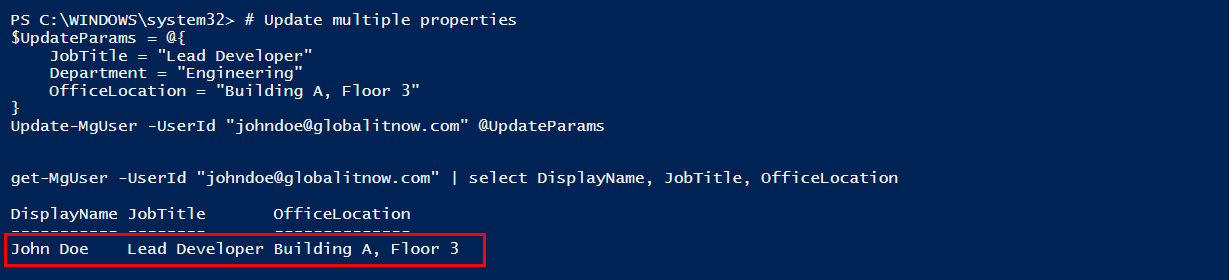
Run this command to list all available licenses in your tenant :
Get-MgSubscribedSku | Select-Object SkuId, SkuPartNumberAs you can see in the following picture, SPB refer to “Microsoft 365 Business Premium“.
if you want to knwo your Licence SKU, you can get it from this link :
https://learn.microsoft.com/en-us/entra/identity/users/licensing-service-plan-reference

Use Set-MgUserLicense and specify the AddLicenses parameter with the SKU:
# User to receive licence
$UserId = "user@domain.com" # UPN or ObjectId# SkuId of Business Premium
$SkuId = "xxxxxxxx-xxxx-xxxx-xxxx-xxxxxxxxxxxx"

$License = @{
    SkuId = $SkuId
}
Set-MgUserLicense -UserId $UserId -AddLicenses @($License) -RemoveLicenses @()
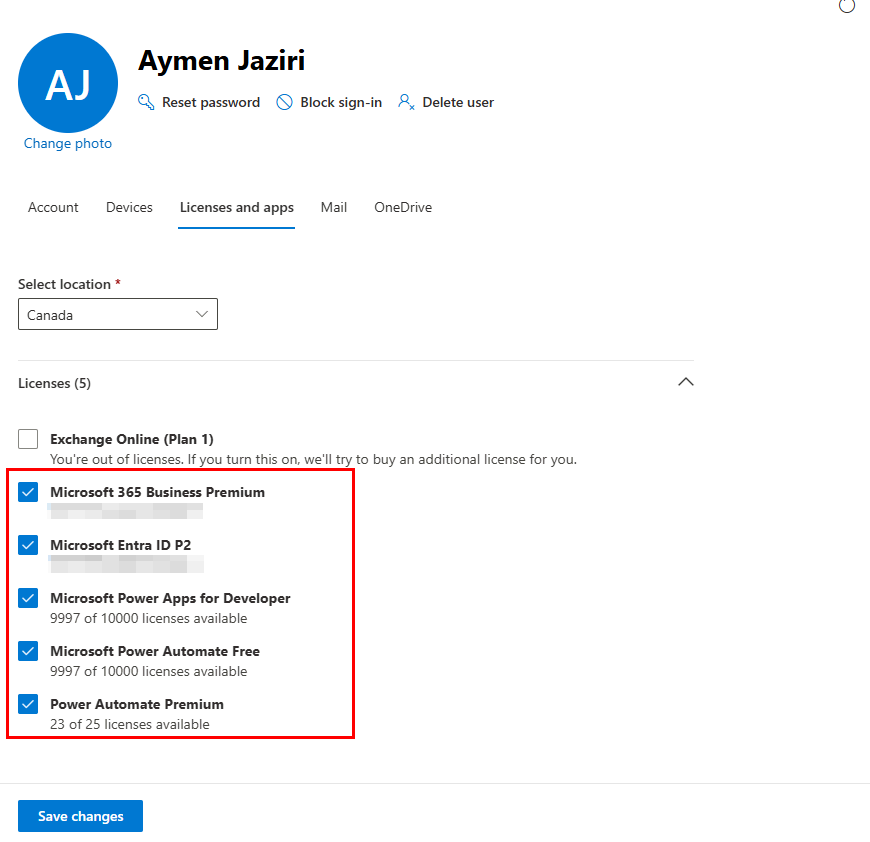
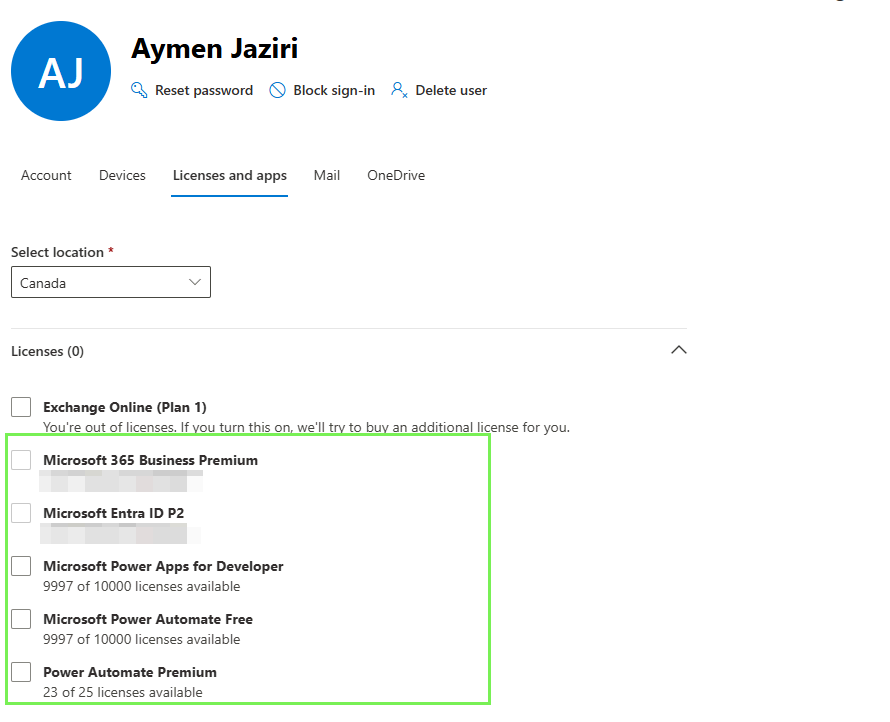
In this example we’ll retire all user licenses, this case is more frequent in Off-boarding automation.
Here is what the user have before executing script :
# define user
$user = "user@domain.com"

# Remove All user licences
$SKus = (Get-MgUserLicenseDetail -UserId $user).SkuId
Set-MgUserLicense -UserId $user -AddLicenses @() -RemoveLicenses($SKus)
Required permissions for Group management: “Directory.Read.All” , “Directory.ReadWrite.All”
# Get all groups
Get-MgGroup | Select-Object DisplayName, GroupTypes, Mail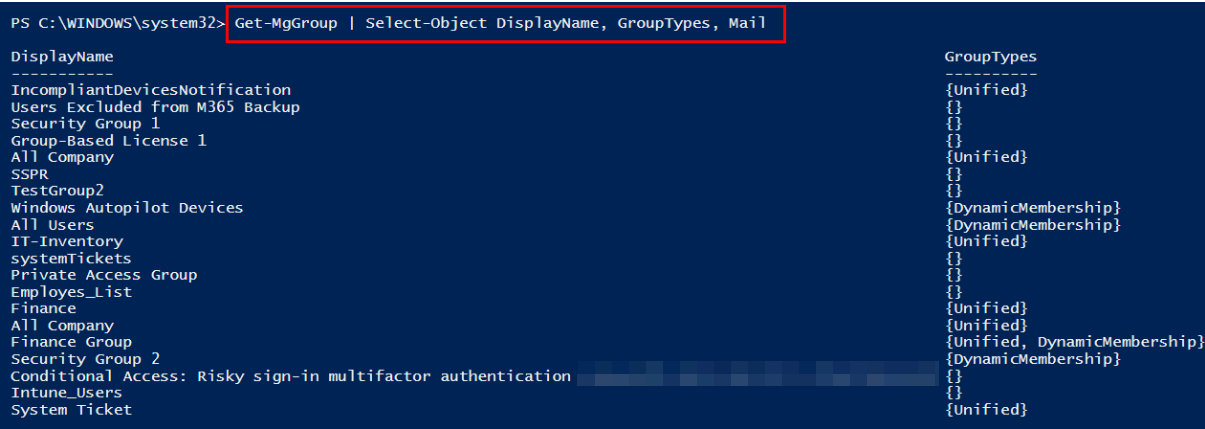
# Create a new group
$GroupParams = @{
    DisplayName = "Development Team 1"
    MailEnabled = $true
    MailNickname = "devteam1"
    SecurityEnabled = $false
    GroupTypes = @("Unified")
}
$NewGroup = New-MgGroup @GroupParams
# Add members to group
New-MgGroupMember -GroupId $NewGroup.Id -DirectoryObjectId (Get-MgUser -UserId "user@domain.com").Id
# Display groups members
Get-MgGroupMemberAsUser -GroupId $NewGroup.Id -All | Select-Object Id, DisplayName
We can use this alternative command line to display DisplayName and UserPrincipalName :
# Get group members
Get-MgGroupMember -GroupId "group-object-id" | ForEach-Object {
    Get-MgUser -UserId $_.Id | Select-Object DisplayName, UserPrincipalName
}
# Remove member from group
Remove-MgGroupMemberByRef -GroupId $NewGroup.Id -DirectoryObjectId (Get-MgUser -UserId "user@domain.com").Id
# Get groups a user belongs to
Get-MgUserMemberOf -UserId "user@domain.com" | ForEach-Object {
    Get-MgGroup -GroupId $_.Id | Select-Object DisplayName
}
Required permissions for Email and Calendar Operations Management : “Mail.Read”, “Mail.Send”, “Calendars.ReadWrite”
# Get user's messages
Get-MgUserMessage -UserId "user@domain.com" -Top 10 | Select-Object Subject, ReceivedDateTime, @{Name="From";Expression={$_.From.EmailAddress.Address}}

# Filter emails by subject
Get-MgUserMessage -UserId "user@domain.com" -Filter "contains(subject, 'urgent')"

# Get emails from specific folder
$InboxId = (Get-MgUserMailFolder -UserId "user@domain.com" -Filter "displayName eq 'Inbox'").Id
Get-MgUserMailFolderMessage -UserId "user@domain.com" -MailFolderId $InboxId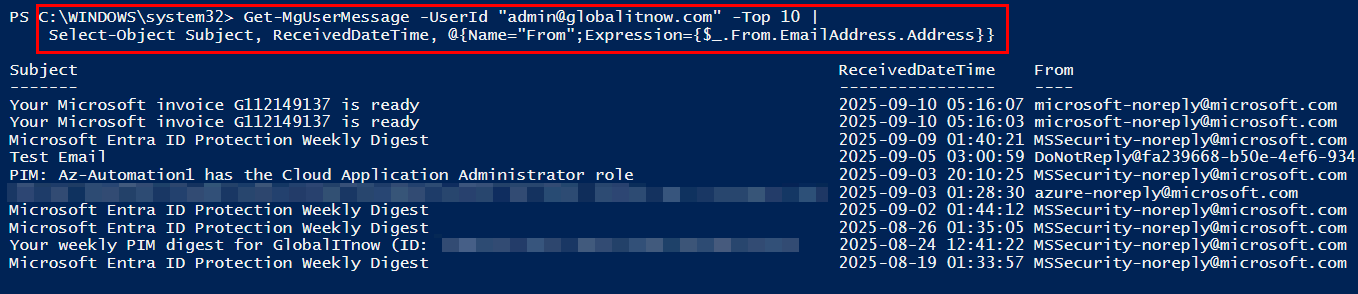
Keep in mind, you can read only emails for connected user, if you want to read other users emails, go by Entra App Registration way and give the app all the permissions that you need.
Same thing here, you can send only emails for connected user, if you want to send email as another user, go by Entra App Registration way.
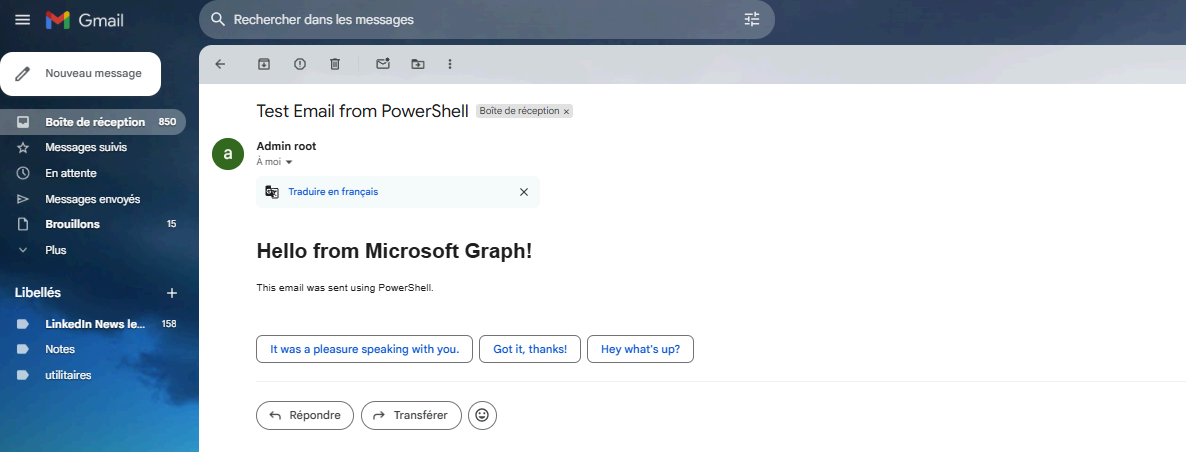
# Send an email
$EmailParams = @{
    Message = @{
        Subject = "Test Email from PowerShell"
        Body = @{
            ContentType = "HTML"
            Content = "<h1>Hello from Microsoft Graph!</h1><p>This
            email was sent using PowerShell.</p>"
    }
    ToRecipients = @(
    @{
        EmailAddress = @{
        Address = "recipient@domain.com"
        Name = "Recipient Name"
     }
    })
    }
    SaveToSentItems = $true
}
Send-MgUserMail -UserId "sender@domain.com" @EmailParams
To be able to send emails, you need “Mail.Send” permission in your connection string :
Connect-MgGraph -Scopes “User.ReadWrite”, “Mail.ReadWrite”, “Mail.Send”, “Files.ReadWrite”
# Get calendar events
Get-MgUserEvent -UserId "user@domain.com" -Top 10 |Select-Object Subject, Start, End, Location
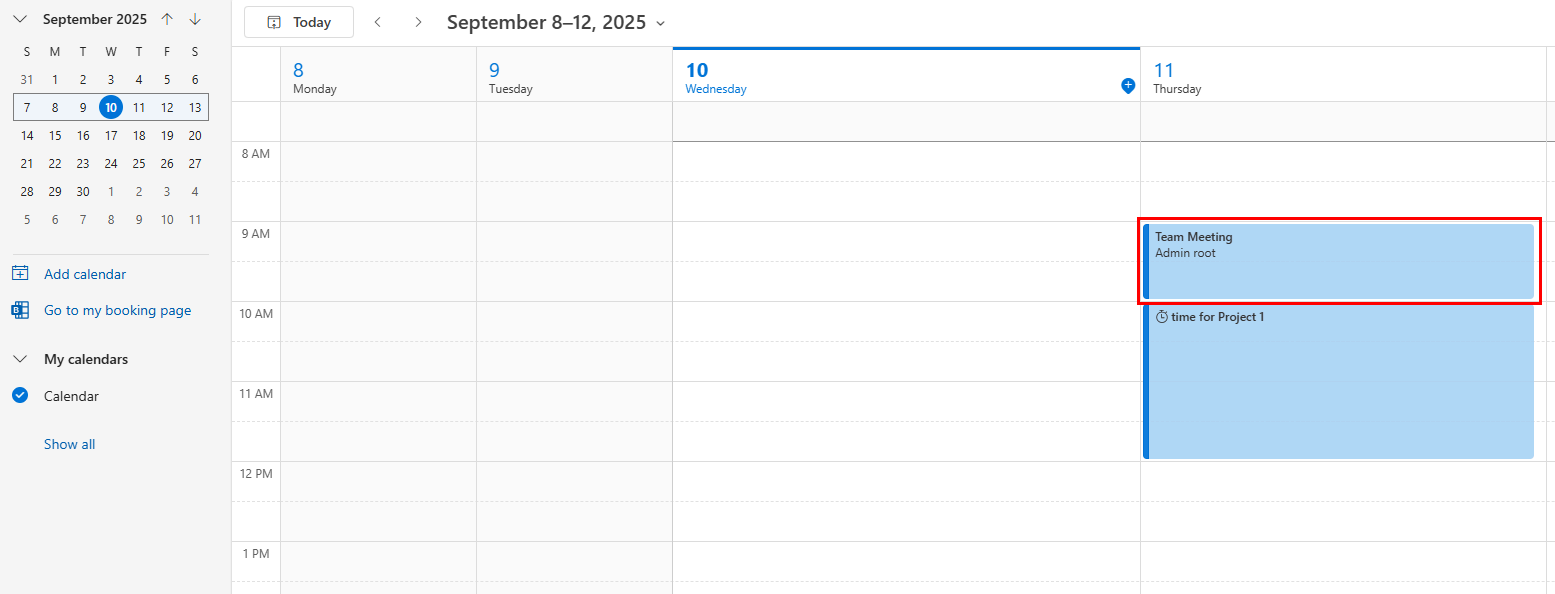
# Create a calendar event
$EventParams = @{
    Subject = "Team Meeting"
    Body = @{
    ContentType = "HTML"
    Content = "Monthly team sync meeting"
    }
    Start = @{
    DateTime = "2024-01-15T14:00:00"
    TimeZone = "UTC"
    }
    End = @{
    DateTime = "2024-01-15T15:00:00"
    TimeZone = "UTC"
    }
    Attendees = @(
    @{
        EmailAddress = @{
        Address = "attendee@domain.com"
        Name = "Attendee Name"
        }
        Type = "Required"
        }
    )
}
New-MgUserEvent -UserId "organizer@domain.com" @EventParams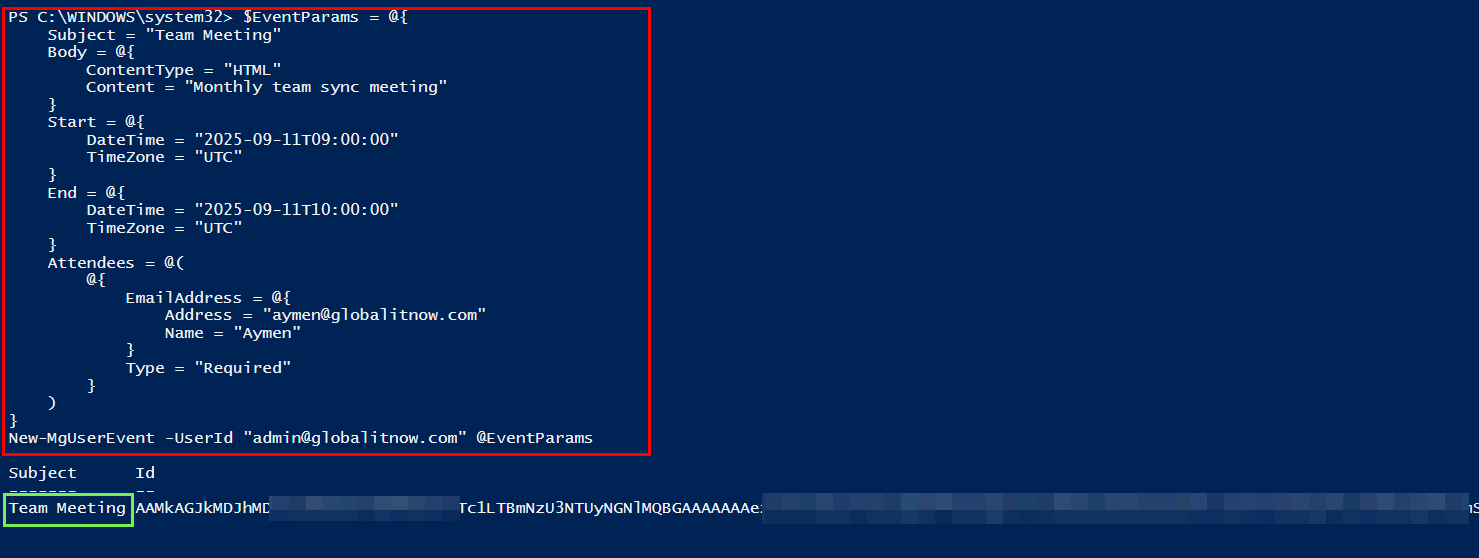
Thanks





