Physical Address
304 North Cardinal St.
Dorchester Center, MA 02124
Physical Address
304 North Cardinal St.
Dorchester Center, MA 02124

Explore practical guides and tools for Microsoft 365, Azure, and PowerShell. Enhance your cloud security and admin skills with expert insights and automation tips.
Explore practical guides and tools for Microsoft 365, Azure, and PowerShell. Enhance your cloud security and admin skills with expert insights and automation tips.

Microsoft Graph is a unified API endpoint that provides access to data and intelligence in Microsoft 365. It serves as the gateway to data across Microsoft
Cloud services, including Exchange Online, SharePoint, Teams, Entra ID, Enterprise Mobility + Security, etc.
This comprehensive guide will walk you through the essential operations you can perform with Microsoft Graph using PowerShell.
Microsoft Graph is a RESTful web API that enables you to access Microsoft Cloud service resources. It provides a unified programmability model to access data from :
The API uses a single endpoint : https://graph.microsoft.com
Before working with Microsoft Graph PowerShell, ensure you have:
1. PowerShell 5.1 or PowerShell 7+
2. Microsoft Graph PowerShell SDK
3. Appropriate permissions in your Microsoft 365 tenant
4. Azure AD App Registration (for production scenarios)
First, install the Microsoft Graph PowerShell SDK :
# Install the main Microsoft Graph module
Install-Module Microsoft.Graph -Scope CurrentUser -Force

# Install specific sub-modules if needed
Install-Module Microsoft.Graph.Users -Scope CurrentUser -Force
Install-Module Microsoft.Graph.Groups -Scope CurrentUser -Force
Install-Module Microsoft.Graph.Mail -Scope CurrentUser -Force
Install-Module Microsoft.Graph.Files -Scope CurrentUser -Force

# Verify if Graph module is installed
Get-Module Microsoft.Graph -ListAvailableThis piece of code checks :
# Install Exchange Online Module if not installed, else update it
IF (-not (Get-Module -Name ExchangeOnlineManagement -ListAvailable))
{
    Install-Module ExchangeOnlineManagement -Force
    Write-Host "BEGIN - Install Module
    ExchangeOnlineManagement ............................ OK " -ForegroundColor Green
}
else
{
    # Update existing Module to last version
    Update-Module ExchangeOnlineManagement -Force
    Get-Module ExchangeOnlineManagement
}
# Import ExchangeOnlineManagement module
Import-Module ExchangeOnlineManagementThe simplest method for testing and development :
# Connect with interactive login
Connect-MgGraph -Scopes "User.ReadWrite", "Mail.ReadWrite","Files.ReadWrite"

# Check connection status
Get-MgContext

# View current permissions
(Get-MgContext).ScopesFor production scenarios and automation, use app-based authentication (the best approach) :
# Using Client Credentials (App-only)
$ClientId = "your-Entra-App-client-id"
$TenantId = "your-tenant-id"
$ClientSecret = "your-client-secret"

$Body = @{
    Grant_Type = "client_credentials"
    Scope = "https://graph.microsoft.com/.default"
    Client_Id = $ClientId
    Client_Secret = $ClientSecret
}

# Connect To MS Graph API
$Connection = Invoke-RestMethod -Uri "https://login.microsoftonline.com/$TenantId/oauth2/v2.0/token" -Method POST -Body $Body
$Token = $Connection.access_token

# Convert token to SecureString
$SecureToken = ConvertTo-SecureString -String $AccessToken -AsPlainText -Force

# Use the token for authentication
Connect-MgGraph -AccessToken $SecureToken
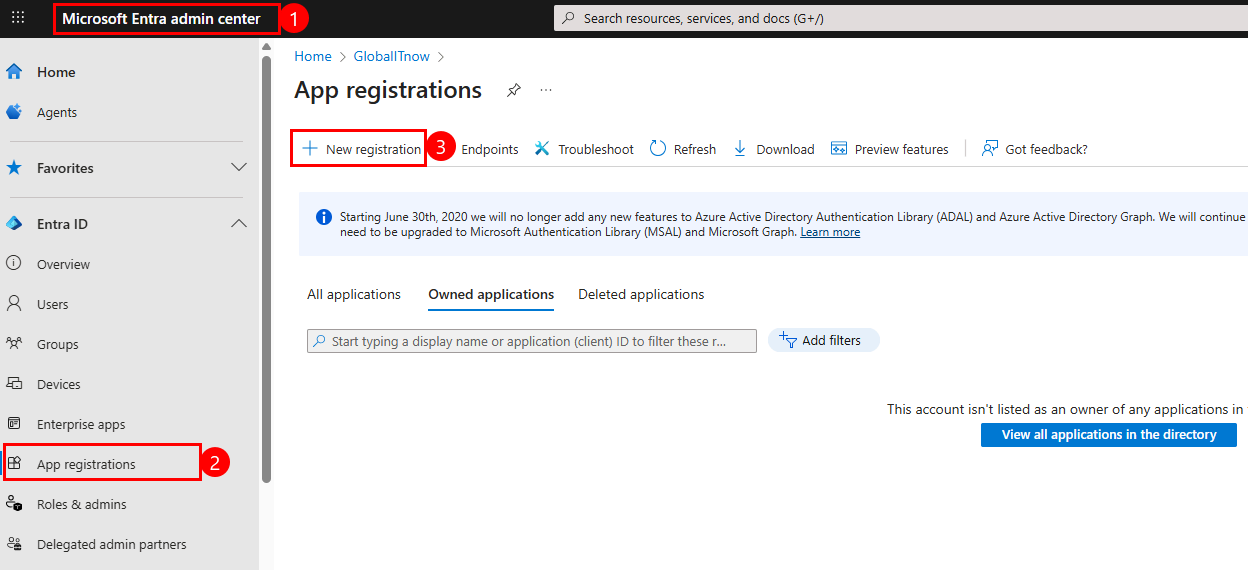
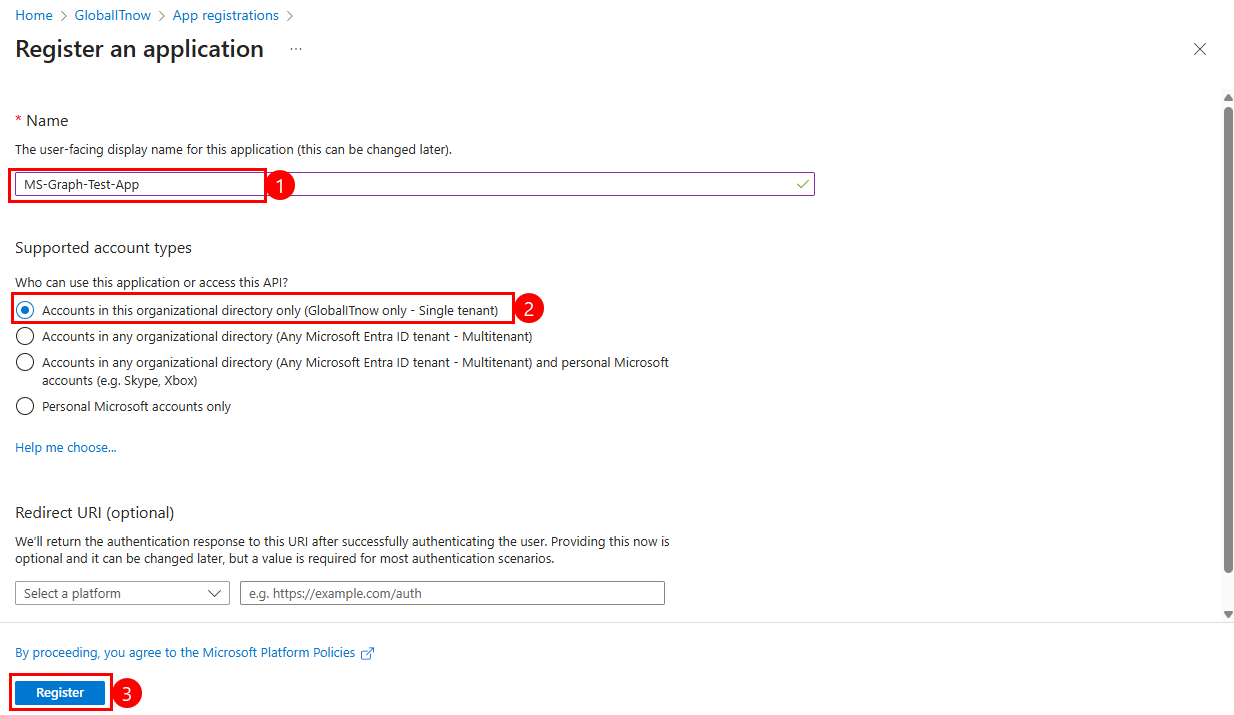
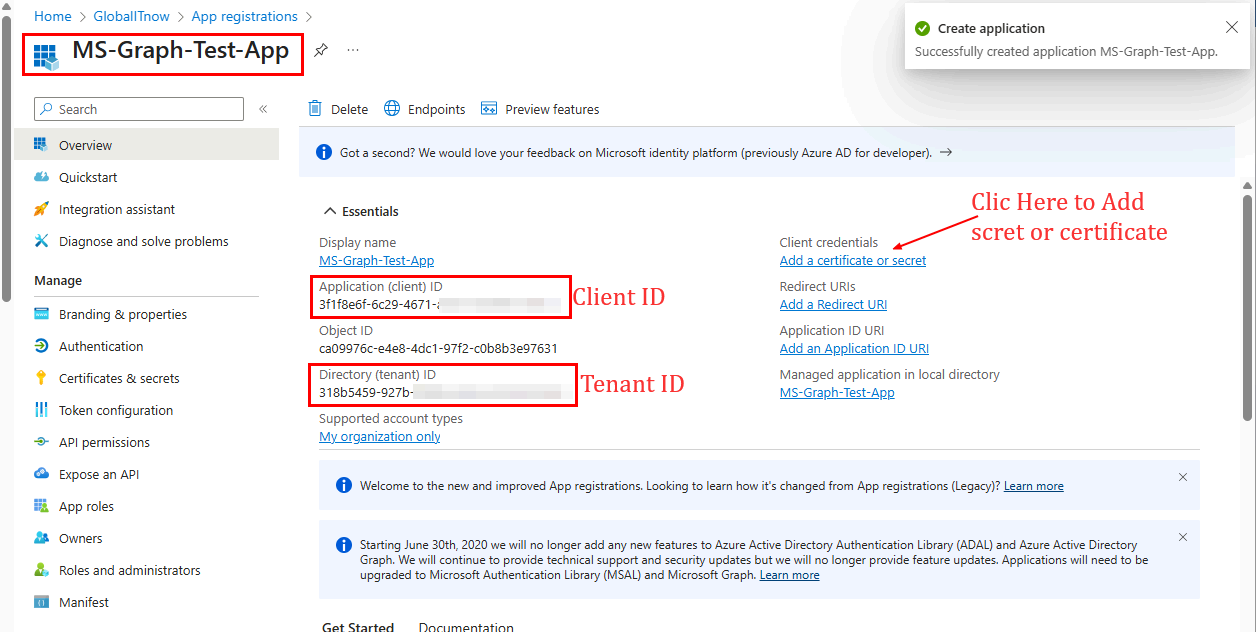
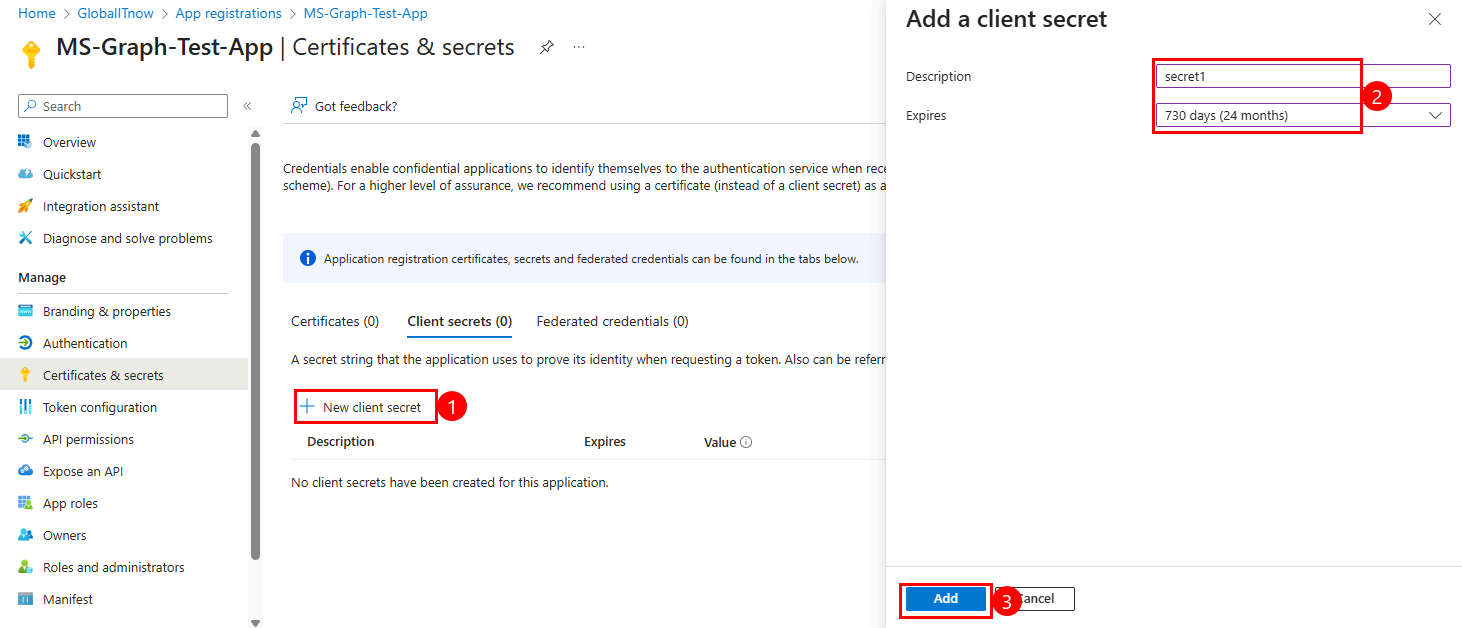
Follow these steps if you dont know how to create Entra ID App :
More secure option using certificates :
# Connect using certificate thumbprint
Connect-MgGraph -ClientId "your-app-id" -TenantId "yourtenant-id" -CertificateThumbprint "your-cert-thumbprint"
Check this documentation to create your own certificate and upload it to your Entra ID application :
Create PFX/Cer Self Signed Certificates using PowerShell – CloudSecOp.com : Real-World Tech Insights
Thanks





