Explore practical guides and tools for Microsoft 365, Azure, and PowerShell. Enhance your cloud security and admin skills with expert insights and automation tips.
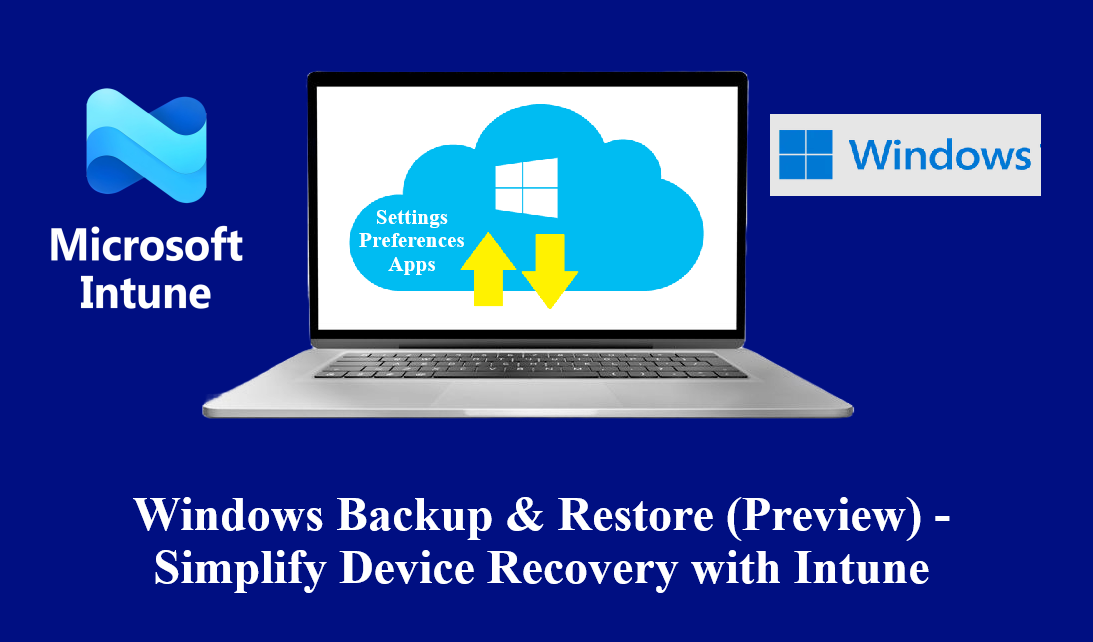
Windows Backup & Restore (Preview) — Simplify Device Recovery with Intune
Modern endpoint management is not only about securing devices but also ensuring business continuity when users switch or replace their Windows devices. Microsoft recently introduced Windows Backup & Restore (preview), a feature designed to improve the user experience during enrollment by allowing users to restore their settings, apps, and preferences from a backup created on another Windows device.
When combined with Microsoft Intune, this feature streamlines provisioning scenarios, reduces IT intervention, and helps end-users return to productivity faster.
This feature does not include data backup, it includes backup of installed apps, settings, and Windows preferences.
Prerequisites
Microsoft M365 Business Premium licence or above (E3, E5…etc.)
Windows 11, version 22H2 or later
Devices must be Azure AD joined or Hybrid Azure AD joined
Backup must be enabled in Settings Catalog in Intune
Key Benefits
Seamless User Experience: Users can choose to restore apps, personalization, and system settings from a previously enrolled device.
Reduced IT Overhead: Eliminates the need for manual reconfiguration or app deployment assistance.
Faster Device Provisioning: During Autopilot or enrollment, end-users can quickly restore their environment.
Configure Windows Backup & Restore from Intune
Step 1 – Enable the Restore Page in Intune Enrollment page
This setting defines whether users will see the restore page when setting up a new device.
Sign in to the Microsoft Intune admin center
Navigate to: Devices → Enrollment → Windows → Windows Backup and Restore (preview)
Under Show restore page, set the value to On
Click Save
This ensures that during device setup, users are prompted to restore from an existing backup.
Step 2 – Configure Windows Backup Policy in Intune
Enabling the restore page alone is not enough. You must configure a Windows Backup policy to define what data and settings are backed up.
In the Intune admin center, go to: Devices → Configuration profiles → Create profile
Select:
Platform : Windows 10 and later
Profile type : Settings catalog
Give a name to your Policy then click Next
Search for Windows Backup in the catalog.
Configure the following backup options:
App list backup → Enabled (saves installed apps from Microsoft Store and Intune Company Portal)
Personalization backup → Enabled (saves taskbar, Start menu, and system preferences)
Settings backup → Enabled (restores system settings such as Wi-Fi, language, etc.)
Assign the policy to specific group or All Users as your company needs.
Review → Create.
User Experience
After Intune policy is applied, you can see from this windows that all Apps and preferences are backuped :
After a Windows reset or Autopilot, you can restore all your apps and preferences from this windows :
Best Practices
Pilot First : Test with a small group of users before rolling out to production.
Combine with Autopilot : Deliver a near “zero-touch” experience with Windows Autopilot + Backup Restore.
Educate End-Users : Provide guidance so users know what to expect during the setup experience.
Monitor Reports : Track backup/restore adoption using Intune reporting to validate success rates.
Known issues
This feature isn’t supported in Government cloud or 21Vianet.
This feature doesn’t work for shared or userless devices.
The restore feature isn’t supported with the following provisioning methods :
Hybrid Azure AD Join
Workplace Join
Self-deployment mode
Windows Autopilot for pre-provisioned devices
Windows Autopilot reset flow
Manual enrollment through the Windows Settings app
Enrollment via Group Policy
Enrollment via Configuration Manager co-management
Conclusion
Windows Backup & Restore in Intune is a powerful feature that enhances user productivity, reduces IT support requests, and ensures smoother device transitions. By enabling the restore page and configuring backup policies in Intune, organizations can deliver a modern, cloud-based recovery experience for Windows devices.
As this feature is still in preview, keep monitoring Microsoft’s documentation and release notes for changes before deploying it at scale.
Hi, I’m Aymen El Jaziri , a passionate System Administrator and Microsoft MVP, with years of hands-on experience in managing and securing modern IT infrastructures.
This blog is where I share technical guides, automation scripts, product reviews, and real-world solutions that help IT professionals simplify their day-to-day work and stay ahead in a fast-evolving cloud ecosystem.
Whether you’re here to troubleshoot an issue, improve your automation game, or learn new best practices , welcome in my blog !
Let’s build a stronger, smarter IT community together.
Feel free to connect with me on LinkedIn for more content, discussions, or collaboration opportunities.