Physical Address
304 North Cardinal St.
Dorchester Center, MA 02124
Physical Address
304 North Cardinal St.
Dorchester Center, MA 02124

Explore practical guides and tools for Microsoft 365, Azure, and PowerShell. Enhance your cloud security and admin skills with expert insights and automation tips.
Explore practical guides and tools for Microsoft 365, Azure, and PowerShell. Enhance your cloud security and admin skills with expert insights and automation tips.
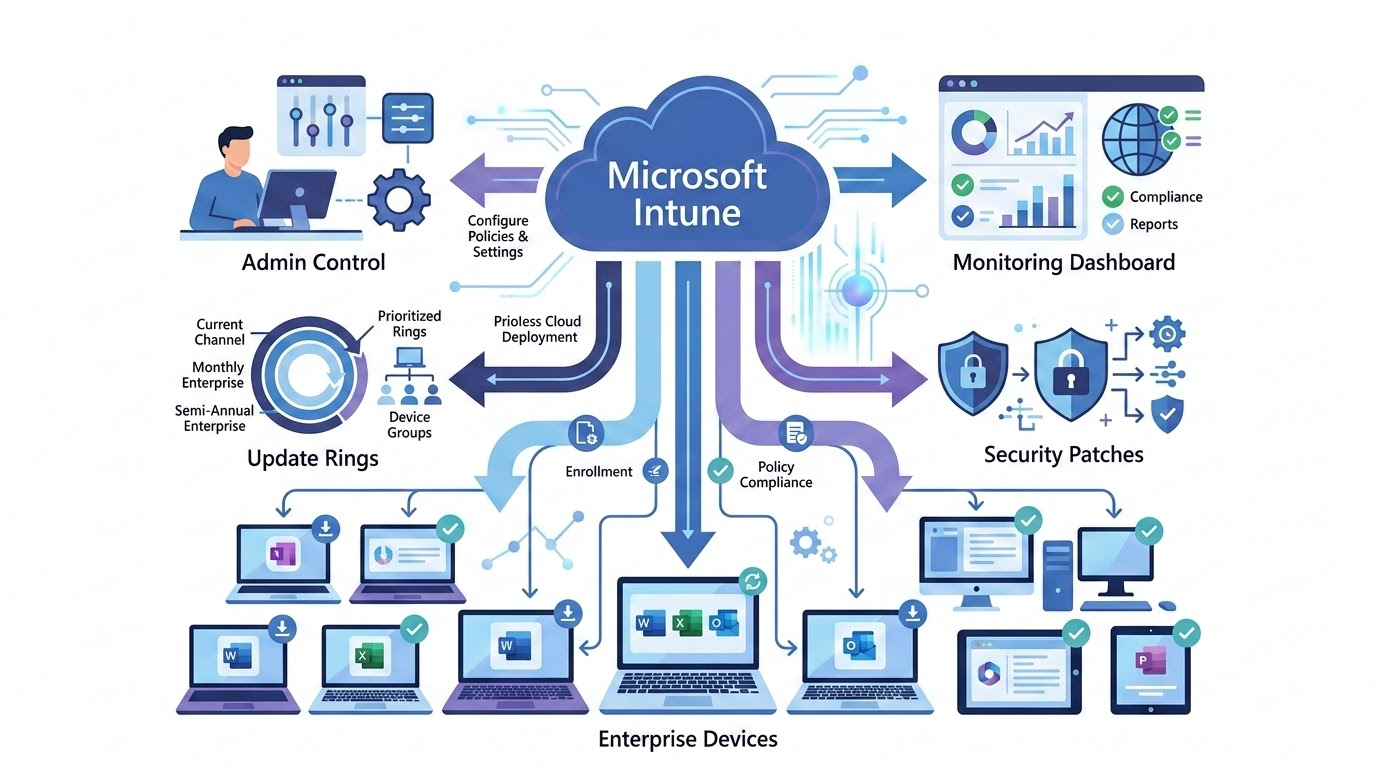
In any enterprise environment, keeping Microsoft 365 Apps up to date is not just about getting new features. Outlook, Word, Excel, PowerPoint, Teams every one of these applications ships monthly security fixes that address real, exploitable vulnerabilities. Miss them consistently and you are not running a productivity suite, you are running a liability.
Over years deploying Intune for enterprises of all sizes, I have seen the same failure modes repeat themselves. Some organizations update too aggressively without any testing phase and end up breaking critical add-ins or macros overnight. Others defer updates so long they are running builds that Microsoft no longer patches, sitting exposed to known CVEs. Neither extreme is acceptable in a production environment.
This article gives you a practical, opinionated framework for managing Microsoft 365 Apps update channels through Intune. We will cover what update channels are, how to enforce them using the Settings Catalog configuration profile, and when to choose a Monthly update strategy versus a Semi-Annual one.
Microsoft 365 Apps uses a subscription-style delivery model called update channels. The channel assigned to a device determines two things: which version of Office it receives, and when it receives it. This is fundamentally different from the old MSI-based Office world where you deployed a specific version and sat on it indefinitely.
With Microsoft 365 Apps, updates flow through these channels continuously. If you do not take explicit control, devices will update themselves on Microsoft’s default schedule. In an enterprise context, that is simply not acceptable. You need predictability, a testing window, and compliance enforcement. That is exactly what Intune is for.
Microsoft offers several update channels for Microsoft 365 Apps for Enterprise.
Here is the full picture :
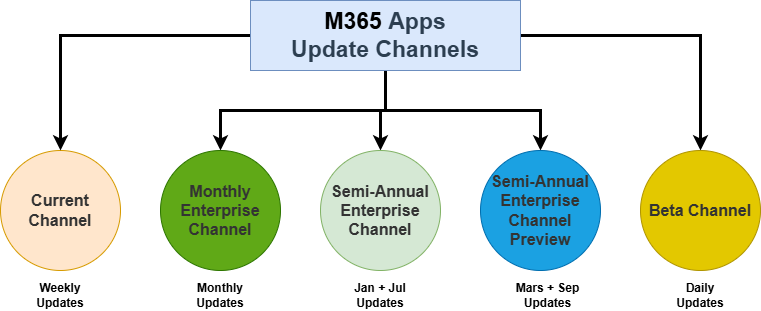
For the vast majority of enterprise environments, the decision comes down to two channels : Monthly Enterprise Channel or Semi-Annual Enterprise Channel. Current Channel and Beta Channel are simply too unpredictable for business-critical deployments.
This is a comparison between MEC and SAEC :
| Criteria | Monthly Enterprise Channel | Semi-Annual Enterprise Channel |
| Update frequency | Once per month | Twice per year (January and July) |
| New features | Available every month | Delayed by approximately 6 months |
| Security patches | Included monthly | Monthly security-only updates in between |
| Stability level | Good (newer code base) | Very high (extensively tested) |
| Best suited for | Modern IT teams, fast-paced environments | Regulated industries, large enterprises |
| Testing window | Short, one month cycle | Long, six-month cycle before release |
| Microsoft support | 12 months per release | 24 months per release |
| Rollback | Straightforward | Less frequent, easier to plan |
Historically, IT admins controlled Office update settings through ADMX-backed Administrative Templates. That approach still works technically, but it relies on the legacy Office 2016 ADMX schema and is increasingly disconnected from how Microsoft designs policy management going forward.
The right approach today is the Settings Catalog. It uses the same underlying policy engine but exposes settings through a modern, searchable interface that is easier to maintain and audit. More importantly, it maps directly to what Microsoft supports and documents for Microsoft 365 Apps management.
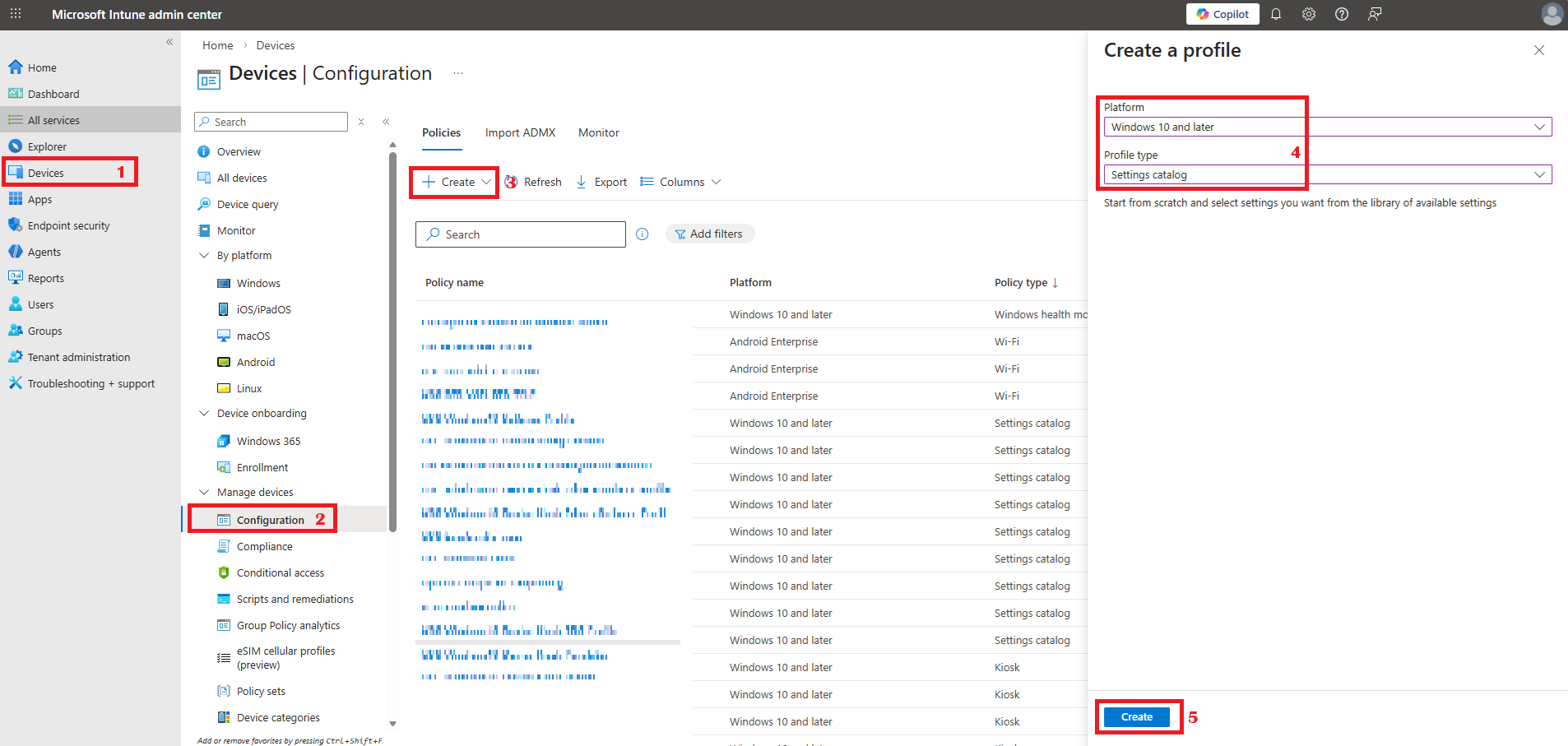
| Setting Name | Recommended Value |
| Channel Name (Device) | Monthly Enterprise Channel or Semi-Annual Enterprise Channel |
| Enable Automatic Updates | Enabled |
| Hide Update Notifications | Enabled |
| Hide option to enable or disable updates | Enabled |
| Delay downloading and installing updates for Office (Days) | 5 days recommended |
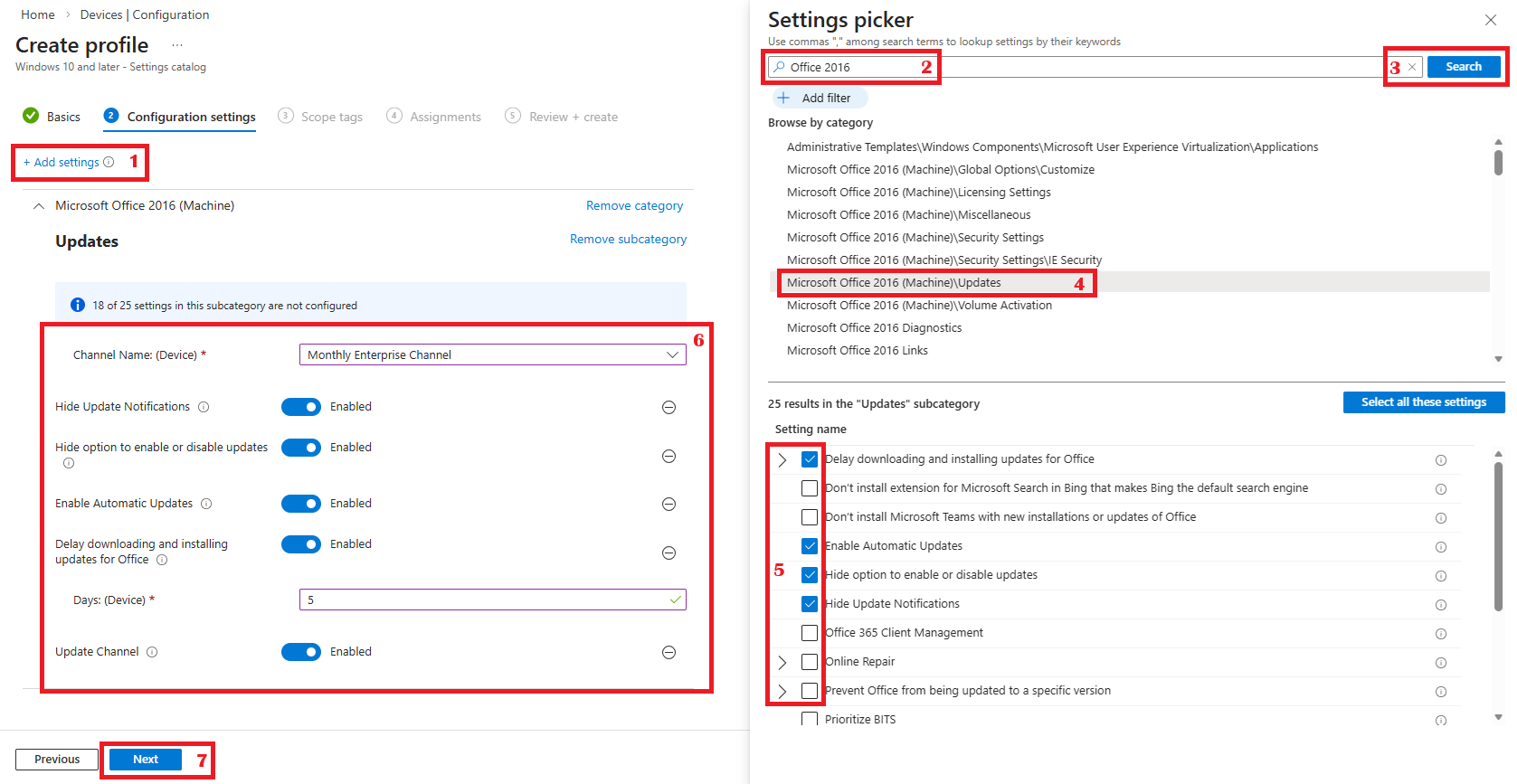
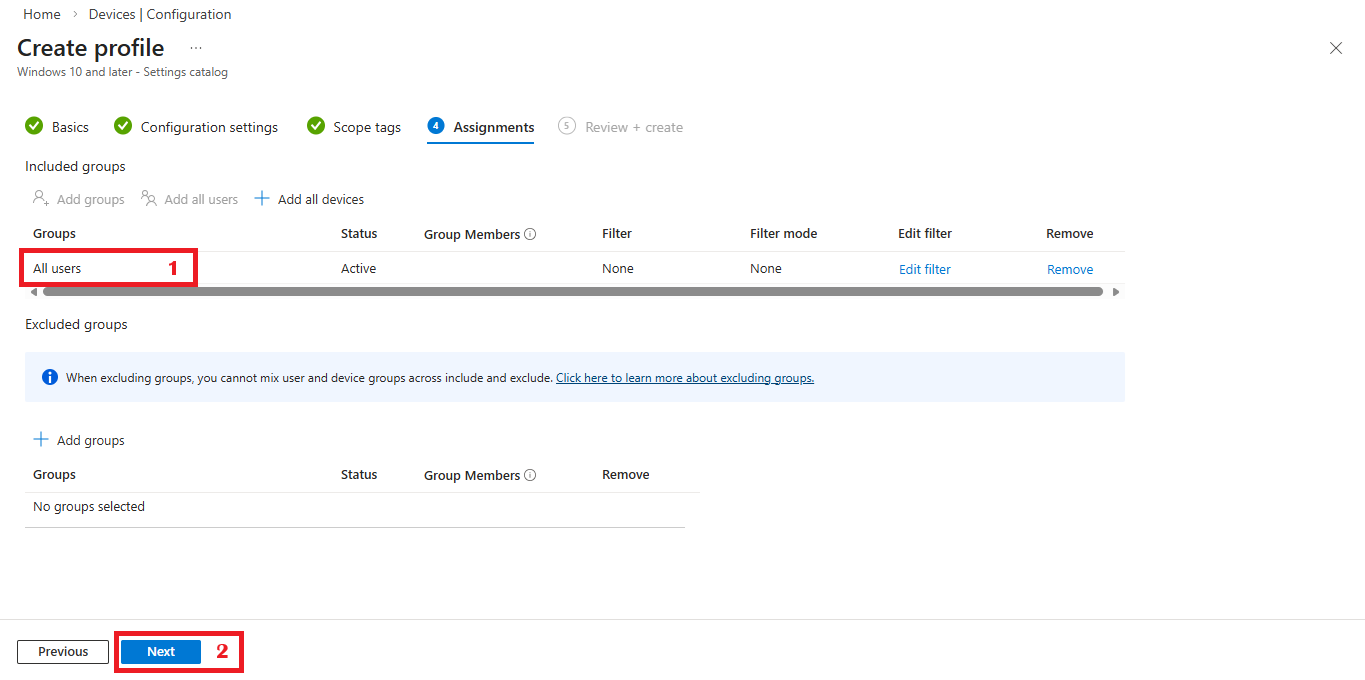
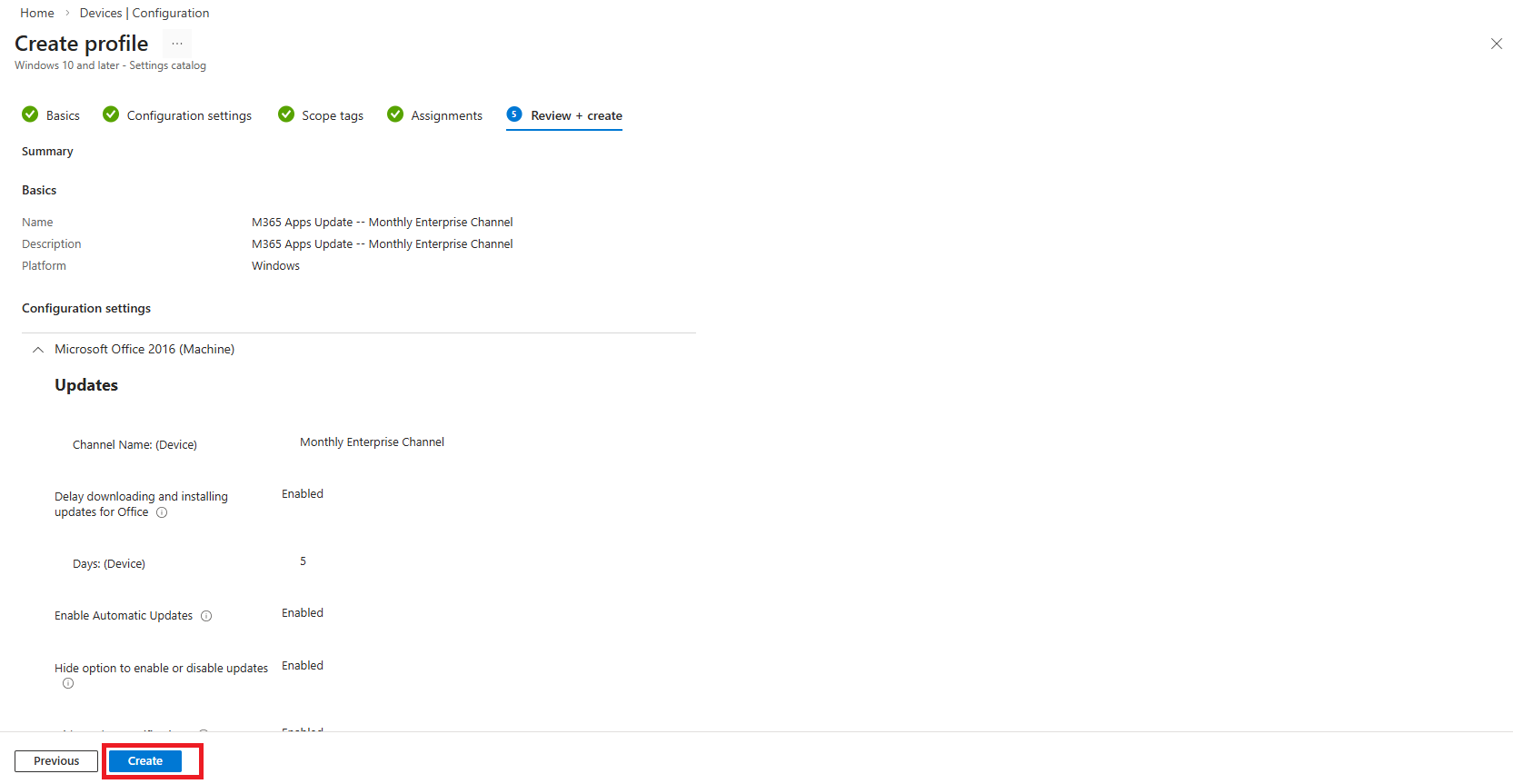
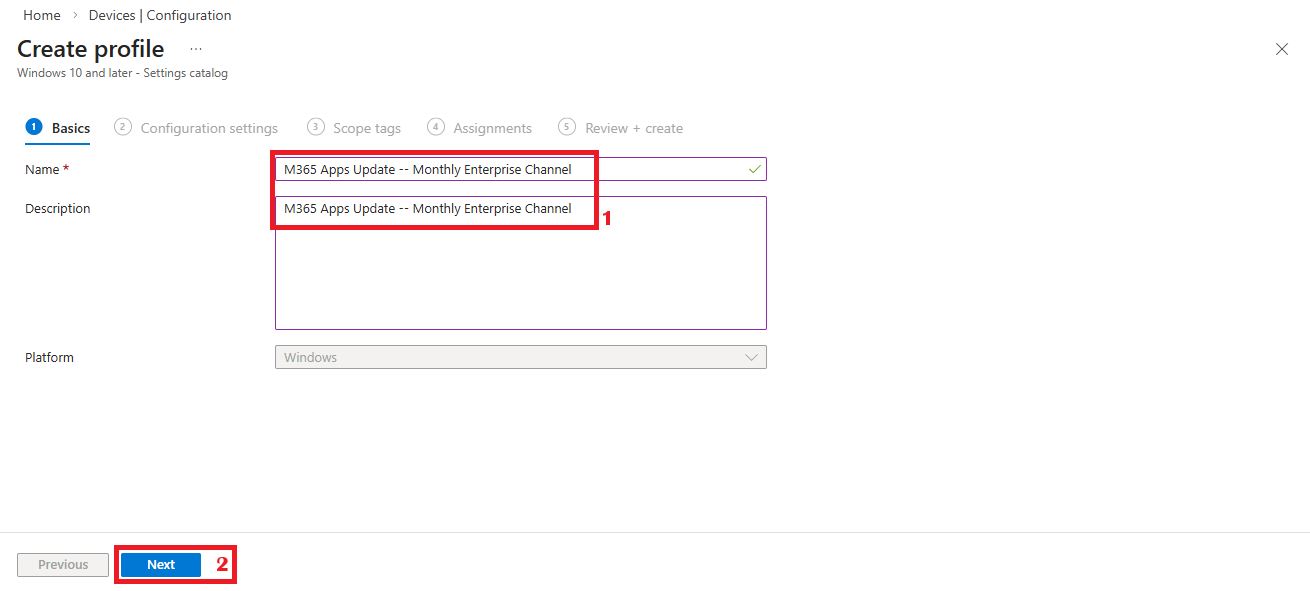
Repeat the same process with Semi-Annual Entreprise Channel.
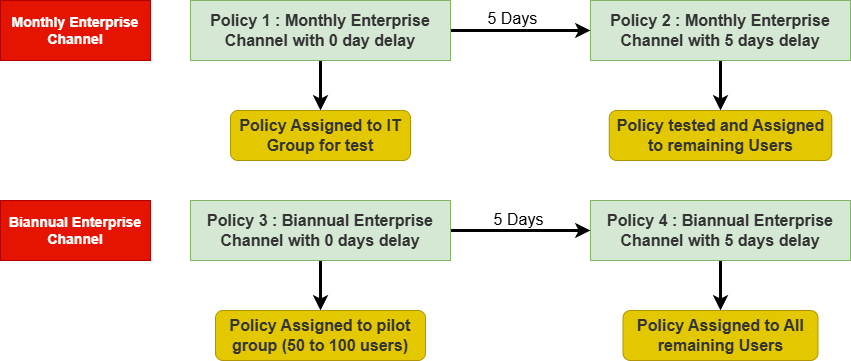
To ensure a stable and controlled deployment of Microsoft 365 Apps updates across the enterprise, a phased rollout strategy was implemented using Microsoft Intune update policies. For devices configured with the Monthly Enterprise Channel, updates are first deployed through Policy 1 with no delay, which is assigned to the IT testing group to validate the update in a controlled environment. After successful testing and validation, Policy 2 introduces a 5-day delay and is then assigned to the remaining users, ensuring that updates are deployed more broadly only after initial verification.
For devices using the Semi-Annual Enterprise Channel, a similar staged approach is applied. Policy 3 deploys updates with no delay to a pilot group (50 to 100 users) to perform early validation in real usage scenarios. Once the update is confirmed to be stable, Policy 4 introduces a 5-day delay and is assigned to all remaining users. This controlled deployment model allows the organization to detect potential compatibility or performance issues early, reduce operational risks, and maintain a high level of stability across the Microsoft 365 Apps environment.
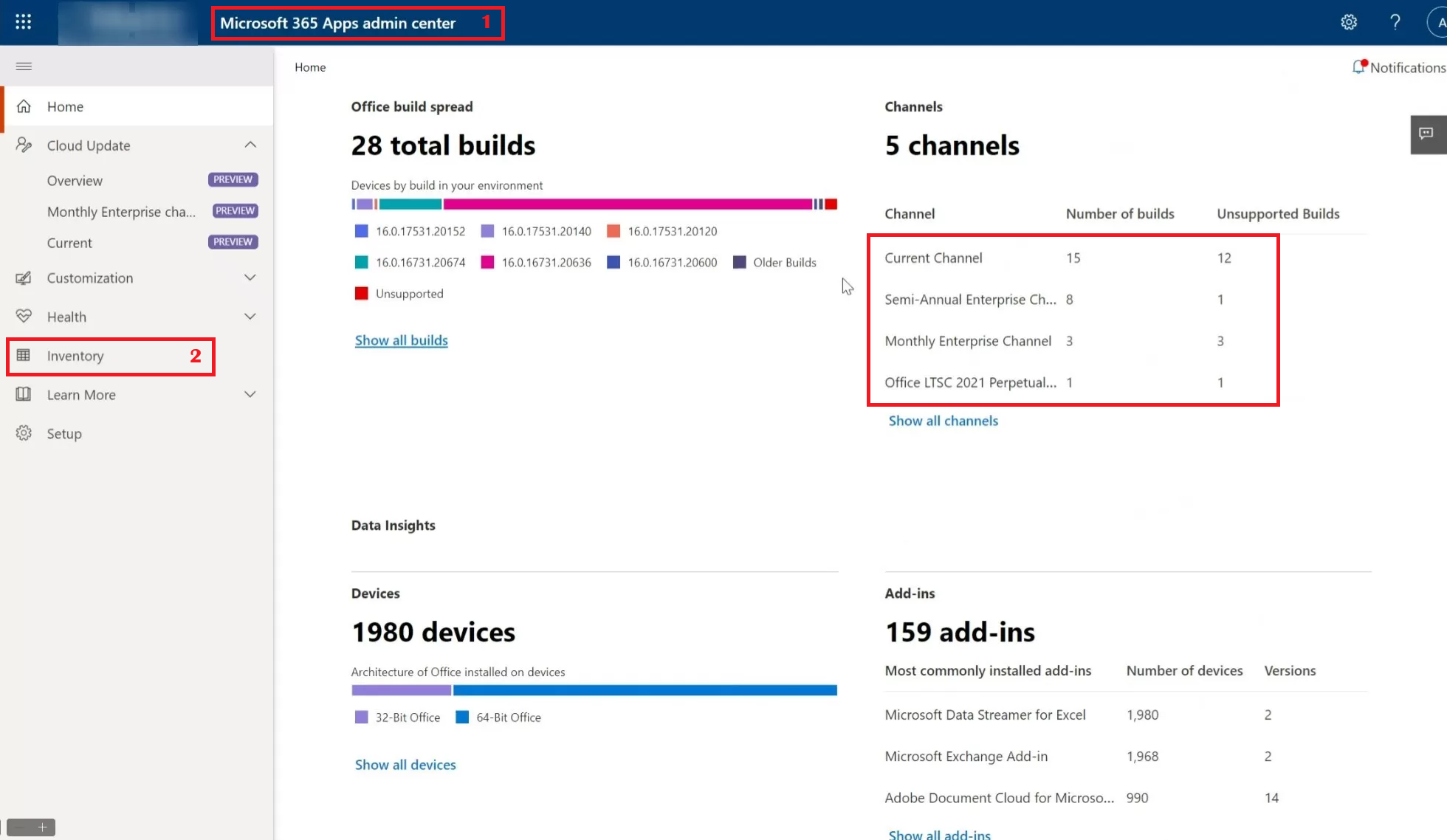
M365 Apps Update status can be verified from Intune Policy statistics or from M365 Apps admin center. In this example I’ll use M365 Apps admin center.
Go to Microsoft 365 Apps admin center portal :
Under Inventory, the complete list of all builds, their channel, and supported states with counts is available.
Managing Microsoft 365 Apps updates is one of the most impactful elements of enterprise endpoint management, and it is one of the most commonly done poorly. The gap between organizations that have a deliberate update channel strategy and those that are just letting devices update themselves on Microsoft’s default schedule is enormous, both in security posture and in operational stability.
The Settings Catalog in Intune gives you everything you need to enforce this properly. Five settings, applied to the right device groups, will lock your Office fleet to a defined channel, prevent users from disabling updates, and introduce a sensible delay before changes land at scale.
Thanks