Physical Address
304 North Cardinal St.
Dorchester Center, MA 02124
Physical Address
304 North Cardinal St.
Dorchester Center, MA 02124

Explore practical guides and tools for Microsoft 365, Azure, and PowerShell. Enhance your cloud security and admin skills with expert insights and automation tips.
Explore practical guides and tools for Microsoft 365, Azure, and PowerShell. Enhance your cloud security and admin skills with expert insights and automation tips.
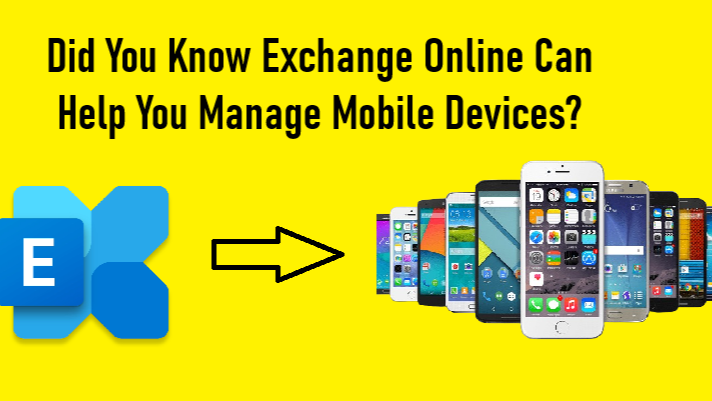

In today’s hybrid work environment, users are constantly accessing corporate data from their mobile devices. While this offers flexibility and productivity, it also introduces security risks. That’s where Exchange Online comes into play, not just as an email platform, but also as a powerful tool for managing mobile devices.
Exchange Online provides native capabilities for monitoring and controlling mobile device access to mailboxes. Without requiring Intune or other MDM solutions, you can:
These features are particularly useful when an employee leaves the company, loses a device, or when an untrusted device attempts to access corporate data.
One of the most critical steps in the offboarding process is ensuring that former employees no longer have access to corporate resources. Exchange Online allows you to:
This makes offboarding faster, safer, and more reliable, especially in organizations where mobile access is the norm. Combined with account disabling or license removal, this ensures no lingering access to business emails or sensitive attachments after a user’s departure.
From the Exchange admin center (EAC), navigate to:
Recipients > Mailboxes > Select a user > General tab > Manage mobile devices

Here, you’ll see a list of devices associated with that user’s mailbox. For each device, you can see the model, platform (e.g., Outlook for iOS and Android), phone number (if available), and its current access status (Allowed, Blocked, or Quarantined).
You can take direct actions such as:

Security isn’t just about firewalls and anti-virus software anymore. It’s also about knowing which devices have access to your data and being able to take action when necessary.
By leveraging Exchange Online’s mobile device management features, you’re not only simplifying your device governance but also strengthening your organization’s overall security posture without any additional licenses or infrastructure.
Thanks