Physical Address
304 North Cardinal St.
Dorchester Center, MA 02124
Physical Address
304 North Cardinal St.
Dorchester Center, MA 02124

Explore practical guides and tools for Microsoft 365, Azure, and PowerShell. Enhance your cloud security and admin skills with expert insights and automation tips.
Explore practical guides and tools for Microsoft 365, Azure, and PowerShell. Enhance your cloud security and admin skills with expert insights and automation tips.
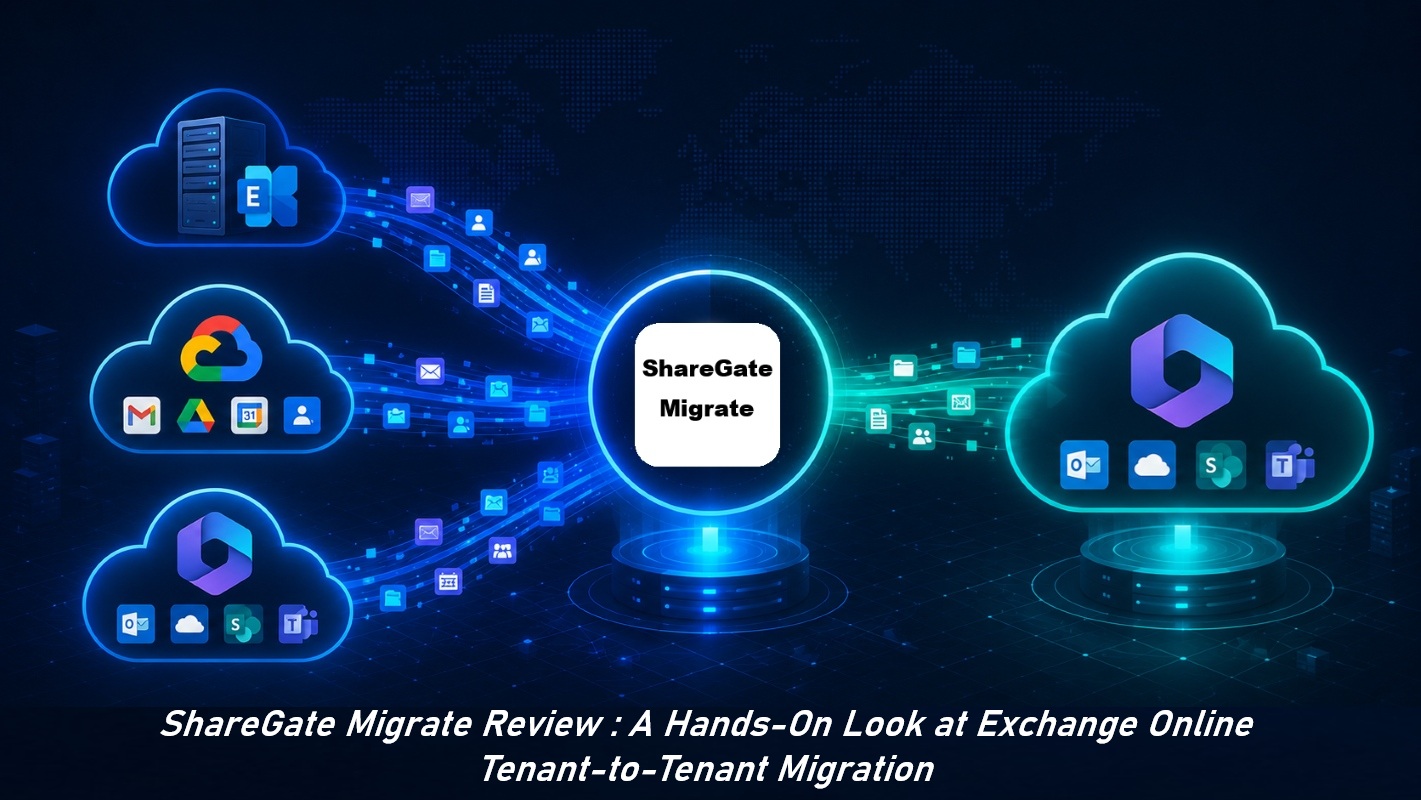
Reading note: This article focuses on Exchange Online to Exchange Online migration (tenant-to-tenant scenario) as the detailed practical case. ShareGate covers many other workloads (SharePoint, OneDrive, Teams, Planner, Entra ID identities), but covering each in depth would make the article endless. The goal here is to give a clear view of the tool, then dive into a concrete step-by-step walkthrough of mailbox migration.
Migrating a Microsoft 365 environment whether from on-premises Exchange, from another provider, or from one tenant to another during a merger or acquisition remains one of the most sensitive operations in the life of an infrastructure. Microsoft’s native tools (Exchange Online PowerShell cmdlets, Migration Batches, Cross-Tenant Mailbox Migration) get the job done, but at the cost of heavy manual configuration, limited reporting, and a non-negligible margin of error as soon as volume grows.
ShareGate Migrate positions itself in this space : a third-party tool that industrializes M365 migration while adding a layer of visibility (graphical mapping, audit and security reports) that native tools don’t offer out of the box. After several days testing it on a real-world scenario, here is my feedback, strengths and limitations included.
ShareGate Migrate isn’t limited to mailbox migration. The application is built around two broad usage modes : Migration and Governance / Reporting. Before getting into the hands-on, here’s a panorama of the capabilities, because this is a strength that would be a shame to overlook.
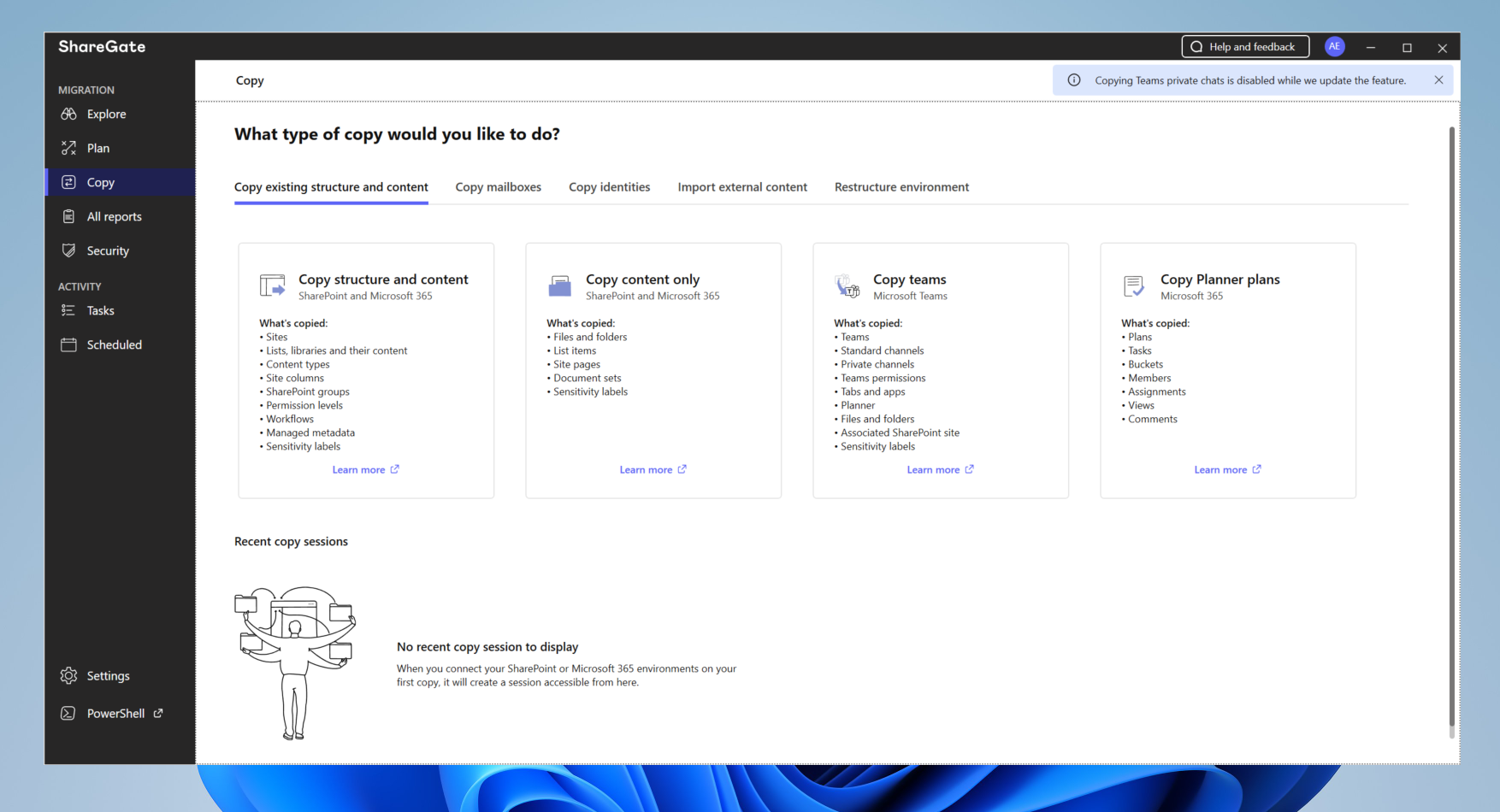
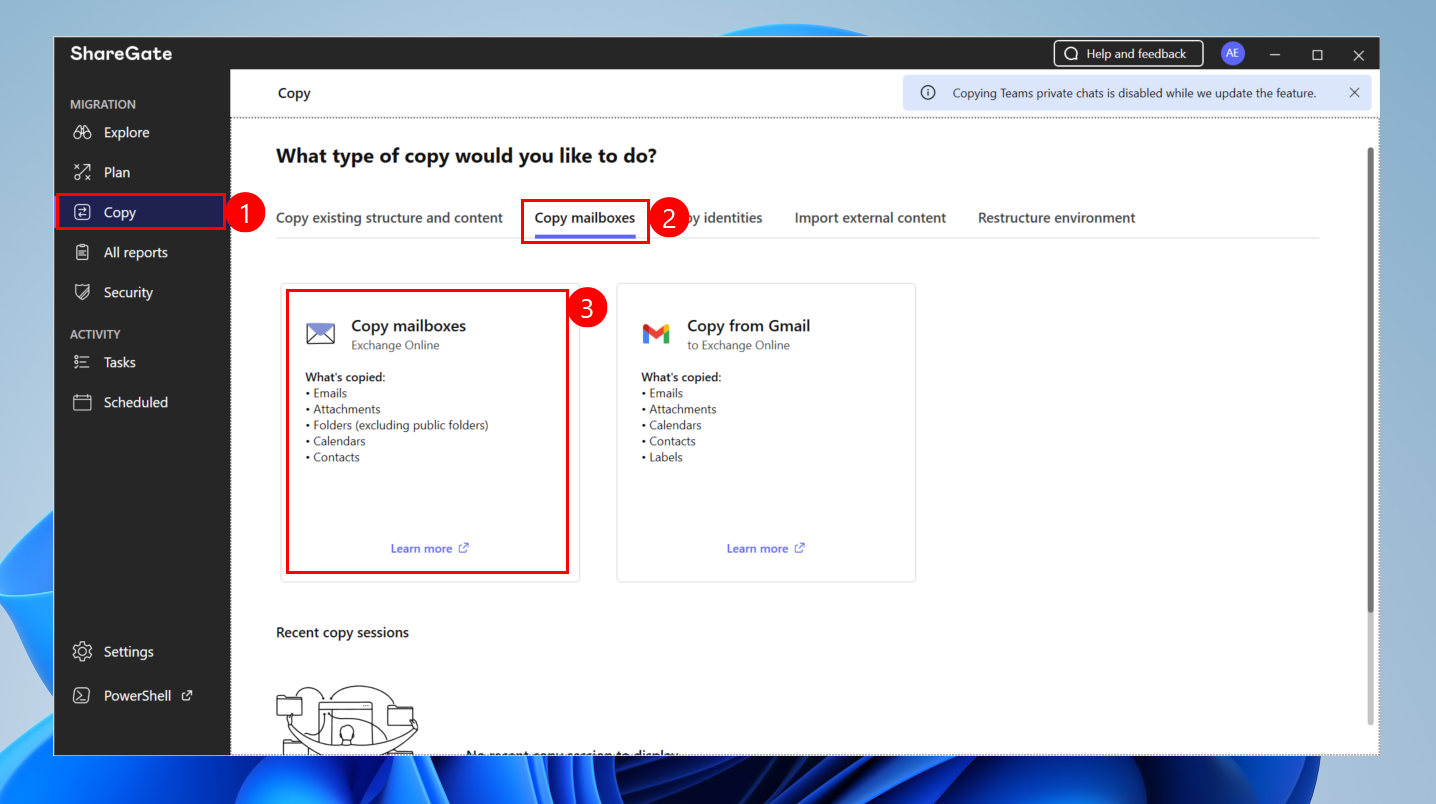
The interface groups all scenarios under the Copy tab, with a clear categorization logic :
| Category | Workloads covered |
|---|---|
| Copy existing structure and content | SharePoint sites, lists/libraries, content types, columns, SharePoint groups, permission levels, workflows, managed metadata, sensitivity labels |
| Category | Workloads covered |
|---|---|
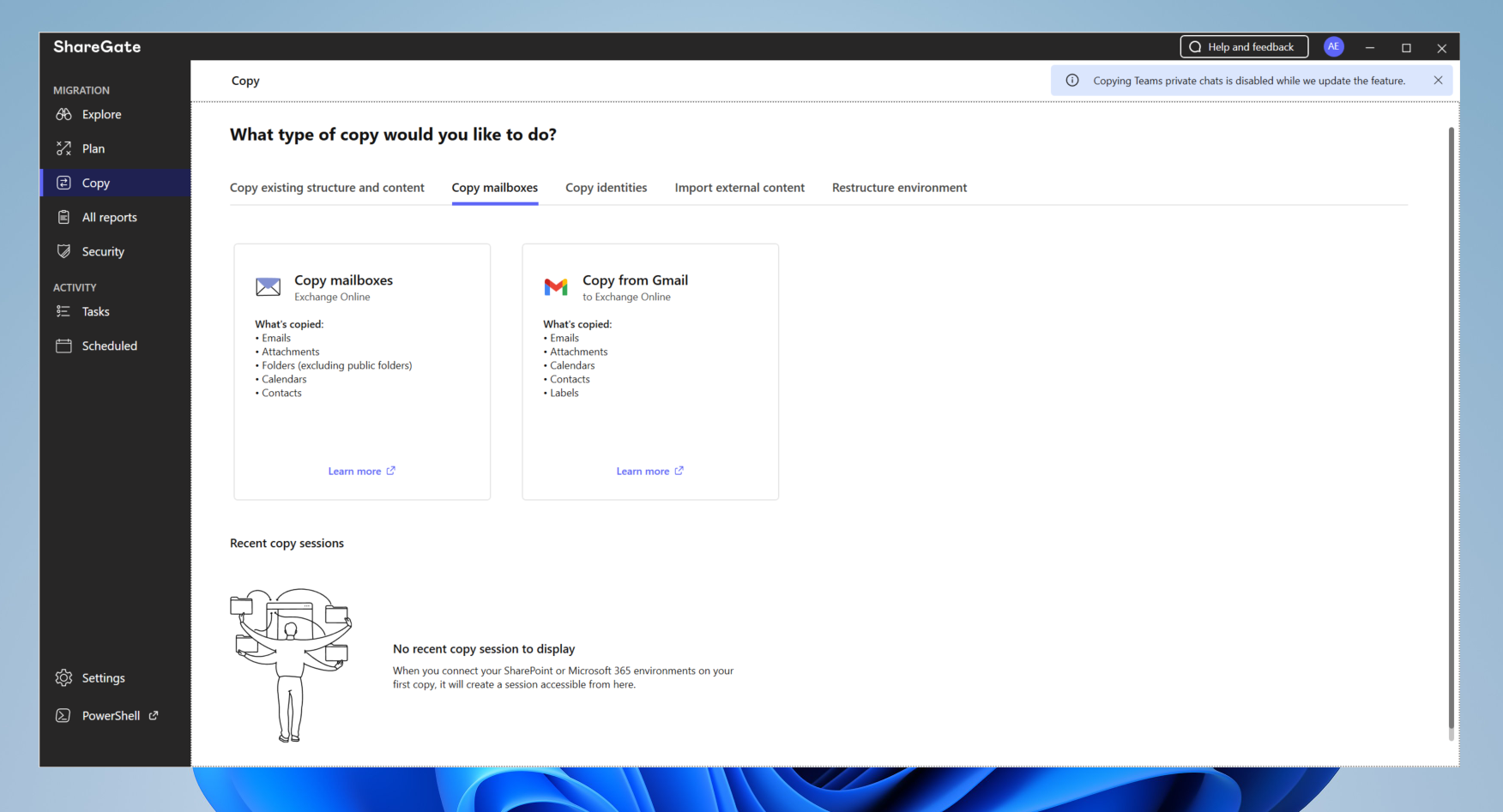
| Copy mailboxes | Exchange Online mailboxes (emails, attachments, folders, calendars, contacts) — and import from Gmail to Exchange Online |
| Category | Workloads covered |
|---|---|
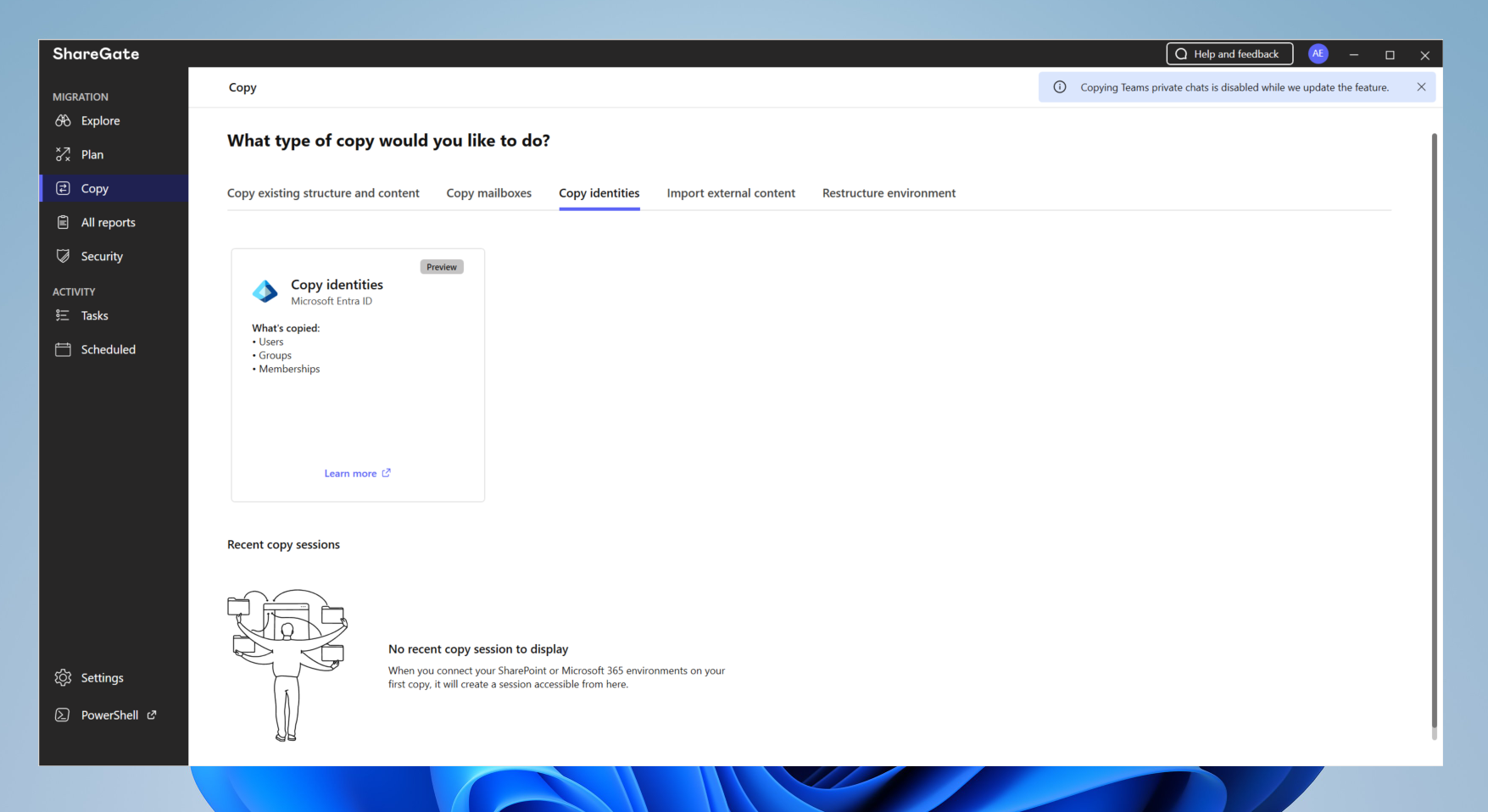
| Copy identities (Preview) | Users, groups, and memberships in Entra ID |
| Category | Workloads covered |
|---|---|
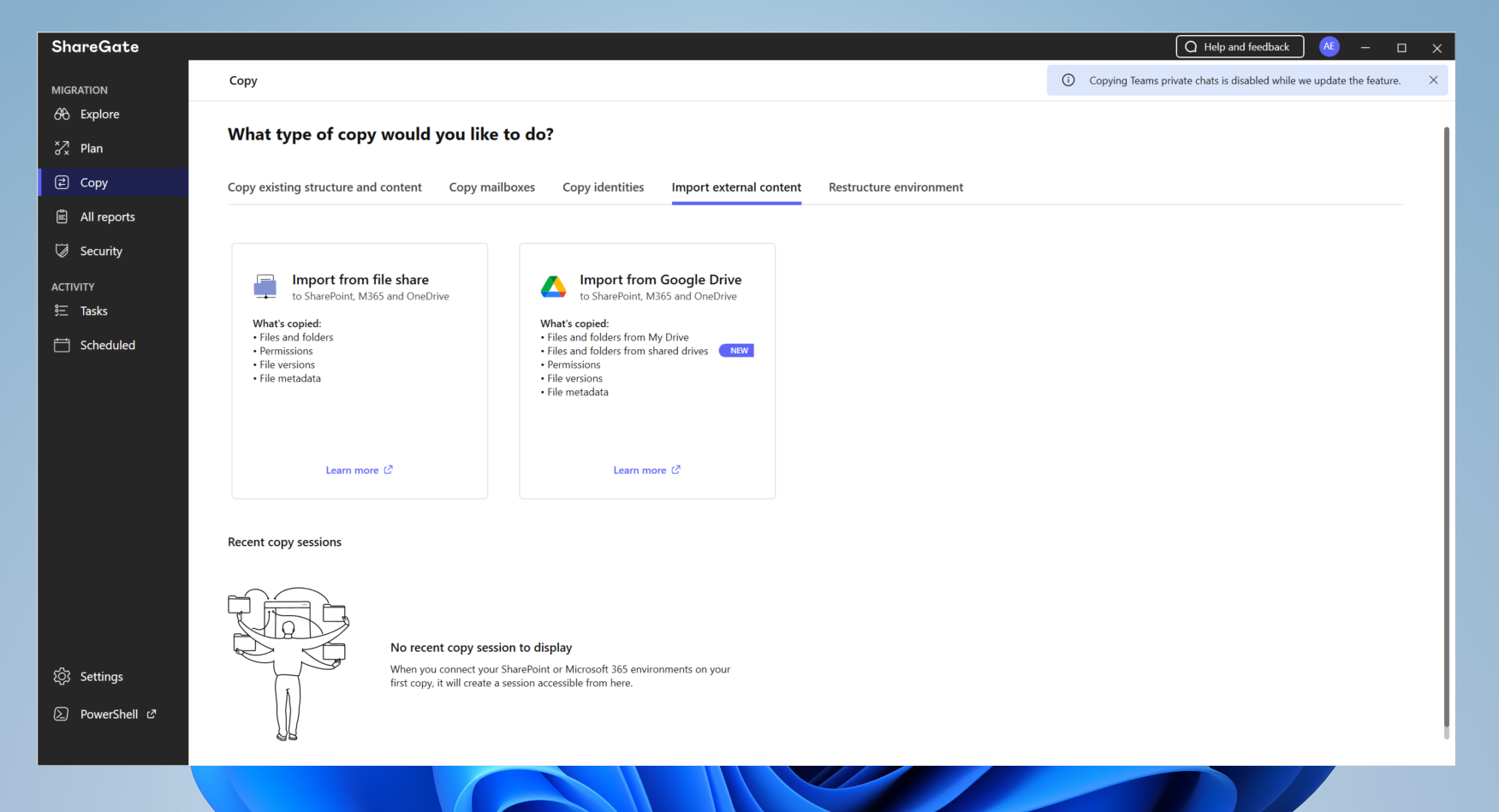
| Import external content | Import from a file share or from Google Drive (My Drive + shared drives) to SharePoint / M365 / OneDrive |
| Category | Workloads covered |
|---|---|
| Restructure environment | Promote a subsite into a site (subsite to site collection) |
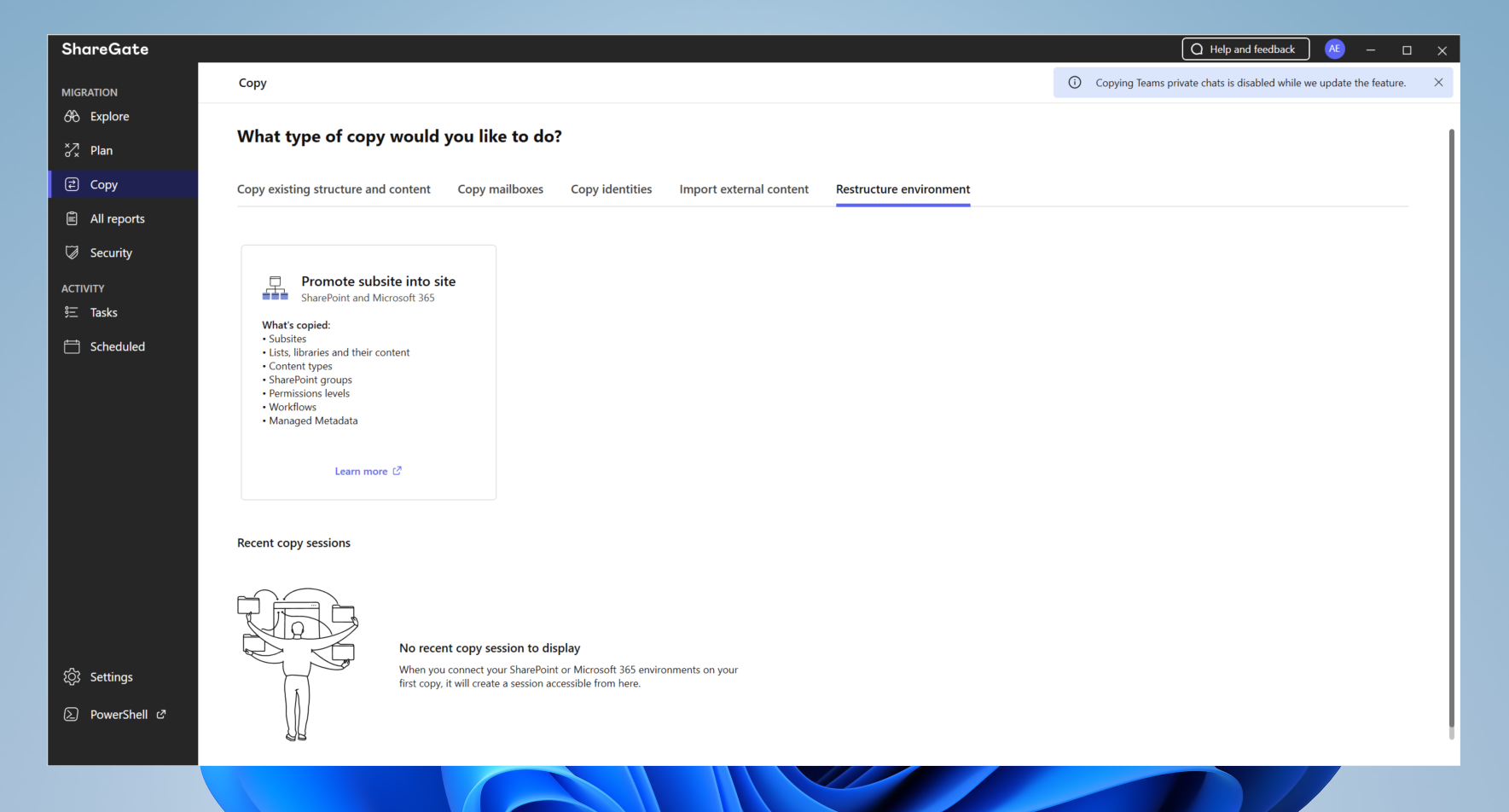
What stands out from this layout is that ShareGate addresses both “Migrate to Microsoft 365” migrations (from on-prem, file shares, Google Workspace) and “Tenant-to-tenant” migrations (merger/acquisition, divestiture, consolidation). The same console handles both logics, which avoids juggling multiple tools.
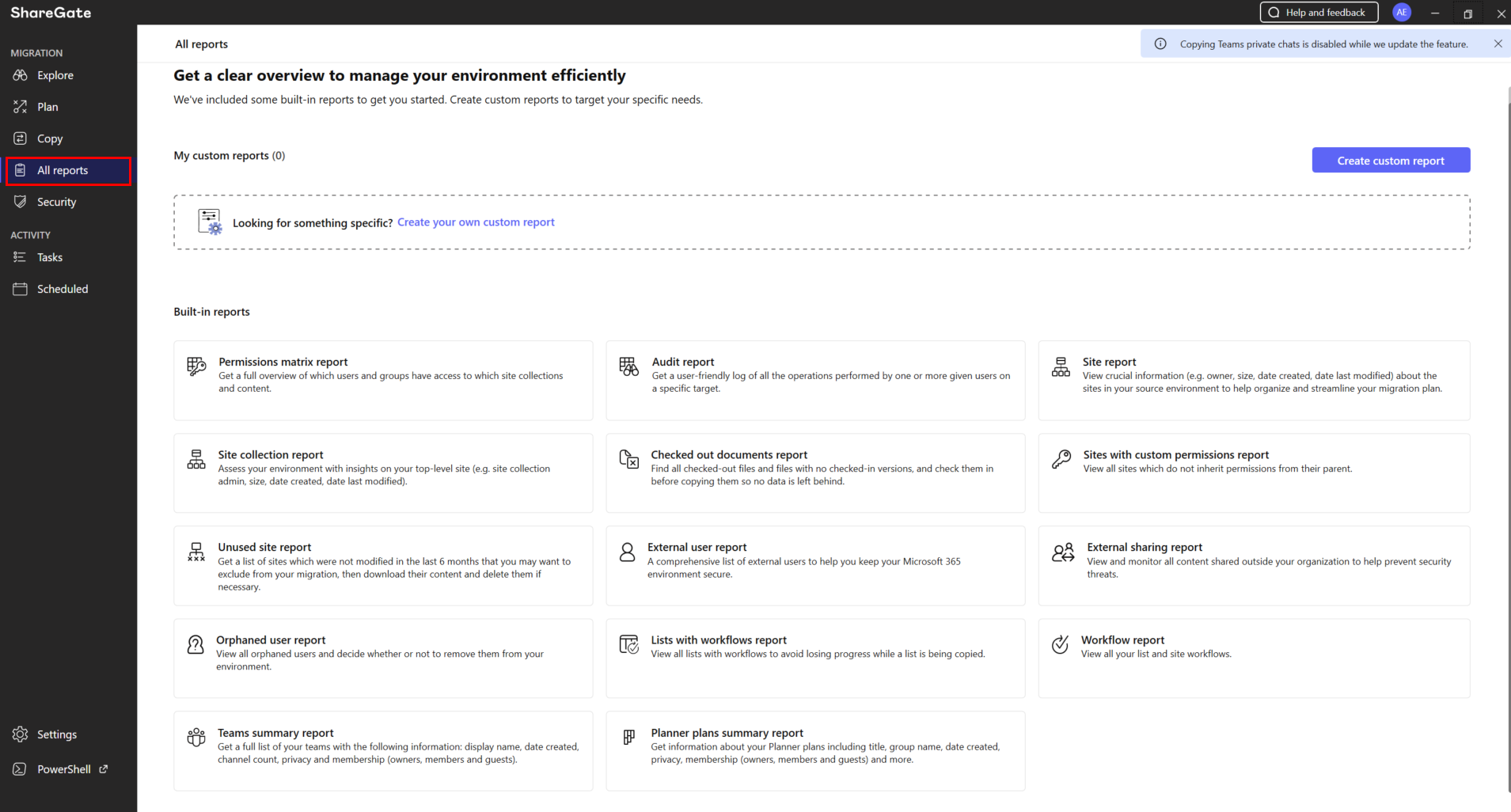
This is an aspect that particularly intrigued me. ShareGate isn’t just a copy engine : it’s also a reporting and security platform. Two distinct sections demonstrate this.
All reports offers a library of ready-to-use reports, complemented by the ability to create custom reports :
Security highlights reports oriented toward security posture, led by the Permissions matrix report, accompanied by Audit, Orphaned user, External sharing, Sites with custom permissions, and External user reports.
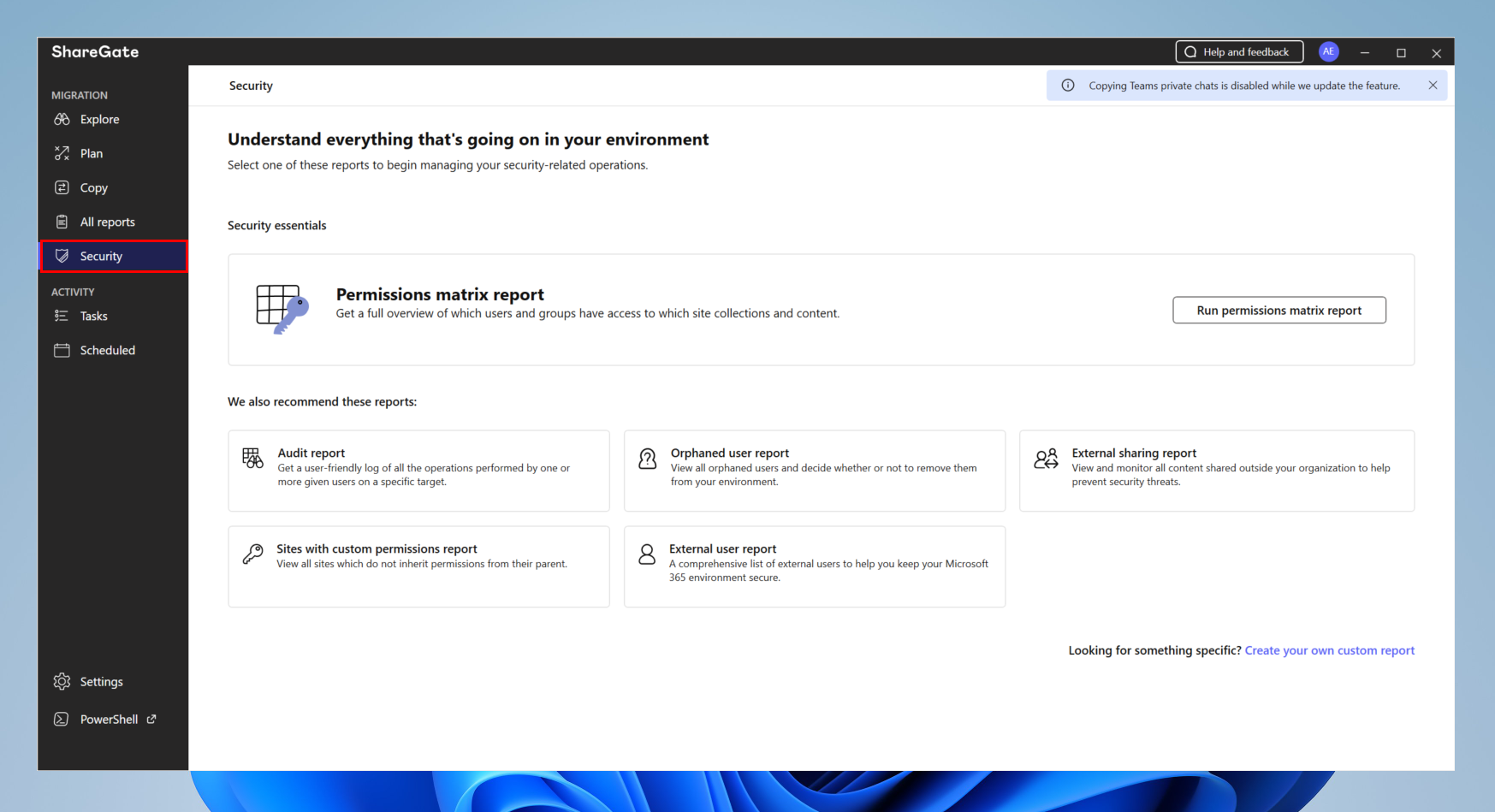
ℹ️ Important scope note : the reporting and security capabilities are heavily oriented toward SharePoint and OneDrive. The vast majority of built-in reports (permissions matrix, site and site collection reports, checked-out documents, sites with custom permissions, external sharing, orphaned/external users) operate at the SharePoint/OneDrive layer. Teams and Planner get summary-level coverage (Teams summary report, Planner plans summary report), but Exchange Online / mailbox-level governance is not the focus here, don’t expect mailbox-centric audit or security reporting comparable to what you’d get for SharePoint sites. If your governance priority is messaging and mailbox compliance, you’ll still need Microsoft Purview, the Exchange admin center, or a dedicated tool alongside ShareGate.
Key takeaway : even outside of any migration project, ShareGate Migrate can serve as a tool for continuous governance, mapping permissions, detecting risky external sharing, or identifying orphaned accounts. That’s a strong argument for amortizing the license over time, not just over the window of a migration project.
Now to the practical case. The chosen scenario is a cross-tenant migration of Exchange Online mailboxes, typical of a merger/acquisition or tenant consolidation.
The goal : transfer emails, folders, calendars, and contacts from the source tenant to the target tenant with minimal downtime.
Before launching anything, a rigorous preparation phase determines 80% of a migration’s success.
Licensing and access
Identities and domains
Assessment (not to be neglected)
Under the Copy → Copy mailboxes tab, select the Copy mailboxes (Exchange Online) tile.
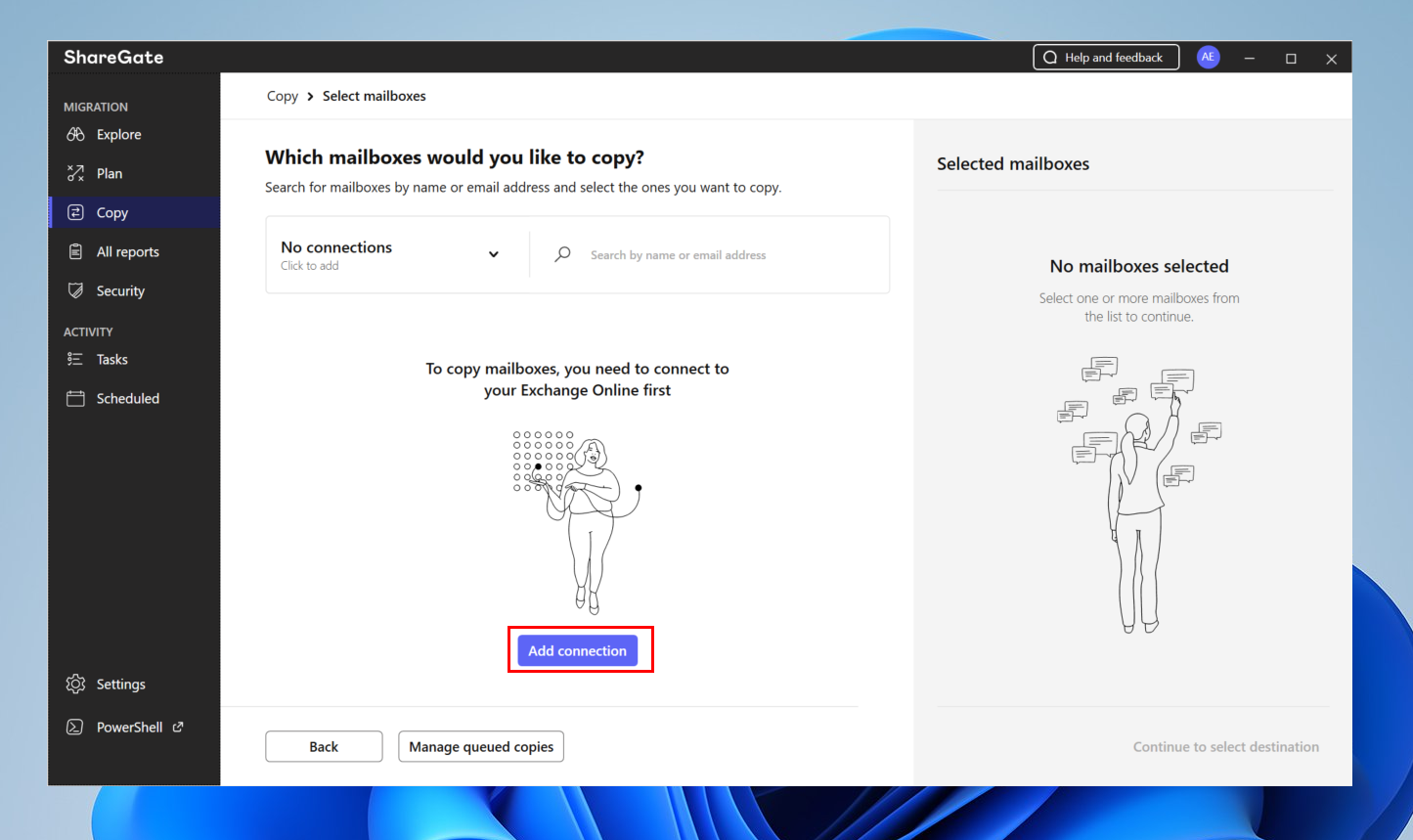
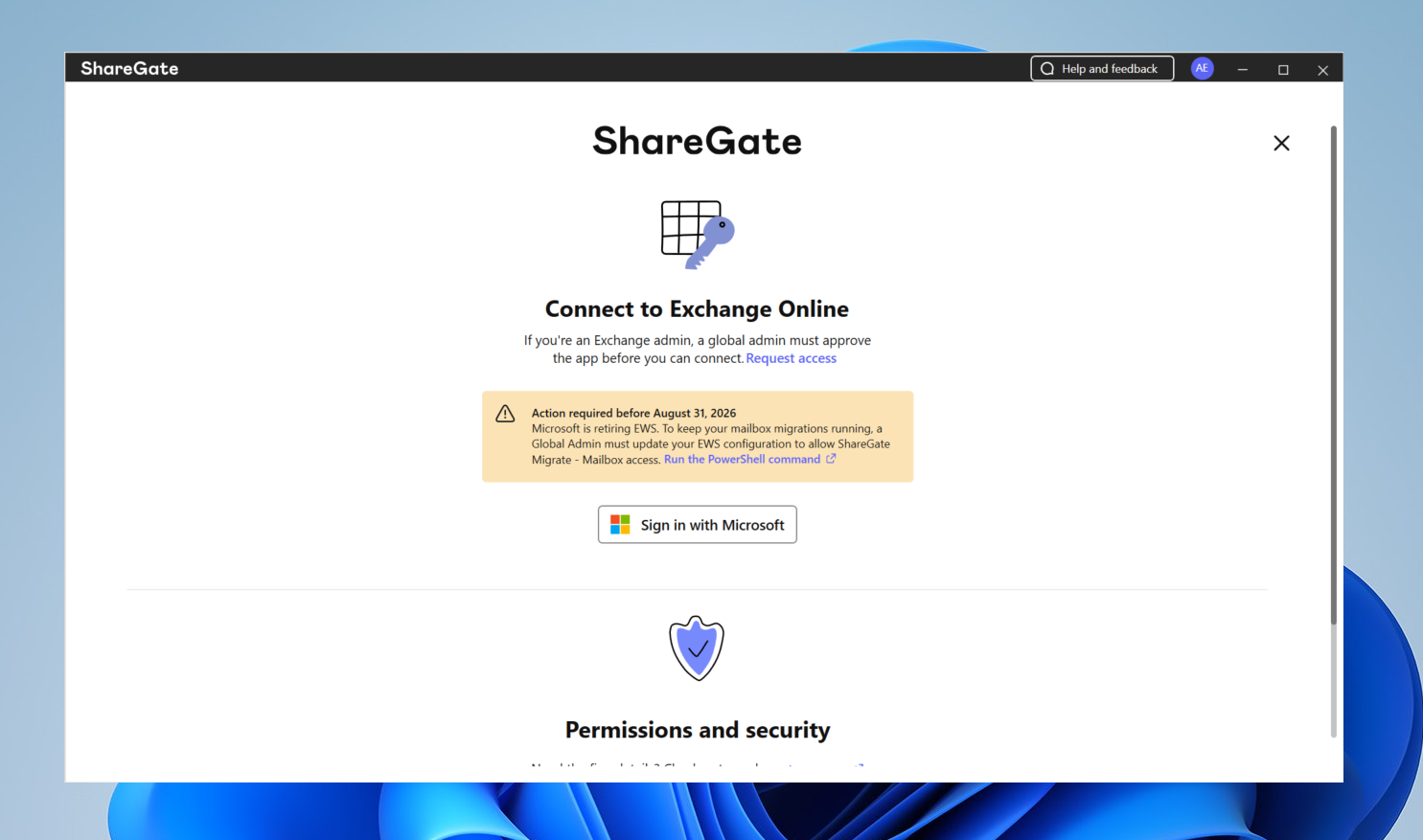
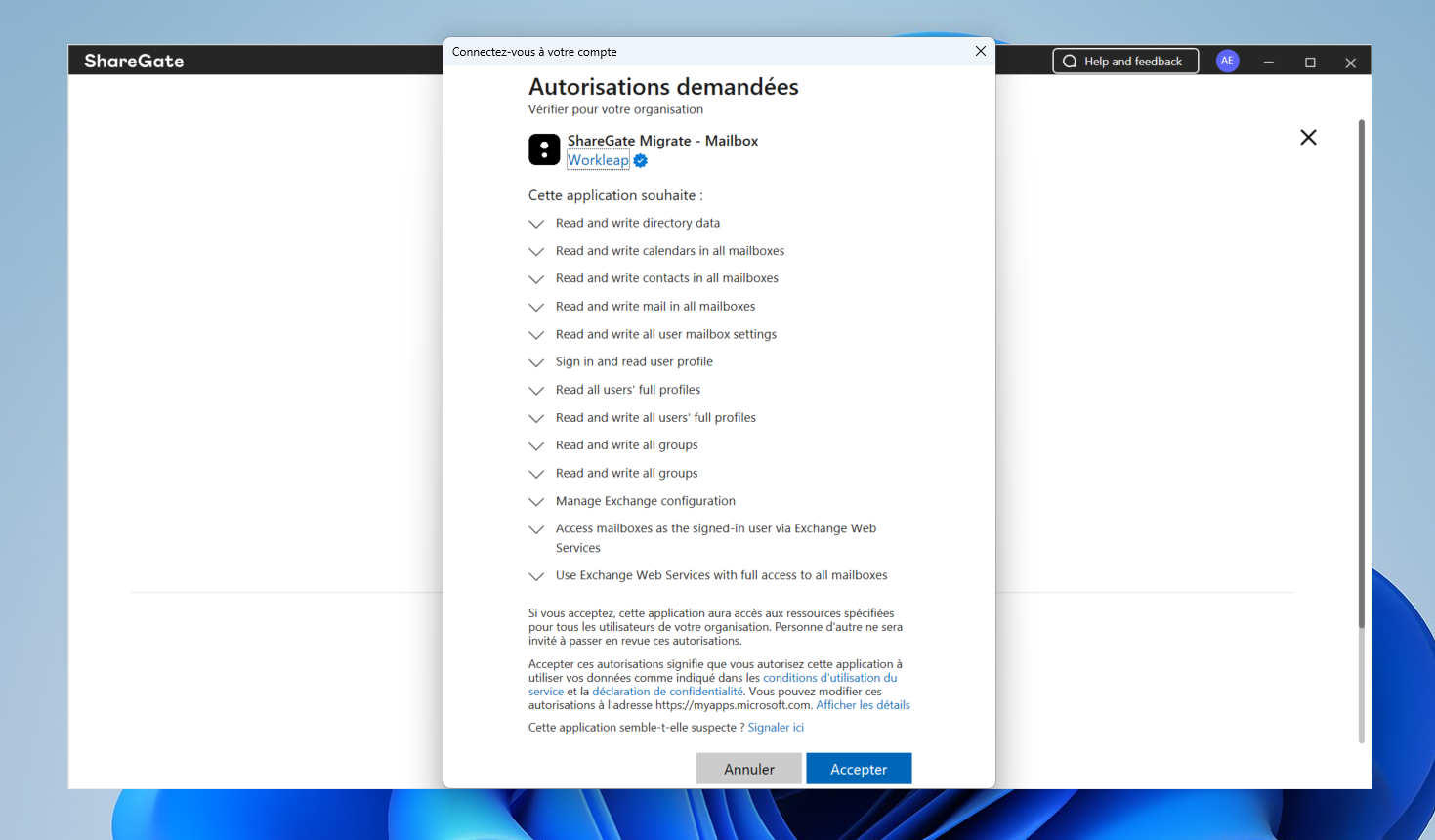
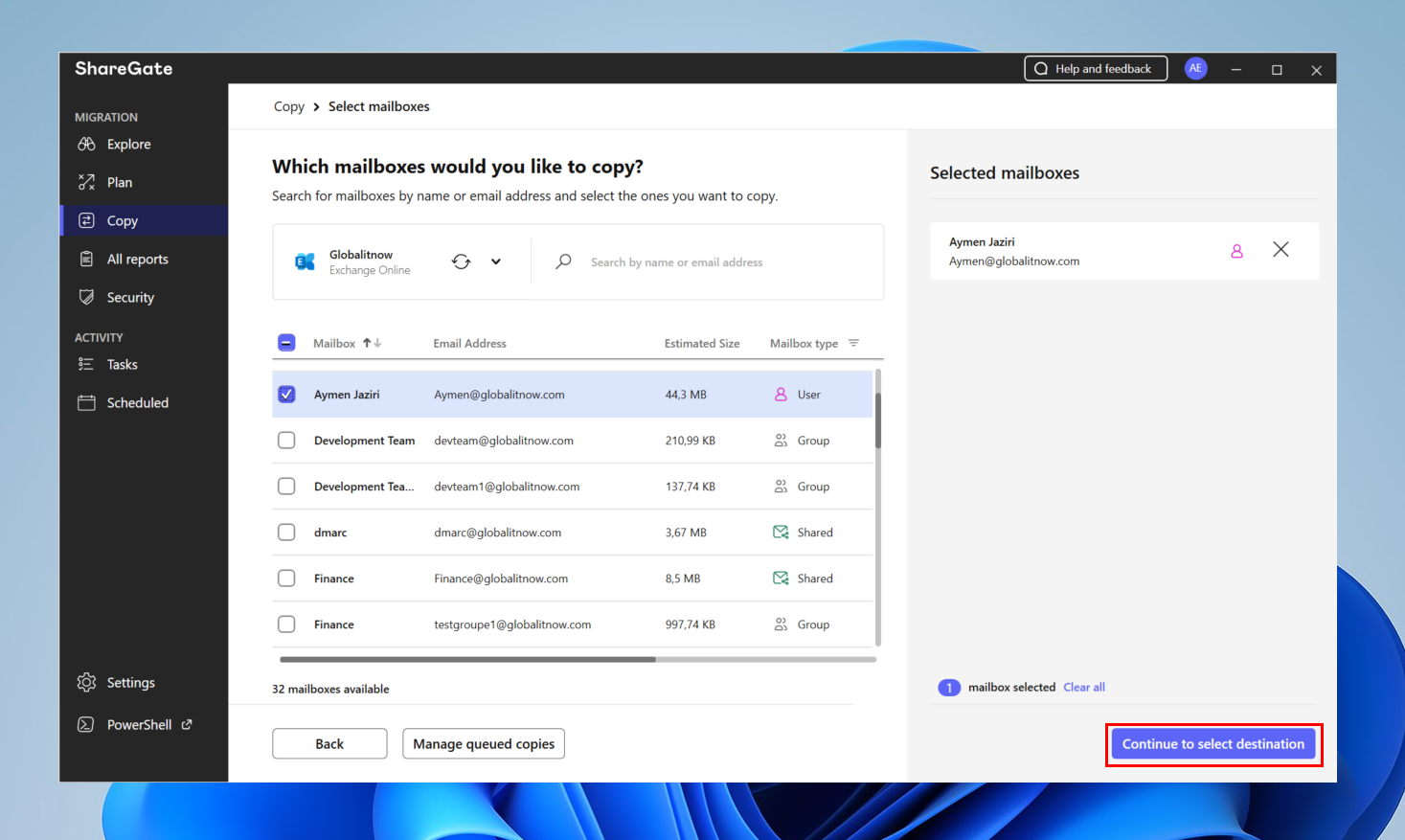
keep in mind , destination mailbox should be existing or created before starting migration process.
Once source tenants is connected, do the same to connect destination tenant.
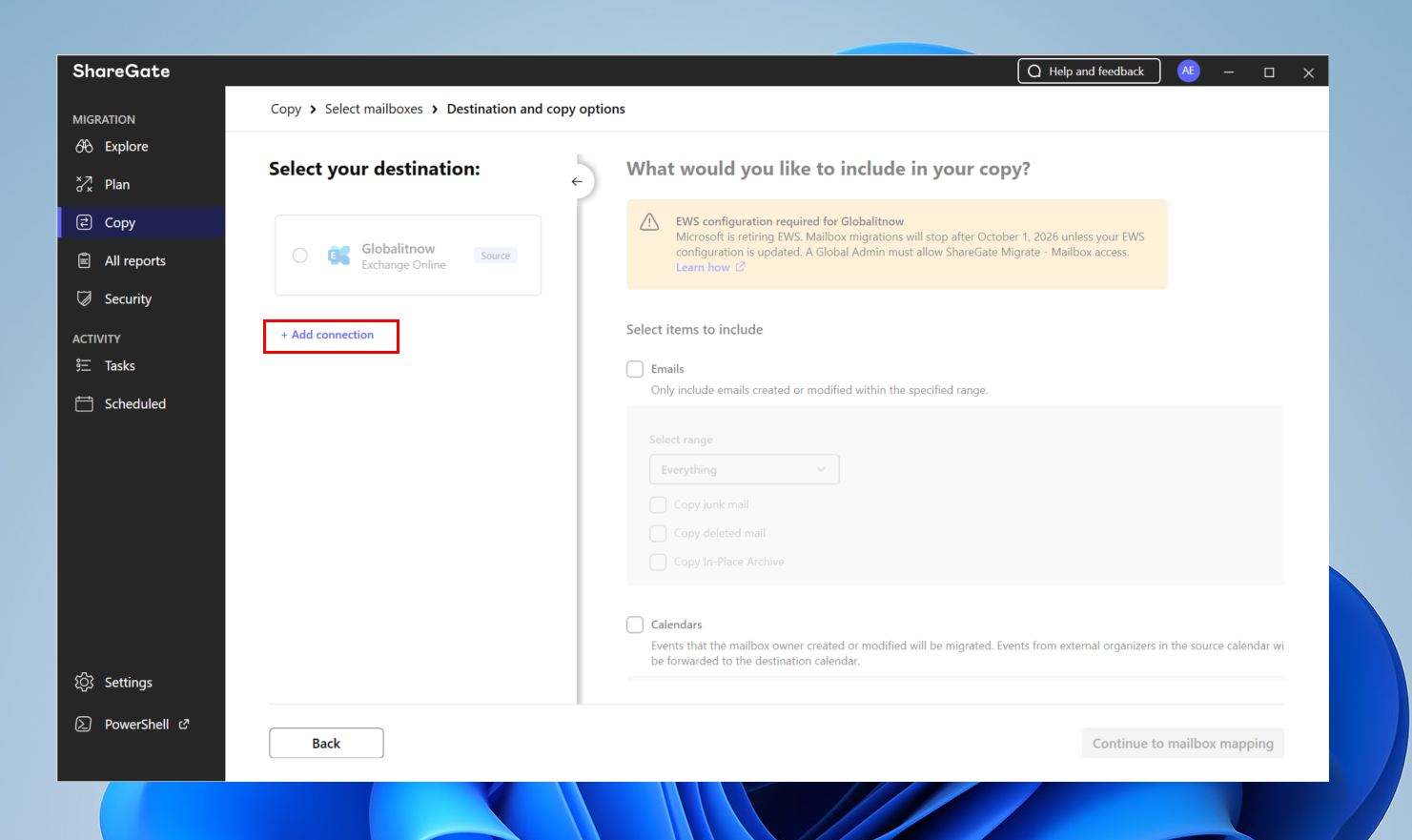
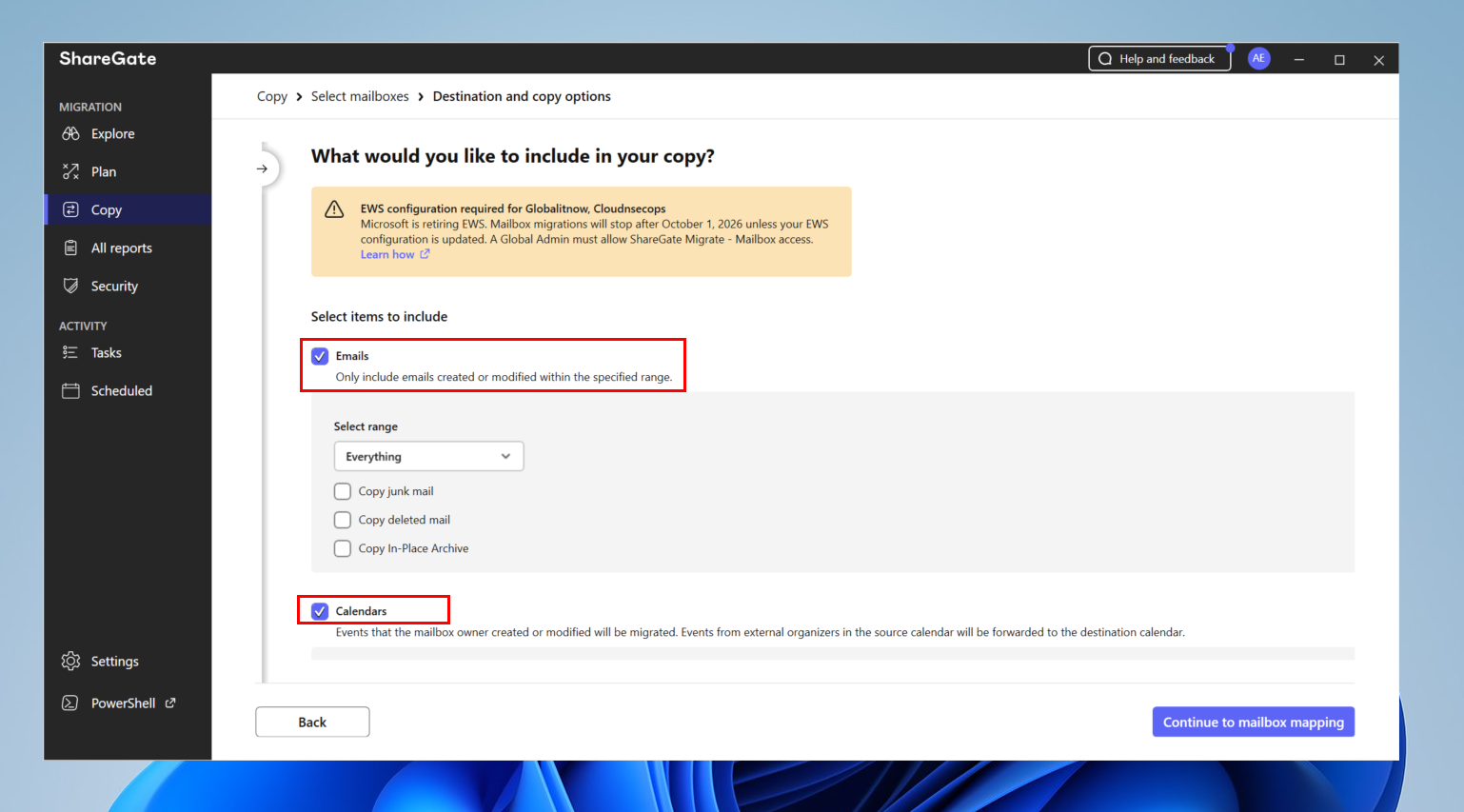
This is where ShareGate truly stands apart from native tools. The graphical mapping lets you automaticaly associate each source mailbox with its target visually basing on intelligence algorithme, without writing a single line of PowerShell.
Concretely, you can:
This “user-friendly” approach drastically reduces the risk of mapping errors , one of the most frequent causes of failure in manually driven cross-tenant migrations.
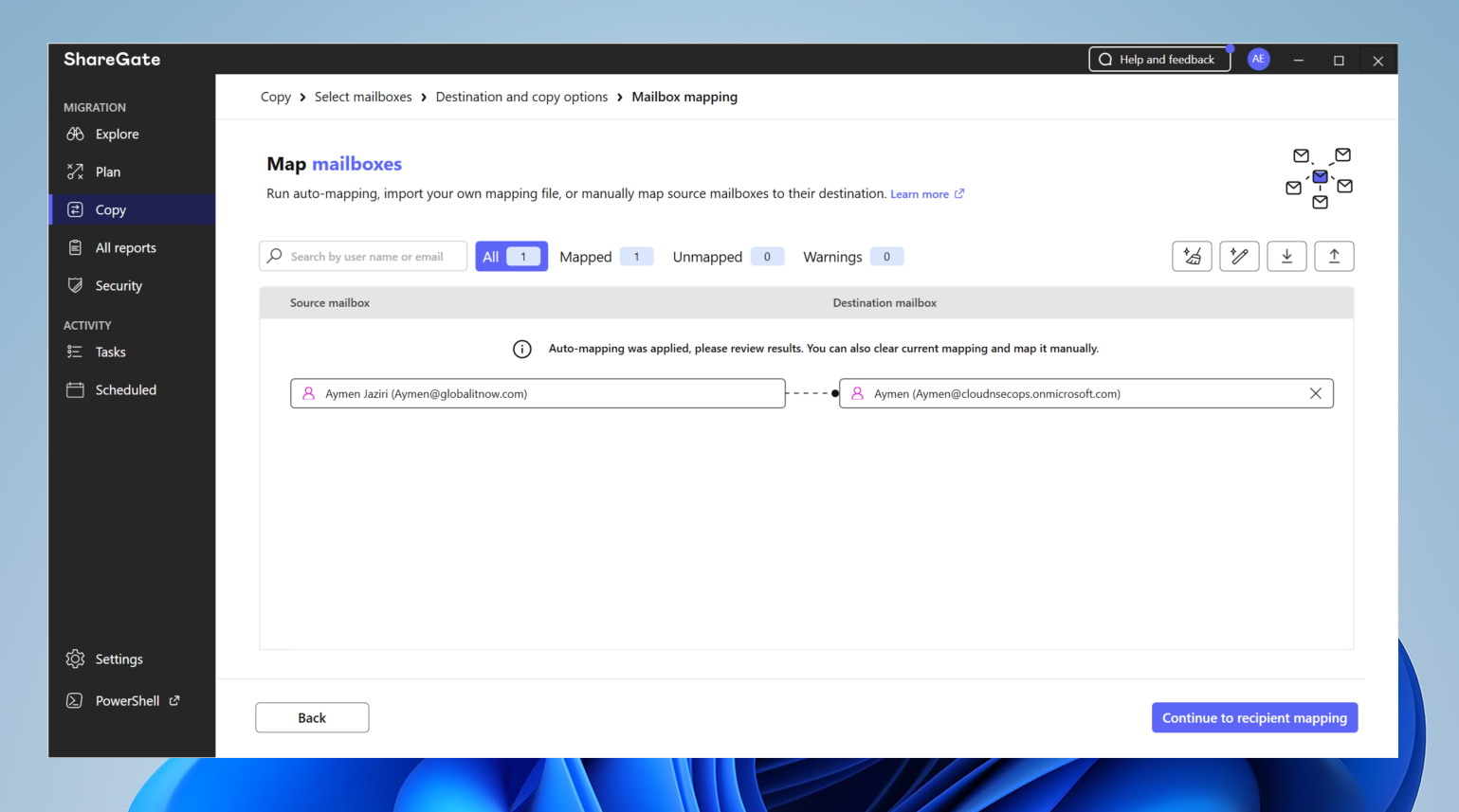
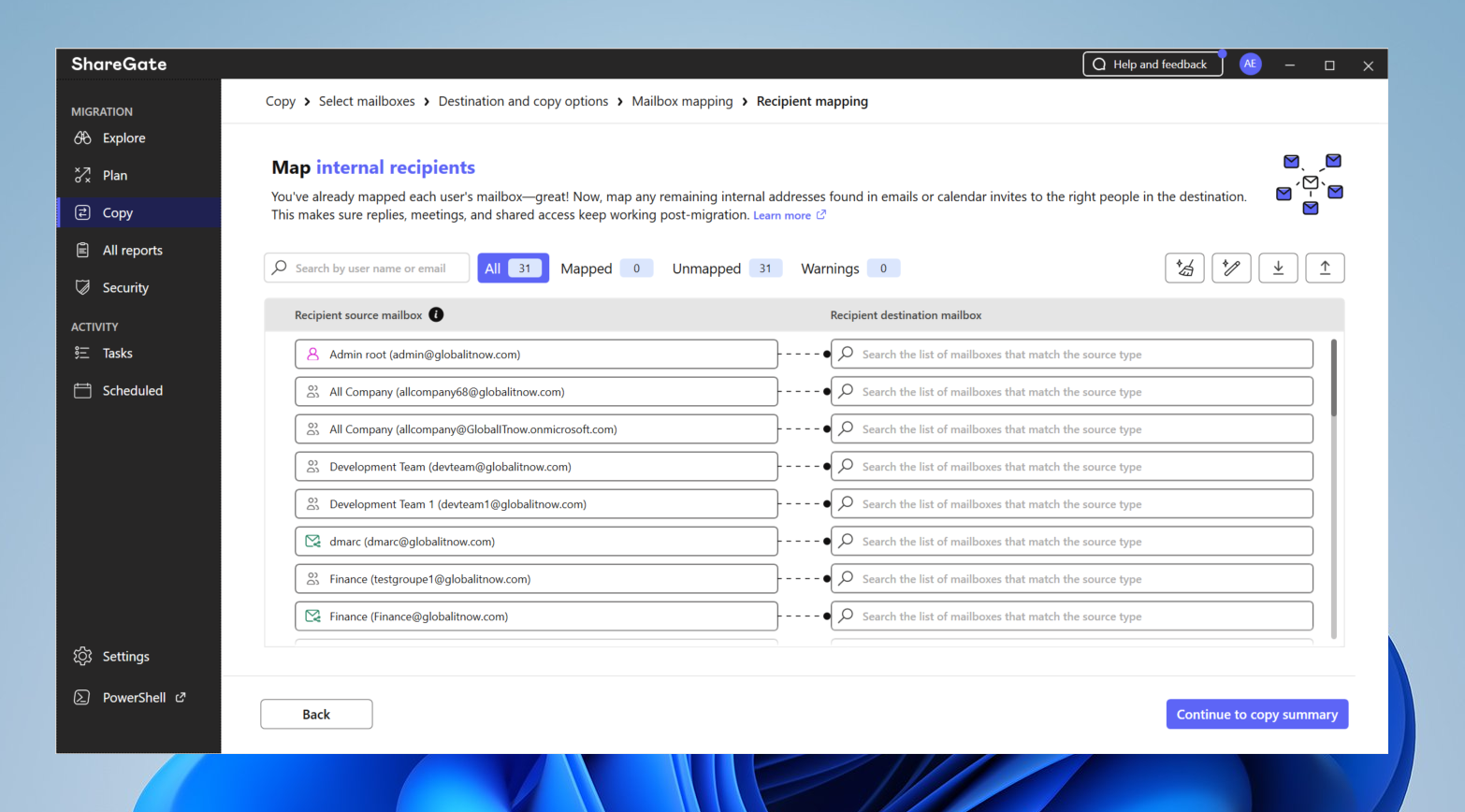
💡 Best practice : On cross-tenant migrations, export your mapping table and have it validated by the business before cutover. A mapping error on an executive or a critical functional mailbox is costly.
Once the source and destination mailboxes are mapped, ShareGate shows a job summary before you start , recapping the source-to-destination pairing, flagging issues that may block a complete copy (e.g. Single Item Recovery or unmapped items), and letting you fix any misconfiguration before clicking Start copy.
Click “Start Copy“
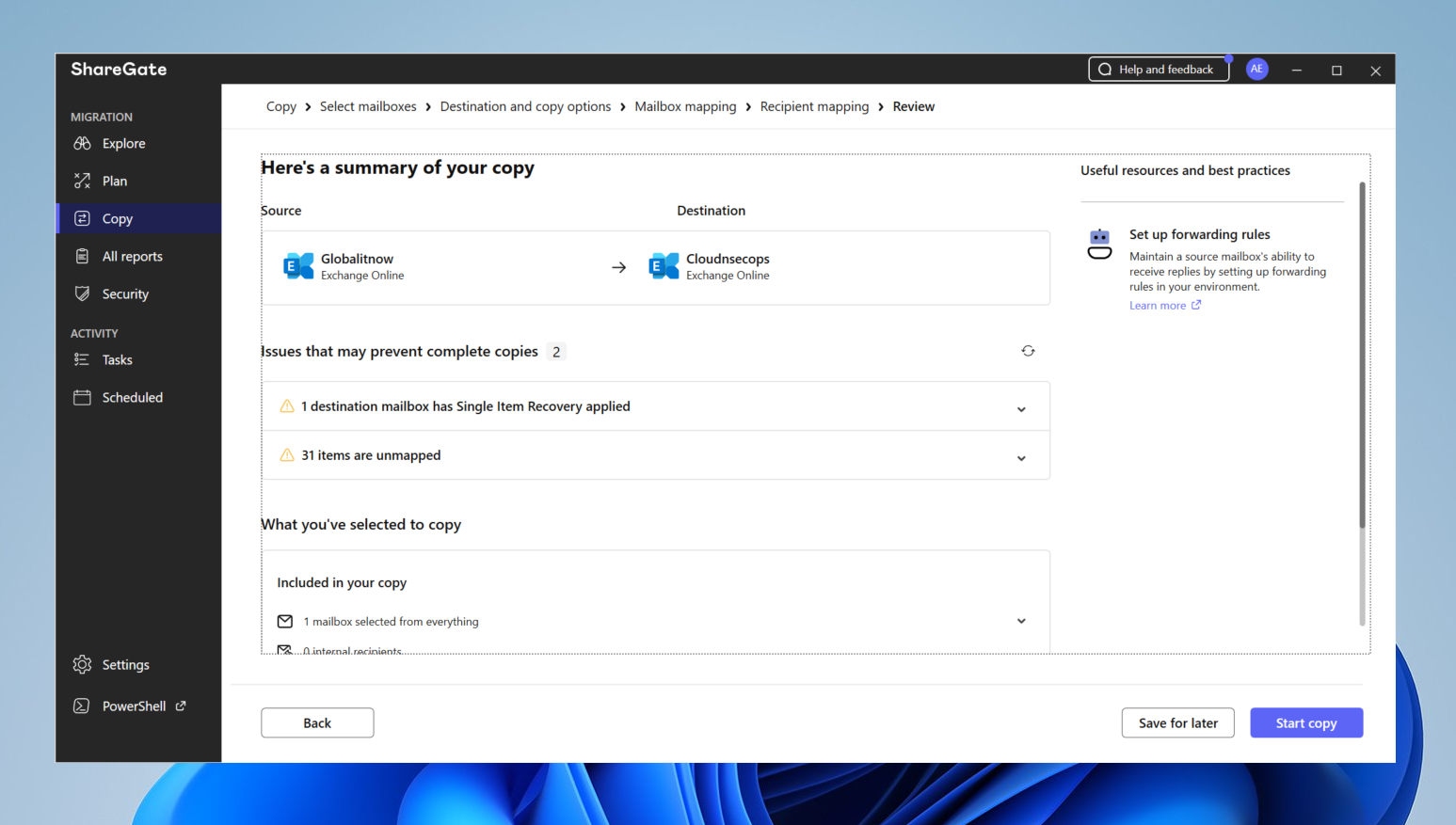
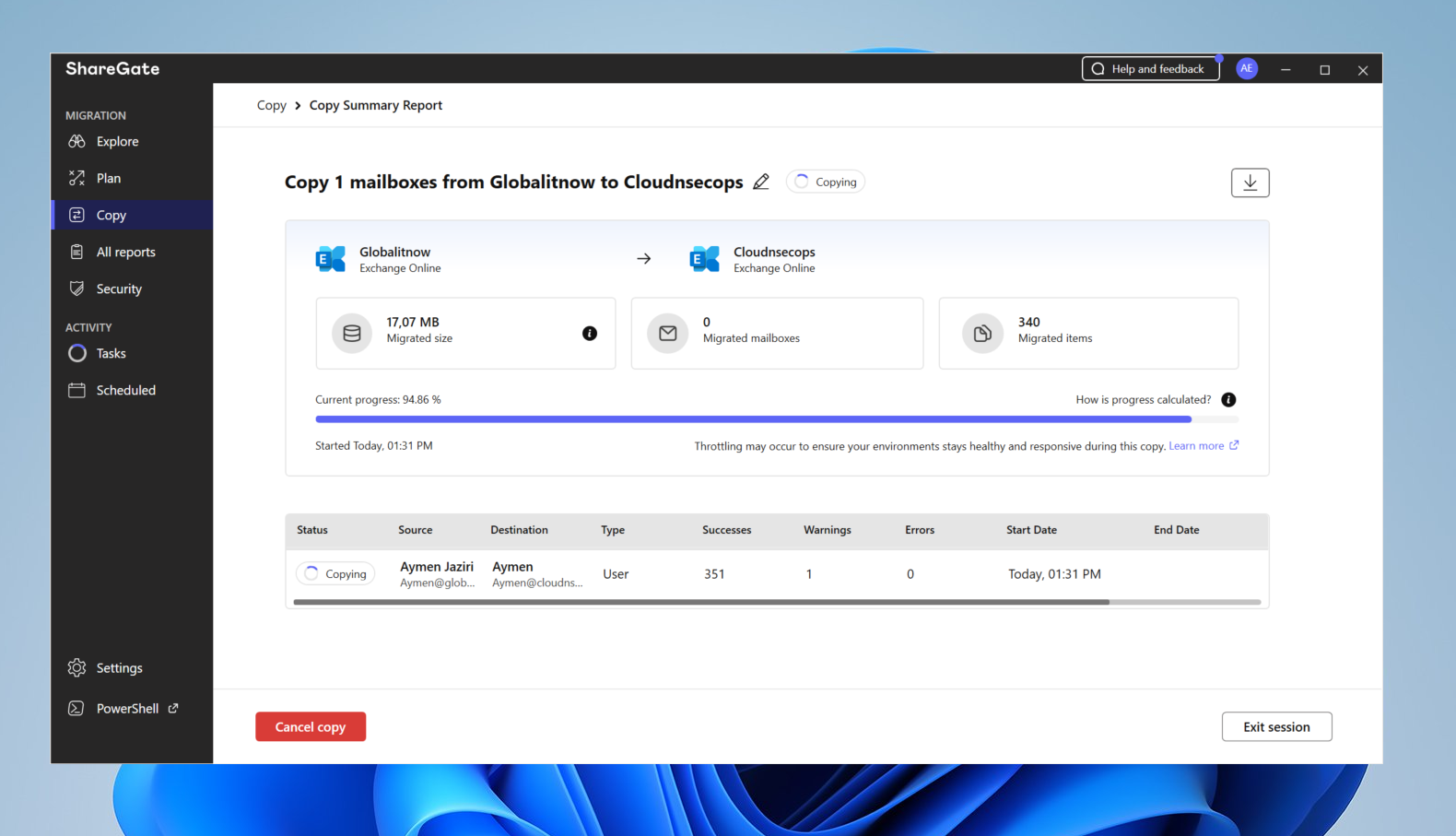
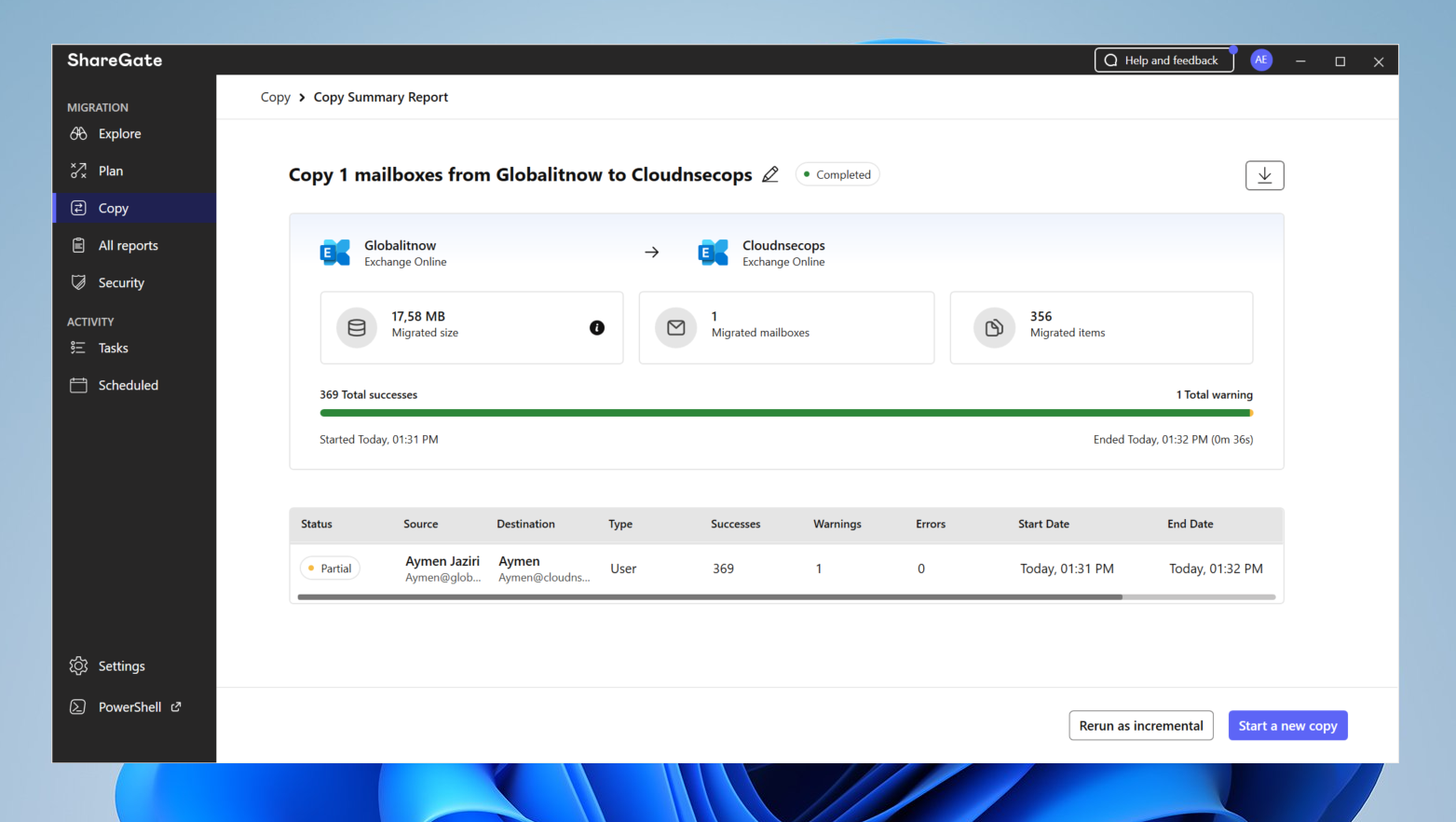
Once you click Start copy, ShareGate begins the migration job and opens the Copy Summary Report, which gives you a live, at-a-glance view of progress as the mailboxes are copied.
The report header confirms the source-to-destination pairing (here, GlobaliTnow→ Cloudnsecops, both Exchange Online) and shows the overall job status (Completed once finished). Three key counters summarize the run in real time:
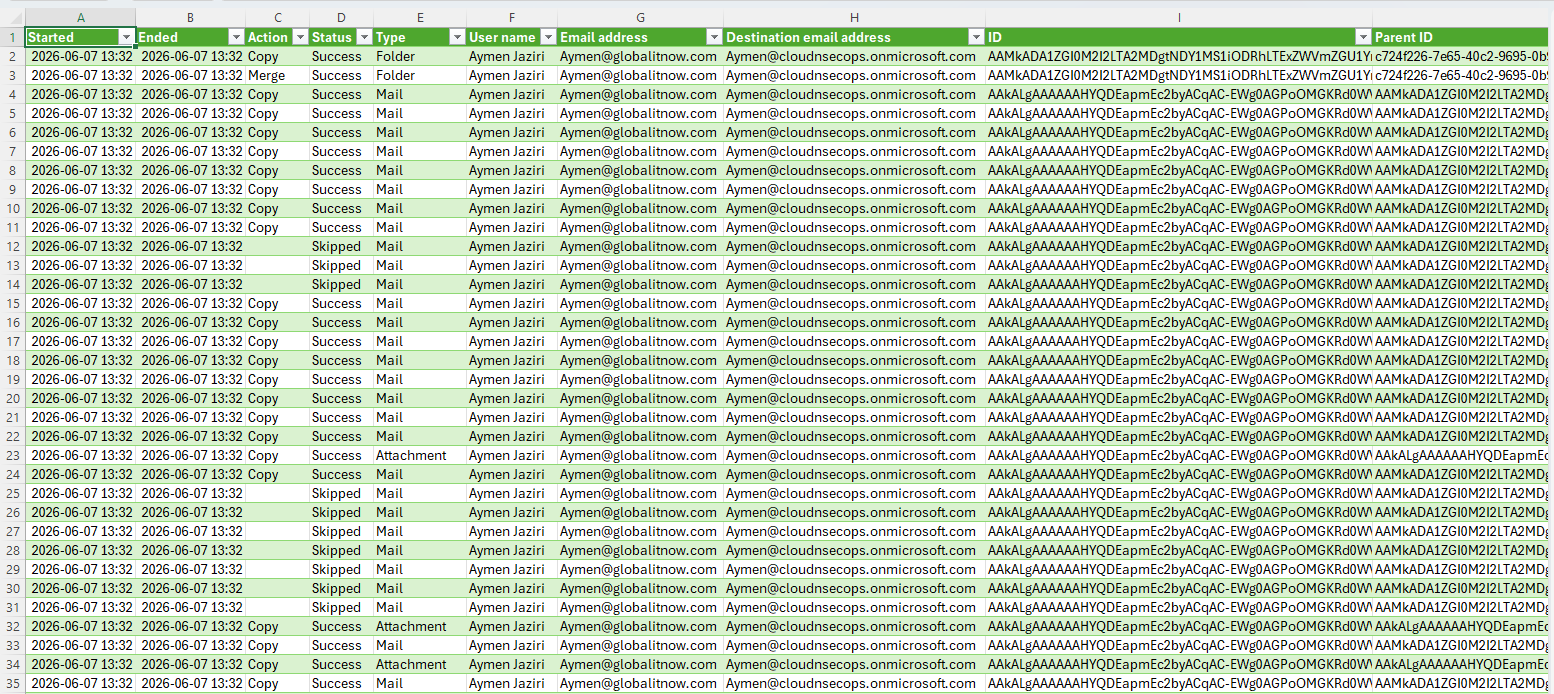
The migration doesn’t end with the transfer. ShareGate generates a detailed, exportable migration report (typically downloaded as an Excel/CSV file) that must always be reviewed , it’s your single source of truth for what actually happened during the copy, and the foundation of any serious validation and handover.
Rather than a simple pass/fail summary, the report logs every single object processed during the job, one row per item.
⚠️ Don’t forget : shared mailbox permissions, delegations, and transport rules don’t always carry over automatically depending on the scenario. Verify them explicitly in your post-migration validation plan.
Plan around Microsoft throttling from day one :
ShareGate Migrate is aimed above all at IT teams and MSPs handling medium-to-large M365 migrations, and particularly at tenant-to-tenant scenarios (merger/acquisition, consolidation) where the complexity of mapping and the need for reporting fully justify the investment. For an SMB performing a simple, one-off migration, the cost/benefit analysis is worth posing against native tools.
ShareGate Migration delivers on its promises for the use case I tested: cross-tenant Exchange Online to Exchange Online migration is noticeably smoother, more visual, and less risky than a native PowerShell approach, mainly thanks to graphical mapping and the incremental approach. The governance layer (audit, security, permissions) is a lasting added value that goes well beyond the scope of a one-off project.
It’s not a magic solution, it doesn’t relieve you of rigorous planning and a serious validation phase, but it’s a serious accelerator for anyone who needs to industrialize M365 migrations without sacrificing control or visibility.
For more details about ShareGate Migrate visite this link : https://sharegate.com/solutions/mailbox-migration
Thanks.