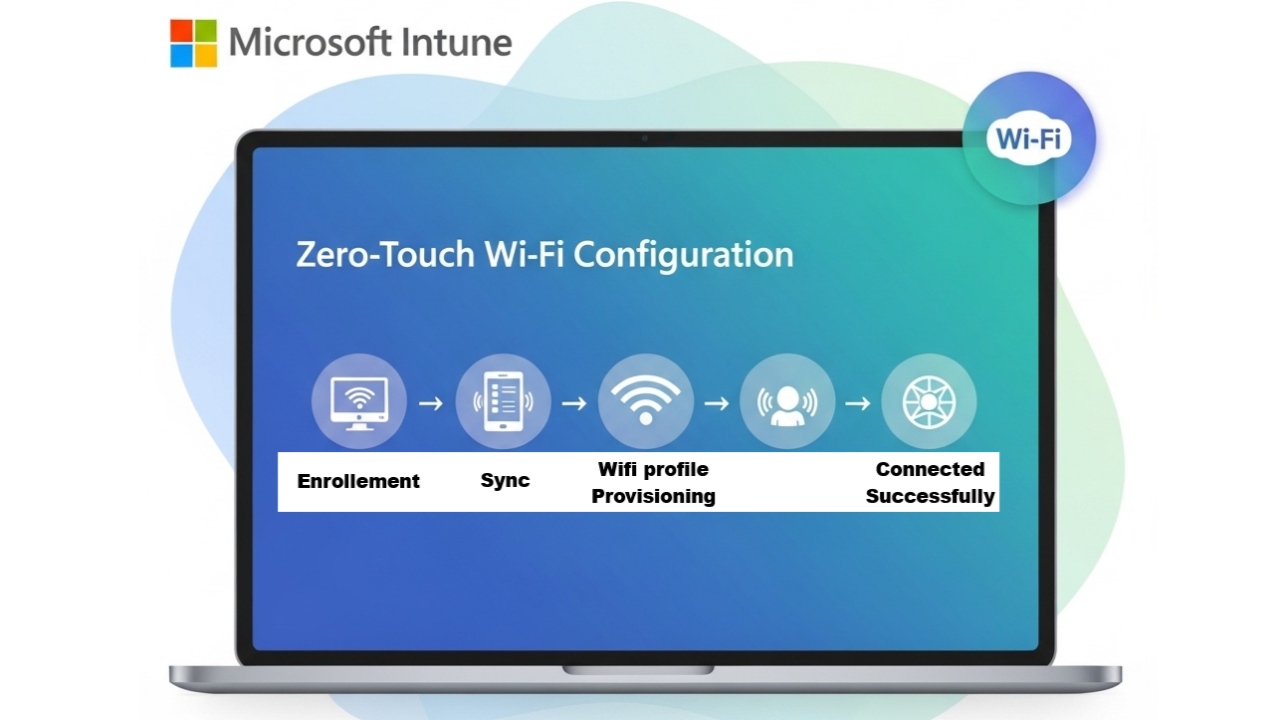
Zero-Touch Wi-Fi Configuration Using Microsoft Intune

Configuring and pushing Wi-Fi profiles automatically to users’ devices can save hours of troubleshooting, reduce helpdesk tickets, and ensure seamless onboarding to corporate networks. Whether you’re setting up new laptops or preparing a bring-your-own-device (BYOD) environment, deploying a wireless network profile via Microsoft Intune ensures a smooth and secure experience.

In this article, I’ll walk you through how to create and deploy a Wi-Fi profile using Intune for both Windows and mobile platforms — all with the goal of simplifying the user’s connection to corporate Wi-Fi without needing to manually type credentials or configurations.

1 – What Are Wi-Fi Profiles in Intune ?

A Wi-Fi profile in Intune allows administrators to preconfigure Wi-Fi network settings and push them to managed devices. This profile can contain :

  • SSID (network name)
  • Security type (WPA2, WPA3, etc.)
  • Pre-shared key or enterprise credentials
  • Proxy configuration
  • Certificate requirements (for enterprise networks)

Deploying these profiles eliminates the need for users to manually connect and ensures compliance with your security policies.

2 – Prerequisites :

Before we begin, make sure you have the following:

  • Intune Admin Access
  • Devices enrolled and managed by Intune (Windows, iOS, Android, macOS)
  • The SSID and authentication method of the Wi-Fi network
  • If using Enterprise authentication : Root/Client certificate profile must already be deployed

3 – Step-by-Step – How to Create a Wi-Fi Profile in Intune

Let’s break it down into simple steps. For this guide, we’ll focus on Windows 10/11 devices, but the process is similar for other platforms.

  • Go to https://intune.microsoft.com
  • Click on Devices > Configuration profiles
  • Click “+ Create profile”
  • Platform : Windows 10 and later
  • Profile Type : Templates > Wi-Fi
  • Click Create.

Under Basics:

  • Name: WiFi – Corp Network
  • Description: Corporate WiFi for all Windows 10/11 devices

Under Configuration settings:

  • Wi-Fi type : Select Basic or Entreprise (I’m gonna use Basic for this example)
  • Wi-Fi name (SSID) : Contoso-WiFi
  • Connection name : Same as SSID or custom
  • Connect automatically when in range : Yes
  • Connect to this network, even when it is not broadcasting its SSID : No (Yes if using hidden SSID)
  • Metered Connection Limit : Unrestricted
  • Wireless Security Type : WPA/WPA2-Personal
  • Pre-shared key : ******
  • Force Wi-Fi profile to be compliant with the Federal Information Processing Standard (FIPS) : No
  • Company proxy settings : None

If using PSK (e.g., WPA2-Personal), enter the password directly. If using Enterprise, select EAP type (typically PEAP or TLS), and specify authentication method (username/password or certificate-based).

Under Assignment

  • Choose whether to assign it to devices or users or Select your Azure AD groups (e.g., All Windows Devices or Laptops Only)
  • Click Next.
  • Click Create.

4 – Best Practices

  • Device first connection must be with network cable, Once the device syncs with Intune, it will receive the profile and connect to the corporate wireless network based on the provided settings. No user action required.
  • Always test new profiles with a small group before company-wide deployment.
  • Enterprise auth is more secure than PSK. Use certificate-based authentication where possible.
  • Hidden SSIDs can complicate connection and should be avoided unless necessary.

5 – Conclusion

Creating and deploying Wi-Fi profiles with Intune is a powerful feature that helps IT teams offer a zero-touch, secure wireless experience. Whether you’re managing a hybrid, remote, or office environment, leveraging this automation can save time and boost end-user satisfaction.

Let me know if you’re using this feature or planning to — I’d love to hear how it fits into your Intune deployment strategy.

Thanks

Aymen EL JAZIRI (Microsoft MVP)

Hi, I’m Aymen El Jaziri , a passionate System Administrator and Microsoft MVP, with years of hands-on experience in managing and securing modern IT infrastructures.
This blog is where I share technical guides, automation scripts, product reviews, and real-world solutions that help IT professionals simplify their day-to-day work and stay ahead in a fast-evolving cloud ecosystem.
Whether you’re here to troubleshoot an issue, improve your automation game, or learn new best practices , welcome in my blog !
Let’s build a stronger, smarter IT community together.
Feel free to connect with me on LinkedIn for more content, discussions, or collaboration opportunities.

Thanks

Aymen

Articles: 154