Physical Address
304 North Cardinal St.
Dorchester Center, MA 02124
Physical Address
304 North Cardinal St.
Dorchester Center, MA 02124

Explore practical guides and tools for Microsoft 365, Azure, and PowerShell. Enhance your cloud security and admin skills with expert insights and automation tips.
Explore practical guides and tools for Microsoft 365, Azure, and PowerShell. Enhance your cloud security and admin skills with expert insights and automation tips.
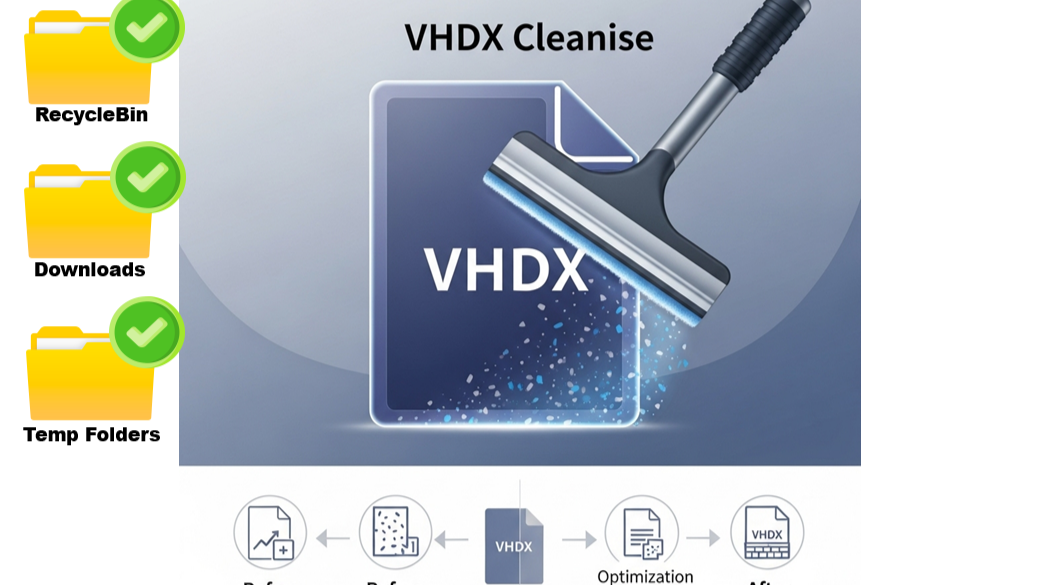

In many Remote Desktop Services (RDS) deployments, user profiles are stored in VHD/VHDX files to enable User Profile Disks (UPD) or FSLogix. While this approach streamlines profile management, it often introduces a common challenge: disk space bloat. Users store large files, forget to empty the Recycle Bin, and rarely clear their Downloads folder.
Over time, these profile containers grow significantly, consuming large amounts of disk space on storage systems and leading to performance issues or even outages.
Imagine having hundreds or thousands of VHDX files, each representing a user’s RDS session. If each one contains 1-2 GB of junk data — Downloads, old installers, Recycle Bin contents — you’re looking at terabytes of wasted space.
Manual cleanup isn’t scalable. But automation is.
To address this issue, I wrote a PowerShell script that automates the cleanup of specific directories inside VHD/VHDX profile files , such as:
The script:
# Example directories to clean
$recycle = '$RECYCLE.BIN', 'Downloads'
You can easily add more folders to this list based on your organization’s needs.
This script is particularly useful for organizations using FSLogix or User Profile Disks (UPDs) in their RDS or AVD (Azure Virtual Desktop) environments. It enables you to:
And the best part? It’s easy to schedule this as a weekly or monthly task using Task Scheduler or your preferred automation platform.
👉 Here is the Script :
 # ================= variables to define here ===============

# Directory that contain VHDX Files
$VHD_Directory = "C:\Temp\"

# Specifie Directorys to be cleaned (a letter will be automatically added to PATH , example S:\Downloads)
$recycle = '$RECYCLE.BIN' , 'Downloads'

# ===========================================================

# Define Error Action
$ErrorActionPreference = 'SilentlyContinue'

# Get list of vhd , vhdx files from original directory
$VHD_Files = Get-ChildItem $VHD_Directory -Recurse -Include *.vhd , *.vhdx -Force | Select-Object Name
# $VHD_Files


foreach ($VhdFile  in $VHD_Files)
{
    # file path
    $FilePath = $VHD_Directory + $VhdFile.Name
    # $FilePath

    # run the Mount-VHD cmdlet to mount your vhd/vhdx file.
    try
    {
        if( (Get-DiskImage -ImagePath $FilePath | Select-Object Attached).Attached -eq $false )
        {
            if(Mount-DiskImage -ImagePath $FilePath -ErrorVariable MountError)
            {
                Start-Sleep 2

                # get Letter for mounted disk
                $Mounted_Drive = Get-DiskImage -ImagePath $FilePath | Get-Disk | Get-Partition | Get-Volume | Select-Object DriveLetter
                # $Mounted_Drive

                foreach($dir in $recycle)
                {
                    if(Test-Path "$($Mounted_Drive.DriveLetter):\$($dir)\")
                    {
                        # Delete all objects in $recycle
                        Remove-Item  -Path "$($Mounted_Drive.DriveLetter):\$($dir)\*" -Recurse -Force -ErrorVariable DeleteError -ErrorAction SilentlyContinue
                    }
                    else
                    {
                        Write-Host "Error : Directory $($Mounted_Drive.DriveLetter):\$($dir)\ not Found " -ForegroundColor Yellow
                    }

                }

                # Close opned window for mounted volume
                $shell = New-Object -ComObject Shell.Application
                $window = $shell.Windows() | Where-Object { $_.LocationURL -eq ("file:///" + $Mounted_Drive) }
                $window | ForEach-Object { $_.Quit() }

                # unmount virtual hard disk
                Dismount-DiskImage -ImagePath $FilePath -ErrorVariable DismountError

                Write-Host "VHDX File -- $($FilePath) -- Cleaned Successfully" -ForegroundColor Green

            }
        }
        else
        {
            Write-Host "The current file -- $($FilePath) -- is already mounted" -ForegroundColor Yellow
        }
    }
    catch
    {
        if(&MountError)
        {
            Write-Host "Error while Trying to Mount file : $($FilePath)" -ForegroundColor Red
        }
        if(&DeleteError)
        {
            Write-Host "Error while Trying to Delete files from : $($Mounted_Drive.DriveLetter):\$($dir)\ " -ForegroundColor Red
        }
        if(&DismountError)
        {
            Write-Host "Error while Trying to Dismount file : $($FilePath)" -ForegroundColor Red
        }
    }

}To run this script on a regular basis:
Disk space management is often an overlooked aspect of RDS administration , until it becomes a problem. With this script, you can stay ahead of the curve by cleaning up virtual profiles proactively and automatically.
If your organization is struggling with RDS storage management, feel free to adapt or improve the script to match your needs. It’s simple, effective, and can save both time and money.
Thanks





