Physical Address
304 North Cardinal St.
Dorchester Center, MA 02124
Physical Address
304 North Cardinal St.
Dorchester Center, MA 02124

Explore practical guides and tools for Microsoft 365, Azure, and PowerShell. Enhance your cloud security and admin skills with expert insights and automation tips.
Explore practical guides and tools for Microsoft 365, Azure, and PowerShell. Enhance your cloud security and admin skills with expert insights and automation tips.
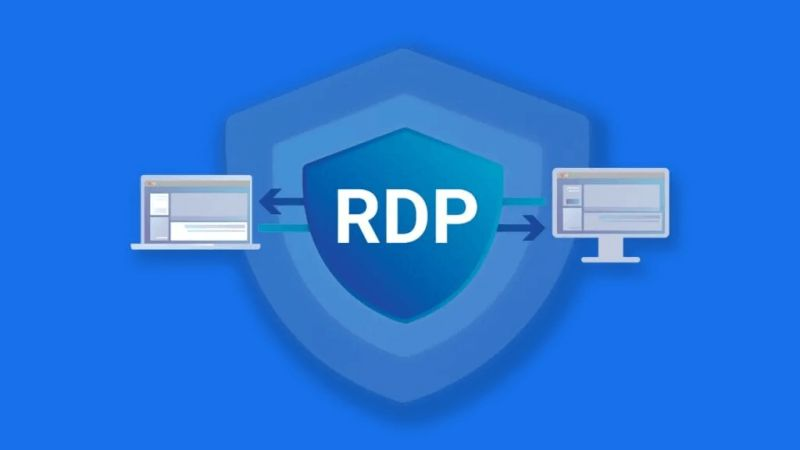

Did you know that Port 3389 is one of cybercriminals’ favorite targets ?
✅ Why change the RDP port ?
Port 3389 is constantly targeted by :
– Malicious automated scans 🤖
– Brute-force attacks
– Attempts to exploit known vulnerabilities
– Ransomware seeking easy access
✅ Simple but effective solution 💡
Changing the default RDP port allows you to:
– Dramatically reduce automated attacks
– Hide your server from malicious scans
– Strengthen your remote access security
✅ PowerShell script to change port
# Replace XXXX with new port number 6388 for example
$portvalue = XXXX
Set-ItemProperty -Path 'HKLM:\SYSTEM\CurrentControlSet\Control\Terminal Server\WinStations\RDP-Tcp' -name "PortNumber" -Value $portvalue

# Creating firewall rules
New-NetFirewallRule -DisplayName 'RDP-Custom-Port-TCP' -Profile 'Public' -Direction Inbound -Action Allow -Protocol TCP -LocalPort $portvalue
New-NetFirewallRule -DisplayName 'RDP-Custom-Port-UDP' -Profile 'Public' -Direction Inbound -Action Allow -Protocol UDP -LocalPort $portvalue

# Restart RDP service
Restart-Service TermService -Force
✅ Additional best practices 📋
For optimum security, combine this change with :
– Two-factor authentication
– Strong passwords
– Account lockout policy
– VPN for remote access
Keep in mind you need to reboot after this changes.
Remember : security is everyone’s business
Thanks