Physical Address
304 North Cardinal St.
Dorchester Center, MA 02124
Physical Address
304 North Cardinal St.
Dorchester Center, MA 02124

Explore practical guides and tools for Microsoft 365, Azure, and PowerShell. Enhance your cloud security and admin skills with expert insights and automation tips.
Explore practical guides and tools for Microsoft 365, Azure, and PowerShell. Enhance your cloud security and admin skills with expert insights and automation tips.

This quick reference guide is designed for SharePoint system administrators who are new to Microsoft Graph PowerShell. Each section contains simple, practical commands that you can use immediately to manage SharePoint Online and OneDrive for Business.
In this article we’ll continue with the same Registered Entra ID Application, created in the previous SharePoint—Part 1 article.
Permissions: Sites.Read.All
# Get site information Id
$SiteURL = "<Site URL>"

# Get SIte Id
$SiteId = (Get-MgSite | where WEbURL -EQ $SiteURL).Id

# Get all lists in a site
Get-MgSiteList -SiteId $SiteId | Select-Object DisplayName, Description, ItemCount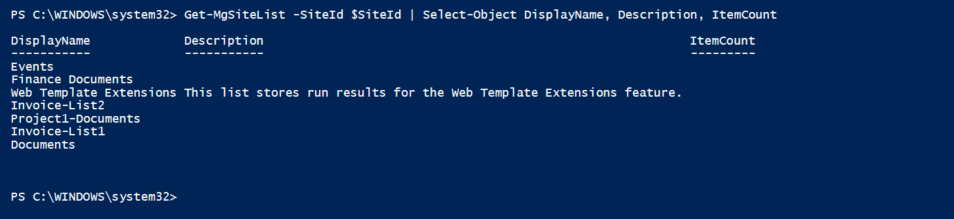
Permissions: Sites.Read.All
# Specify site URL & List Name
$SiteURL = "<Site URL>"
$ListName = "<List Name>"

# Get SIte Id
$SiteId = (Get-MgSite | where WEbURL -EQ $SiteURL).Id

# Get list Id
$ListId = (Get-MgSiteList -SiteId $SiteId | where DisplayName -EQ $ListName).Id

# Get items from a specific list
Get-MgSiteListItem -SiteId $SiteId -ListId $ListId | Select-Object Id, CreatedDateTime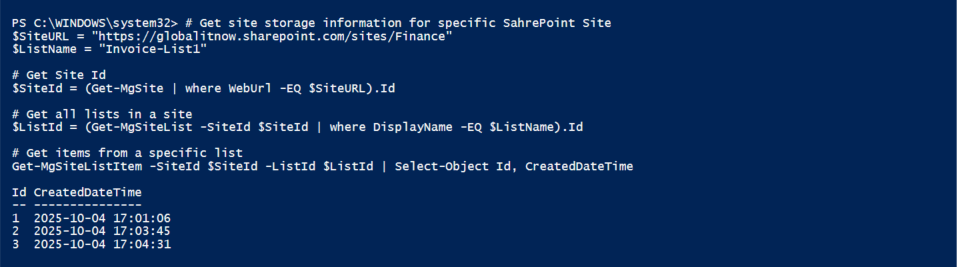
Permissions: Sites.ReadWrite.All
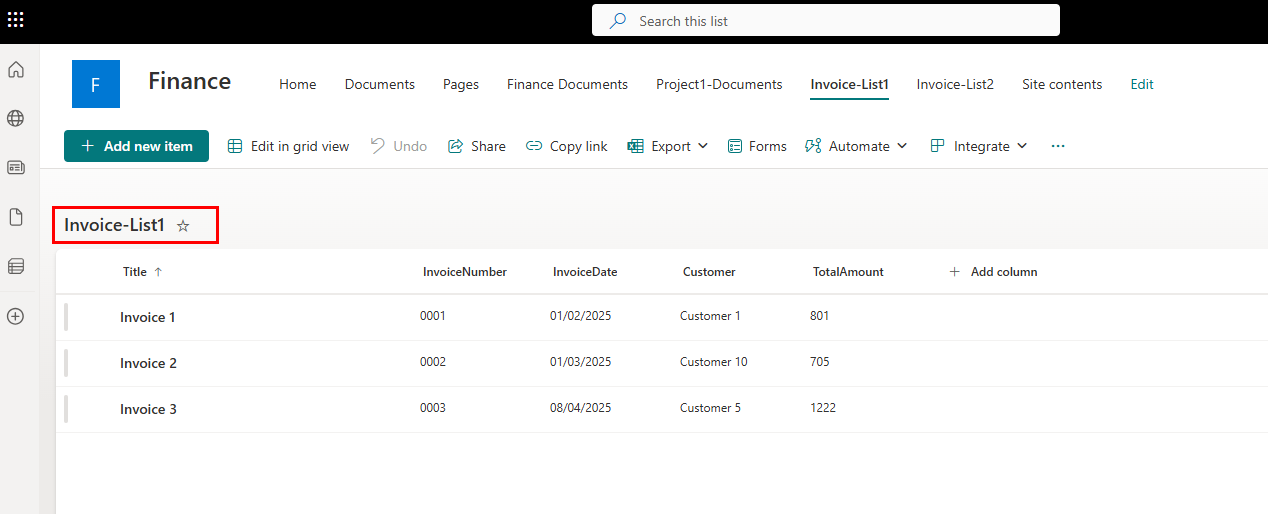
Before we start adding items to the list, I’ll show you the items that already exist in the list.
# Specify site URL & List Name
$SiteURL = "<Site URL>"
$ListName = "<List Name>"

# Get SIte Id
$SiteId = (Get-MgSite | where WEbURL -EQ $SiteURL).Id

# Get list Id
$ListId = (Get-MgSiteList -SiteId $SiteId | where DisplayName -EQ $ListName).Id

# New item data
$Fields = @{Title = "Invoice 4"; InvoiceNumber = "0004"; InvoiceDate ="12/06/2025" ; Customer = "Customer 1" ; TotalAmount = "985"}

# Add new item to list
New-MgSiteListItem -SiteId $SiteId -ListId $ListId -Fields $Fields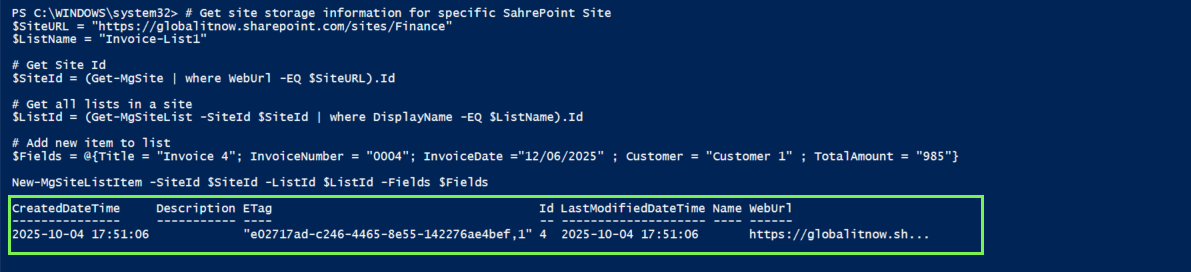
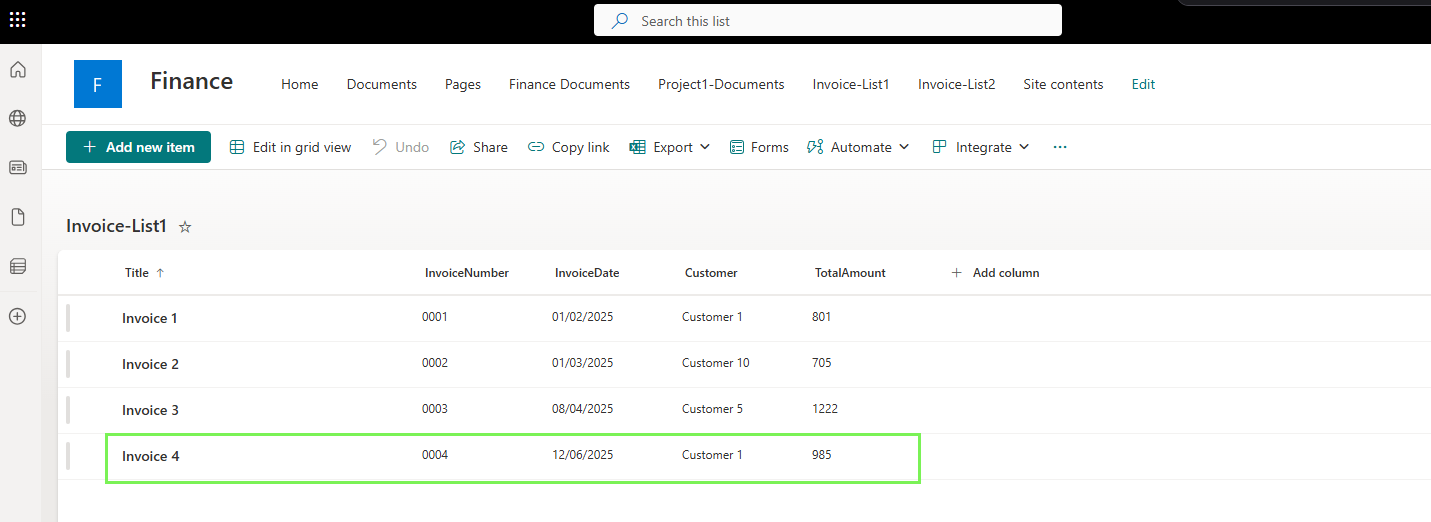
Here is the new item added to the list.
Permissions: Sites.ReadWrite.All
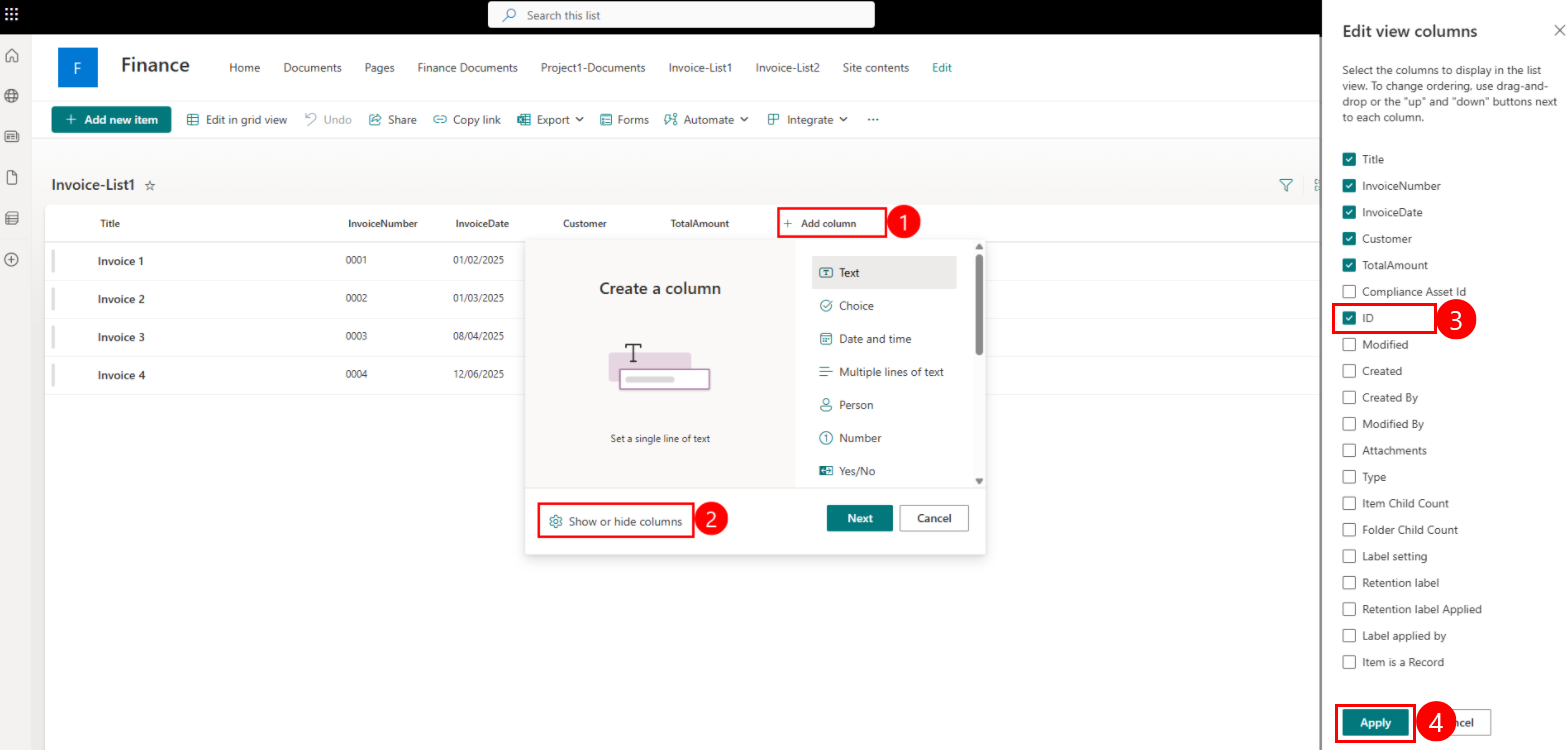
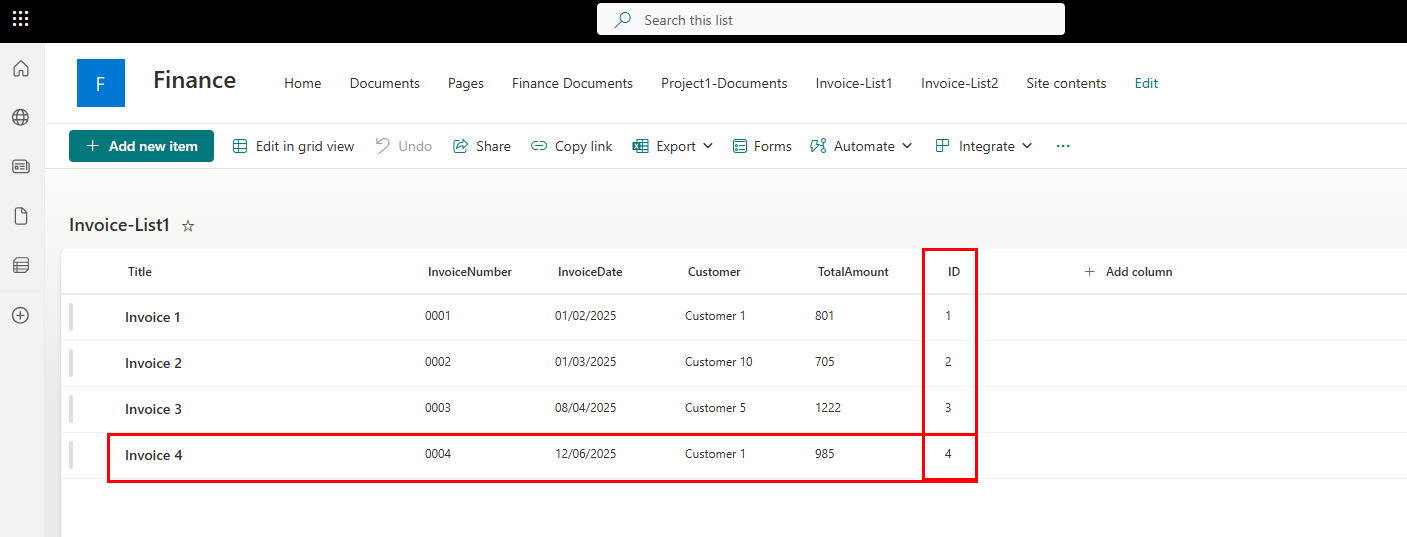
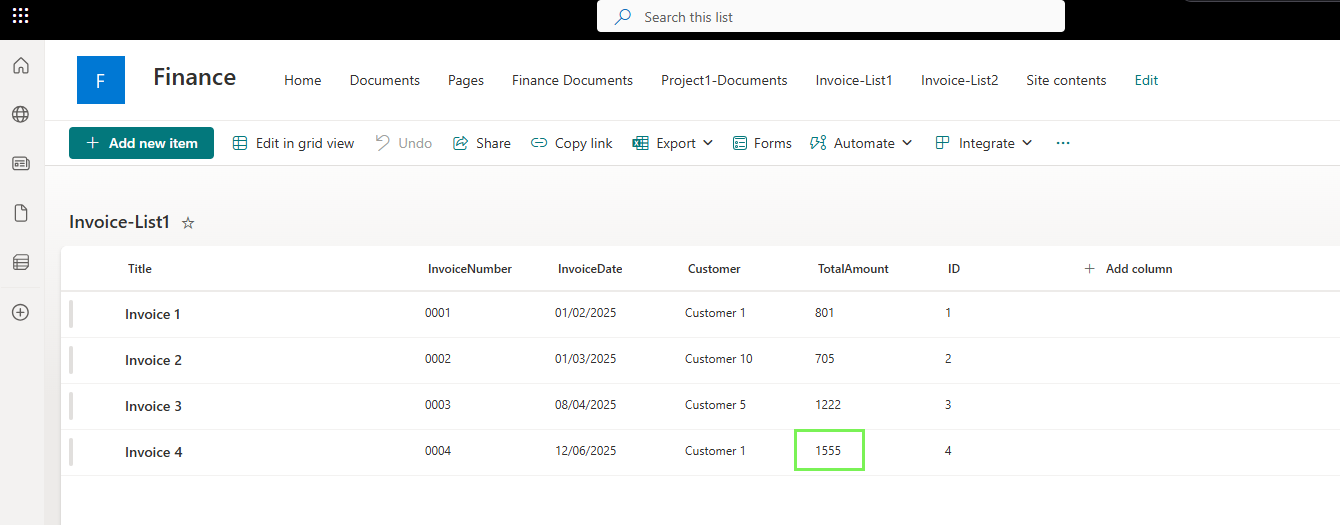
In this example, let’s update the last item we added (Invoice 4), we’ll change Invoice Amount to 1555 instead of 985, but before this we need to get Item ID.
In the following steps, we’ll see how to get the list item ID.
# Specify site URL & List Name
$SiteURL = "<Site URL>"
$ListName = "<List Name>"

# Get SIte Id
$SiteId = (Get-MgSite | where WEbURL -EQ $SiteURL).Id

# Get list Id
$ListId = (Get-MgSiteList -SiteId $SiteId | where DisplayName -EQ $ListName).Id

# Updated item to list
$Fields = @{Title = "Invoice 4"; InvoiceNumber = "0004"; InvoiceDate ="12/06/2025" ; Customer = "Customer 1" ; TotalAmount = "1555"}

# Update existing list item
Update-MgSiteListItem -SiteId $SiteId -ListId $ListId -Fields $Fields -ListItemId "4"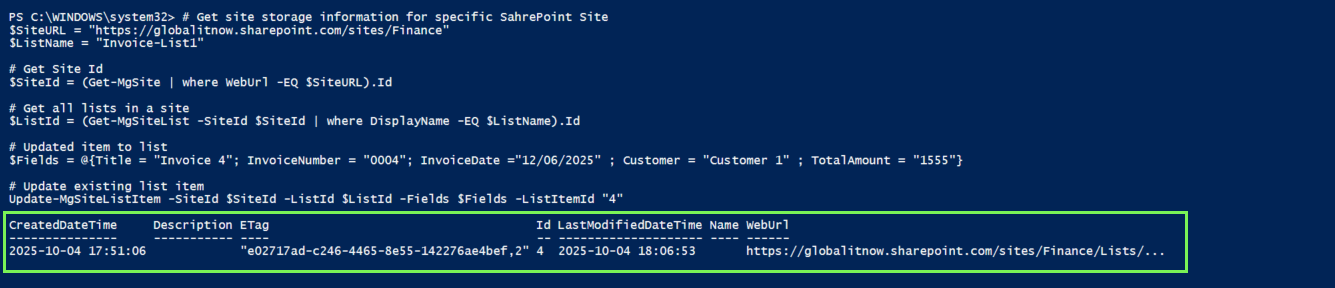
As you can see here, the toal Amount is changed to 1555.
Permissions: Sites.ReadWrite.All
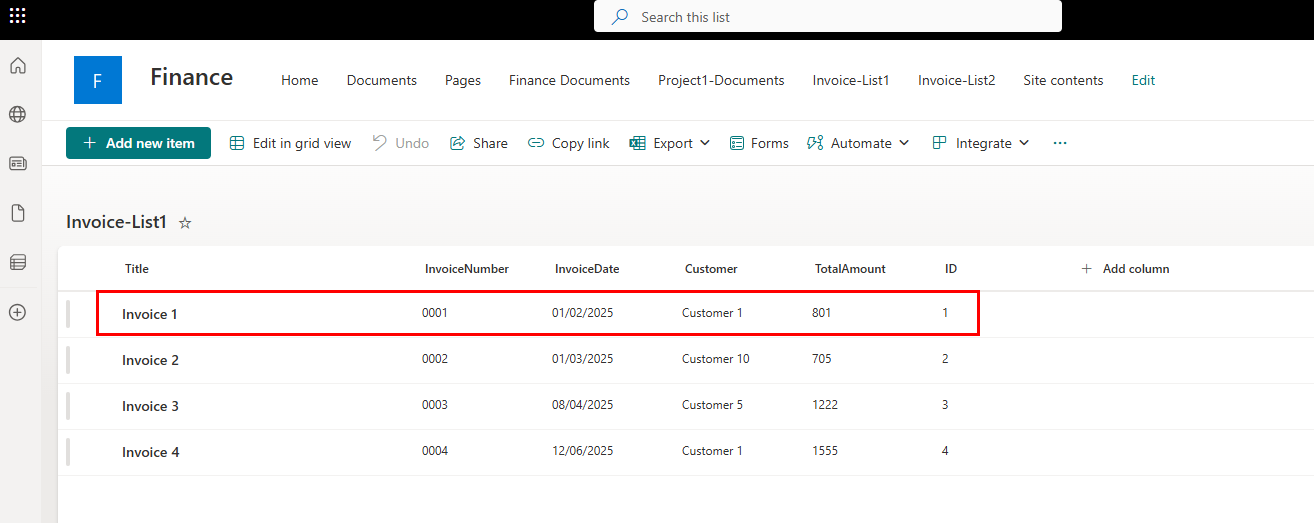
In this example, we’ll delete the first invoice from the Invoice List (ID = 1).
# Specify site URL & List Name
$SiteURL = "<Site URL>"
$ListName = "<List Name>"

# Get SIte Id
$SiteId = (Get-MgSite | where WEbURL -EQ $SiteURL).Id

# Get list Id
$ListId = (Get-MgSiteList -SiteId $SiteId | where DisplayName -EQ $ListName).Id

# Remove existing list item
Remove-MgSiteListItem -SiteId $SiteId -ListId $ListId -ListItemId "1" -Confirm:$false
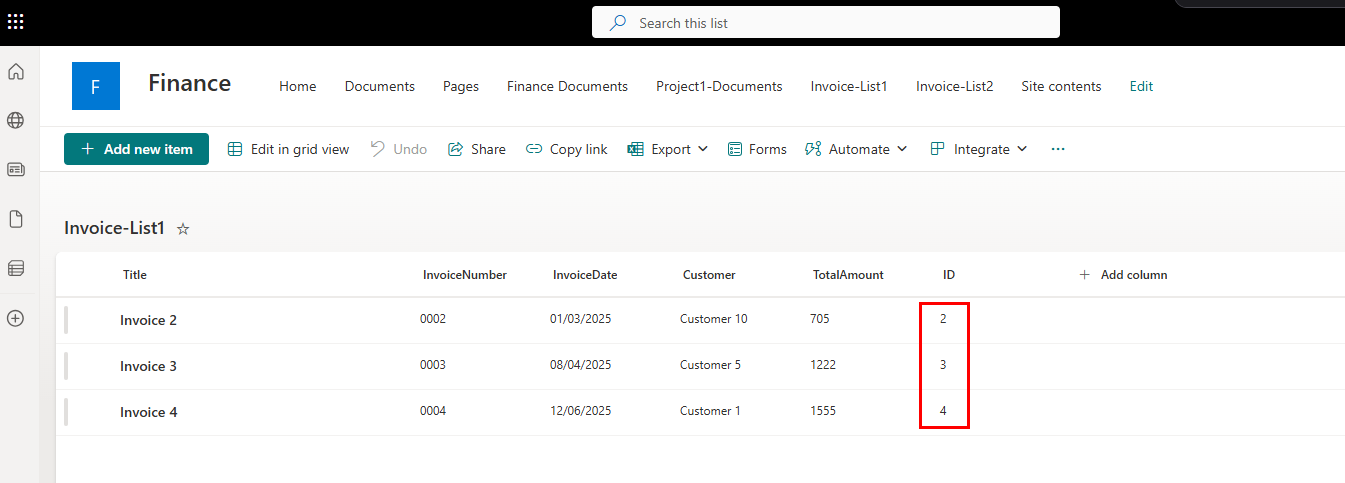
As you can see here the “Invoice 1” item is no longer available.
Permissions: Sites.Read.All
# Specify site URL & List Name
$SiteURL = "<Site URL>"
$ListName = "<List Name>"

# Get SIte Id
$SiteId = (Get-MgSite | where WEbURL -EQ $SiteURL).Id

# Get list Id
$ListId = (Get-MgSiteList -SiteId $SiteId | where DisplayName -EQ $ListName).Id

# View list structure
Get-MgSiteListColumn -SiteId $SiteId -ListId $ListId | Select-Object DisplayName, EnforceUniqueValues, FieldType, Required, Hidden | Format-Table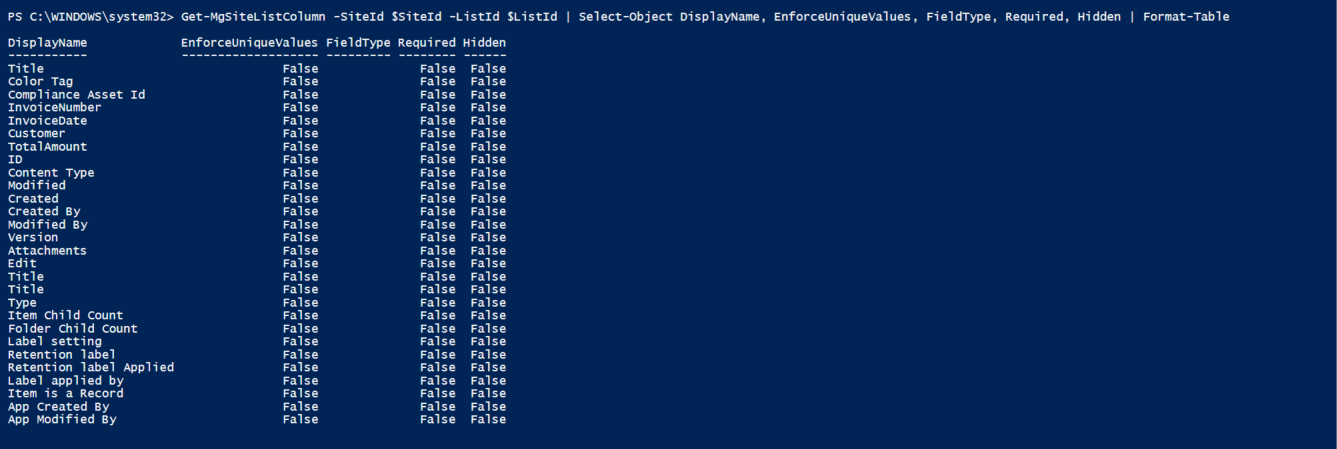
Thanks





