Why Conditional Access Insights and reports are crucial for your security and productivity ?

Conditional Access insights and reporting” is an essential tool for strengthening security and optimizing access management in a Microsoft 365 environment.

Here is a detailed technical article on its benefits, implementation and associated best practices :

1 – Benefits of Conditional Access insights and reporting

A – Increased visibility of conditional access policies

Conditional Access insights and reporting provides a comprehensive overview of the impact of conditional access policies in your organization. It allows you to examine the effect of an individual policy or a subset of policies, which is crucial given that several policies can be evaluated at each connection.

B – Detailed connection analysis

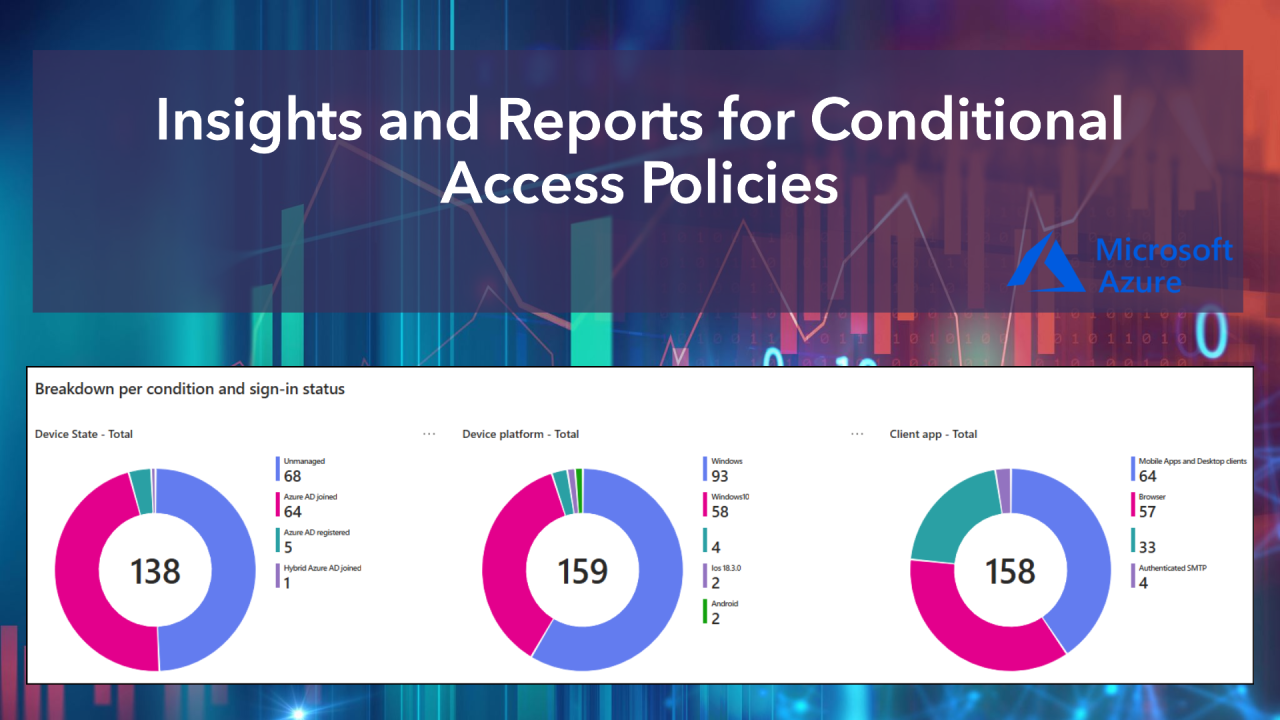
The tool provides detailed information on user connections, enabling potential problems to be quickly identified. It offers a breakdown of connections based on different criteria such as device status, platform, location, client application, connection risk and application.

C – Report-only policy evaluation

The “Report-only” mode enables you to evaluate the impact of conditional access policies before they are actually implemented. This allows policy changes to be tested without the risk of disrupting user access.

D – Enhanced security

By providing detailed information on login attempts and policy application, the tool helps identify potential security flaws and adjust policies accordingly. This significantly reduces the risk of account compromise.

2 – Prerequisites

  • Microsoft Entra ID P1 or P2 license.
  • Azure subscription.
  • Security defaults disabled to be able to use CA.

3 – Setting up Conditional Access insights and reporting

A. Create an Azure Log Analytics workspace

  • From Azure portal, type “Log” in search bar then select “Log Analytics workspace” LAW :
  • Create New “Log Analytics workspace

B. Configure Azure AD diagnostic settings to send logs to the Log Analytics workspace

  1. Navigate to Entra ID
  2. Under “Identity” select “Monitoring & health
  3. select “Diagnostic settings
  4. Click “Add diagnostic settings”

We will select the following log types and then send them to the log analytics workspace that we have created :

  • SignInLogs
  • NonInteractiveUserSignInLogs
  • ServicePrincipalSignInLogs

Then Click Save.

C. Exploring Conditional Access Insights and reporting :

We should wait some time (like 24H) to be abale to see sign in logs in CA Reports.

Once the login data is integrated into your LAW (Log Analytics Workspace), you’ll start to see information appear in the “Insights and reporting” section. We can then begin to examine the impact of our policies, whether activated or in “report-only” mode.

Here is a example of print screen from “Insights and reporting” section :

At the top you can find filters

  1. Conditional Access Policy : This parameter allows you to choose specific CA Policies. The dropdown menu categorizes CA Policies into two groups : Enabled and Report-only.
  2. Time Range : Use this parameter to specify the time range for viewing sign-in data related to any given policy.
  3. User : By default, the dashboard displays the impact of the selected policies for all users. To filter by a specific user, enter the user’s name in the text field. To filter for all users, type “All users” or leave the field blank.
  4. App : The dashboard, by default, shows the impact of the selected policies for all apps. To filter by a specific app, enter the app’s name in the text field. To filter for all apps, type “All apps” or leave the field blank.
  5. Data View : Choose whether you want the dashboard to display results based on the number of users or the number of sign-ins. A single user might have numerous sign-ins across various apps with different outcomes within a given time range. If you select the data view as users, a user could appear in both the Success and Failure counts. For instance, out of 10 users, 8 might have successful sign-ins in the past 30 days, while 9 might have experienced failures.

The most important information in this section is “User action required” because its used to troubleshoot policy signin problems :

  • User action required : Number of users where the selected report-only policy applied but user action (e.g. MFA or Terms of Use) would be required if the policy were enabled.
  • Total : Number of users in the Last X hours
  • Success : Number of users where the selected polic(ies) granted access and the required controls were satisifed
  • Failure : Number of users where the selected polic(ies) denied access and the required controls were not satisfied
  • Not applied : Number of users that are bypassing the selected polic(ies) because the sign-in did not match at least one of the assignments or conditions.

When an Azure administrator sees the “User action required” indicator in Azure Conditional Access Insights and Reporting, he must first identify the user concerned and that this user is affected by this alert, then he must determine what specific action is required to satisfy the requirements of the conditional access policy, and generally make changes to the CA policy.

4 – Best practices after implementation

  • Use report-only mode : Always test new policies in report-only mode before activating them fully.
  • Regular monitoring : Review reports regularly to identify trends and anomalies.
  • Adjust policies : Use insights to refine your conditional access policies and adapt them to your organization’s changing needs.
  • Configure alerts : Set up alerts to be notified of important policy changes or suspicious login attempts.

5 – Conclusion

Conditional Access insights and reporting is a powerful tool for strengthening the security of your Microsoft 365 environment. It offers unrivalled visibility into the application of conditional access policies, enabling you to optimize security while maintaining user productivity. Its implementation and regular use according to best practices can significantly reduce security risks and improve overall access management in your organization.

Thanks

Aymen EL JAZIRI (Microsoft MVP)

Hi, I’m Aymen El Jaziri , a passionate System Administrator and Microsoft MVP, with years of hands-on experience in managing and securing modern IT infrastructures.
This blog is where I share technical guides, automation scripts, product reviews, and real-world solutions that help IT professionals simplify their day-to-day work and stay ahead in a fast-evolving cloud ecosystem.
Whether you’re here to troubleshoot an issue, improve your automation game, or learn new best practices , welcome in my blog !
Let’s build a stronger, smarter IT community together.
Feel free to connect with me on LinkedIn for more content, discussions, or collaboration opportunities.

Thanks

Aymen

Articles: 154