Physical Address
304 North Cardinal St.
Dorchester Center, MA 02124
Physical Address
304 North Cardinal St.
Dorchester Center, MA 02124

Explore practical guides and tools for Microsoft 365, Azure, and PowerShell. Enhance your cloud security and admin skills with expert insights and automation tips.
Explore practical guides and tools for Microsoft 365, Azure, and PowerShell. Enhance your cloud security and admin skills with expert insights and automation tips.
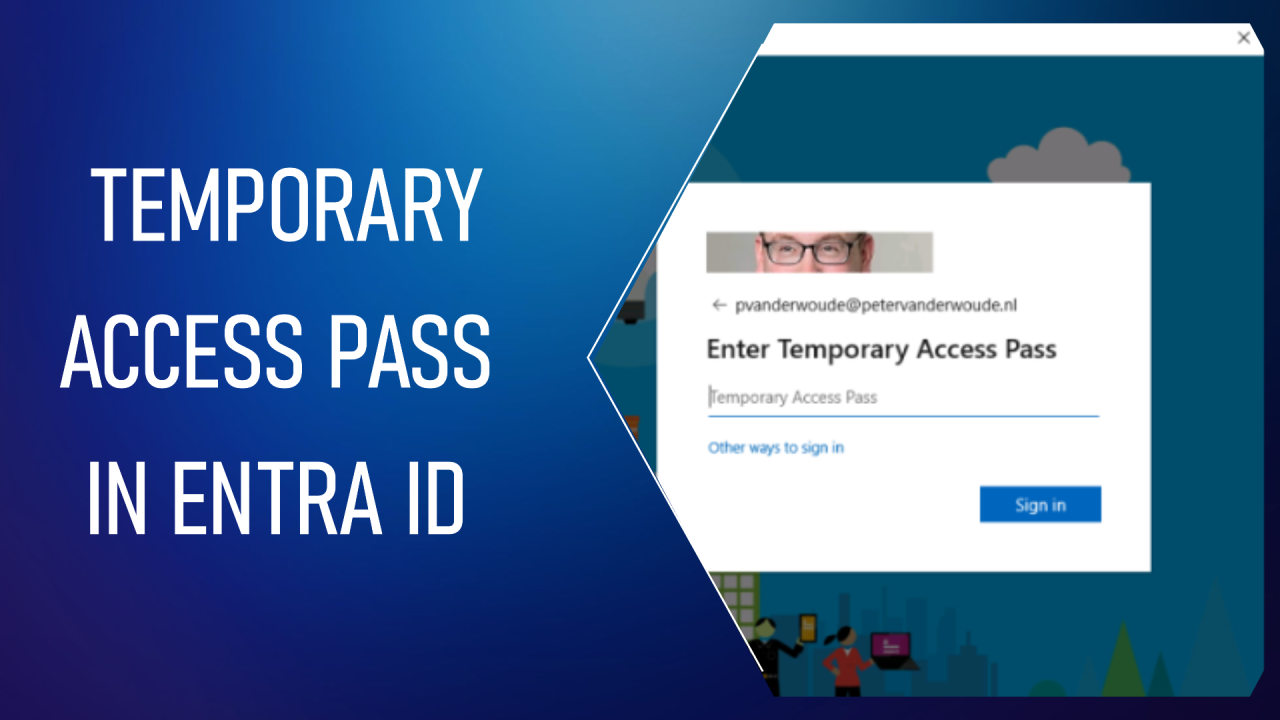

The “Temporary Access Pass” (TAP) in Microsoft Entra is a time-limited secret code that can be configured for one or more uses12. Users can log in with a TAP to integrate other password-free authentication methods, such as Microsoft Authenticator, FIDO2 and Windows Hello Enterprise.
A TAP also facilitates recovery when a user has lost or forgotten a strong authentication factor such as a FIDO2 security key or the Microsoft Authenticator application, but needs to log in to register new strong authentication methods.
With the addition of Temporary Access Pass to Microsoft Entra ID, administrators can provide time-limited credentials to their users, enabling them to register from any device or location. Temporary Access Pass credentials satisfy the multi-factor authentication requirements of Conditional Access.
here is the mindmap to configure Temporary Access Pass (TAP)

To activate and use a TAP, please follow the steps below :


To add new authentication method per user, please follow the steps below :

Once in the user setting page :


TAP offers a secure and convenient way for users to connect to Microsoft Cloud without having to remember or enter complex passwords. It is particularly useful for organizations wishing to reduce their reliance on passwords and improve their overall security posture.
Thanks