Physical Address
304 North Cardinal St.
Dorchester Center, MA 02124
Physical Address
304 North Cardinal St.
Dorchester Center, MA 02124

Explore practical guides and tools for Microsoft 365, Azure, and PowerShell. Enhance your cloud security and admin skills with expert insights and automation tips.
Explore practical guides and tools for Microsoft 365, Azure, and PowerShell. Enhance your cloud security and admin skills with expert insights and automation tips.

As a network administrator, it’s often necessary to quickly scan the network to identify connected machines and obtain the list of open ports on each machine. However, installing third-party tools such as “Advanced IP Scanner” can be cumbersome and pose security risks, especially when you prefer not to install additional software on servers.
To meet this need, I’ve developed a PowerShell script that efficiently scans the network and retrieves the list of open ports for each machine without the need to install additional software. This script uses multitasking for fast execution, automatically detects your address and performs the scan within the same address range.
Very Important : if you are using DHCP address no action needed, otherwise if you are using STATIC IP address you should specify your address in $localIP variable.
The script is very fast in execution because it uses multi-tasking.
The script also scans known ports for machines found on the network :
You can adjust List of common ports to be scanned in the script as your needs, you can refer to the following Sheet :

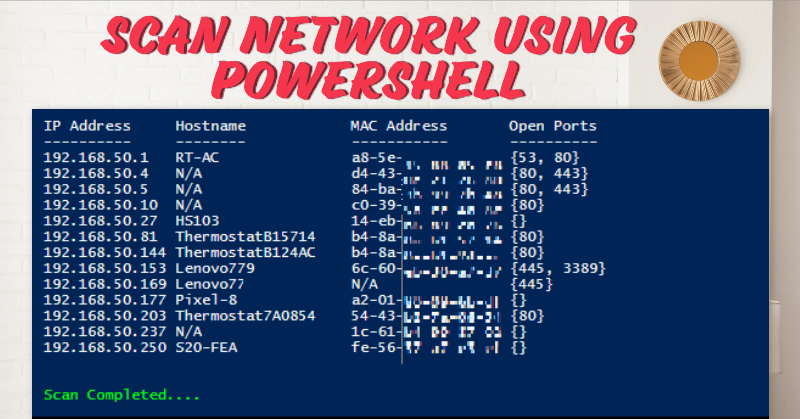
Here is the script execution result :

Find out how to simplify your network scans with my PowerShell script :
 # if you dont specify IP Address here, the script will get automatically address from network card with DHCP attribute
$localIP = ''

# Obtain the IP address of the local machine
if($localIP -eq '')
{
    $localIP = (Get-NetIPAddress | Where-Object { $_.AddressFamily -eq 'IPv4' -and $_.PrefixOrigin -eq 'Dhcp' }).IPAddress
}

# List of common ports to be scanned
$portsToScan = @(20,21,22,23,25,53,80,110,123,143,161,443,445,993,995,3306,3389,5900,8080)

# Extract the first three bytes of the IP address
$networkPrefix = $localIP -replace "(\d+\.\d+\.\d+)\.\d+", '$1'

# Creating a runspace pool
$runspacePool = [runspacefactory]::CreateRunspacePool(1, [int]$env:NUMBER_OF_PROCESSORS + 1)
$runspacePool.Open()


# Script Block will scan for connected machine and opned ports
$scriptBlock = {
    param($ip, $ports)

    if (Test-Connection -ComputerName $ip -Count 1 -Quiet)
    {
        try {
            $hostName = [System.Net.Dns]::GetHostEntry($ip).HostName
        } catch {
            $hostName = "N/A"
        }
        $macAddress = arp -a $ip | Select-String '([0-9A-Fa-f]{2}[:-]){5}([0-9A-Fa-f]{2})' | ForEach-Object { $_.Matches.Value }
        #$openPorts = Test-Port -ip $ip -ports $ports

        # Get opned ports for connected machine
        $openPorts = @()
        foreach ($port in $ports) {
            $tcp = New-Object System.Net.Sockets.TcpClient
            try {
                $result = $tcp.BeginConnect($ip, $port, $null, $null)
                $wait = $result.AsyncWaitHandle.WaitOne(300,$false)
                if($wait) {
                    $openPorts += $port
                }
            } finally {
                $tcp.Close()
            }
        }

        return [PSCustomObject]@{
            "IP Address" = $ip
            "Hostname" = $hostName
            "MAC Address" = if ($macAddress) { $macAddress } else { "N/A" }
            "Open Ports" = $openPorts
        }
    }
}

# Create and start jobs
$jobs = 1..254 | ForEach-Object {
    $ip = "$networkPrefix.$_"
    $job = [powershell]::Create().AddScript($scriptBlock).AddArgument($ip).AddArgument($portsToScan)
    $job.RunspacePool = $runspacePool
    [PSCustomObject]@{
        Pipe = $job
        Result = $job.BeginInvoke()
    }
}

# Collecting results
$results = @()
$totalJobs = $jobs.Count
$completedJobs = 0

while ($completedJobs -lt $totalJobs) {
    $completedJobs = ($jobs | Where-Object { $_.Result.IsCompleted }).Count
    $percentComplete = ($completedJobs / $totalJobs) * 100
    Write-Progress -Activity "Scanning Network and Ports" -Status "Progress: $completedJobs / $totalJobs" -PercentComplete $percentComplete
    Start-Sleep -Milliseconds 100
}

foreach ($job in $jobs) {
    $result = $job.Pipe.EndInvoke($job.Result)
    if ($result) {
        $results += $result
    }
    $job.Pipe.Dispose()
}

$runspacePool.Close()
$runspacePool.Dispose()

# Show results
$results | Format-Table -AutoSize

Write-Host "Scan Completed...." -ForegroundColor Green
Thanks