Physical Address
304 North Cardinal St.
Dorchester Center, MA 02124
Physical Address
304 North Cardinal St.
Dorchester Center, MA 02124

Explore practical guides and tools for Microsoft 365, Azure, and PowerShell. Enhance your cloud security and admin skills with expert insights and automation tips.
Explore practical guides and tools for Microsoft 365, Azure, and PowerShell. Enhance your cloud security and admin skills with expert insights and automation tips.
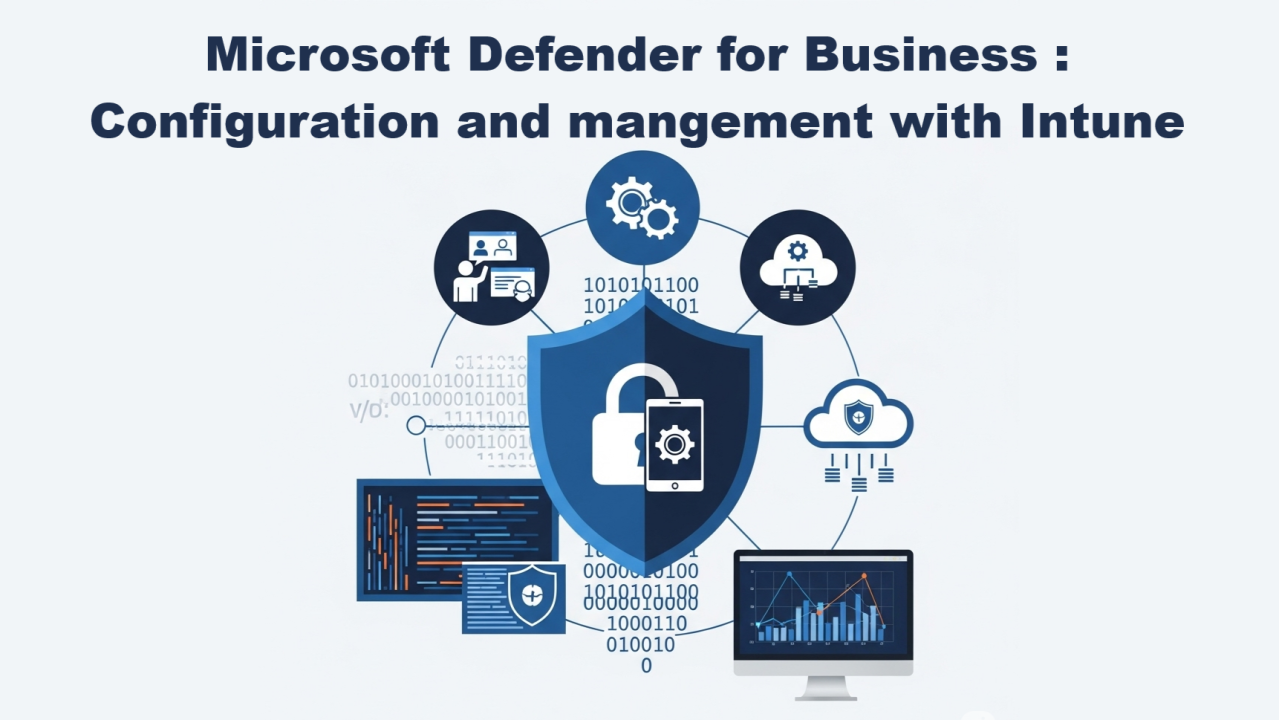

In a world of constantly evolving cyber threats, small and medium-sized enterprises (SMEs) are often the most vulnerable. Microsoft Defender for Business is a robust, affordable cybersecurity solution specifically designed to meet the unique needs of SMBs. This solution offers advanced protection against malware, ransomware and other threats, while being easy to deploy and manage. In this article, we’ll explore the key features of Microsoft Defender for Business and how it can help your business stay secure in an increasingly complex digital environment.

Microsoft Defender for Business is a cybersecurity solution designed specifically for small and medium-sized enterprises (SMEs) with fewer than 300 users.
Here are some of its key features:

Microsoft Defender for Business is also cost-effective, with pricing to suit SMB budgets. It is available as a stand-alone product or as an add-on to Microsoft 365 Business Premium (https://www.microsoft.com/en-us/security/business/endpoint-security/microsoft-defender-business).
To use Microsoft Defender for Business, you need one of the following licenses:
Microsoft Defender for Business is included with Microsoft 365 Business Premium, but it can be used as stand alone licence, keep in mind price is always changing, you can see pricing from this link (https://www.microsoft.com/en-us/security/business/endpoint-security/microsoft-defender-business):


New configuration windows will appear :


Now we are done with Defender enabling, let’s move to verify alerts notifications and vulnerabilities notifications.
Normally alerts are automatically created when Microsoft Defender for Business is activated, but I’ve noticed that the alerts weren’t created correctly, so we’re going to double-check and create them.
Configuring alert notifications in Microsoft Defender is crucial to ensuring a rapid and effective response to potential threats. These notifications enable your security team to be immediately informed of suspicious activity or security incidents, reducing response time and limiting potential damage. By receiving real-time alerts, administrators can take corrective action quickly, preventing threats from spreading and further compromising the network. What’s more, alert notifications help maintain constant vigilance, ensuring that security incidents don’t go unnoticed and systems remain protected from attack.
To do this :


Configuring vulnerability notifications in Microsoft Defender is essential for maintaining proactive and reactive security within your organization. These notifications enable your security team to be immediately informed of newly detected vulnerabilities, giving them the opportunity to take corrective action before these flaws are exploited by attackers. By receiving real-time alerts, administrators can prioritize necessary patches and updates, reducing the risk of major security incidents. What’s more, these notifications help maintain constant vigilance, ensuring that systems remain protected against emerging threats and that security policies are always up to date.
in general section select “Email notifications“


Checking Microsoft Defender for Endpoint settings in Intune during configuration is crucial for several reasons. Firstly, it ensures that communications between Intune and Defender for Endpoint are correctly established, enabling effective management of security policies. Correct configuration also ensures that devices are properly integrated and monitored, which is essential for detecting and responding rapidly to threats. What’s more, by checking settings, you can ensure that compliance and conditional access policies are applied consistently, thereby reducing security risks. Finally, it enables you to maintain greater visibility and transparency over device status and security, ensuring that all protective measures are in place and working as intended.
so be sure that the following setting are enabled :

Creating a detection and response policy in Microsoft Intune is crucial to strengthening your organization’s security. This policy integrates Microsoft Defender for Endpoint with Intune, providing advanced, near-real-time attack detection capabilities. Thanks to this integration, security analysts can effectively prioritize alerts, gain full visibility of the extent of a breach, and take response measures to remediate threats. In addition, the detection and response policy helps manage endpoint security settings and integrate devices with Microsoft Defender for Endpoint, ensuring consistent, proactive protection against threats. This helps minimize security risks and maintain a secure, resilient IT environment.
Let’s get stared :


in configuration settings :


Now we are done with endpoint detection and response policy, let’s move to create Antivirus Policy.
Creating an Antivirus Policy in Microsoft Intune is crucial for several reasons :
Threat protection: Ensure that all managed devices are protected against viruses, malware and other threats.
These policies help maintain a secure environment and protect the organization’s sensitive data.
To create an Antivirus Policy, there are a huge number of parameters to configure for this policy, and to leave no place for error, I’ve followed Microsoft’s recommendations for all settings from the security baselines.
lets get started :


Now we are done with all configurations, we cam jump to the next section to run a detection test.
Launching an “Test detection” with a PowerShell script provided by Microsoft after configuring Microsoft Defender for Endpoint is crucial for several reasons. Firstly, this test verifies that devices are properly integrated and communicating effectively with the Defender for Endpoint service. This ensures that devices can send health signals and security alerts, which is essential for continuous monitoring and rapid response to threats. In short, this test is a key step in ensuring that your security environment is up and running, ready to detect and respond to threats effectively.
Let’s get started :
You can access directly to this window from this link : https://security.microsoft.com/securitysettings/endpoints/onboarding

powershell.exe -NoExit -ExecutionPolicy Bypass -WindowStyle Hidden $ErrorActionPreference= 'silentlycontinue';(New-Object System.Net.WebClient).DownloadFile('http://127.0.0.1/1.exe', 'C:\\test-WDATP-test\\invoice.exe');Start-Process 'C:\\test-WDATP-test\\invoice.exe'

In this section we will investigate the previous test in defender Alerts to explore what we can see there :


If you want to know mutch more about Defender for Business, Defender for Endpoint P1 and Defender for Endpoint P2 , here is detailed product comparison :


In conclusion, Microsoft Defender for Business is an essential cybersecurity solution for SMEs looking to protect their data and systems from online threats. With its advanced features, ease of use and affordable cost, it offers enterprise-grade protection without the complexity often associated with traditional security solutions. By adopting Microsoft Defender for Business, SMBs can focus on growth and innovation, with the peace of mind that their digital assets are well protected.
Thanks