Explore practical guides and tools for Microsoft 365, Azure, and PowerShell. Enhance your cloud security and admin skills with expert insights and automation tips.
Explore practical guides and tools for Microsoft 365, Azure, and PowerShell. Enhance your cloud security and admin skills with expert insights and automation tips.
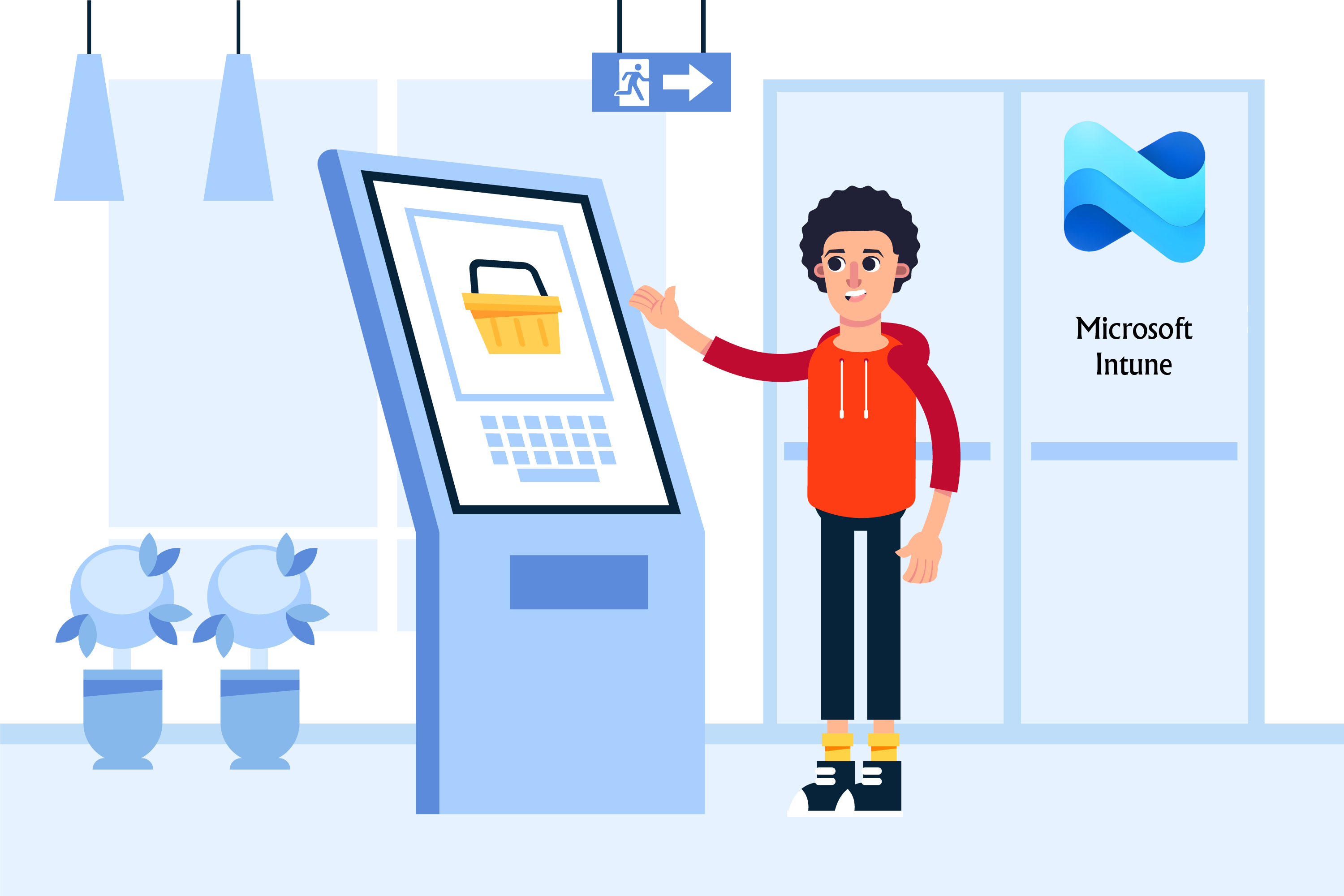
A “Kiosk PC” is a computer configured to run in a restricted, single-purpose mode. It is designed to provide access to a specific application or a limited set of functions, while preventing users from accessing the full desktop environment or making system changes.
2 – Key Characteristics of a Kiosk PC
Locked-down Environment : Users can’t access settings, taskbar, file explorer, or run unauthorized applications.
Single-App or Multi-App Mode : Kiosk mode can be configured to run one app (e.g., a browser, POS system, or custom app) or allow access to multiple approved apps.
Assigned Access (on Windows) : Often uses Windows’ Assigned Access feature to automatically log in a local user account and launch the kiosk app.
Security & Control : Prevents tampering, ensures consistent user experience, and reduces support needs.
Auto-Launch & Auto-Restart : The kiosk app starts automatically at login and can be reset after inactivity or sign-out.
Microsoft Intune allows IT administrators to configure Windows devices as kiosk machines, you can show and customize a start menu, add different apps, including Win32 apps, add a specific home page to a web browser, and more.
This guide walks through creating a kiosk profile and deploying it using Microsoft Intune.
4 – Prerequisites
Before setting up the kiosk mode:
Microsoft Intune license
A device running Windows 10 (1803+) or Windows 11
Access to Intune admin center
Apps to be used (UWP, Edge, or Win32)
5 – Step-by-Step Configuration
Go to Intune Admin Center → Devices → Configuration profiles → Create profile.
Platform : Windows 10 and later
Profile type : Templates → Kiosk
Click Create.
In the “Name” field enter a descriptive name for the endpoint protection profile.
In the “Description” add a description for the profile.
Click the “Next” to proceed to the next configuration step
Select “Single app, full-screen kiosk” from kiosk mode : This means the device will launch and remain locked to a single application in full-screen mode. Users won’t be able to switch apps or access other system features. (You can select second option wich multi application mode)
Specify following options :
Select User logon type :Local user account , A local account named “Kiosk” will be created and automatically logged in when the device starts.
Application type :Kiosk browserThis sets up the Microsoft Kiosk Browser as the only available app in the session.
Default home page URL : in this exapmle I put Microsft Intune learning as default web page (https://learn.microsoft.com/en-us/training/paths/endpoint-manager-fundamentals/). This URL will be the first page loaded when the Kiosk browser opens.
Home button :Hide
Navigation buttons :Hide
End session button :Hide (These options hide basic navigation and session control buttons for the end user).
Refresh browser after idle time :5 minutes (This ensures that if the user is inactive for 5 minutes, the browser automatically refreshes to the home page).
Allowed websites (optional) You can restrict access to specific URLs by uploading a CSV file. If no file is uploaded, users can access any website through the Kiosk browser
Click Next
Select Assigned group then Click Next
Click Create
Security Tips
Pair with BitLocker for added security.
Use Windows Defender Application Control (WDAC) to block unauthorized apps.
Monitor device compliance in Intune and set up automatic remediation scripts.
Conclusion
Deploying a Kiosk PC with Microsoft Intune allows you to deliver purpose-driven, hardened Windows experiences with minimal user interaction and high reliability. Whether it’s for an information booth, a healthcare check-in station, or a conference display, Kiosk Mode provides the control you need centrally managed and automatically enforced.
Thanks
Aymen EL JAZIRI (Microsoft MVP)
Hi, I’m Aymen El Jaziri , a passionate System Administrator and Microsoft MVP, with years of hands-on experience in managing and securing modern IT infrastructures.
This blog is where I share technical guides, automation scripts, product reviews, and real-world solutions that help IT professionals simplify their day-to-day work and stay ahead in a fast-evolving cloud ecosystem.
Whether you’re here to troubleshoot an issue, improve your automation game, or learn new best practices , welcome in my blog !
Let’s build a stronger, smarter IT community together.
Feel free to connect with me on LinkedIn for more content, discussions, or collaboration opportunities.