Physical Address
304 North Cardinal St.
Dorchester Center, MA 02124
Physical Address
304 North Cardinal St.
Dorchester Center, MA 02124

Explore practical guides and tools for Microsoft 365, Azure, and PowerShell. Enhance your cloud security and admin skills with expert insights and automation tips.
Explore practical guides and tools for Microsoft 365, Azure, and PowerShell. Enhance your cloud security and admin skills with expert insights and automation tips.

Hi guys
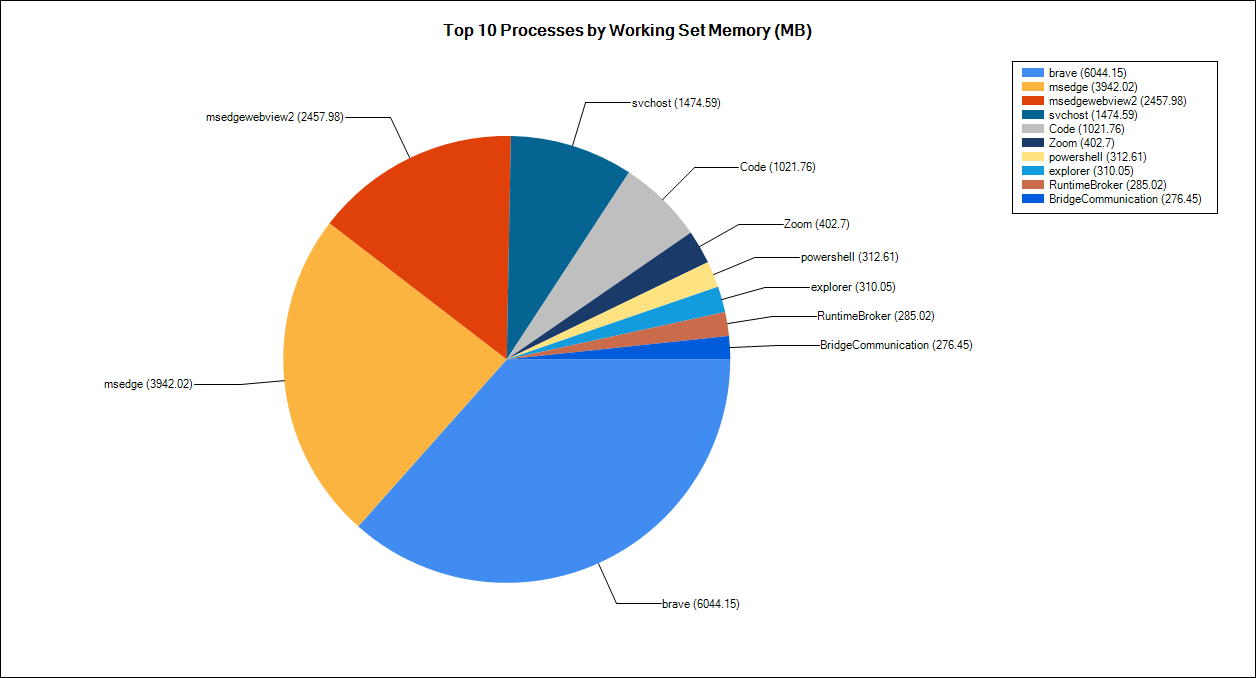
I’m sharing with you a script that displays the top 10 most memory-hungry processes. I know you can get this information from the Task Manager, but I especially wanted to show you an example of the graphical power and use cases of Powershell.
🚀PowerShell is Multiplateform (Windows / Linux / MAC)….
🚀PowerShell works with all clouds (Azure, AWS, Google…)….
🚀PowerShell communicates with databases….
🚀PowerShell communicates with networks….
🚀PowerShell is the strongest 🚀🚀🚀
The script provides statistics on the 10 most memory-hungry scripts, and also allows you to export the figure displayed in PNG format.
Script can be adjustable and can be used with any other kind of data.
Here is an example for script execution :

When you clic on save, new window dialog will appear for selecting destination folder to save the file with “Process.png” name.

This is file after be saved :

Finally, the most important think is the source code 🚀🚀🚀…
here is the source code :
 #$Process = Get-Process  | Group-Object Name -NoElement  | Select-Object Name , Count    #Sort-Object VM -Descending |Select-Object -First 10 | Select-Object Name , [Decimal]@{l="Memory";e={[System.Math]::Round($_.VM/1MB,2)}}
#$Process

$Process=Get-Process|Select-Object -eXp name;
$proc2=@()
$Process = $Process|ForEach-Object{
if(!("$($_)" -in $proc2)){$proc2+="$($_)"
$mem=0;
Get-Process $_|Select-Object -eXp workingSet|ForEach-Object{$mem+=($_/1MB)}
[pscustomobject][ordered]@{
'Count'=(Get-Process $_ -ea silentlyContinue).Count
'Name'=$_
'MemoryMB'=[System.Math]::Round($mem,2)
}}} | Sort-Object -Descending 'MemoryMB' | Select-Object -First 10

function ArrayToHash($array)
{
    $hash = [ordered]@{}
    $array | ForEach-Object { $hash[$_.Name] = $_.MemoryMB }
    return $hash
}

$result = ArrayToHash($Process)


Add-Type -AssemblyName System.Windows.Forms
Add-Type -AssemblyName System.Windows.Forms.DataVisualization

$Chart = New-object System.Windows.Forms.DataVisualization.Charting.Chart
$ChartArea = New-Object System.Windows.Forms.DataVisualization.Charting.ChartArea
$Series = New-Object -TypeName System.Windows.Forms.DataVisualization.Charting.Series
$ChartTypes = [System.Windows.Forms.DataVisualization.Charting.SeriesChartType]

$Series.ChartType = $ChartTypes::Pie

$Chart.Series.Add($Series)
$Chart.ChartAreas.Add($ChartArea)

$Chart.Series['Series1'].Points.DataBindXY($result.Keys , $result.Values)

$Chart.Width = 900
$Chart.Height = 550
$Chart.Left = 10
$Chart.Top = 10
$Chart.BackColor = [System.Drawing.Color]::White
$Chart.BorderColor = 'Black'
$Chart.BorderDashStyle = 'Solid'

$ChartTitle = New-Object System.Windows.Forms.DataVisualization.Charting.Title
$ChartTitle.Text = 'Top 10 Processes by Working Set Memory (MB)'
$Font = New-Object System.Drawing.Font @('Microsoft Sans Serif','12', [System.Drawing.FontStyle]::Bold)
$ChartTitle.Font =$Font
$Chart.Titles.Add($ChartTitle)

$Legend = New-Object System.Windows.Forms.DataVisualization.Charting.Legend
$Legend.IsEquallySpacedItems = $True
$Legend.BorderColor = 'Black'
$Chart.Legends.Add($Legend)
$chart.Series["Series1"].LegendText = "#VALX (#VALY)"

$Chart.Series['Series1']['PieLineColor'] = 'Black'
$Chart.Series['Series1']['PieLabelStyle'] = 'Outside'
$Chart.Series['Series1'].Label = "#VALX (#VALY)"


#region Windows Form to Display Chart
$AnchorAll = [System.Windows.Forms.AnchorStyles]::Bottom -bor [System.Windows.Forms.AnchorStyles]::Right -bor
    [System.Windows.Forms.AnchorStyles]::Top -bor [System.Windows.Forms.AnchorStyles]::Left
$Form = New-Object Windows.Forms.Form
$Form.Width = 940
$Form.Height = 650
$Form.controls.add($Chart)
$Chart.Anchor = $AnchorAll


Function Select-FolderDialog
{
    param([string]$Description="Select Folder",[string]$RootFolder="Desktop")
    [System.Reflection.Assembly]::LoadWithPartialName("System.windows.forms") | Out-Null

    $objForm = New-Object System.Windows.Forms.FolderBrowserDialog
    $objForm.Rootfolder = $RootFolder
    $objForm.Description = $Description
    $Show = $objForm.ShowDialog((New-Object System.Windows.Forms.Form -Property @{TopMost = $true }))
    If ($Show -eq "OK")
    {
        Return $objForm.SelectedPath
    }
    Else
    {
        return $null
    }
}

# add a save button
$SaveButton = New-Object Windows.Forms.Button
$SaveButton.Text = "Save"
$SaveButton.Top = 570
$SaveButton.Left = 820
$SaveButton.Anchor = [System.Windows.Forms.AnchorStyles]::Bottom -bor [System.Windows.Forms.AnchorStyles]::Right
# [enum]::GetNames('System.Windows.Forms.DataVisualization.Charting.ChartImageFormat')
$SaveButton.add_click({
    $Result = "C:\Process.png"
    if($dir = Select-FolderDialog)
    {
        $Result = $dir + "\Process.png"
    }
    # Save picture to selected folder
    $Chart.SaveImage($Result, "png")

})

$Form.controls.add($SaveButton)
$Form.Add_Shown({$Form.Activate()})
[void]$Form.ShowDialog()
#endregion Windows Form to Display Chart
Dont forget to follow me, like and share.
Thanks