Physical Address
304 North Cardinal St.
Dorchester Center, MA 02124
Physical Address
304 North Cardinal St.
Dorchester Center, MA 02124

Explore practical guides and tools for Microsoft 365, Azure, and PowerShell. Enhance your cloud security and admin skills with expert insights and automation tips.
Explore practical guides and tools for Microsoft 365, Azure, and PowerShell. Enhance your cloud security and admin skills with expert insights and automation tips.

The Windows firewall is an essential element in the security of your computer system. Here are a few points that underline its importance:
In short, the Windows firewall is an essential security tool that helps protect your system from potential threats. So it’s important to keep it activated and properly configured to ensure maximum security.
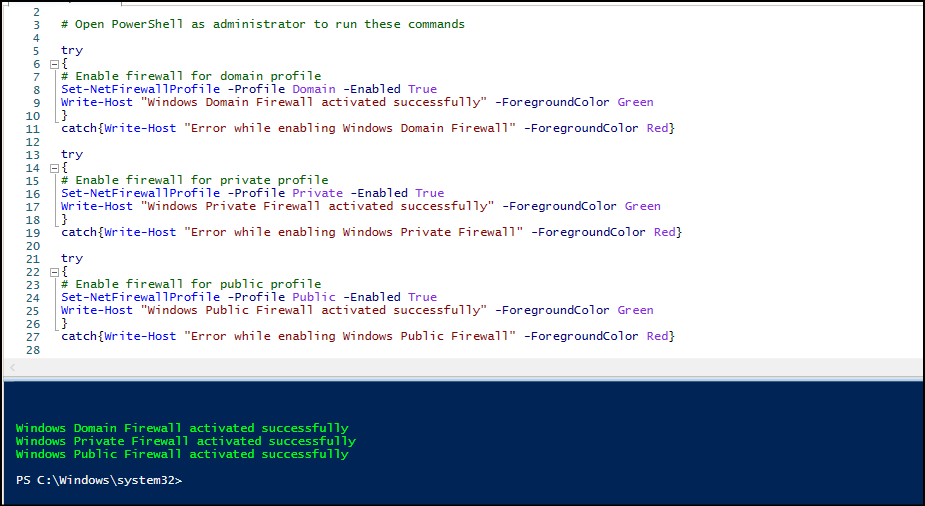
This script is used to enable Windows Firewall through PowerShell, we can use this script for bulk run with RMM solution, for GPO Policy or even for Microsoft Intune Policy.

This script must be executed as System or Administrator group.
here is the source code :
# This script must be executed as System or Administrator group.

try
{
# Enable firewall for domain profile
Set-NetFirewallProfile -Profile Domain -Enabled True
Write-Host "Windows Domain Firewall activated successfully" -ForegroundColor Green
}
catch{Write-Host "Error while enabling Windows Domain Firewall" -ForegroundColor Red}

try
{
# Enable firewall for private profile
Set-NetFirewallProfile -Profile Private -Enabled True
Write-Host "Windows Private Firewall activated successfully" -ForegroundColor Green
}
catch{Write-Host "Error while enabling Windows Private Firewall" -ForegroundColor Red}

try
{
# Enable firewall for public profile
Set-NetFirewallProfile -Profile Public -Enabled True
Write-Host "Windows Public Firewall activated successfully" -ForegroundColor Green
}
catch{Write-Host "Error while enabling Windows Public Firewall" -ForegroundColor Red}
Thanks