Physical Address
304 North Cardinal St.
Dorchester Center, MA 02124
Physical Address
304 North Cardinal St.
Dorchester Center, MA 02124

Explore practical guides and tools for Microsoft 365, Azure, and PowerShell. Enhance your cloud security and admin skills with expert insights and automation tips.
Explore practical guides and tools for Microsoft 365, Azure, and PowerShell. Enhance your cloud security and admin skills with expert insights and automation tips.
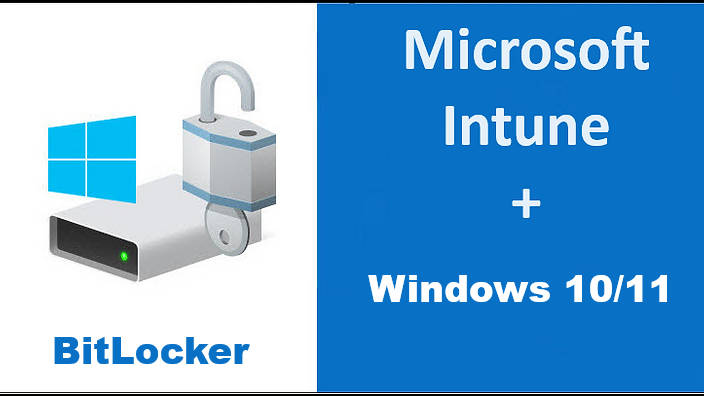

BitLocker is a disk encryption feature that protects data stored on Windows 10/11 devices against theft or loss, so that it can only be accessed by authorized persons. BitLocker uses a secure platform module (TPM) to store encryption keys and protect them against attack. BitLocker can also use other protection methods, such as a password, USB key or PIN.
Microsoft Intune is a device and application management service that enables organizations to control and secure corporate data on mobile devices and computers. Microsoft Intune and BitLocker can work together to ensure optimal data and device protection. For example, Intune can configure and manage BitLocker settings, save recovery keys in Azure AD, and apply compliance policies based on encryption status .
In this article, I’ll show you how to enable and configure BitLocker using Intune and export the BitLocker key to Microsoft Azure. We will use Microsoft Intune to configure BitLocker drive encryption on devices running Windows 10 or 11. The manual explains how to deploy BitLocker using Intune for Windows devices.

BitLocker for Intune is available on devices running Windows 10/11. Enabling BitLocker using Intune requires the following prerequisites to be in place:
Intune lets you configure and deploy BitLocker policy using two methods:
You can use any of the above procedures to create the type of policy you prefer. The recommended approach is to create an endpoint security policy and configure BitLocker using Intune for Windows devices.
Depending on the type of policy you’re using, you can silently enable BitLocker using Intune:
We’ll now look at how to use Intune to activate, configure and deploy BitLocker. This will enable BitLocker drive encryption to be configured on devices running Windows 10/11.
The high-level steps for enabling and configuring BitLocker using Intune are as follows:
In this step, we’ll create a new security policy for BitLocker in Intune by following these steps:

Enter a name for your Policy :

in the second “Configuration Settings” window is divided into two sections:
Enabled
Allows the administrator to require encryption to be enabled using BitLocker device encryption.
Disabled
Allows the administrator to disable all user interfaces (notification for encryption and warning prompt for encryption of other disks) and silently enable encryption on user machines.
Enabled
Enables the administrator to apply the “RequireDeviceEncryption” policy in scenarios where the policy is applied when the logged-in user is not an administrator or standard user.
Refresh on for Azure AD-joined devices
Allows the administrator to configure digital recovery password rotation when using the operating system and fixed drives on devices connected to the AAD and Hybrid domains.

In this section, we’ll apply the following settings:

In this section, we’ll apply the following settings:
This policy parameter lets you configure the type of encryption used by BitLocker Drive Encryption. This setting is applied when BitLocker is enabled.
choose “Full encryption” instead of “Used Space”.
This policy setting allows you to configure whether BitLocker requires additional authentication at each computer startup, and whether you use BitLocker with or without Trusted Platform Module (TPM). If you wish to use BitLocker on a computer without TPM, check the box “Allow BitLocker without compatible TPM”.

The next step is to create a Tag , I leave it as default

The next step is to assign a group of machines on which to apply encryption. In my case, I’ve chosen all devices.
You can add exclusions in the “Excluded Groups” section below.

The last step is to validate and create the encryption rule:

After deploying BitLocker using Intune, the next step is to monitor the status of BitLocker encryption on devices. You can do this from the Intune Administration Center. In addition, there is a Microsoft Intune Encryption Report that allows you to view details of a device’s encryption status and find options for managing the device’s recovery keys.
The screenshot below shows that BitLocker profile assignment was successful on almost all the devices we targeted. Note that this is the profile assignment status, not the disk encryption status.

After a machine is encrypted, the encryption key will be stored on the office 365 account of the user connected to the machine (depending on the configuration we’ve made).
If the laptop is locked after a motherboard change, for example, you can no longer access the data on your disk. Whether Windows, Linux or any other operating system, BitLocker does not allow any attempt to access the disk unless you have your BitLocker recovery key.

At this time, as System Admin or Support Technician you can recover the BitLocker key from several locations and ways and send it to end user, I’ll just mention the way with Microsoft azure :


Thank you