Physical Address
304 North Cardinal St.
Dorchester Center, MA 02124
Physical Address
304 North Cardinal St.
Dorchester Center, MA 02124

Explore practical guides and tools for Microsoft 365, Azure, and PowerShell. Enhance your cloud security and admin skills with expert insights and automation tips.
Explore practical guides and tools for Microsoft 365, Azure, and PowerShell. Enhance your cloud security and admin skills with expert insights and automation tips.
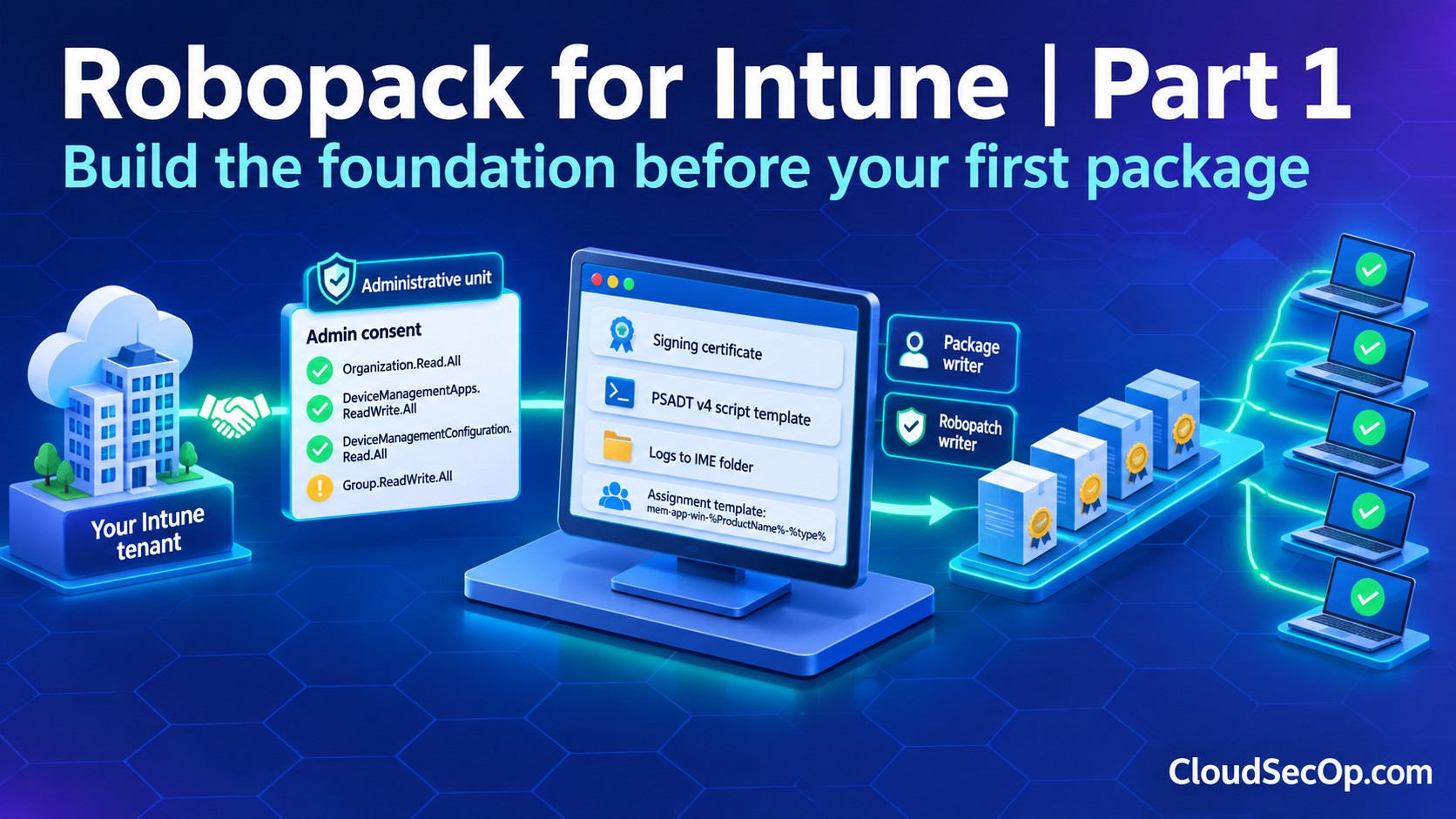
A CVE drops for a browser or a compression tool. Security asks: “Are we patched?” The honest answer is often: “It depends which version each device picked up last quarter.”
Intune is an excellent delivery engine. It does not do the work around third-party apps for you:
Robopack is an agentless cloud service that builds, updates and deploys standard Intune Win32 apps for you. It was built in Denmark and is offered in North America by Robopack Canada.
| Characteristic | What it means for you |
|---|---|
| No agent, no infrastructure | Nothing on endpoints, no on-premises server. Robopack talks to Intune and Entra ID through Microsoft Graph. |
| Intune stays the delivery engine | Robopack creates normal Win32 apps, groups and assignments. If you disconnect it, the apps remain normal Intune apps. |
| Large prepackaged catalog | “Instant Apps” is built on Roborepo, Robopack’s own repository, which retrieves installers directly from the software vendors’ websites. Robopack advertises 40,000+ apps, independent coverage cites 46,000+. |
| Standardized PSADT wrapping | Every package, catalog or custom, is wrapped with the PowerShell App Deployment Toolkit. Installs, uninstalls and logs behave the same everywhere. |
| Multi-tenant by design | One Robopack organization connects several tenants. This is why MSPs use it. |
What it is not : a replacement for Intune, for ConfigMgr co-management or for a vulnerability scanner. It automates packaging, updating and deployment orchestration on top of Intune.
About PSADT. The PowerShell App Deployment Toolkit is the free, open-source framework thousands of packagers already use. Patch My PC took on a stewardship role for its code repository, and the toolkit stays open source. Because Robopack uses PSADT as its standard, any packager who knows the toolkit can read and edit what Robopack generates.
Robopack builds and orchestrates; Intune remains the only thing your devices talk to.
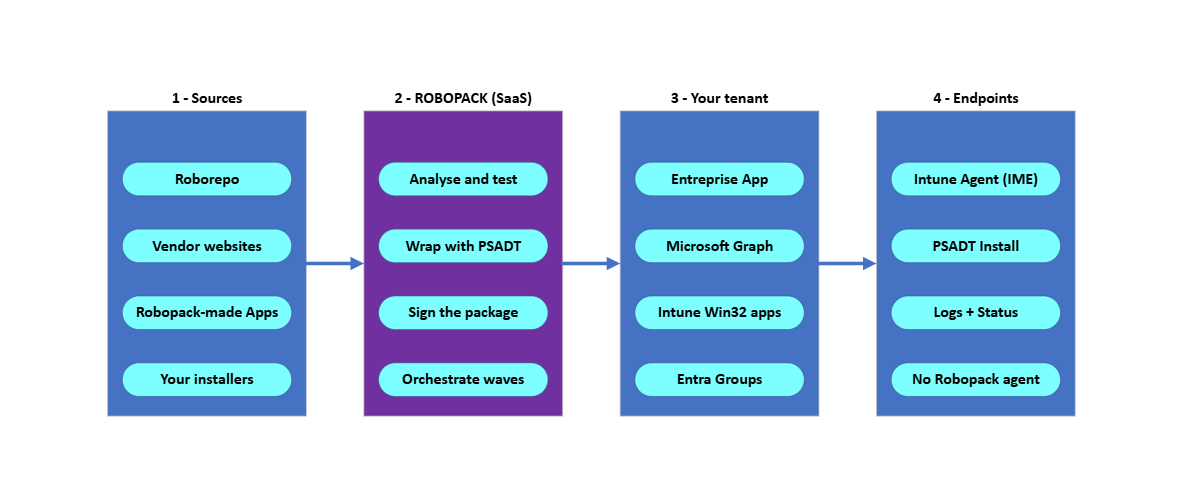
Read it left to right: sources feed Robopack, Robopack calls Microsoft Graph through the enterprise app in your tenant, and devices install through the Intune Management Extension as with any Win32 app.
Two consequences for your design:
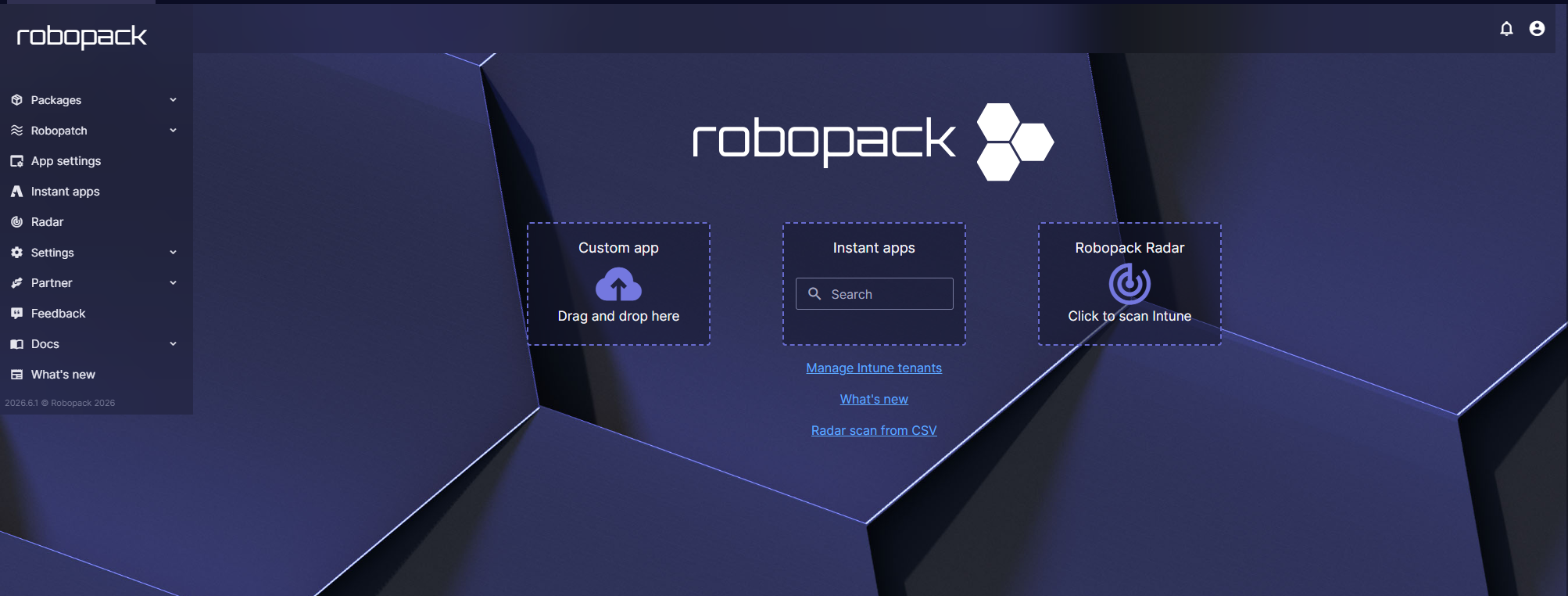
Have these ready before you open Settings. Checking them off now saves rework later.
Required
mem-app-win-<AppName>-<Intent>)Recommended
Choose Connect tenant (admin consent). It is the only option that allows automated patching.
| Connect tenant | Connect tenant (user) | |
|---|---|---|
| How it works | Registers Robopack as an enterprise app (admin consent) | Acts on behalf of the signed-in user |
| Automated patching (Robopatch) | Yes | No |
| Multi-tenant management | Yes | No |
| Who connects | Global Administrator | A user whose Entra and Intune rights are set manually |
| Use it for | Production | Quick evaluation only |
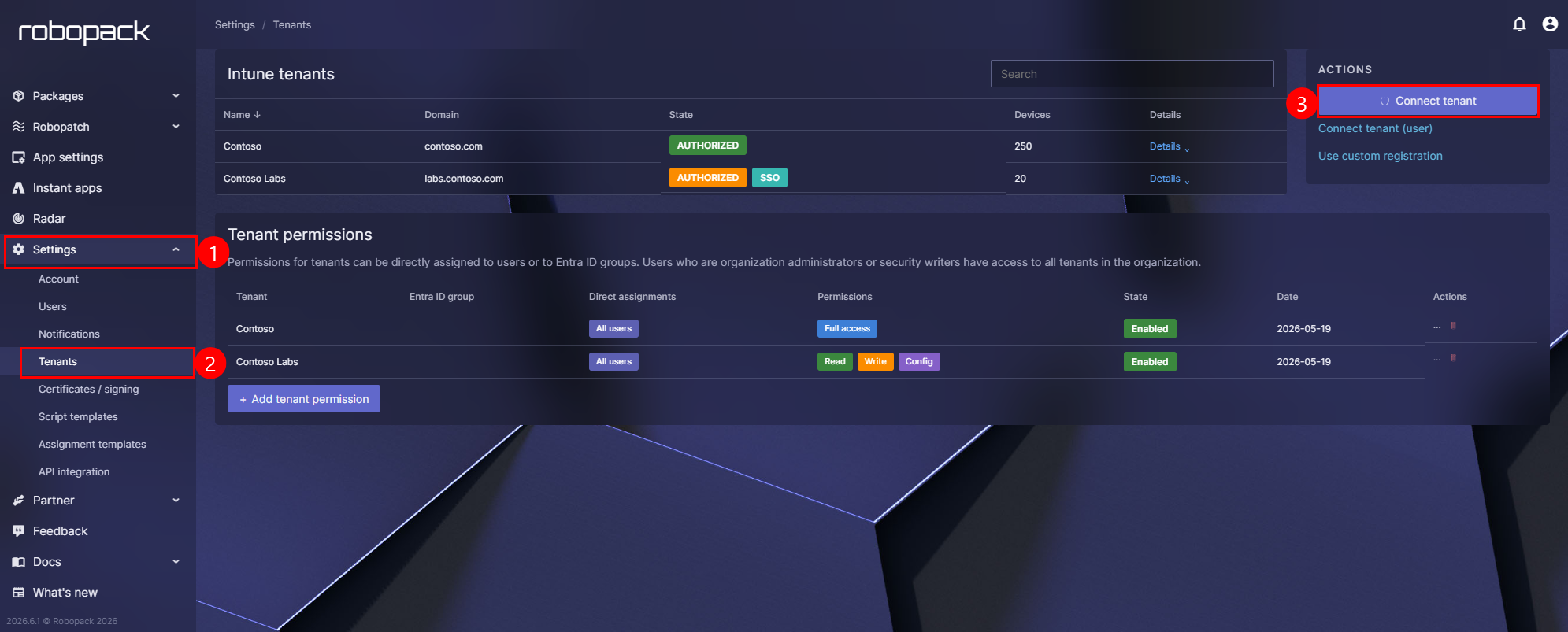
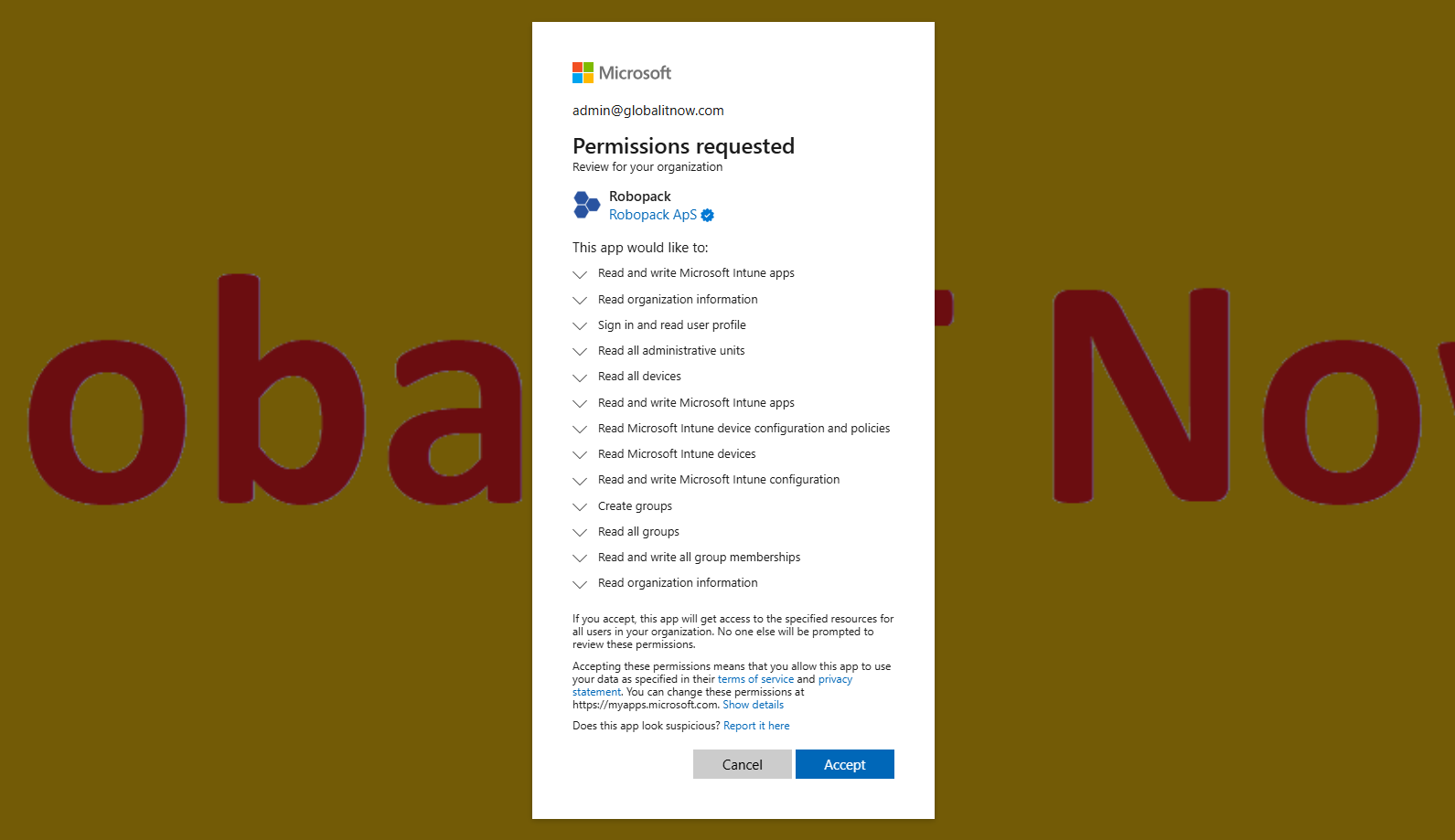
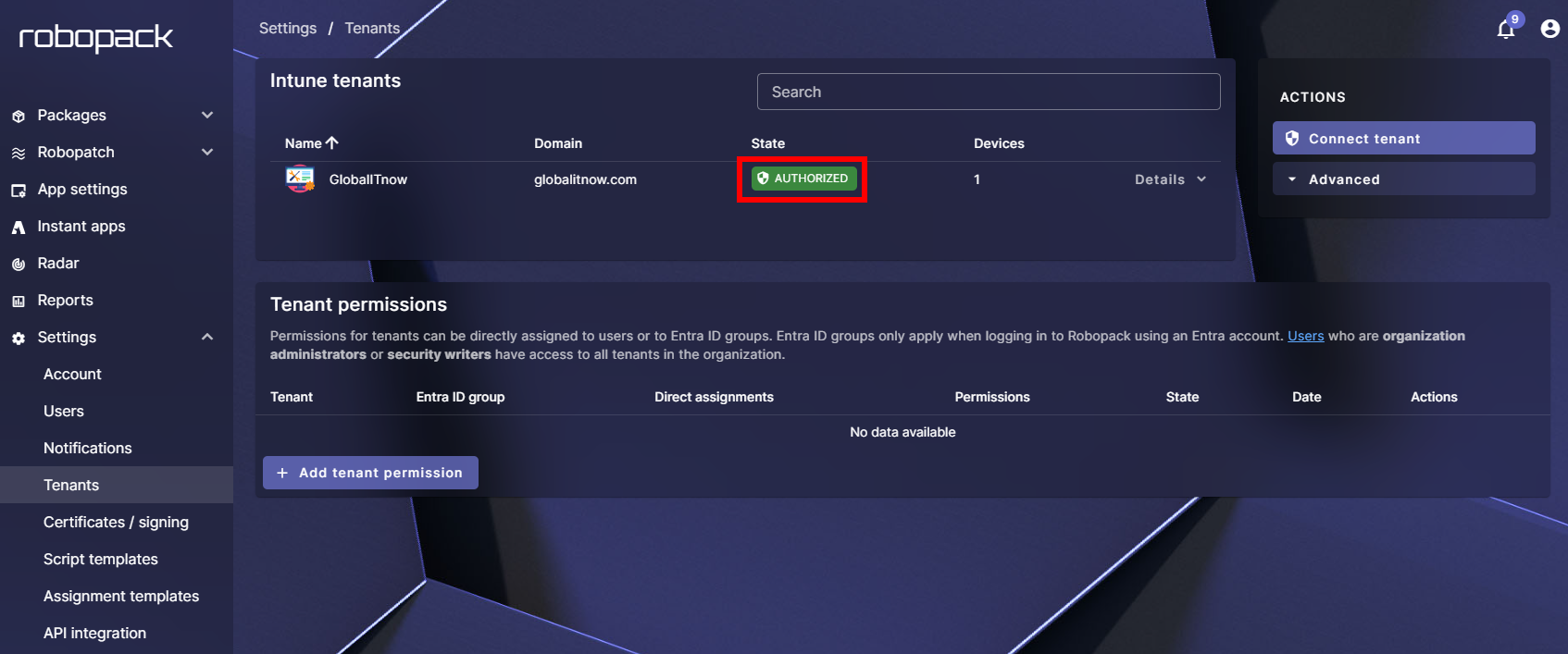
Three permissions are required. Everything else is optional, and one deserves a hard look.
| Microsoft Graph permission | Required | What Robopack uses it for | Risk note |
|---|---|---|---|
| Organization.Read.All | Yes | Connect the tenant | Read only |
| DeviceManagementApps.ReadWrite.All | Yes | Import packages to Intune | Core of the product |
| DeviceManagementConfiguration.Read.All | Yes | Read deployment status and reports | Read only |
| Device.Read.All | Optional | Better device lookup for Radar Tracking | Read only |
| DeviceManagementManagedDevices.Read.All | Optional | Radar, device debugging, licensing | Read only |
| DeviceManagementServiceConfig.ReadWrite.All | Optional | Keep Autopilot ESP pointing to the latest app version | Write on enrollment config |
| Group.ReadWrite.All | Optional | Create groups at import, add devices for Radar Tracking | Tenant-wide write on all groups |
Source: Robopack permission reference.
Why ServiceConfig matters. If a Robopack app is a required app in an Enrollment Status Page, this permission lets Robopack swap the old version for the new one after a patch. Without it, your ESP keeps pointing to an outdated app object.
Why Group.ReadWrite.All matters. It allows editing any group, including those used in Conditional Access or privileged role assignment. Your security team will ask about it.
Since September 2026, Robopack can get its group read/write rights through an Entra administrative unit instead. You can then revoke the tenant-wide Group.ReadWrite.All.
Administrative units require Entra ID P1 or P2.
Repeat the connection for each tenant: each gets its own enterprise app and consent. You then target one or several tenants at import or patch time, and per-tenant settings (Part 3) keep one package definition with tenant-specific values.
Move to Entra ID-only sign-in as soon as possible: your Conditional Access policies then protect Robopack automatically.
| Account type | How it signs in | Created how |
|---|---|---|
| Local | Password (MFA available) | In Robopack, with an email address |
| Entra ID | Your tenant’s sign-in, with Conditional Access | Automatically at first sign-in, if the tenant is associated and the user can access the app |
A local account can be linked to Entra ID later, then its password sign-in disabled.
In Settings > Tenants, toggle SSO for each tenant then test if SSO is successfuly configured. By default, users from all associated tenants can sign in. Disabling SSO for a tenant blocks Entra ID sign-in for all its users.
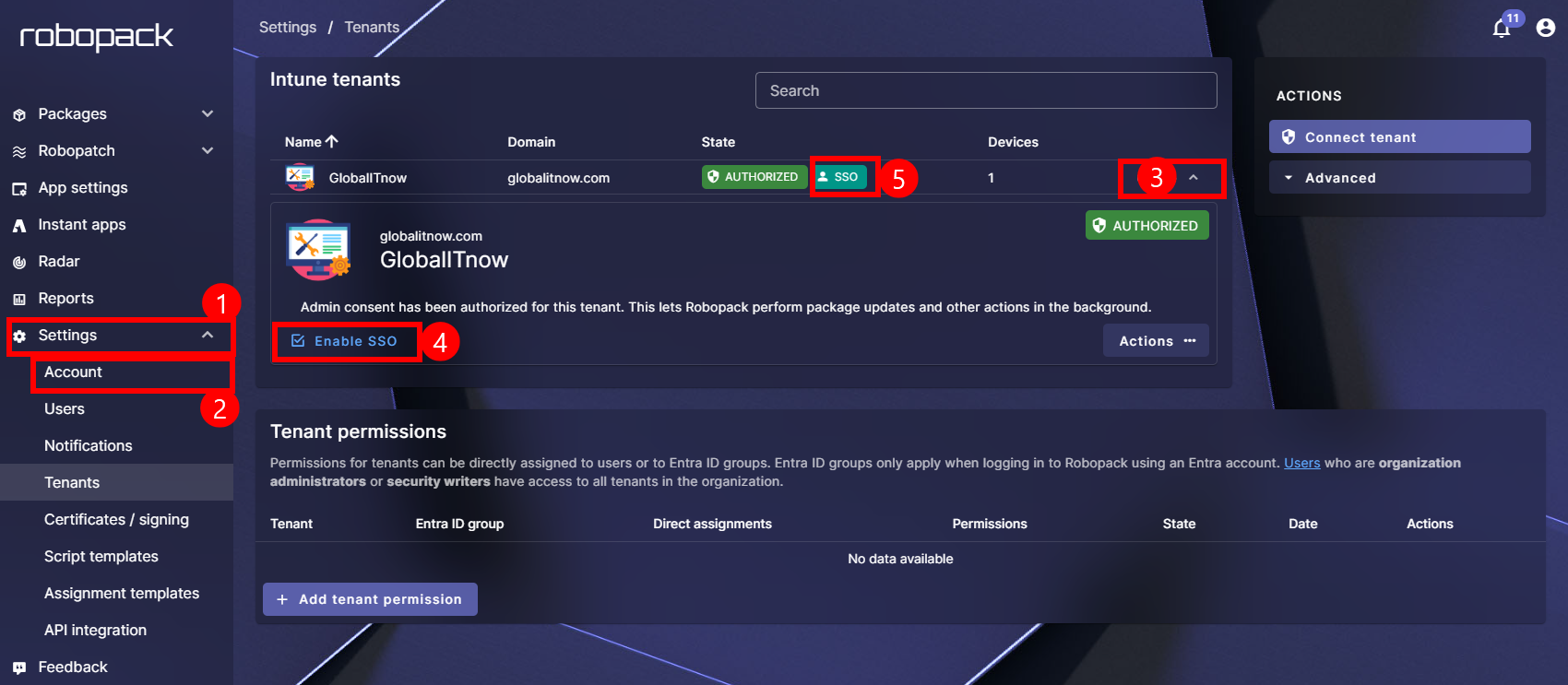
MSP tip : this is how you stop customer users from signing in to your Robopack organization while you still manage their tenant.
Before you switch to Entra ID only : confirm every administrator has linked an Entra ID account, and test your break-glass admin.
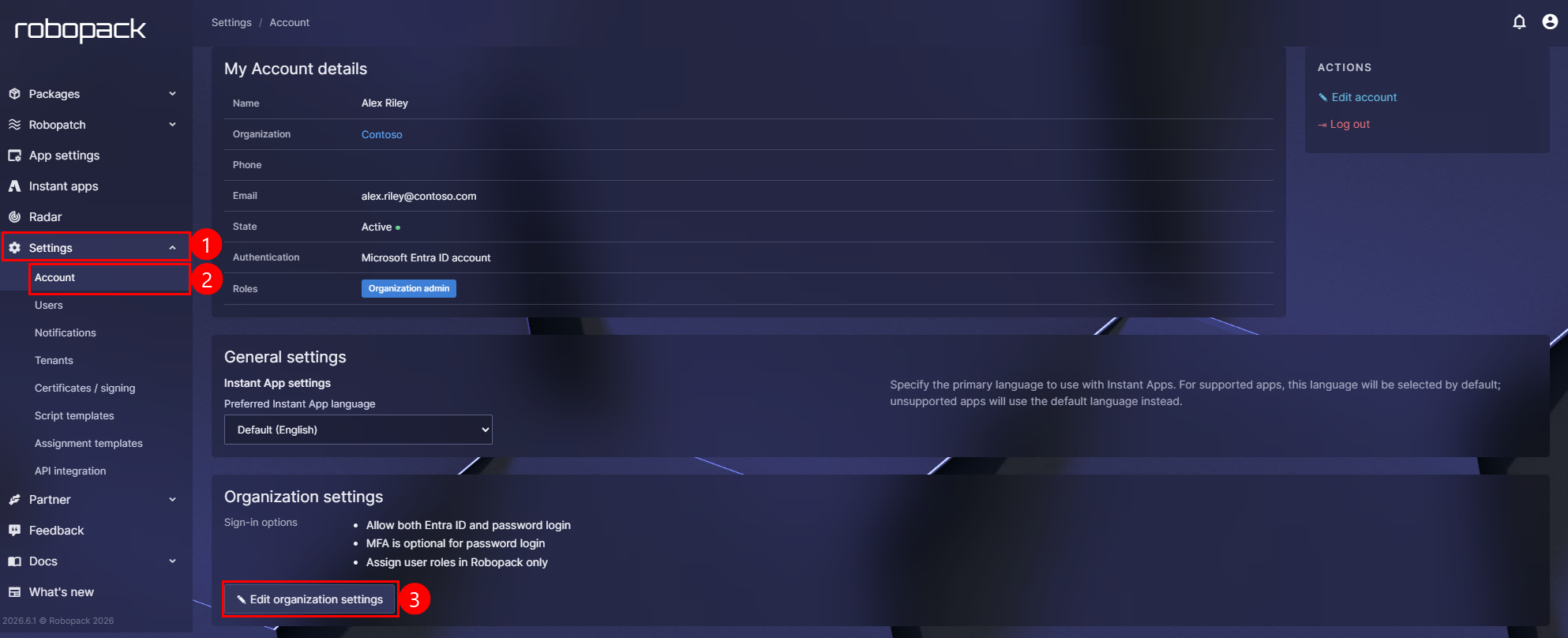
Select the way how users can sign in to Robopack and how roles are assigned to users (Robopack or ENTRA ID):
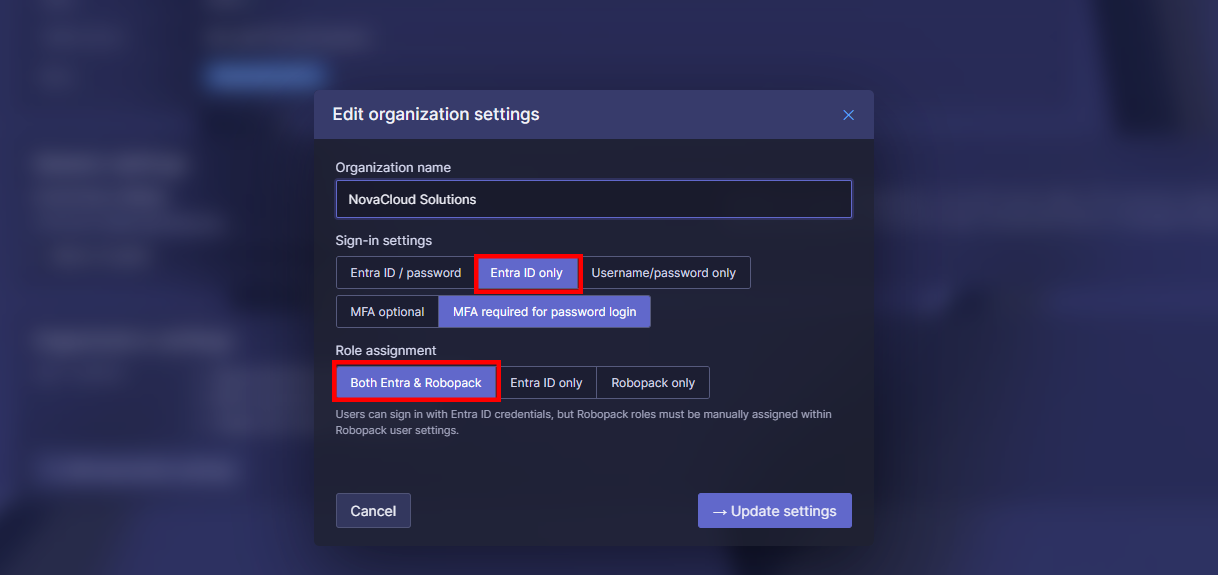
Role assignment : set it to “Entra ID and Robopack”, not “Entra ID only”.
Day-to-day roles come from Entra groups (section 6.2), while your break-glass administrator keeps its Organization administrator role assigned directly in Robopack. With “Entra ID only”, that account would have no role at all.
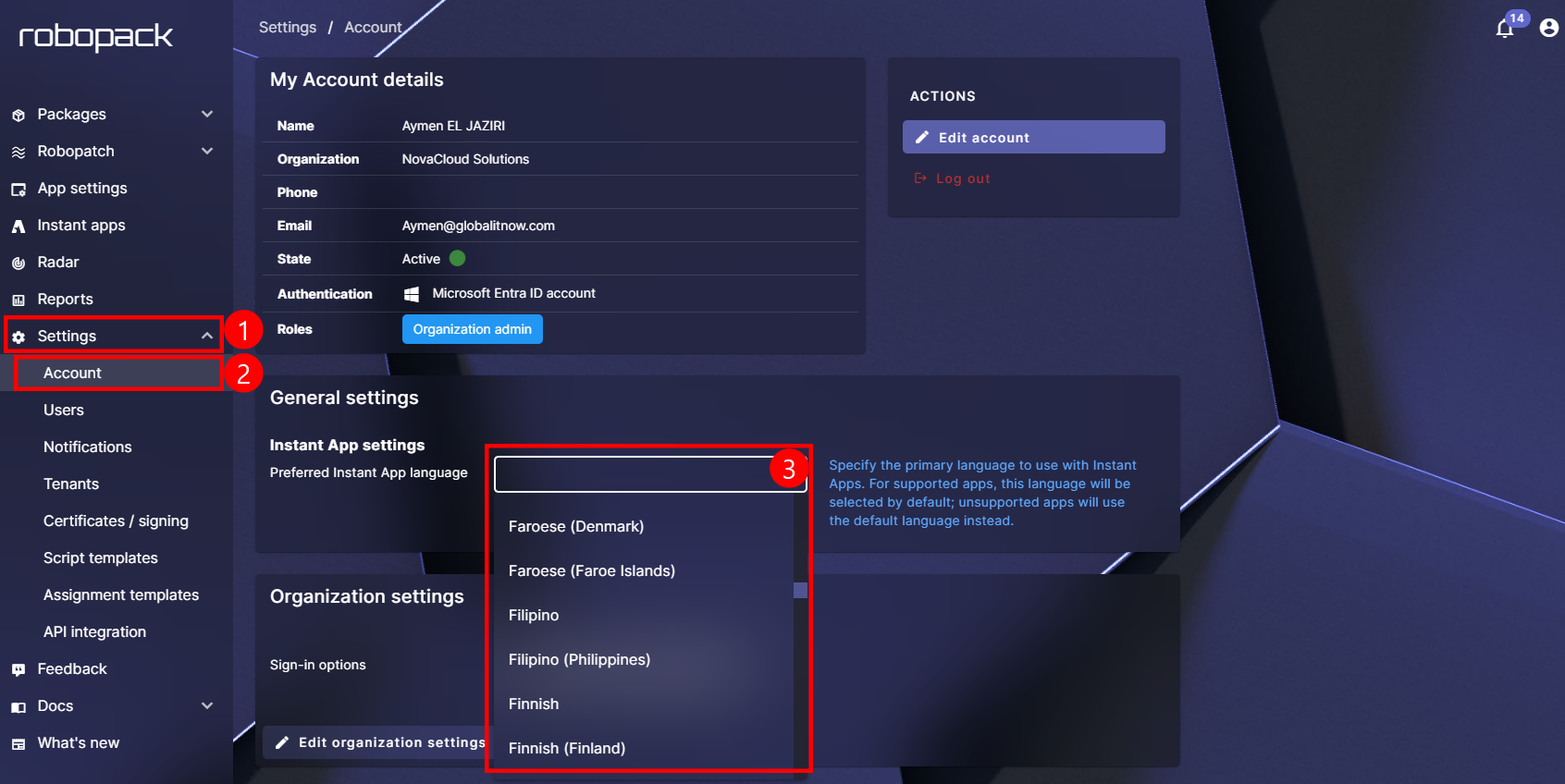
The account page also sets the preferred Instant App language. It selects which language version of an Instant App you get from the catalog, when one exists. It does not change the installation language of the application. In practice, most Instant Apps are only available in English, so leaving the default is fine for most organizations.
Access in Robopack has two dimensions: a role says what a user can do, a tenant permission says where. A user needs both.
| Role | Can do | Typical holder |
|---|---|---|
| Organization administrator | Everything, including authorization and organization settings | 2 people maximum |
| Security reader / writer | View / edit users, permissions, settings | IAM or security team |
| Package reader / writer | View and download / create, import, manage packages | Packagers |
| Custom App Settings reader / writer | View / edit custom app settings | Packagers |
| Robopatch reader / writer | View / administer app update flows | Patch operators |
Each writer role includes read access.
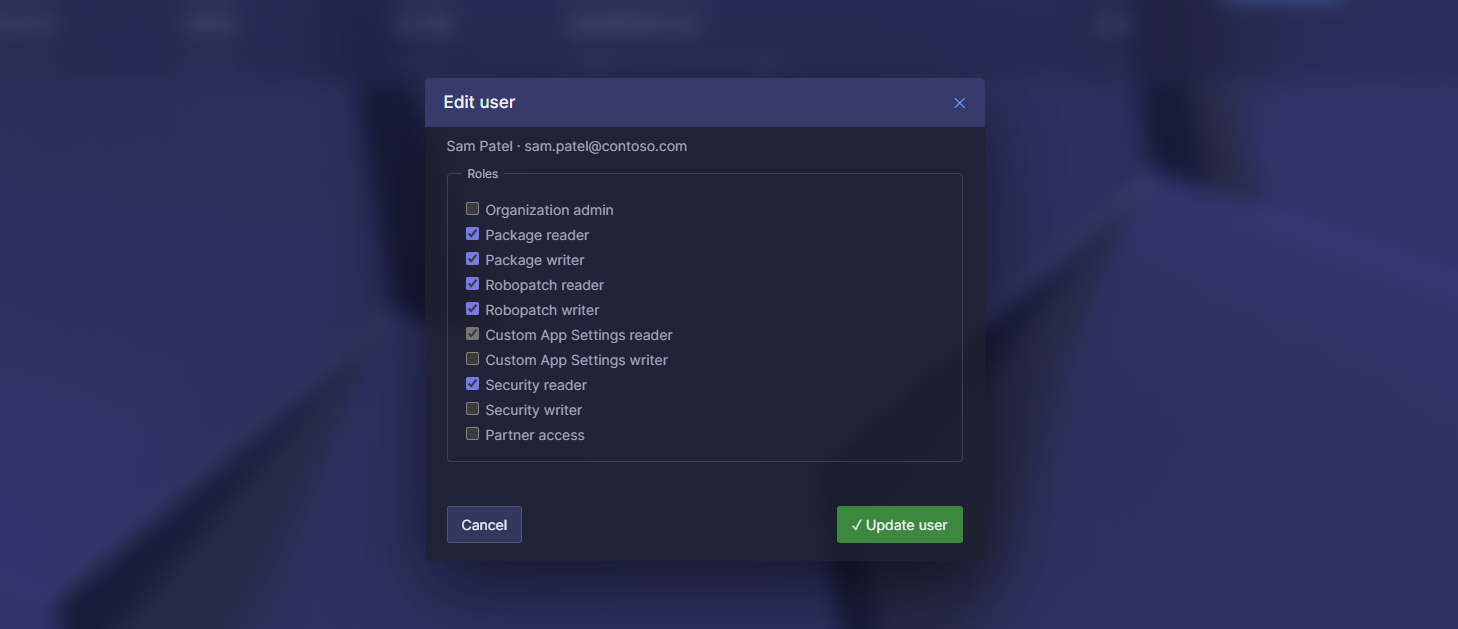
You can assign roles in Settings > Users (edit the user, tick roles) or in the Entra admin center under Enterprise applications > Robopack > Users and groups (one assignment per role). Select user then edit roles.
Recommendation: use Entra groups. You get access reviews, PIM for Groups, and one place for joiners, movers and leavers. Keep direct assignment in Robopack for the break-glass admin only, which is why role assignment must allow both Entra ID and Robopack (section 5.2).
| Entra group (example) | Robopack roles |
|---|---|
| SG-Robopack-OrgAdmins | Organization administrator |
| SG-Robopack-Packagers | Package writer + Custom App Settings writer |
| SG-Robopack-PatchOperators | Robopatch writer + Package reader |
| SG-Robopack-ReadOnly | Package reader + Robopatch reader (service desk, auditors, IT management) |
In Settings > Tenants, each tenant grants up to four permissions to all users, selected users or an Entra group:
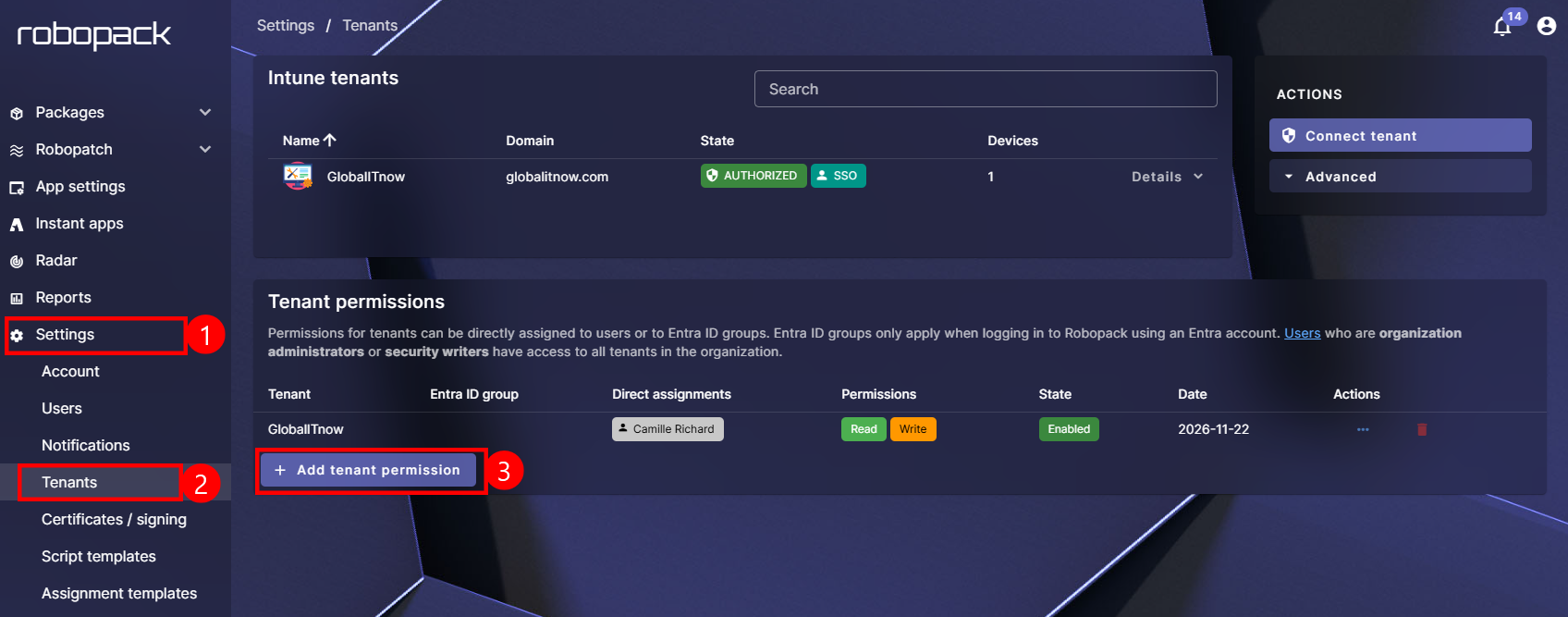
| Tenant permission | Allows |
|---|---|
| See / read information | See the tenant, view deployment status |
| Upload apps | Upload apps from packages or Robopatch |
| Set configuration | Change the tenant configuration |
| Set permissions | Manage who can access the tenant |
Two rules to remember:
For MSPs: role + tenant permission is what lets a junior technician patch customer A without ever seeing customer B.
Start with one flow: Deployment error to the endpoint team’s Teams channel. No SMTP relay is needed.
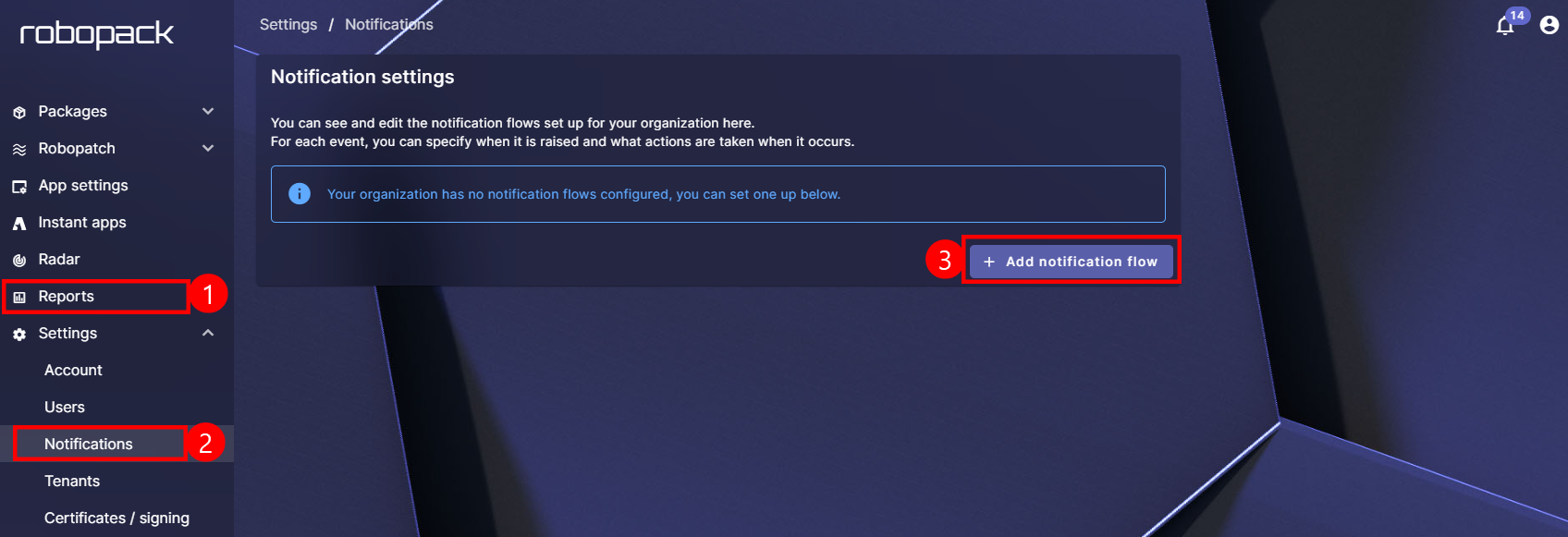
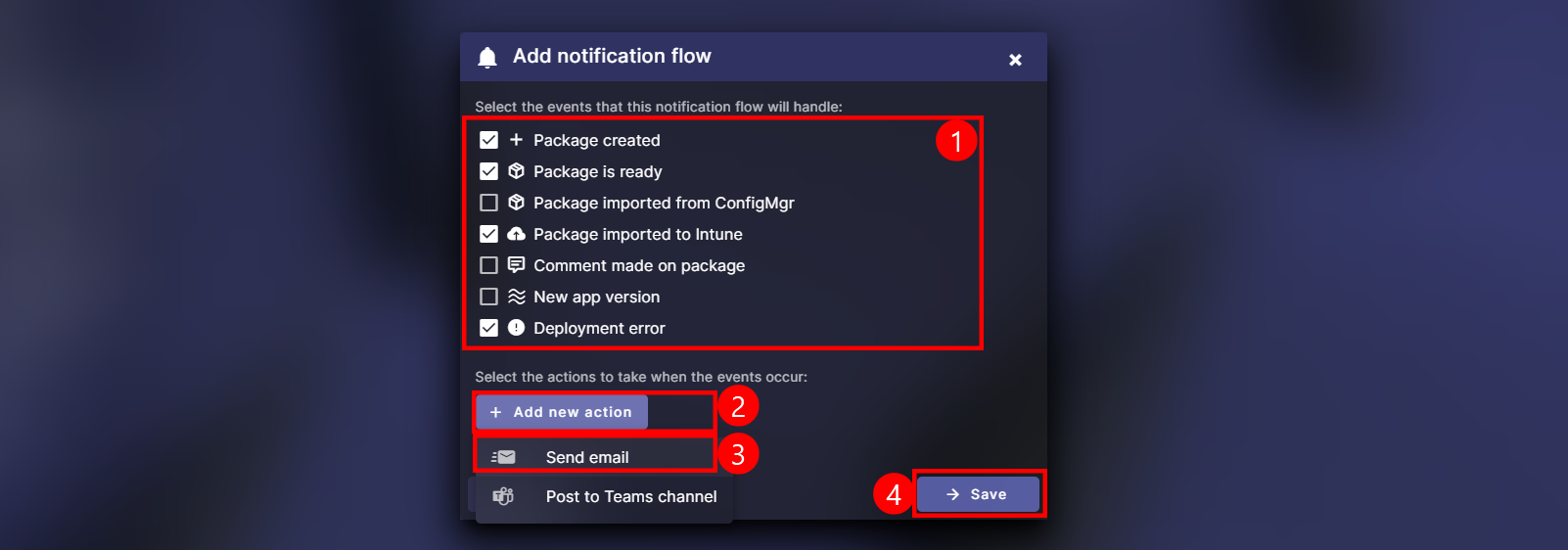
Start small : Deployment error is the event that needs a reaction. Add the others once you know your volume.
A signing certificate is a security control only if your devices trust it. Choose the certificate before your first package.
By default, Robopack signs packages with an automatically generated self-signed root certificate, unique to your organization.
In Settings > Certificates / signing you can:
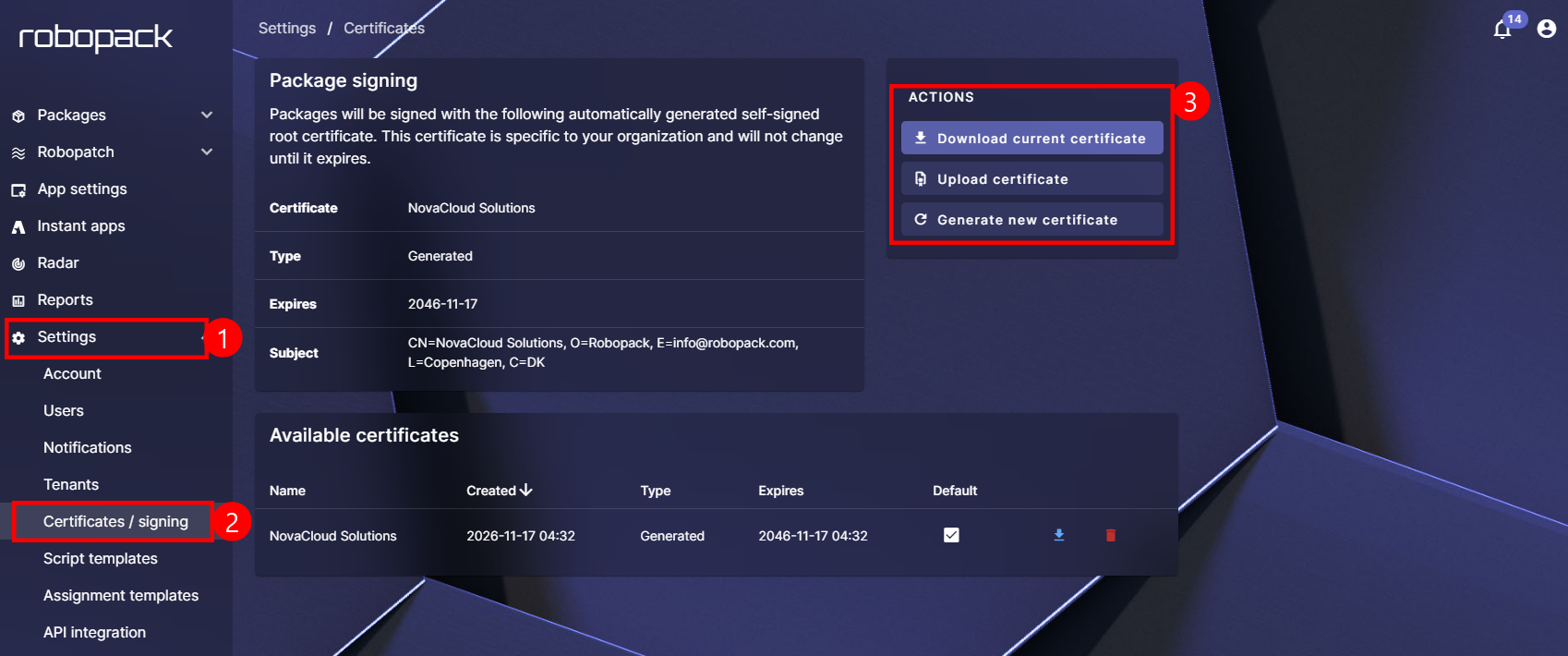
Package signing: current certificate, expiry and the default flag in the certificate list.
| Option | Pros | Cons |
|---|---|---|
| Robopack-generated certificate | Works immediately, long validity | You must deploy it as trusted yourself |
| Your enterprise code-signing certificate | Governed by your PKI (revocation, renewal, audit) | Requires an existing PKI or a purchased certificate |
Steps
Do this before enforcing signed scripts. If you plan AllSigned execution policy, App Control for Business or AppLocker publisher rules, deploy trust first. Otherwise installs fail silently.
This is the most important setting in Robopack. Every package is wrapped in a PSADT script built from a template, so a change here applies to every future package.
| PSADT 3.10.2 template | PSADT v4 template | |
|---|---|---|
| Status in Robopack | Still the out-of-box default | Selectable, or base of your own template |
| Deploy mode | Classic | Auto: interactive when appropriate, silent when no user context |
| Recommendation | Existing estates already on v3 | New deployments |
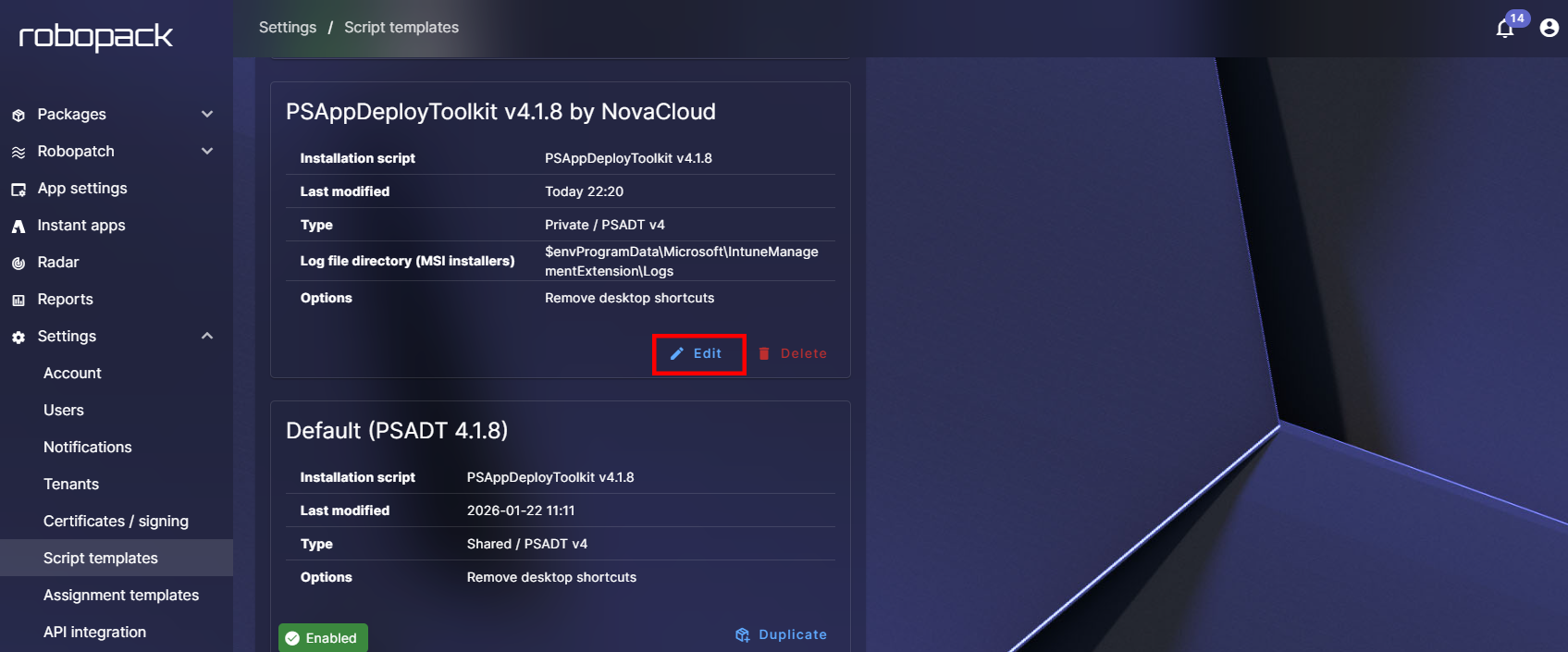
In the demo tenant, a private template based on PSAppDeployToolkit v4.1.8 is set as the organization default, next to the shared 3.10.2 template.
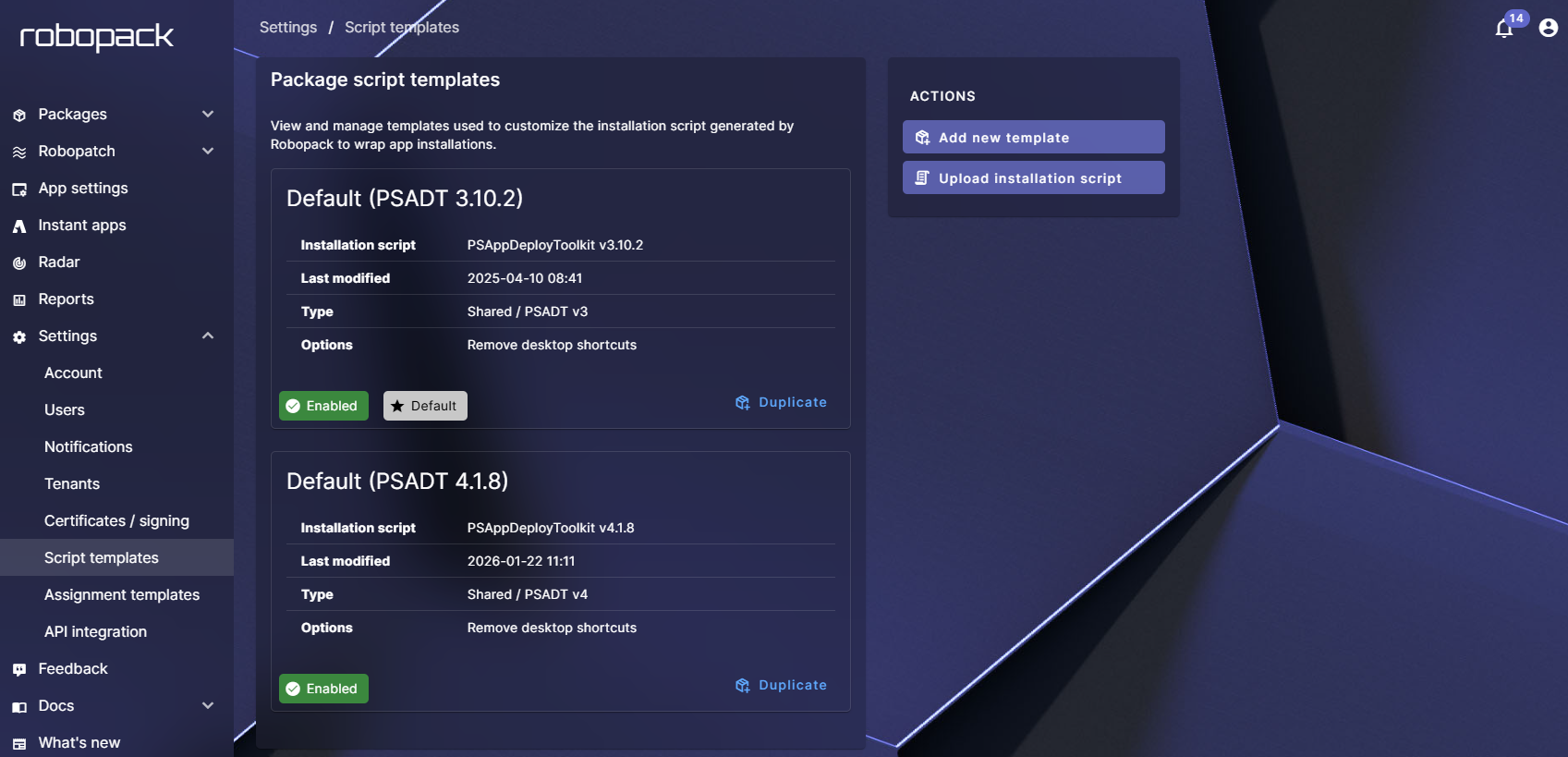
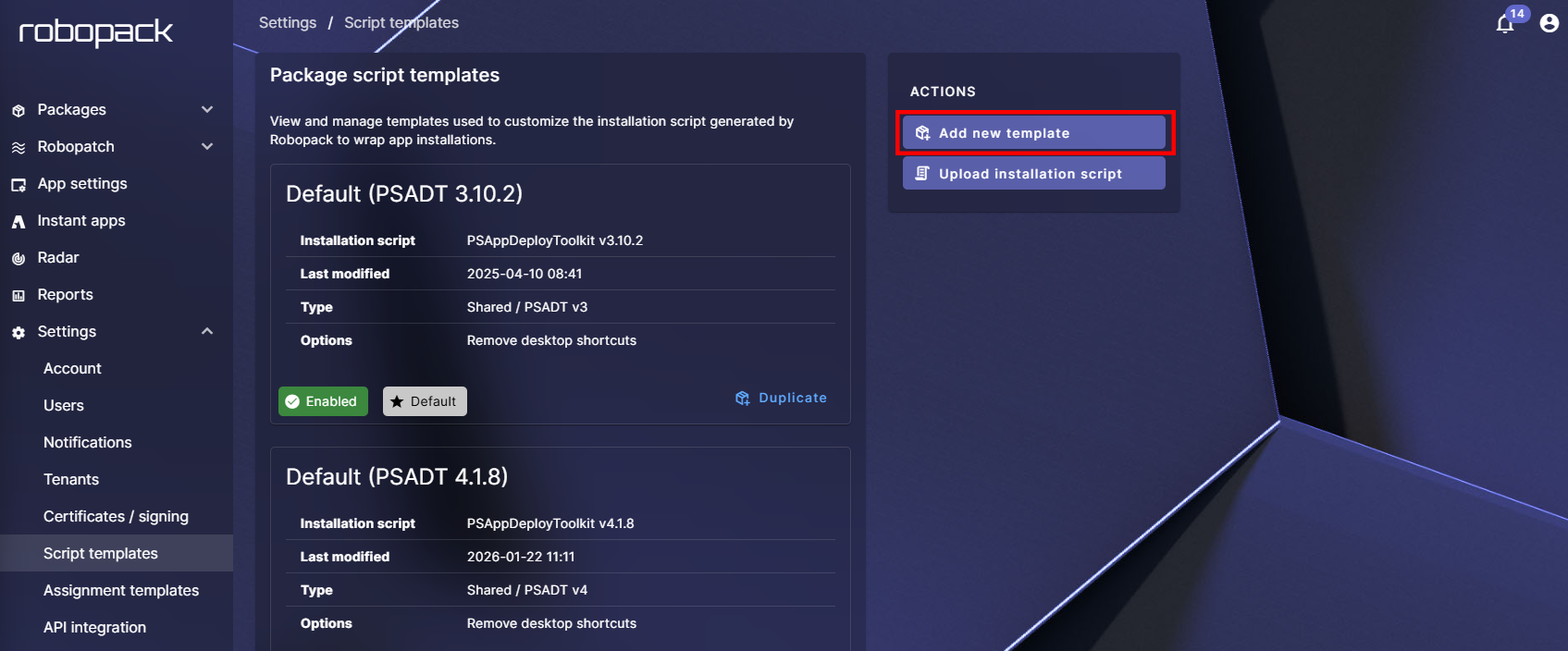
Set both the PSADT log directory and the MSI log directory to :
$envProgramData\Microsoft\IntuneManagementExtension\LogsWhy : Collect diagnostics in the Intune admin center gathers this folder. Install and uninstall logs then come back with the device diagnostics, with no remote session. Your service desk will thank you.
Result : both PSADT and MSI logs redirected to the IME logs folder.
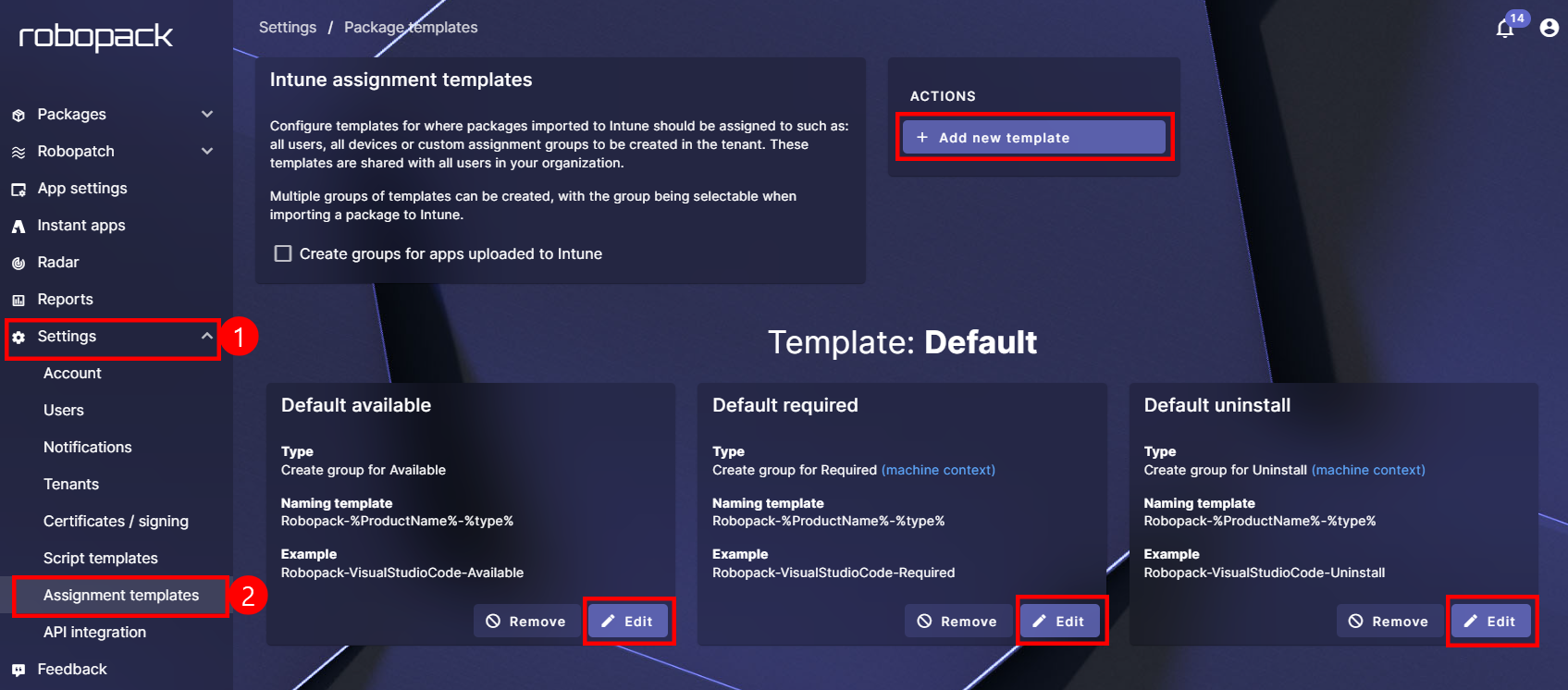
Assignment templates make Robopack create the Available, Required and Uninstall groups at import, named your way. Set them before the first import.
%ProductName% and %type%.| Intent | Assignment | Built-in naming | Enterprise-style naming (demo) |
|---|---|---|---|
| Available | Available | Robopack-VisualStudioCode-Available | mem-app-win-VisualStudioCode-Available |
| Required | Required (machine context) | Robopack-VisualStudioCode-Required | mem-app-win-VisualStudioCode-Required |
| Uninstall | Uninstall (machine context) | Robopack-VisualStudioCode-Uninstall | mem-app-win-VisualStudioCode-Uninstall |
Naming templates : Robopack-%ProductName%-%type% (built-in) and mem-app-win-%ProductName%-%type% (custom).
| Area | Do | Avoid |
|---|---|---|
| Tenant connection | Use Connect tenant (admin consent) | Using “Connect tenant (user)”, then discovering patching is unavailable |
| Privilege | Consent with Global Admin, then work with Robopack roles | Keeping Global Admin as the daily Robopack login |
| Group permission | Evaluate the administrative unit option, revoke Group.ReadWrite.All | Leaving tenant-wide group write unreviewed |
| Sign-in | Entra ID only, protected by Conditional Access | Disabling passwords before every admin linked Entra ID |
| Roles | Assign through Entra groups, review periodically | Ad hoc direct assignments |
| Signing | Deploy certificate trust first | Enforcing signed scripts before trust, causing silent install failures |
| Script template | Build a PSADT v4 default, logs in IME folder, before the first package | Rebuilding dozens of packages to change logs or shortcuts |
| Assignment template | Match your group naming convention from day one | Ending up with two families of groups |
| Notifications | Deployment error to a Teams channel | “New app version” to every mailbox for a 500-app library |
For IT directors: document who owns the Robopack organization, who approves consent changes, and who may edit the default script template. Add the Robopack enterprise app to your periodic third-party app review.
In Part 2, Radar scans your tenant’s discovered apps to show what is really installed, how many versions coexist and what is ready for automated patching. Then we deploy a first app from the Instant Apps catalog and check, in the Intune admin center, exactly what Robopack created.