Physical Address
304 North Cardinal St.
Dorchester Center, MA 02124
Physical Address
304 North Cardinal St.
Dorchester Center, MA 02124

Explore practical guides and tools for Microsoft 365, Azure, and PowerShell. Enhance your cloud security and admin skills with expert insights and automation tips.
Explore practical guides and tools for Microsoft 365, Azure, and PowerShell. Enhance your cloud security and admin skills with expert insights and automation tips.

I – Introduction :
Digital transformation has been around for a few years, but with the global pandemic, it quickly became an urgent reality for many organizations. With various closures around the world during the COVID-19 pandemic, companies suddenly had to adjust their business processes and allow workers to work from home while others were in the office. IT professionals need to ensure that printing remains secure when supporting a hybrid workforce.
The market shift to the cloud accelerated rapidly during the COVID-19 pandemic, and Microsoft believes Universal Print will play a key role in the new normal.
Microsoft 365 brings together Office, Enterprise Mobility + Security and Windows 10 Enterprise to offer users the most innovative productivity tools. Universal Print is an innovative new technology that offers a flexible printing environment using a cloud-based service that is part of Microsoft 365.
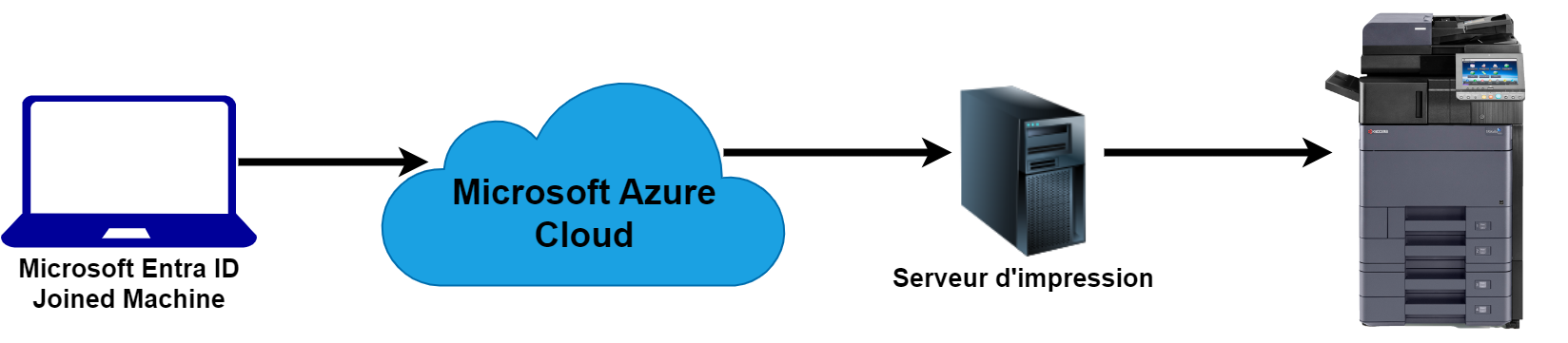
Universal Print is a new cloud-based printing solution from Microsoft that makes it easy to print from devices connected to Microsoft Entra Id without the need to travel to the office to print, nor the need for a VPN connection (Wherever you are in the world, print without fear with Azure Universal Print). This functionality has become increasingly necessary with remote working. All Windows Server print management features will be transferred to the cloud for easy, secure and modern management.
the technician who will perform the configuration must have the role: Printer Administrator or Global Administrator.
One “Universal Print” license is assigned per user (costs $5 per month) or it can be included in the following licenses:

There are two architectures proposed by Microsoft Universal Print, as follows:

In this blog, I’ll be using the UP connector configuration.
Other documentation will follow to talk about UPR (Universal Print Ready) printers.
Before starting this section, we need to answer the following questions:
Because the customer doesn’t have a UP-compatible printer, but standard network printers.
In this scenario, the best place is the “printer server”, as it has visibility of the printers on the network.
The answer is no, the connector can only be installed on Windows machines.
Let’s start by deploying the Universal Connector:
Download the Universal Print connector from https://aka.ms/upconnector. (This is a direct download link)
Install the connector on the machine that will act as the print server:


After installation, we need to register the UP connector on Azure, and to do this we need a Global Admin or Printer Administrator :
Start the connector from the icon on the desktop.

Log in with the print administrator or global admin account :

Insert a name for the connector and register it on the Azure server.

If we go to the azur portal and type “Universal print” in the global search, we’ll find the connectors menu in the resources menu, and we’ll see the “Universal print” menu here.

Once we’ve finished registering the connector, we need to register the printers on the cloud by selecting them in the connector interface:
NOTE: Bear in mind that the connector can only register printers that are visible as “local printers”.

Here you can see that one printer is registered and the other two are in progress.

After successfully completing printer registration, you should remember to “log out” of the connector, but why?
The user account used to log in to the connector is not a service account used by the connector service visible in Windows Services, but will only be used to register printers from the connector interface to the Azure tenant and manage it.

After successfully completing printer registration, we are able to view the printers registered in the Universal Print service from the Azure portal:

Select multiple printers and use the “Share” command to immediately share printers with the same exact name for each printer and the same “access control” (this means that the same users or groups you select will have access to the printers).

Once the above steps have been completed, what do remote users need to do to be able to search for cloud printers from within Windows 10?
Open Settings from the Start menu and go to printers and scanners and click add printer or scanner.

At the end of the search, the remote user will be able to see all the cloud printers to which the administrator has granted access.
Thank you