Physical Address
304 North Cardinal St.
Dorchester Center, MA 02124
Physical Address
304 North Cardinal St.
Dorchester Center, MA 02124

Explore practical guides and tools for Microsoft 365, Azure, and PowerShell. Enhance your cloud security and admin skills with expert insights and automation tips.
Explore practical guides and tools for Microsoft 365, Azure, and PowerShell. Enhance your cloud security and admin skills with expert insights and automation tips.
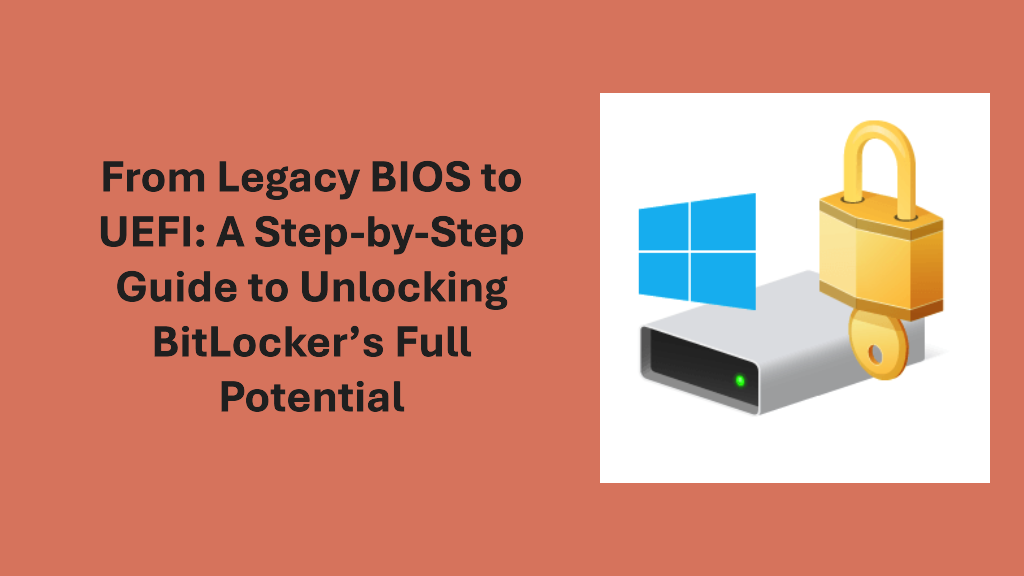

BitLocker is a powerful encryption tool for securing Windows systems, but it requires UEFI firmware with a GPT partition style for full functionality, especially when using TPM. If your machine is running in Legacy BIOS mode with an MBR disk, BitLocker activation may fail due to incompatible system requirements. This article explains why this happens and how to resolve the issue by converting your system from Legacy BIOS to UEFI.
BitLocker leverages TPM (Trusted Platform Module) to provide secure encryption key storage. However, TPM-based protection requires UEFI firmware and a GPT-formatted disk. Machines using Legacy BIOS mode operate with MBR partitioning, which lacks the necessary Secure Boot and UEFI-based security mechanisms required by BitLocker.
msinfo32
mbr2gpt /validate /allowFullOS
mbr2gpt /convert /allowFullOS
If Windows fails to boot after conversion :
diskpart
list disk
sel disk 0  # Select the correct disk
list vol
sel vol X  # Select the EFI partition (usually 100-500MB)
assign letter=Z
exitbcdboot C:\Windows /s Z: /f UEFIConverting from Legacy BIOS to UEFI ensures compatibility with modern security features, including BitLocker encryption. By following these steps, you can successfully enable BitLocker and enhance your system’s security posture.
Have you faced challenges with BitLocker activation due to Legacy BIOS ?
Share your experience in the comments !
Thanks